Try Choladeck Free: Download Personalized Business Slides Today

Training Presentation Premade Template

A comprehensive training template designed for L&D teams and facilitators delivering professional development programs. Built on the Classic ADDIE Model, this presentation covers training overview, learning objectives, audience context, modular content, hands-on exercises, knowledge checks, takeaways, and resources. Ideal for corporate training.
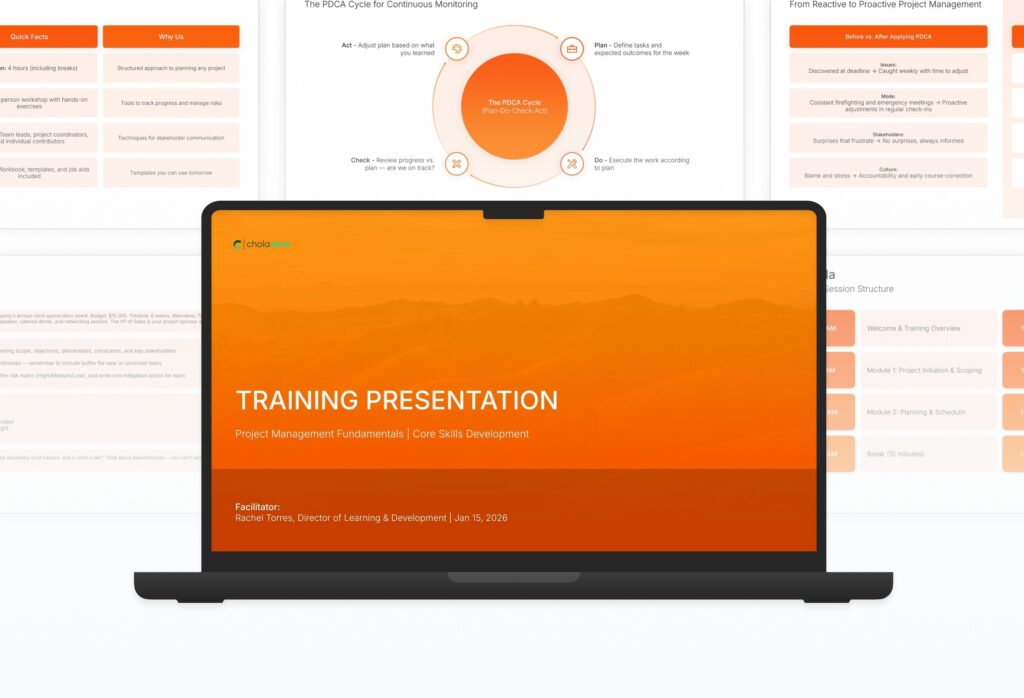

Training Presentation Featured Image

How to Build a Training Presentation Presentation

Learn how to create a comprehensive training presentation that drives real learning outcomes for your audience. This guide walks you through framing objectives, structuring modular content, designing hands-on exercises, building knowledge checks, summarizing takeaways, and equipping participants with the resources to apply skills back on the job.

1. Title

Title slides help you open presentations with impact. Use them to create strong first impressions with opening slides that set the tone, introduce your topic, and establish your brand. Ideal for any presentation where a polished, professional opening slide sets the stage for everything that follows.
Built using Title slides

2. Training Overview

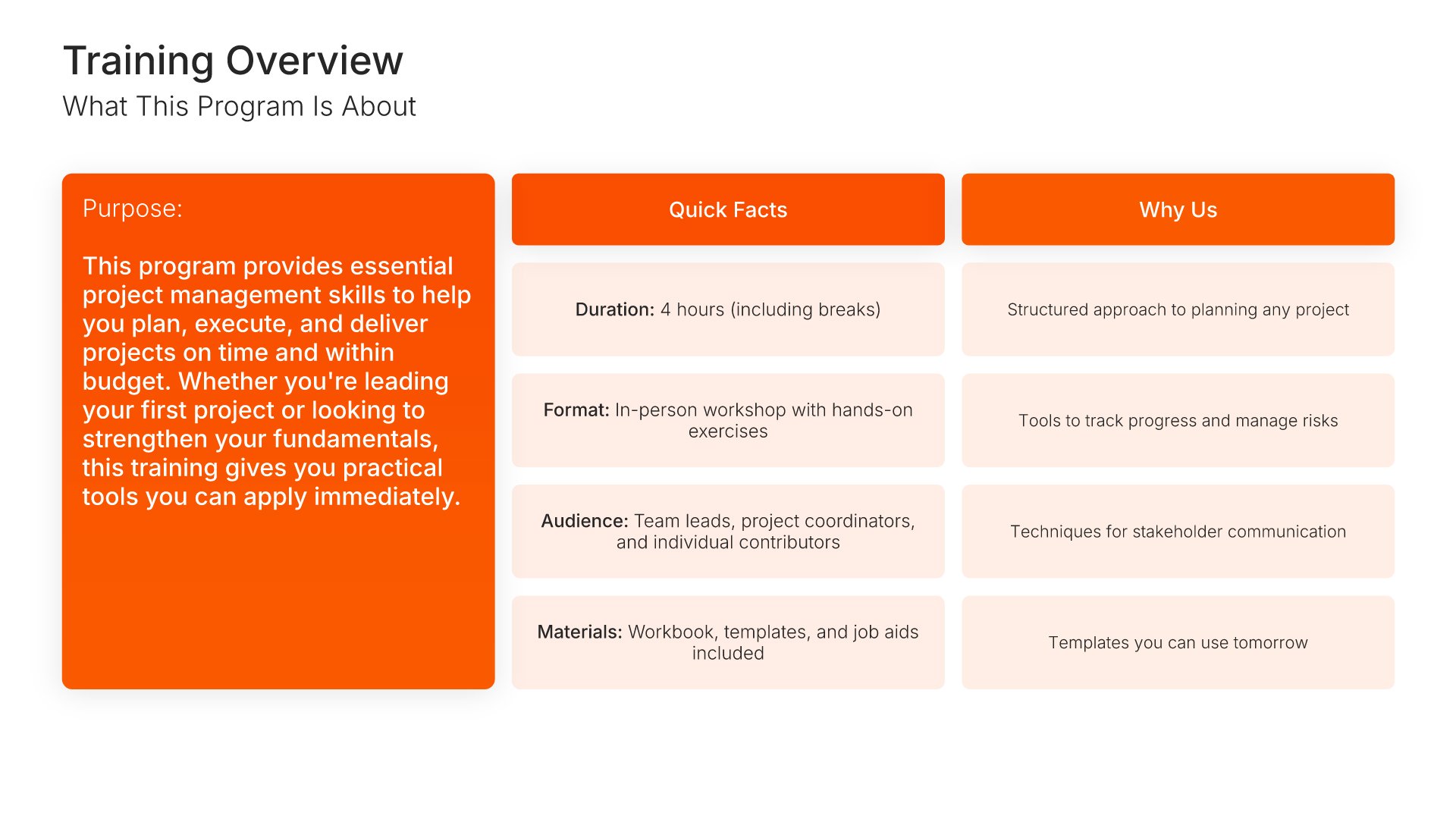
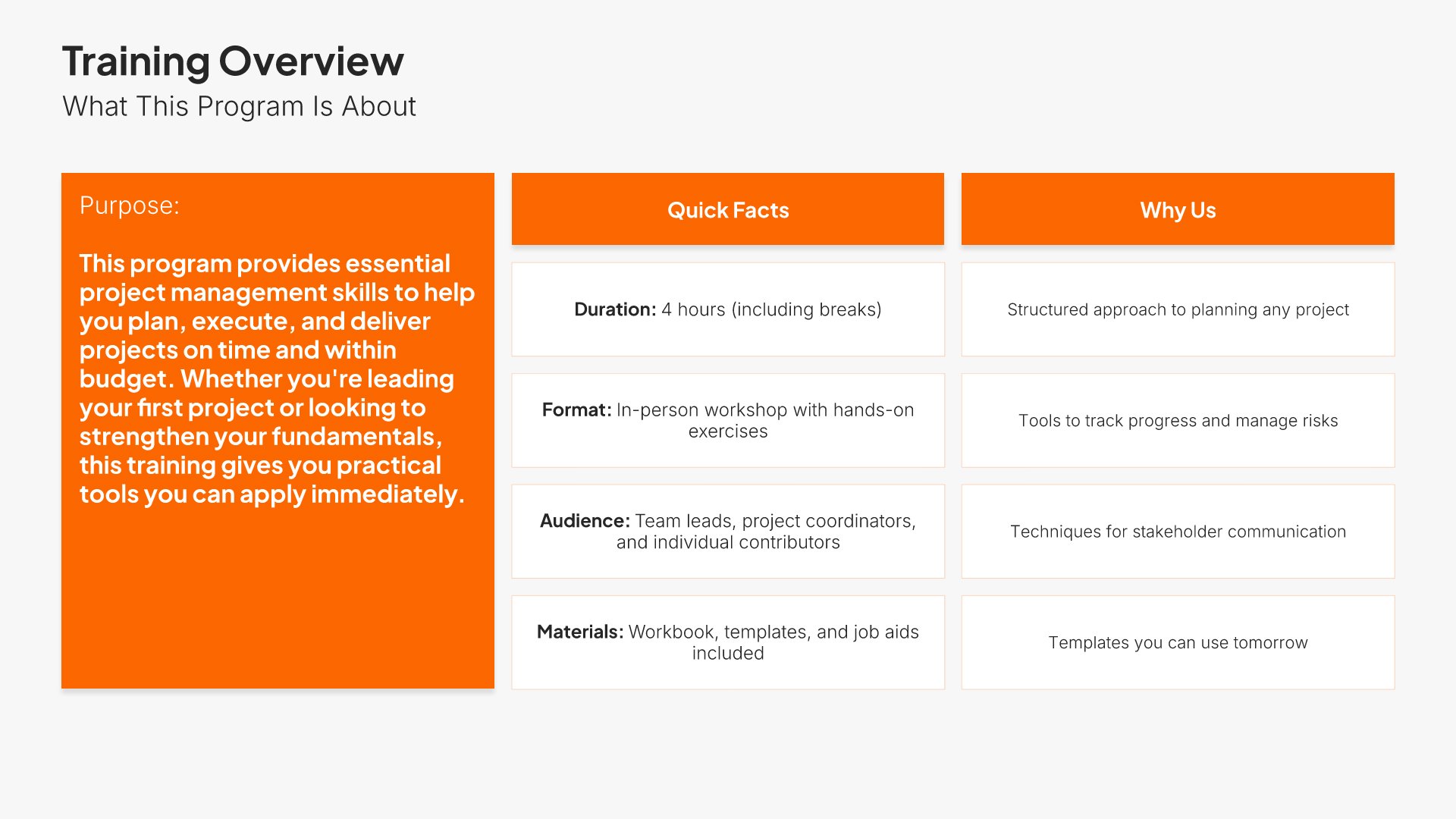
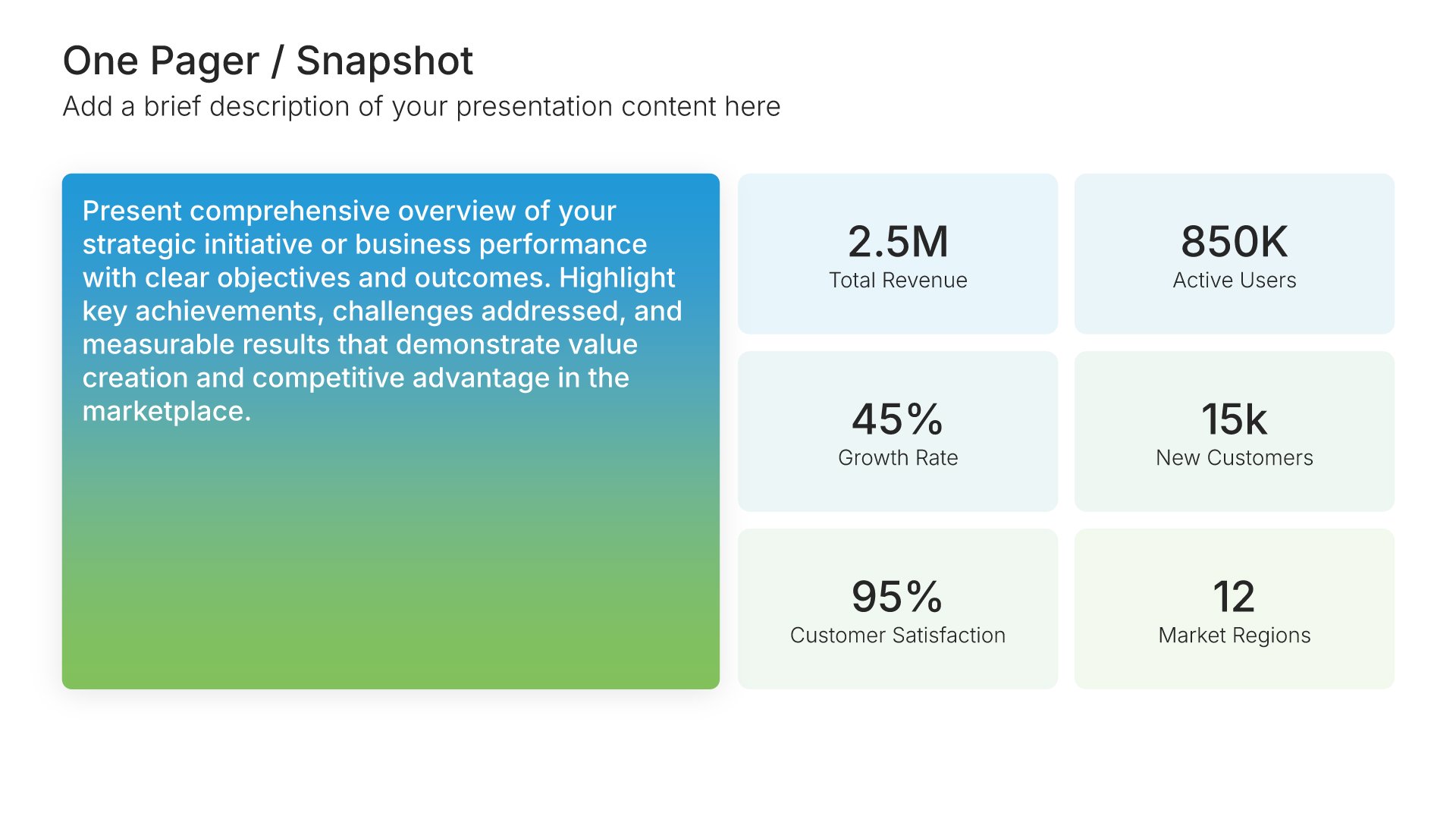
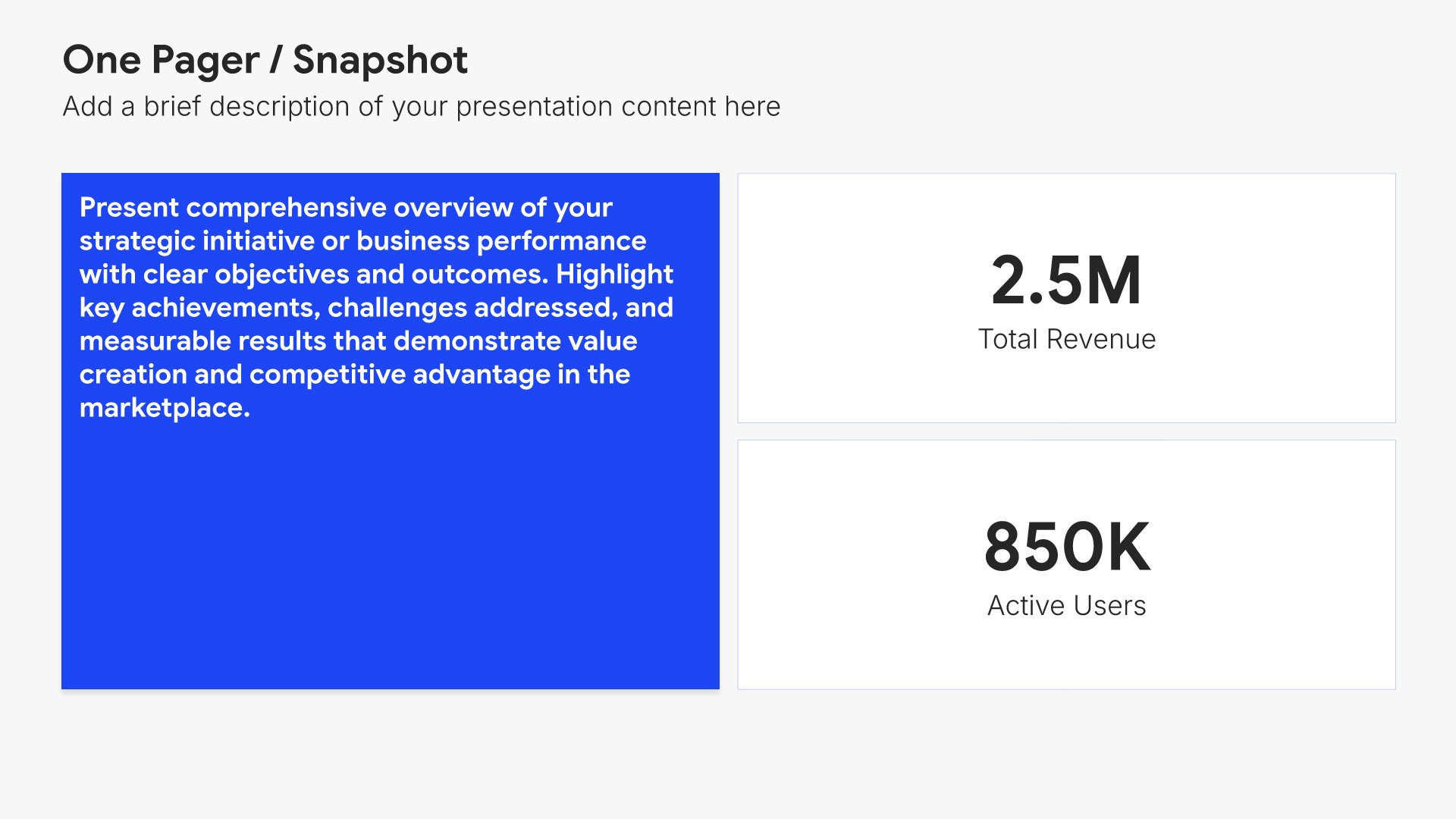
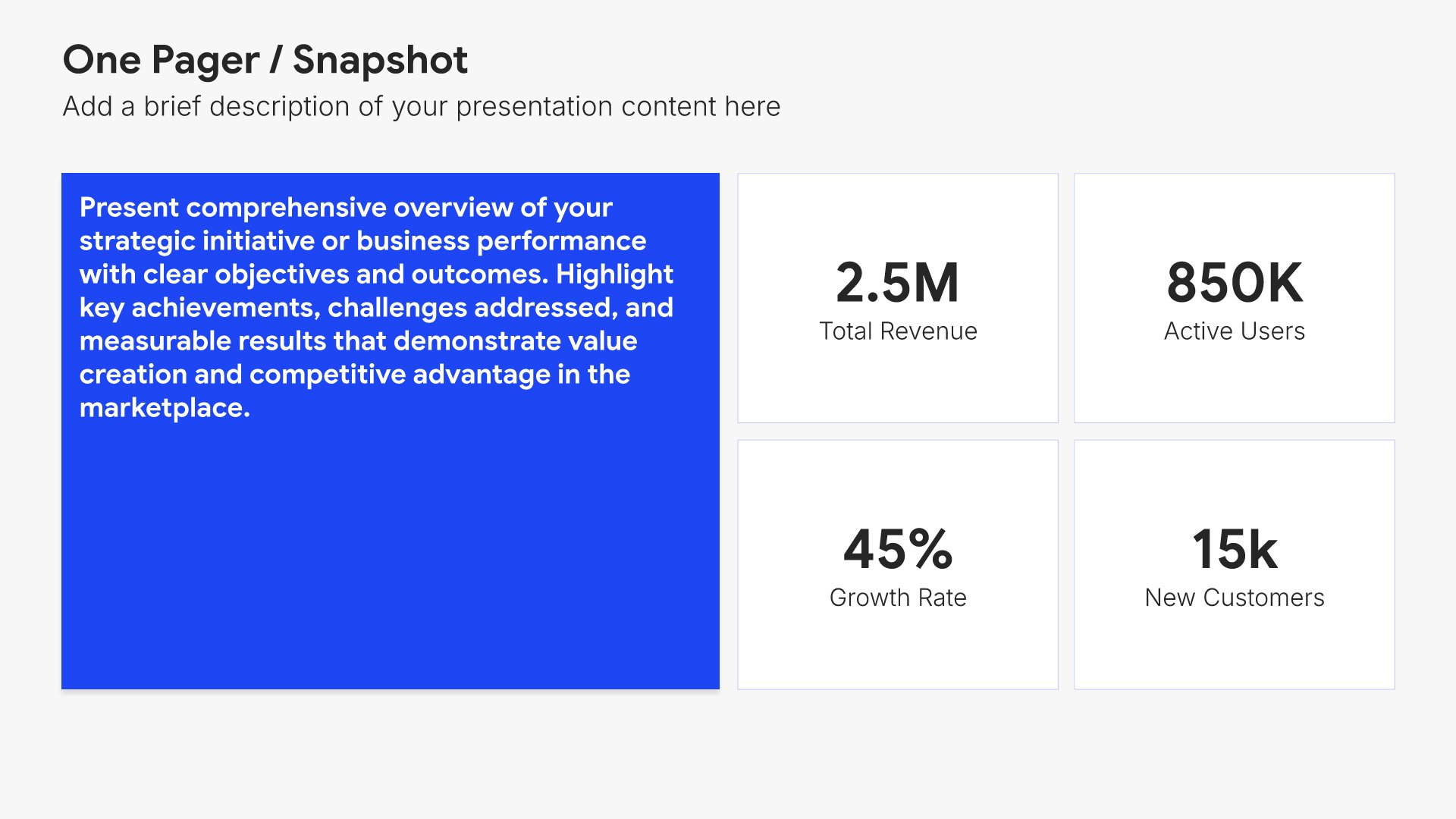
Training overview slides help you frame the program at a high level for participants. Use them to present the purpose, duration, format, and what participants will gain by the end of the training. A clear overview sets expectations, motivates engagement, and gives learners a quick view of what they're committing to before content begins.

Built using One Pager / Snapshot slides

3. Learning Objectives

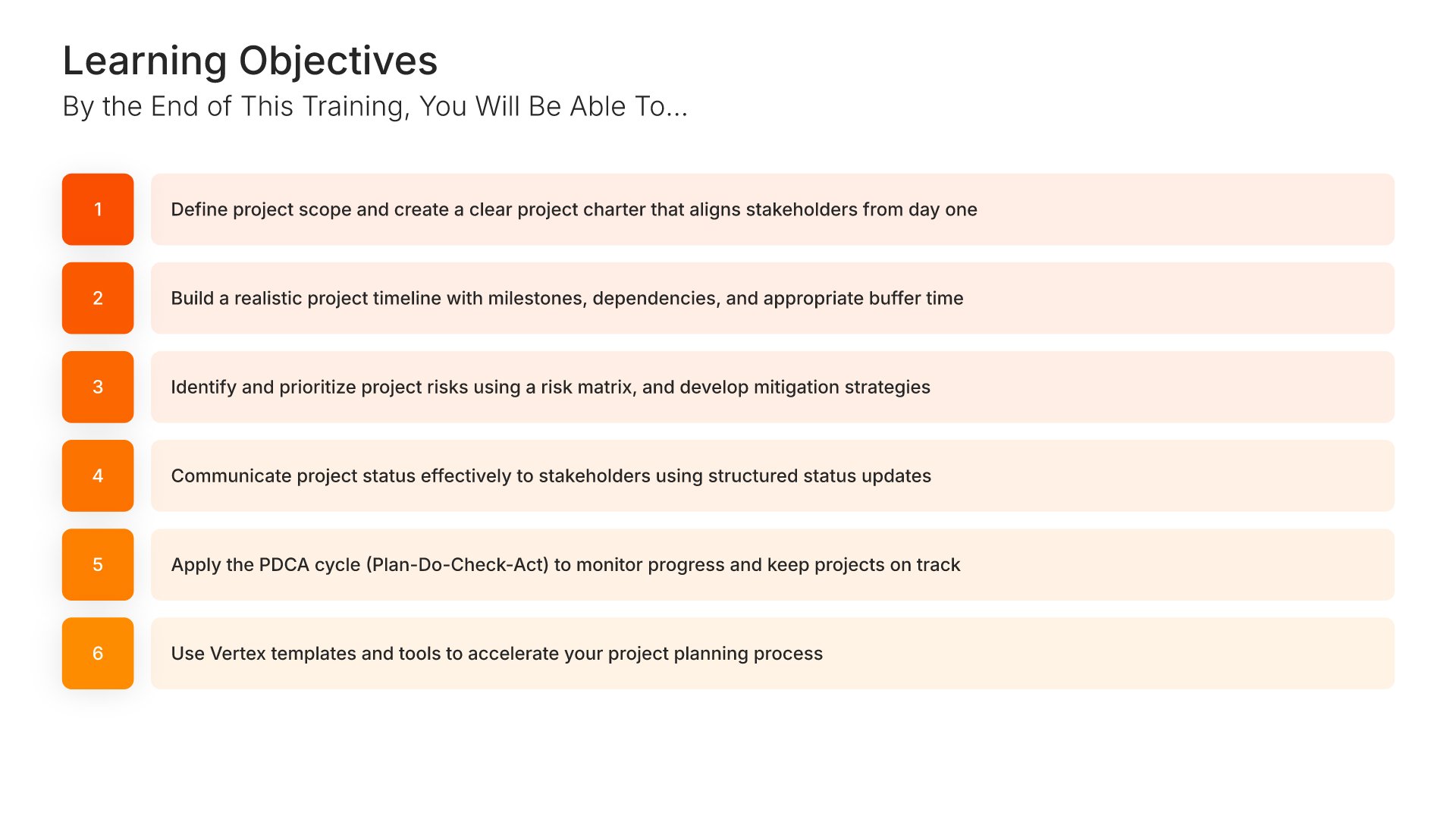
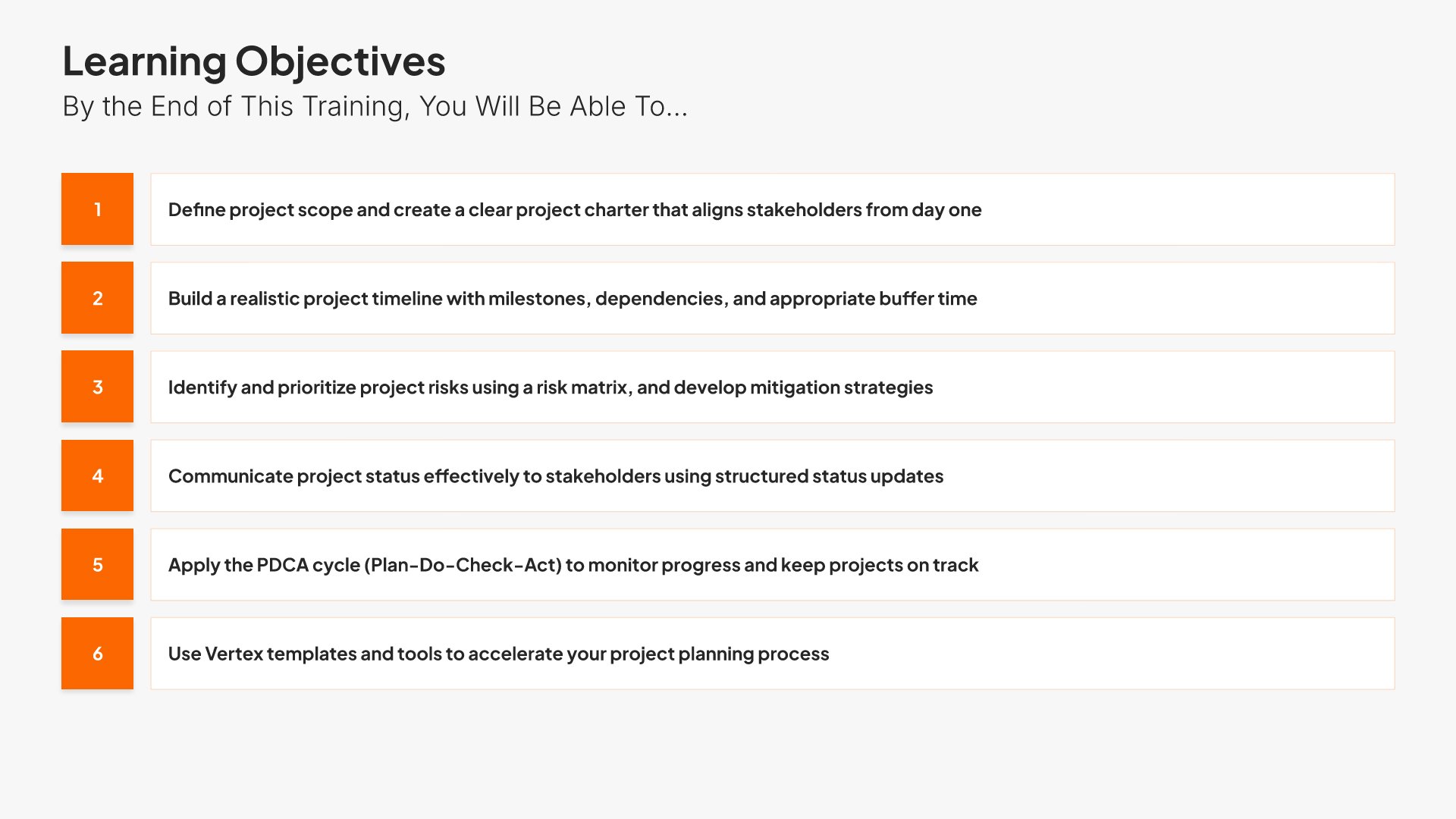
Learning objectives slides help you define what participants will be able to do after the training. Use them to present three to five specific, measurable outcomes the program is designed to achieve. A clear objectives view focuses both facilitator and learners on the skills and knowledge being built across the session.
Built using Simple Text (with Numbers) slides

4. Agenda

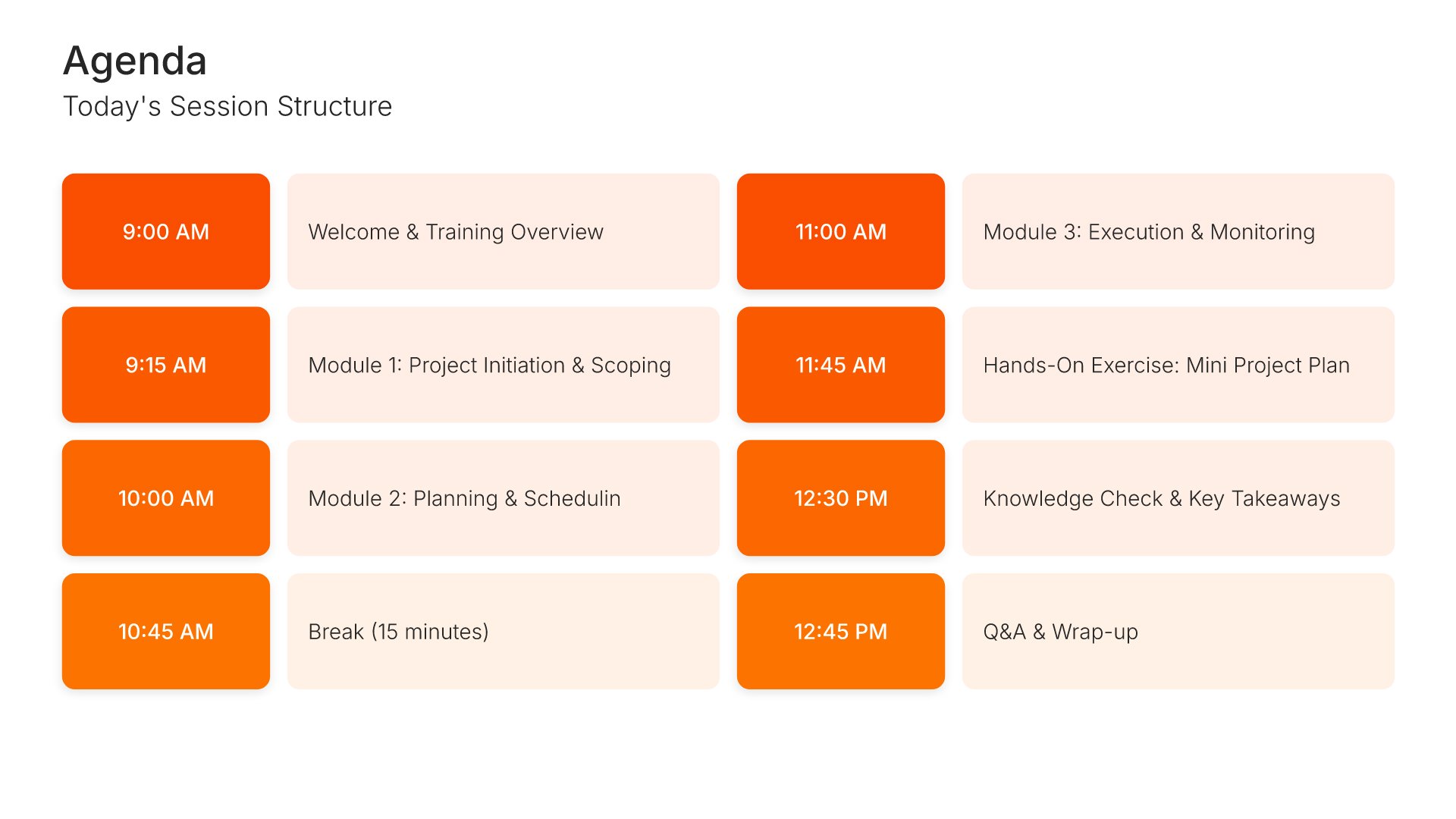
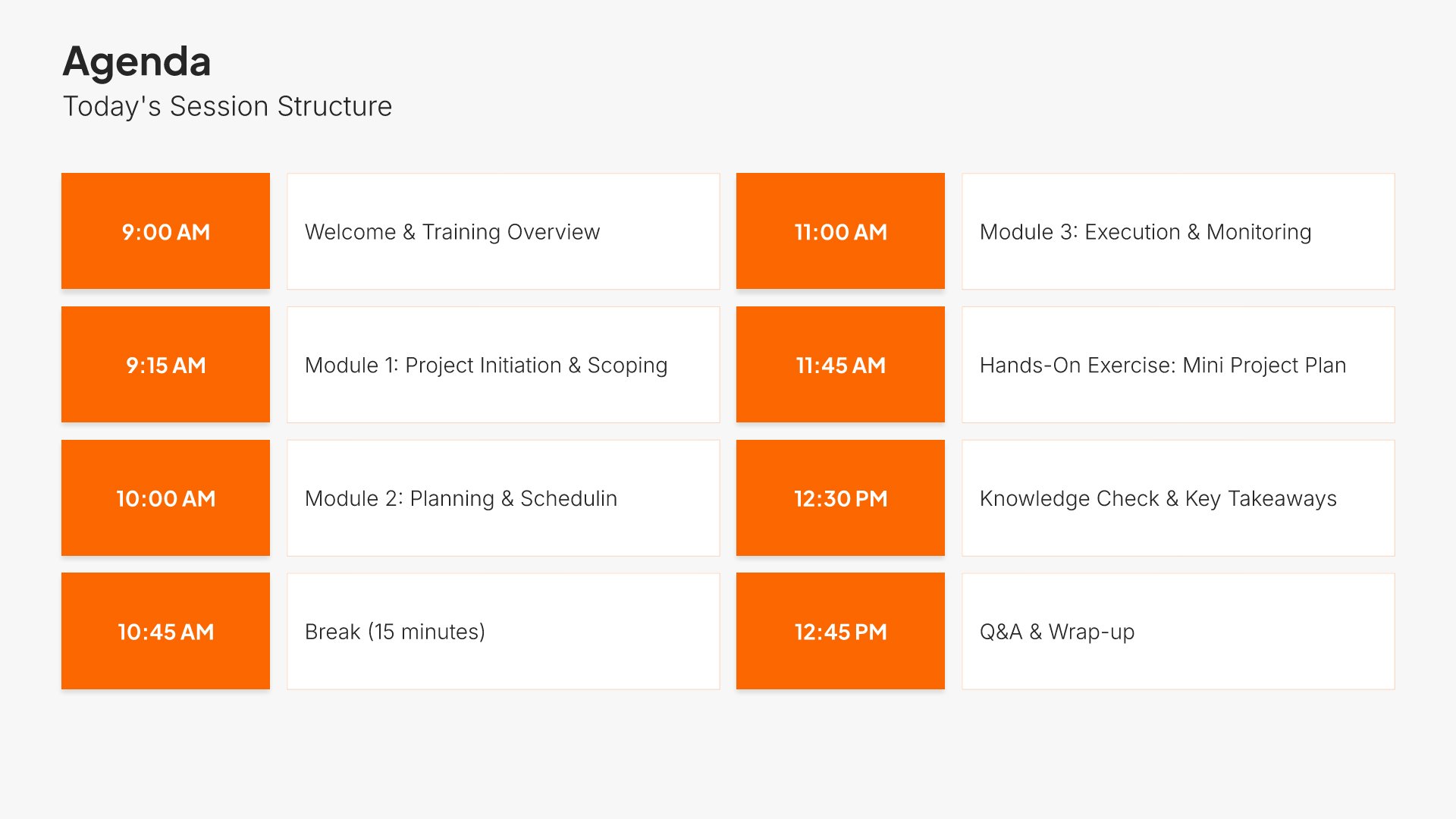
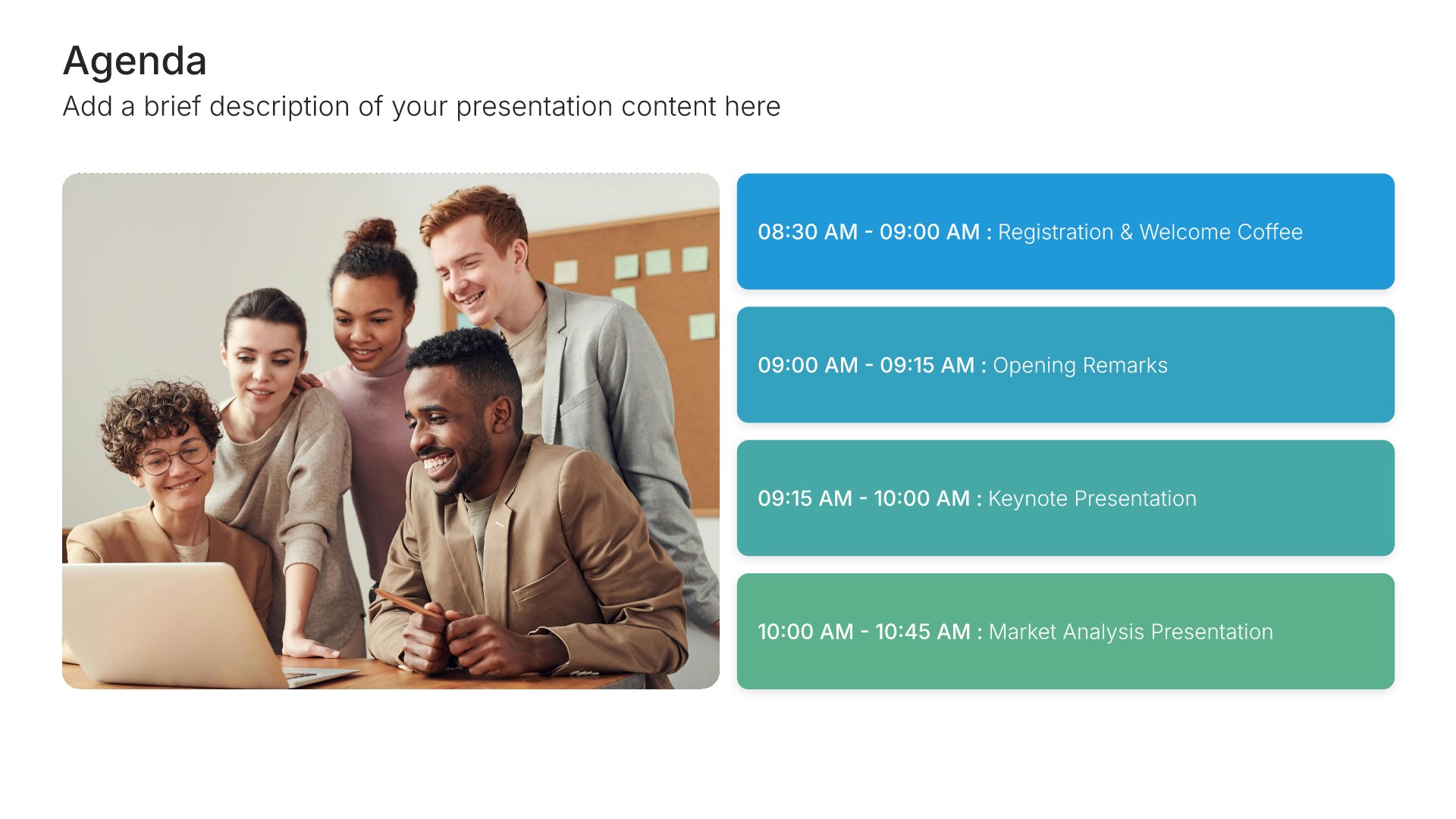
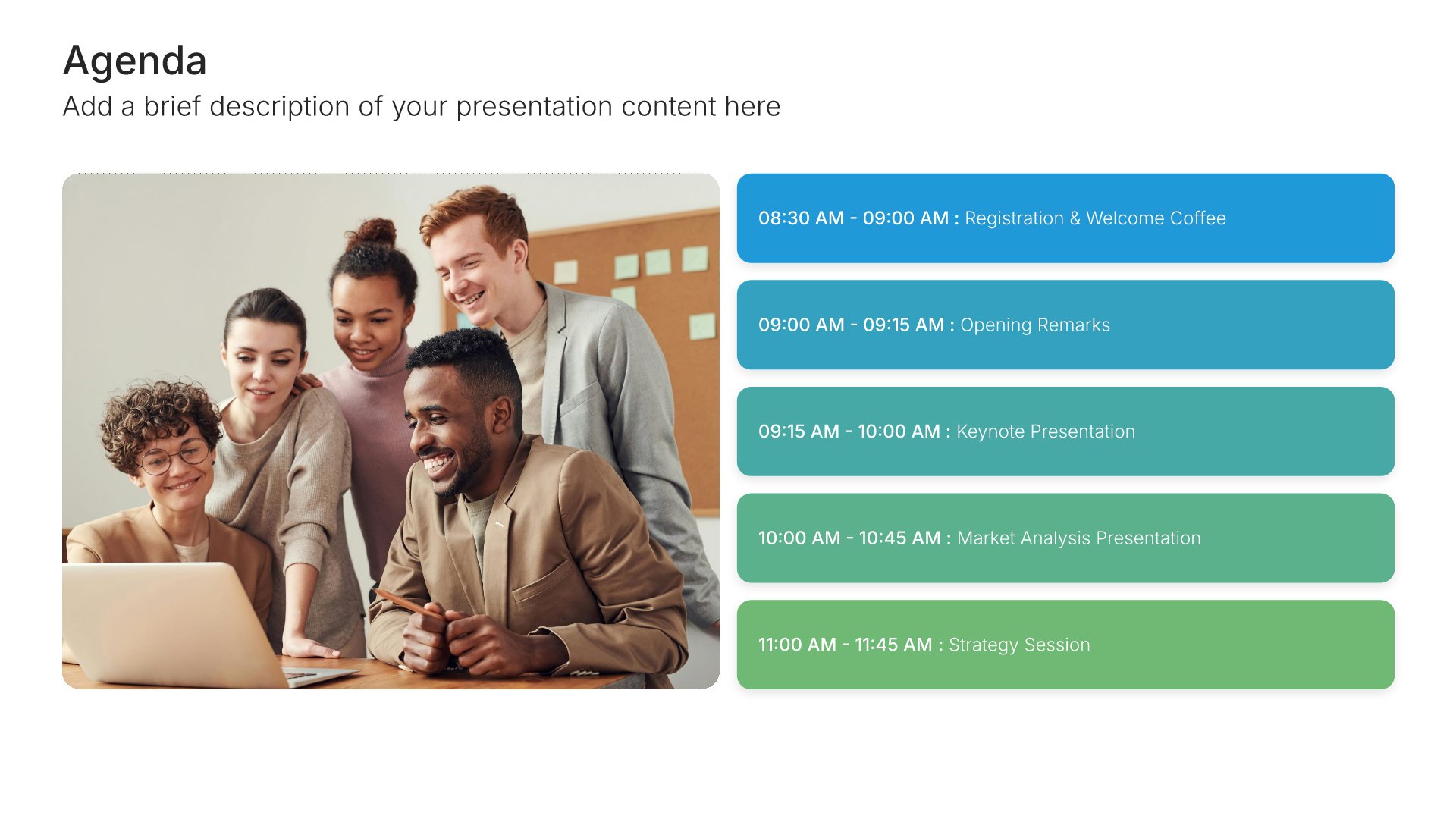
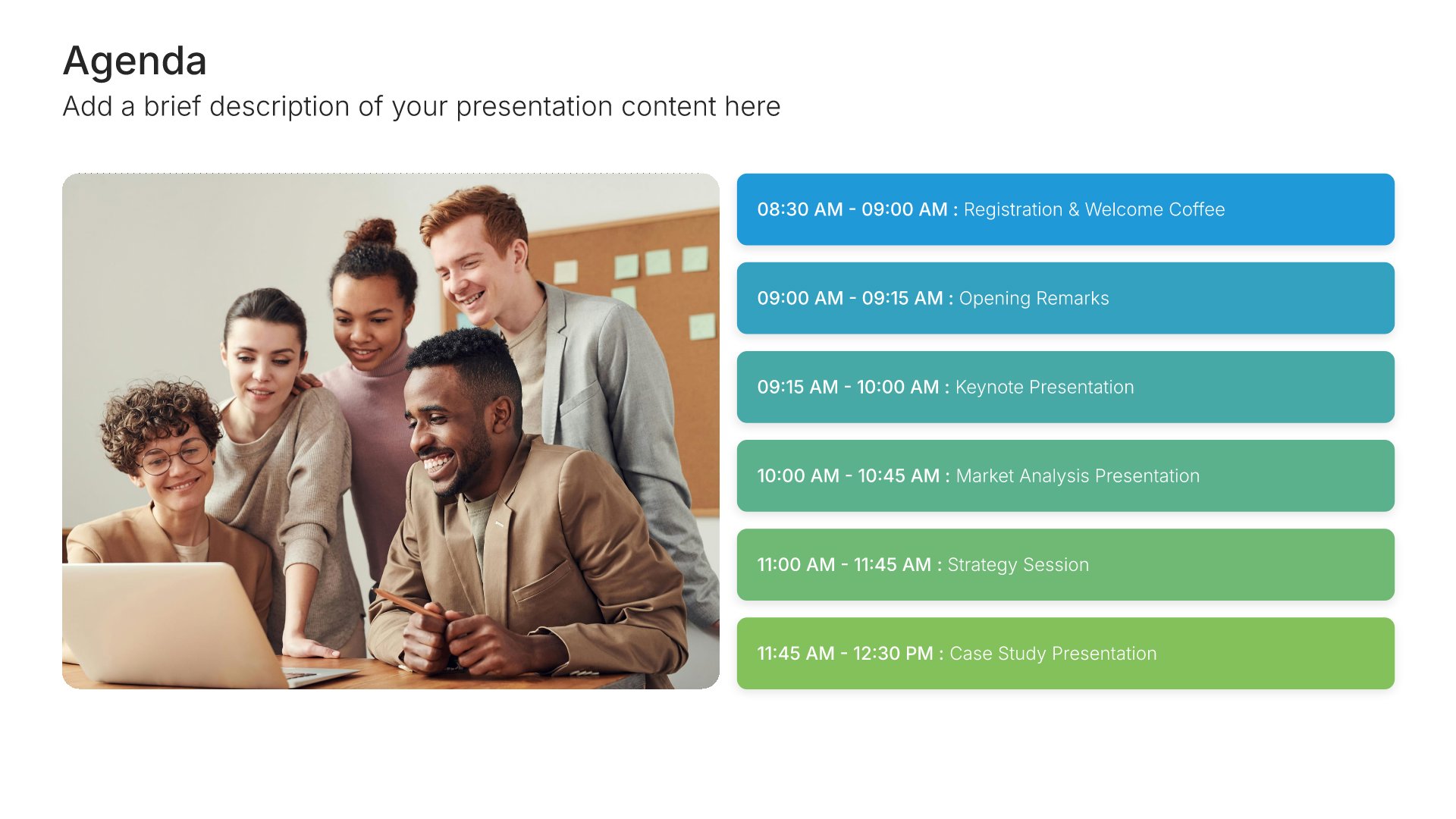
Agenda slides help you outline your presentation structure clearly. Use them to show topics, timing, and flow so your audience knows what to expect and can follow along easily. Ideal for meetings, workshops, and any presentation where setting expectations upfront helps your audience stay engaged throughout.
Built using Agenda slides

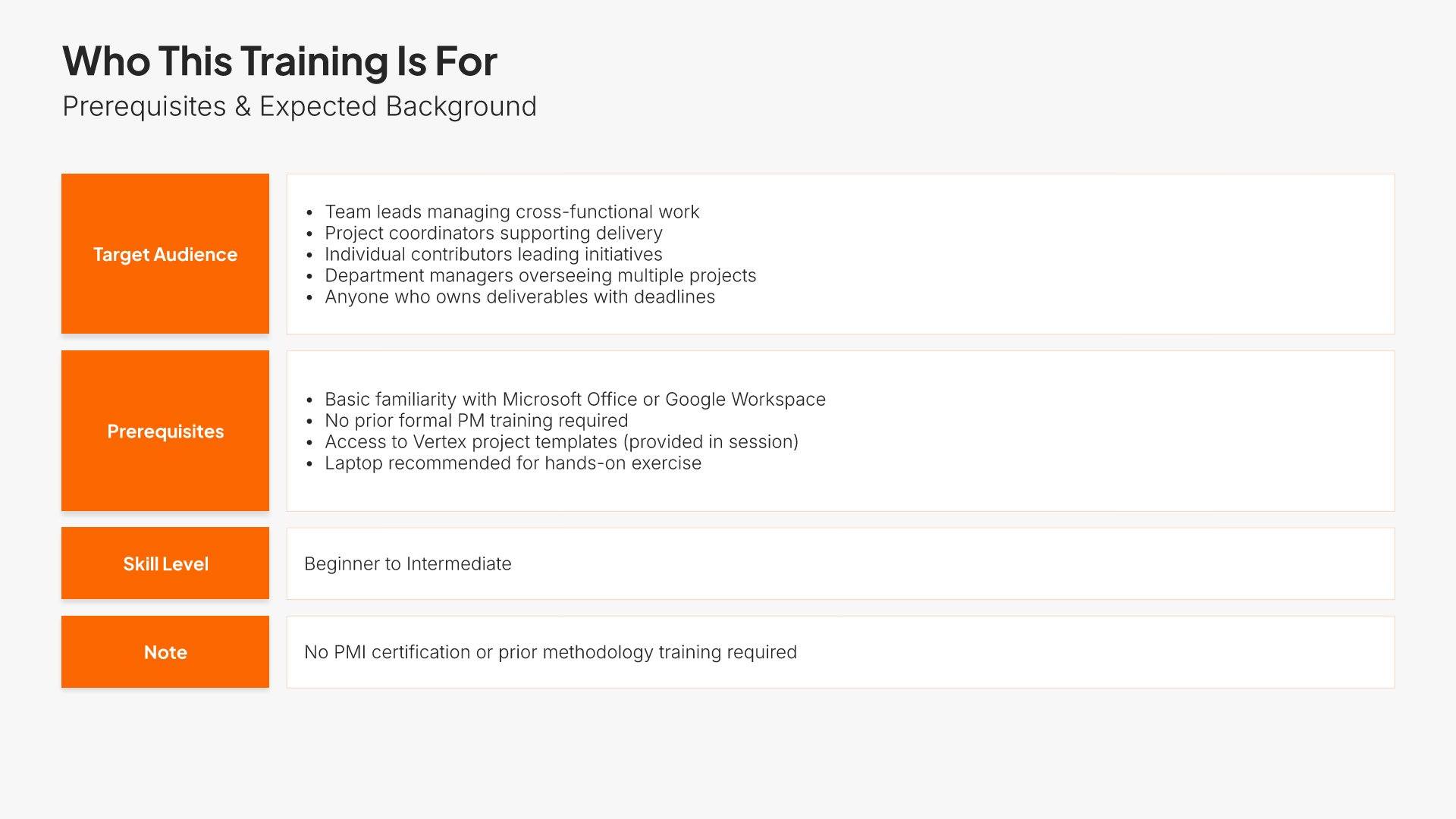
5. Who This Training Is For

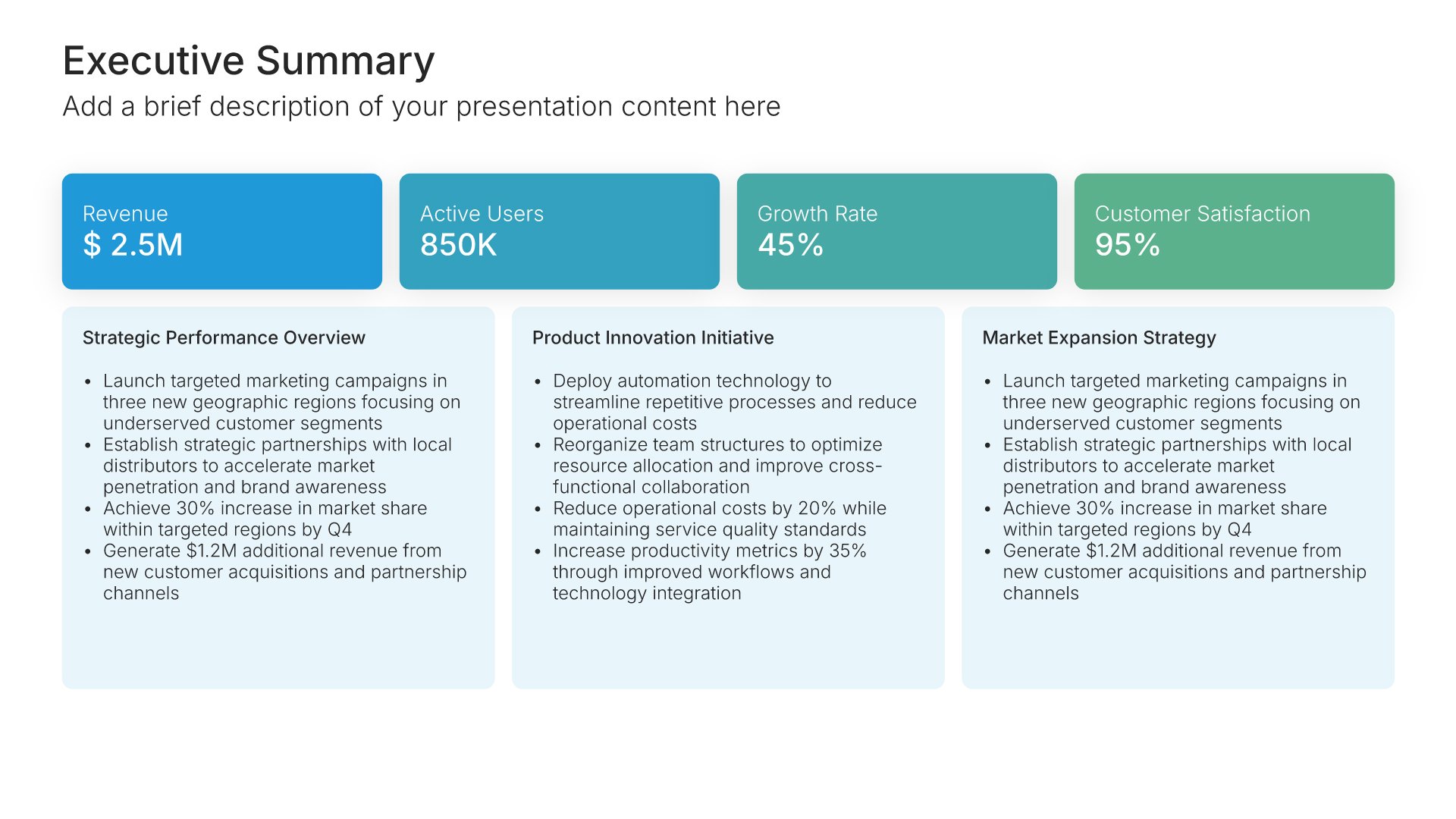
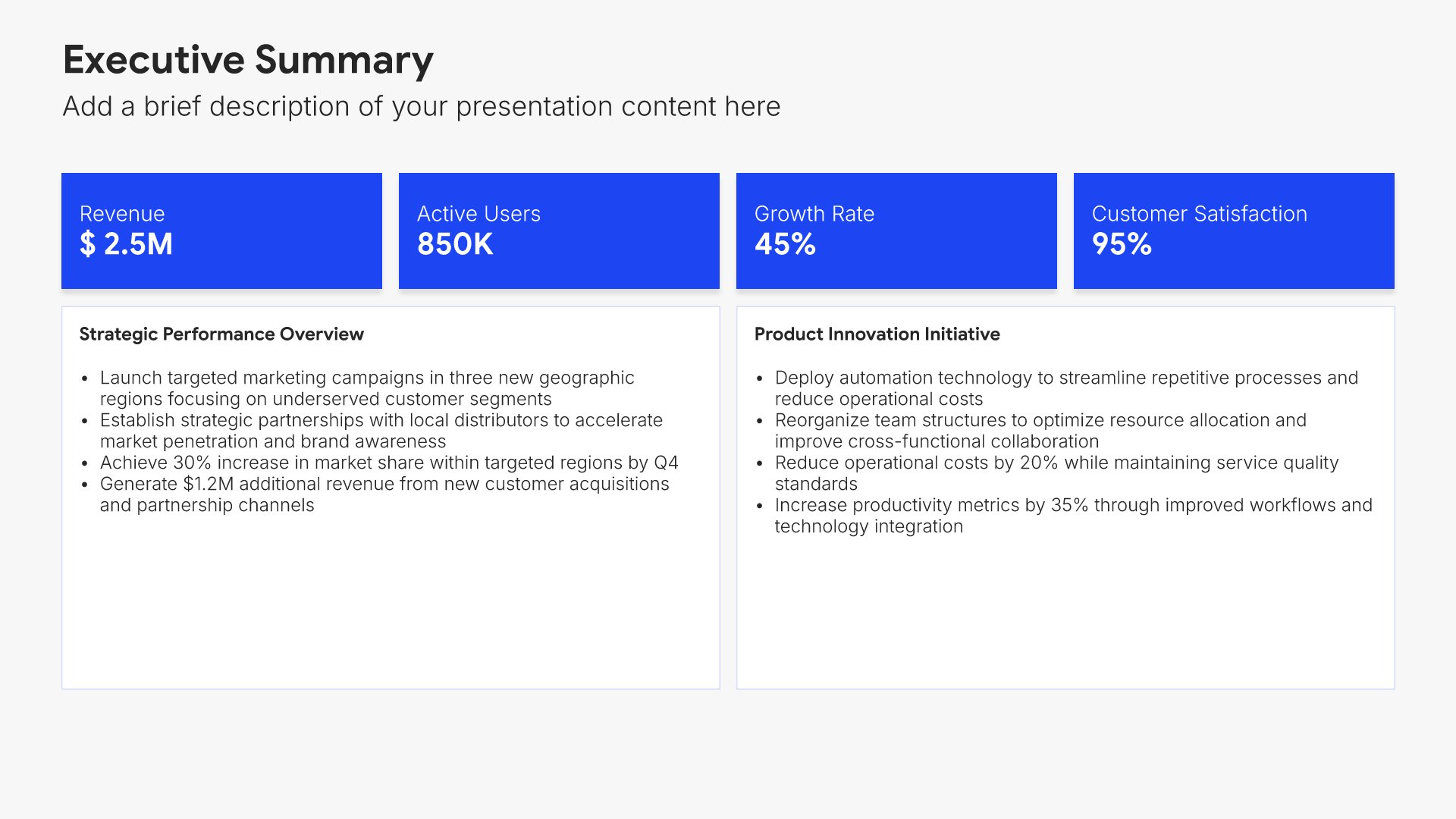
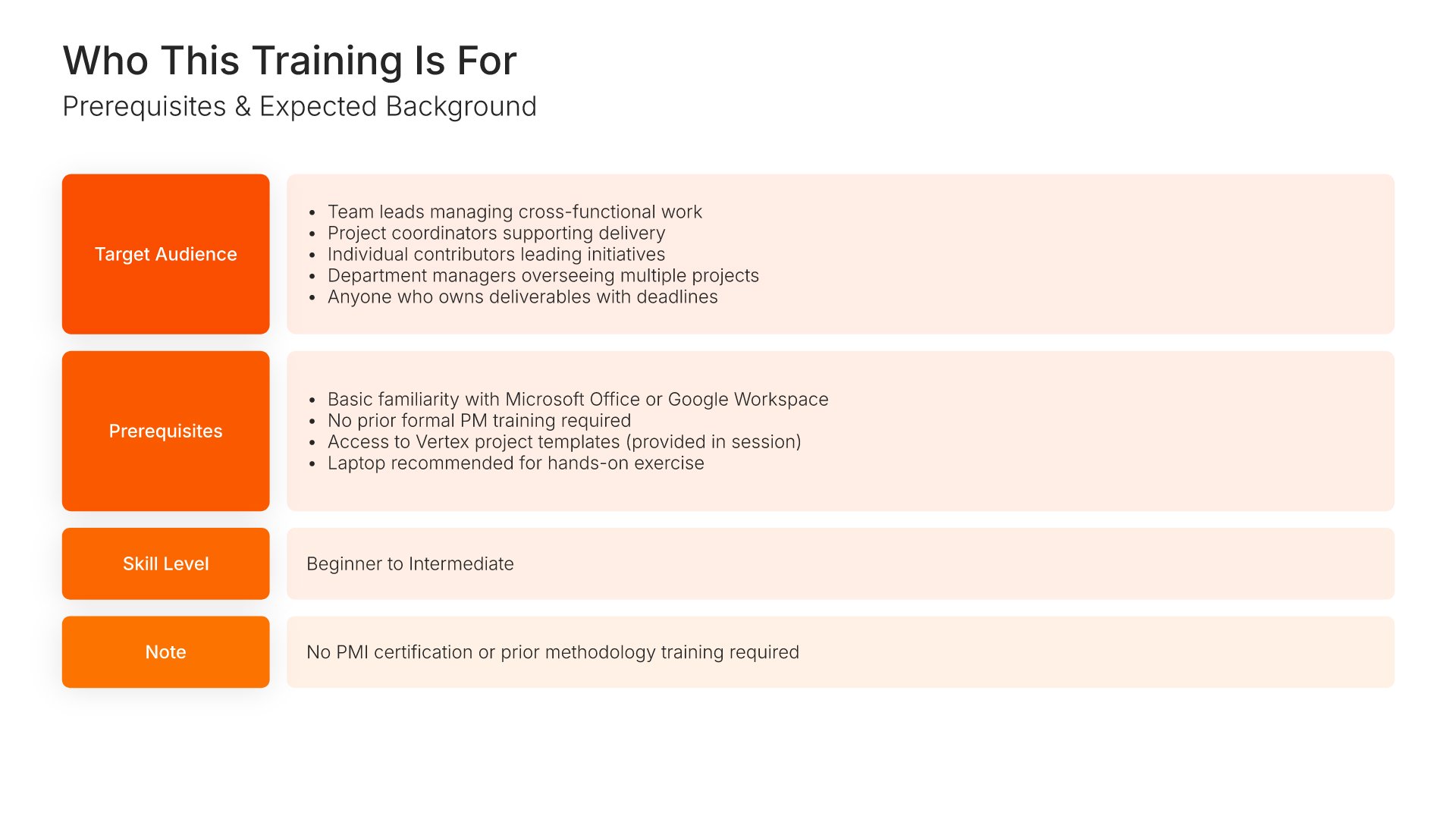
Who this training is for slides help you clarify the target audience and prerequisites. Use them to present the roles, skill levels, and prior knowledge expected of participants. A clear audience view helps learners self-assess their readiness and ensures everyone enters the session with appropriate expectations and shared baseline understanding.
Built using Executive Summary slides

6. Why This Matters

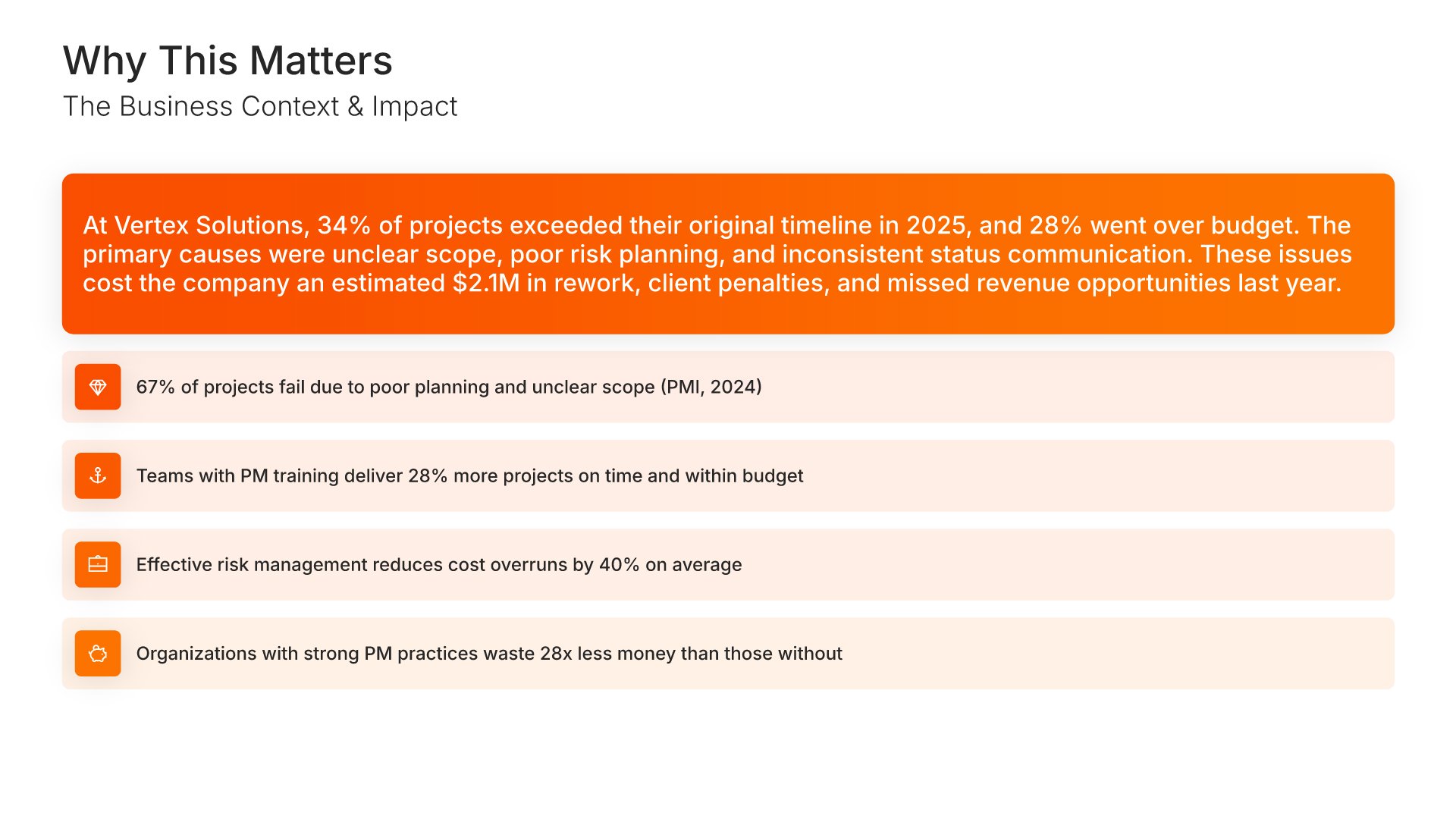
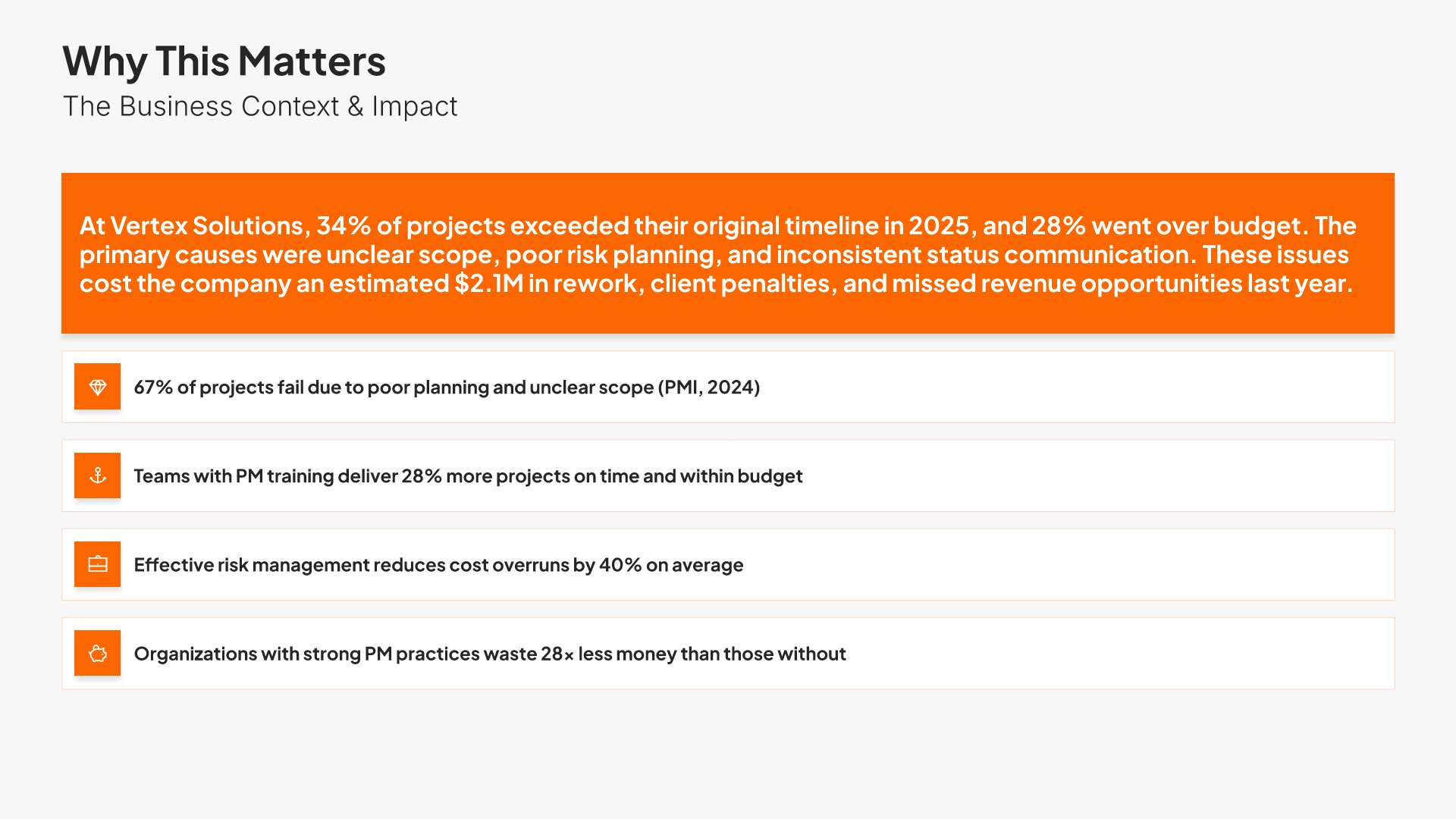
Why this matters slides help you connect the training to real business and personal impact. Use them to present the challenges the training addresses and the outcomes that improve when skills are applied. A clear "why" view motivates engagement, sets the stakes, and helps participants see the value of investing time in the program.
Built using Simple Text (with Icons) slides

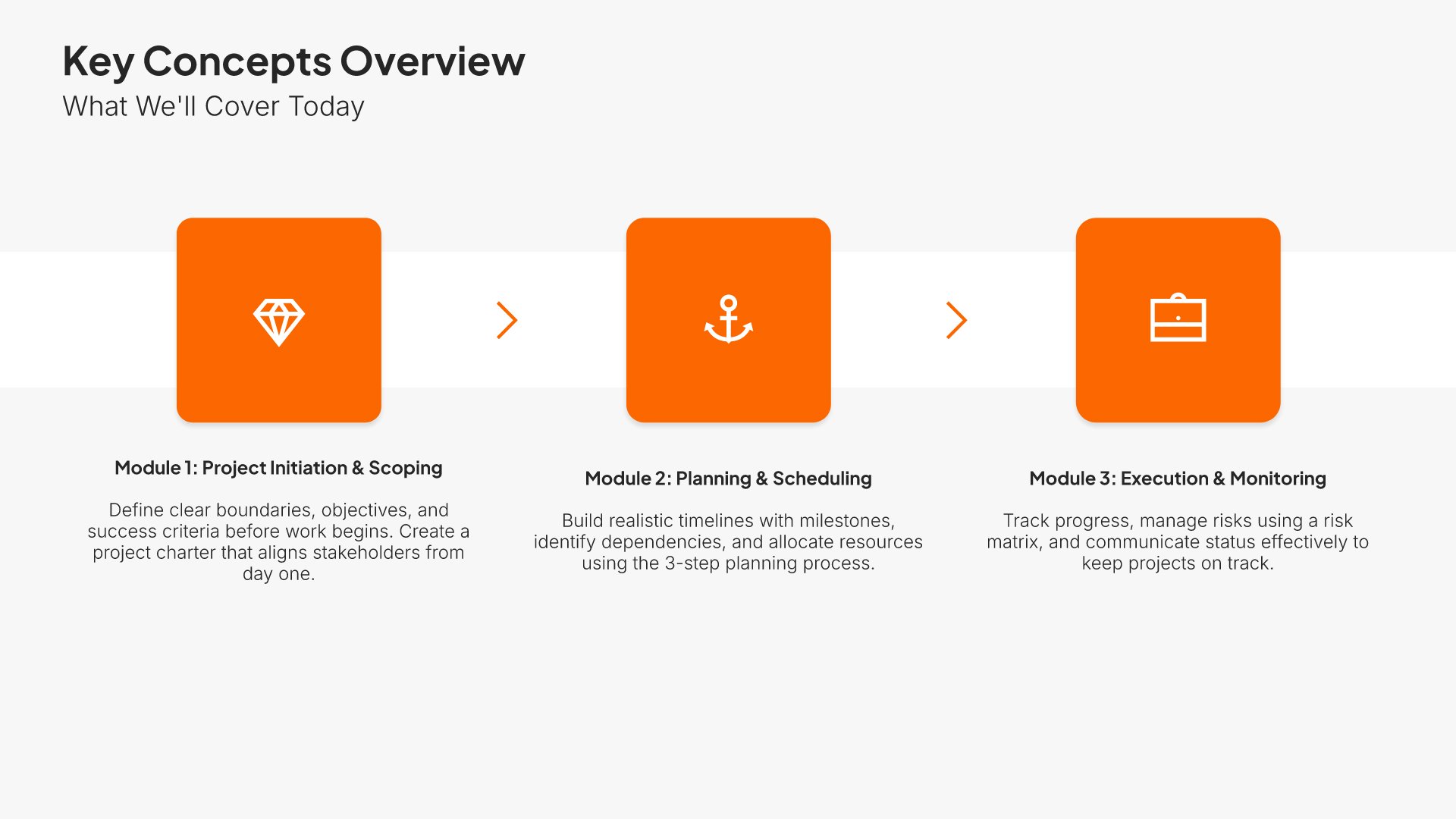
7. Key Concepts Overview

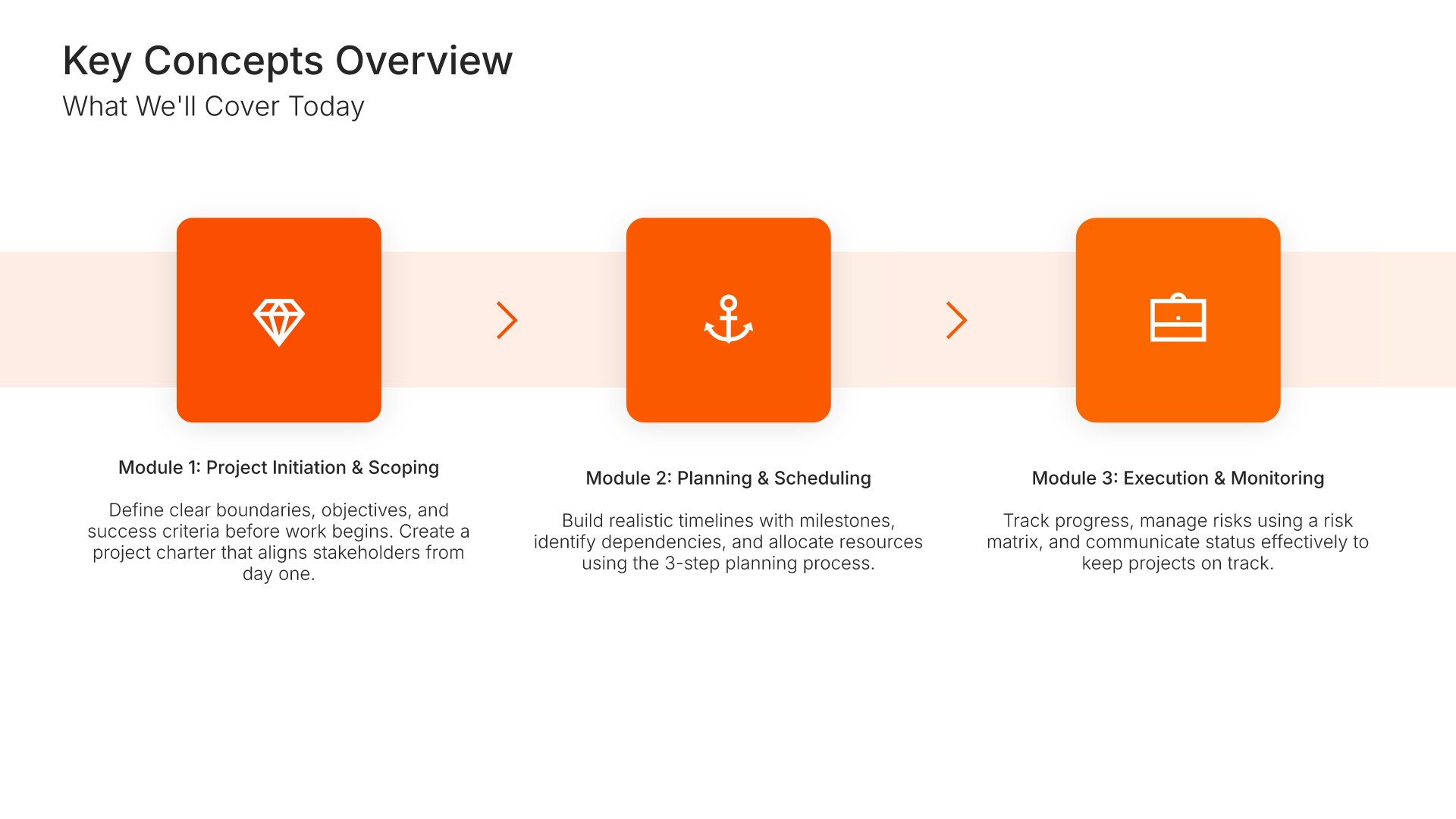
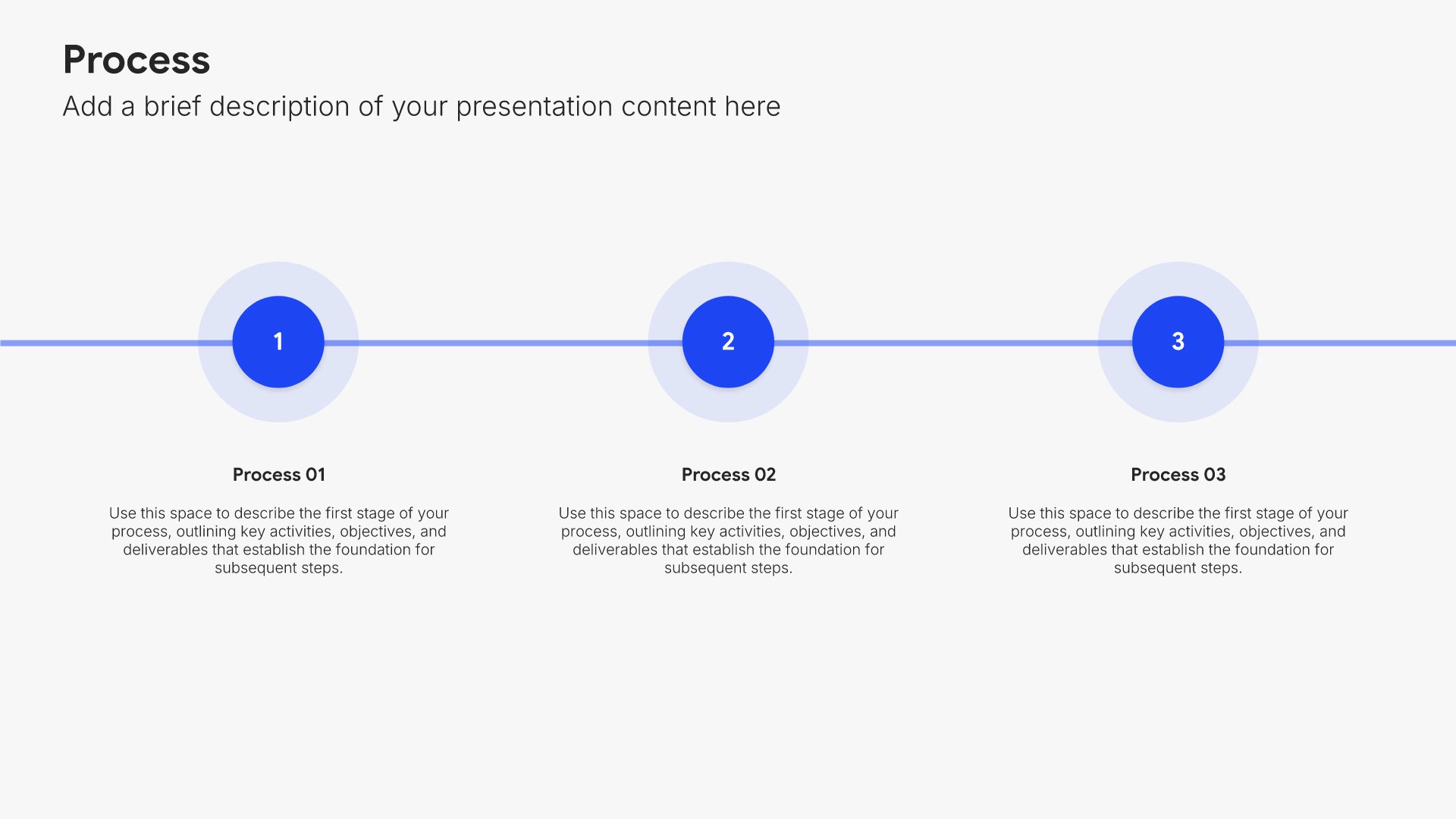
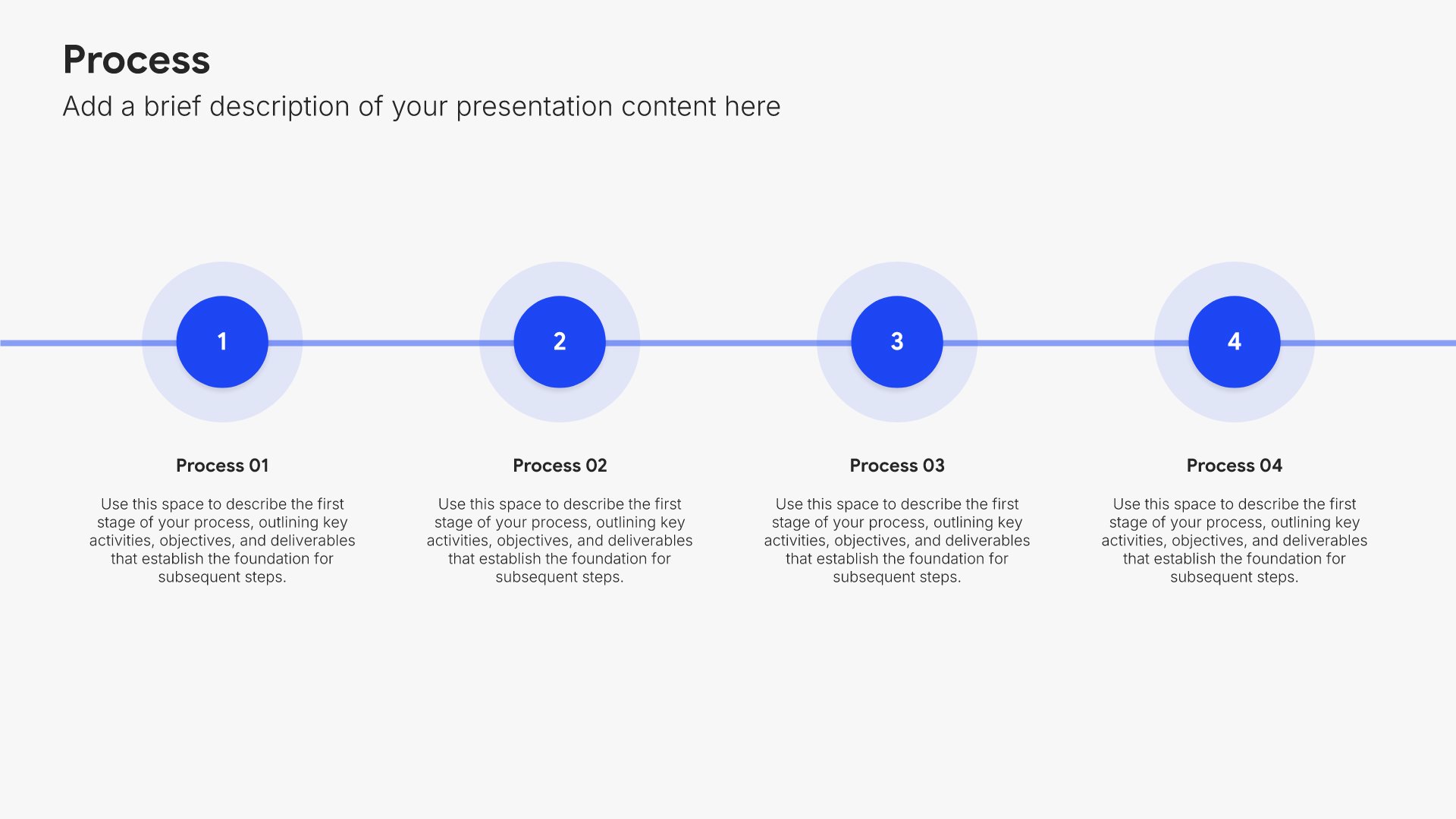
Key concepts overview slides help you introduce the main topics participants will explore. Use them to present a high-level view of the modules and themes covered in the training. A clear concepts overview gives learners a mental map of what's coming and helps them connect the dots as content unfolds across the session.
Built using Process – Horizontal slides

8. Training Module

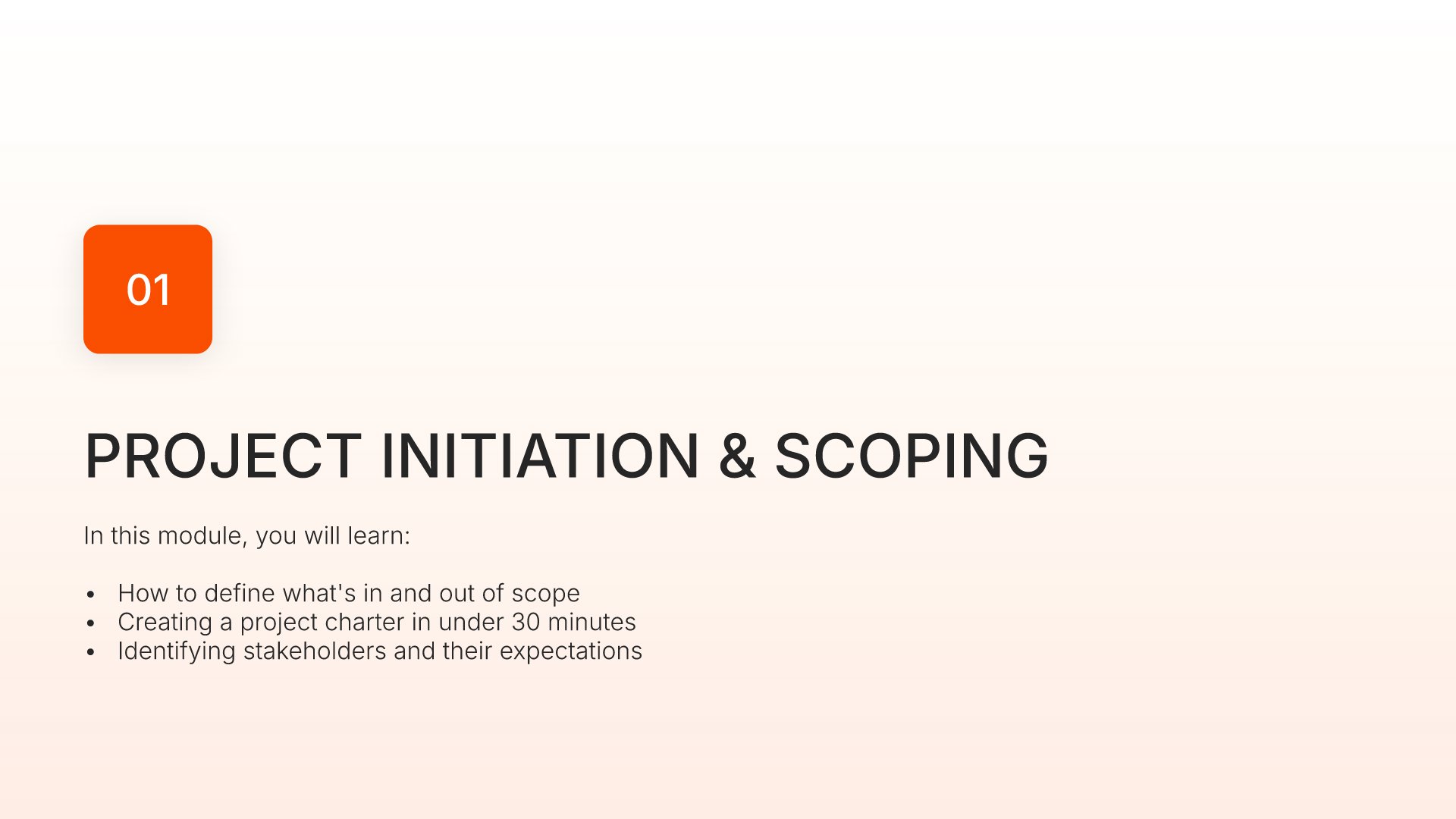
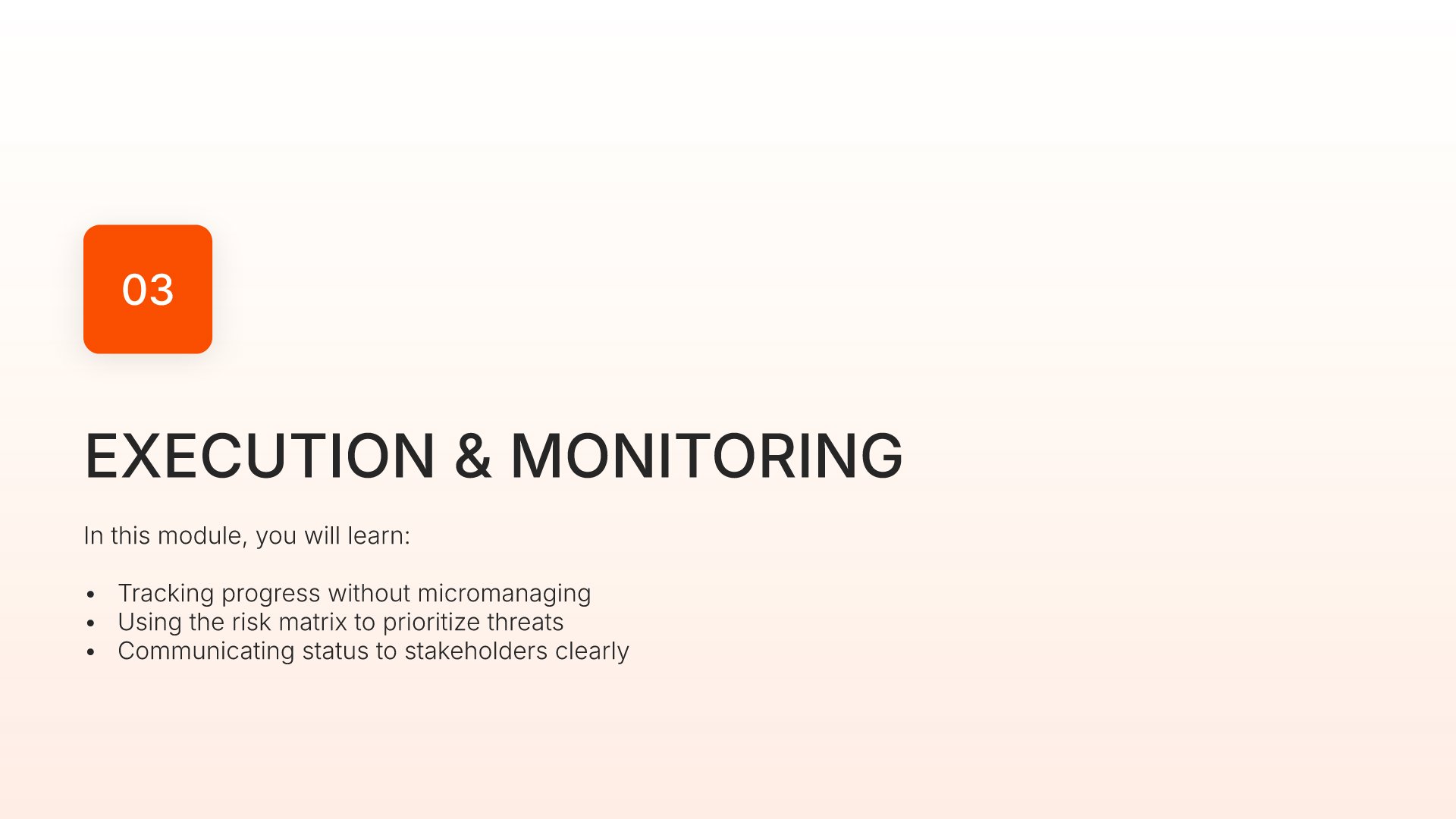
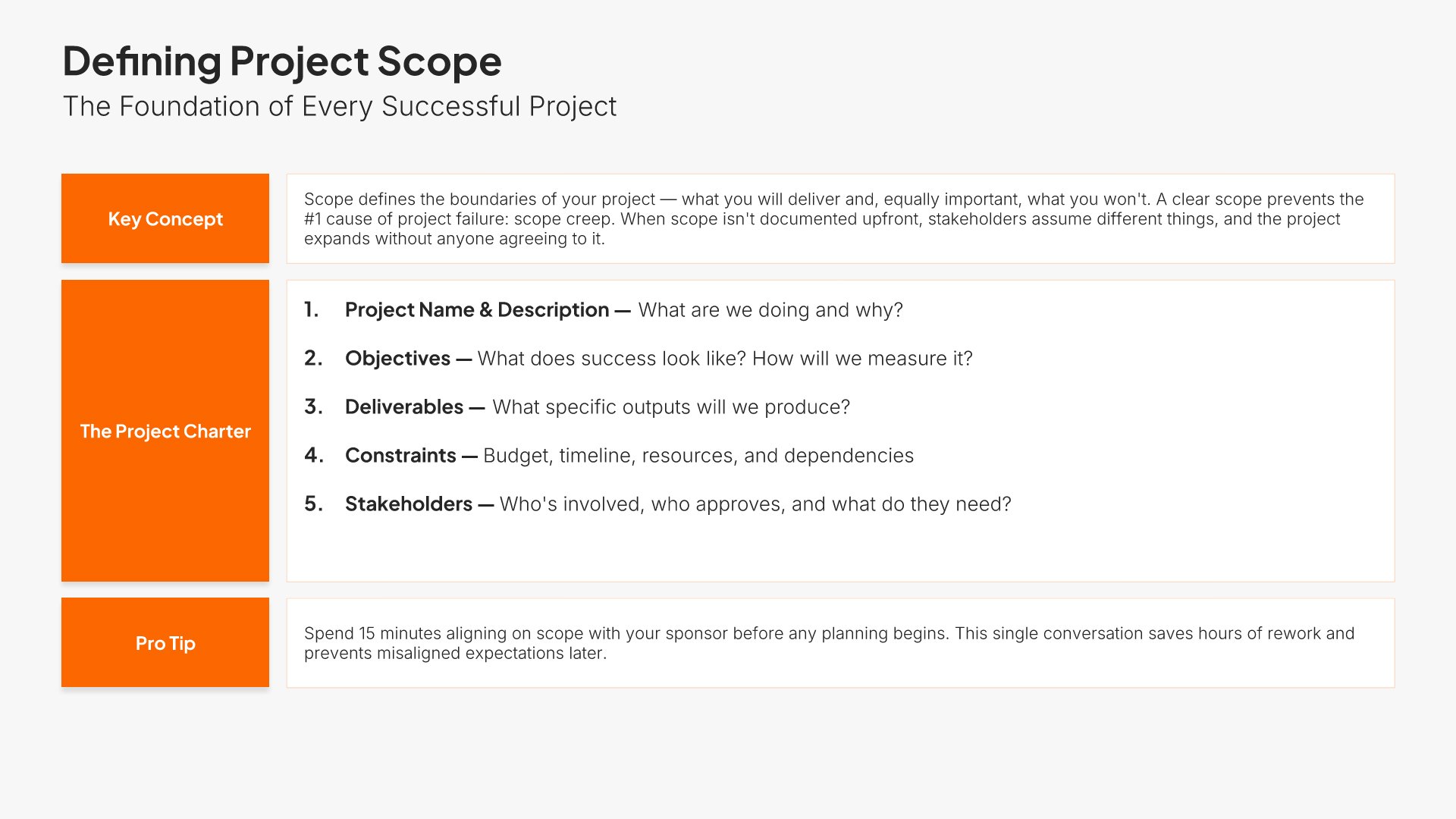
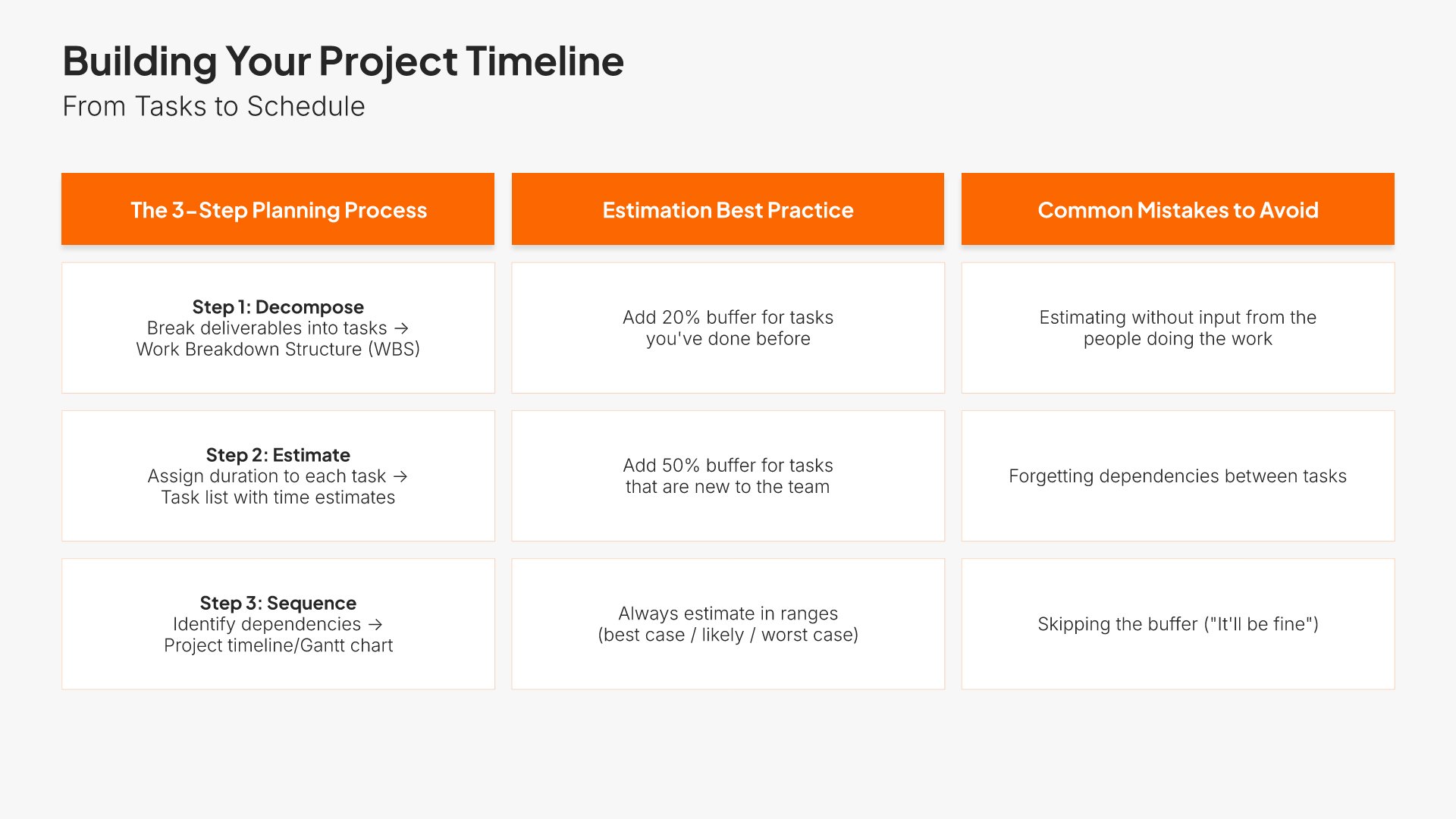
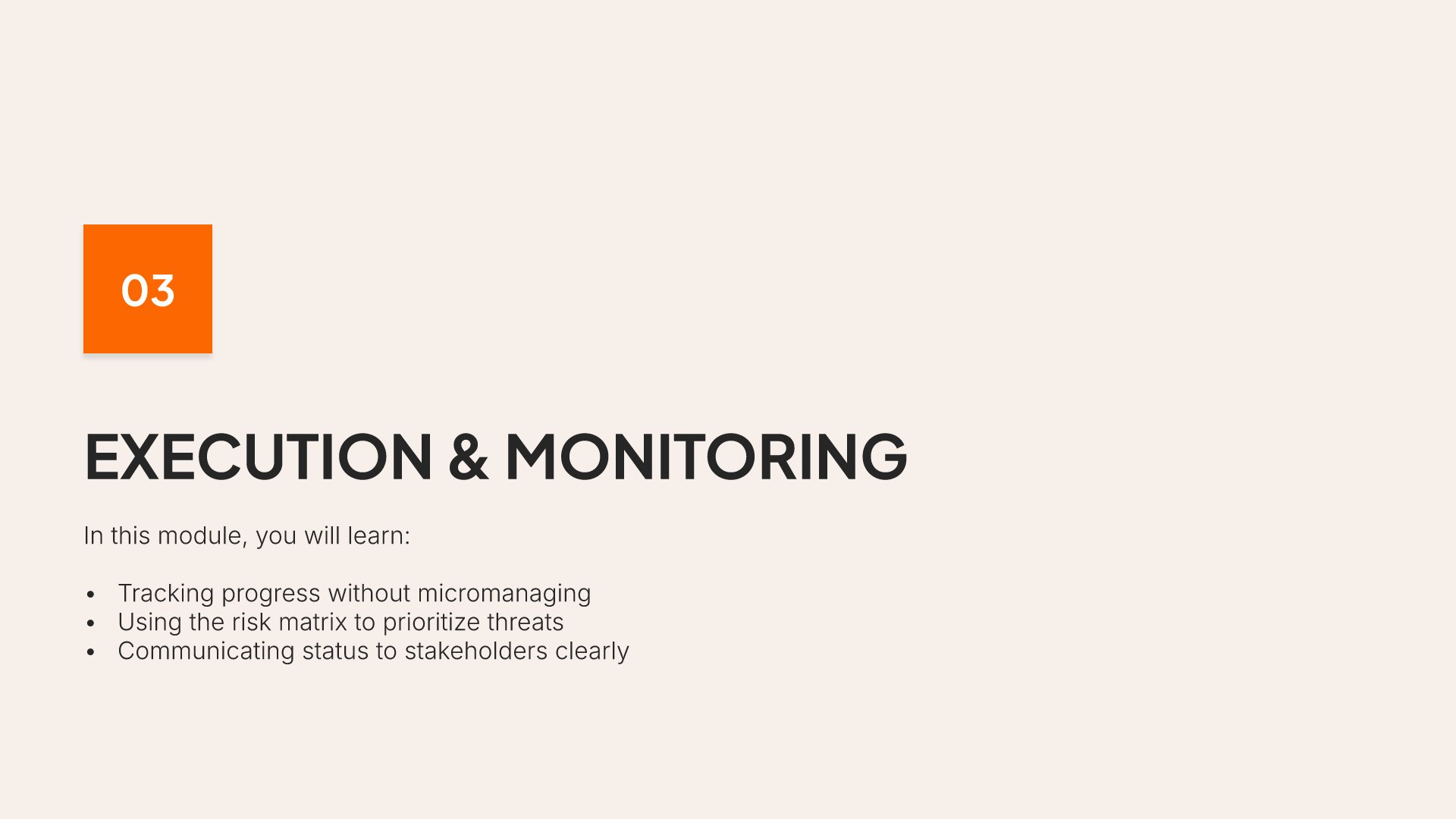
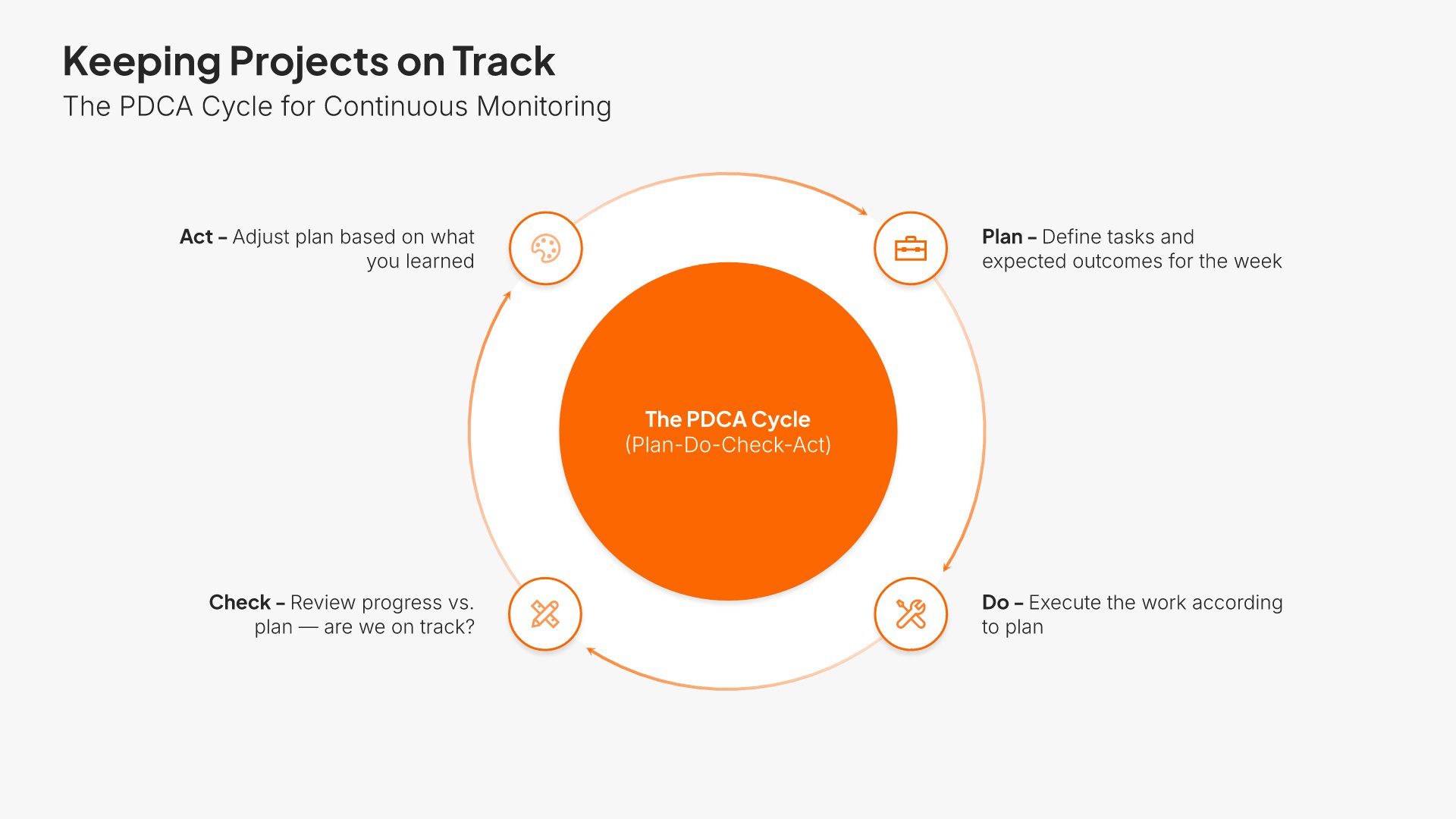
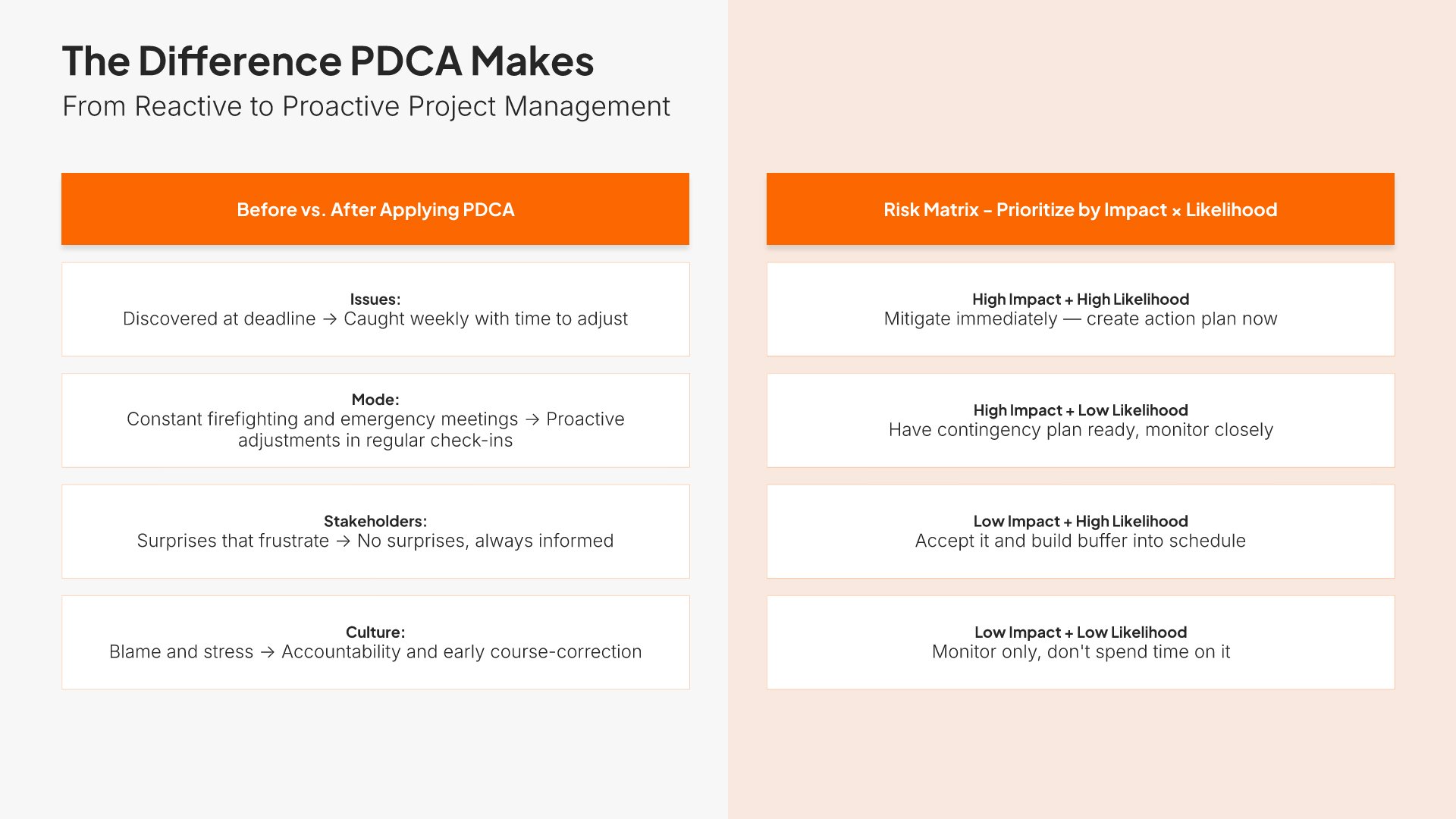
Training module slides help you present a single section of the program in depth. Use them to outline key concepts, supporting content, examples, and the takeaways for that module. A focused module view gives learners the depth they need on each topic while keeping the broader program organized into digestible, well-structured sections.
Built using Section / Subtitle slides

9. Hands-On Exercise

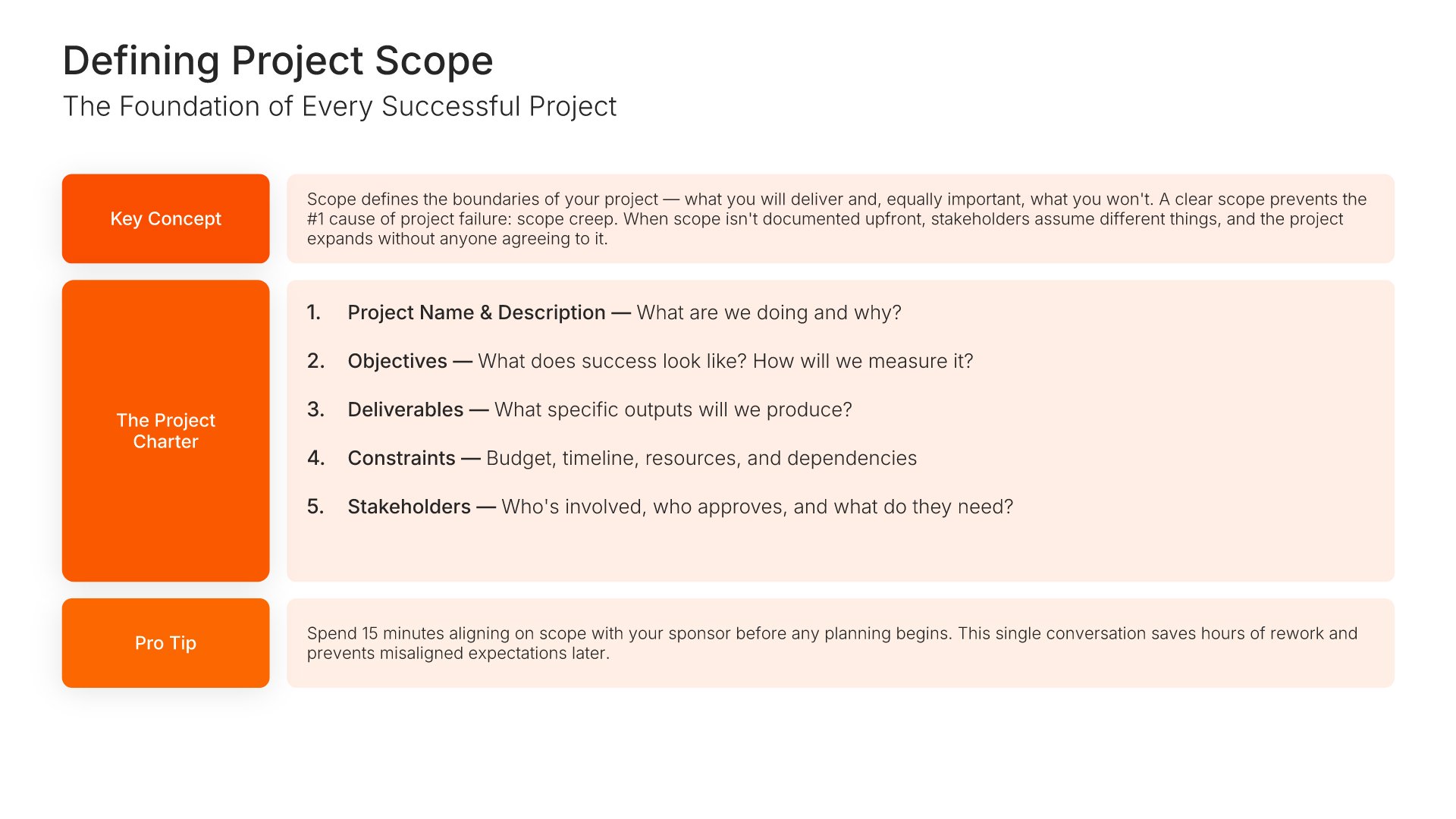
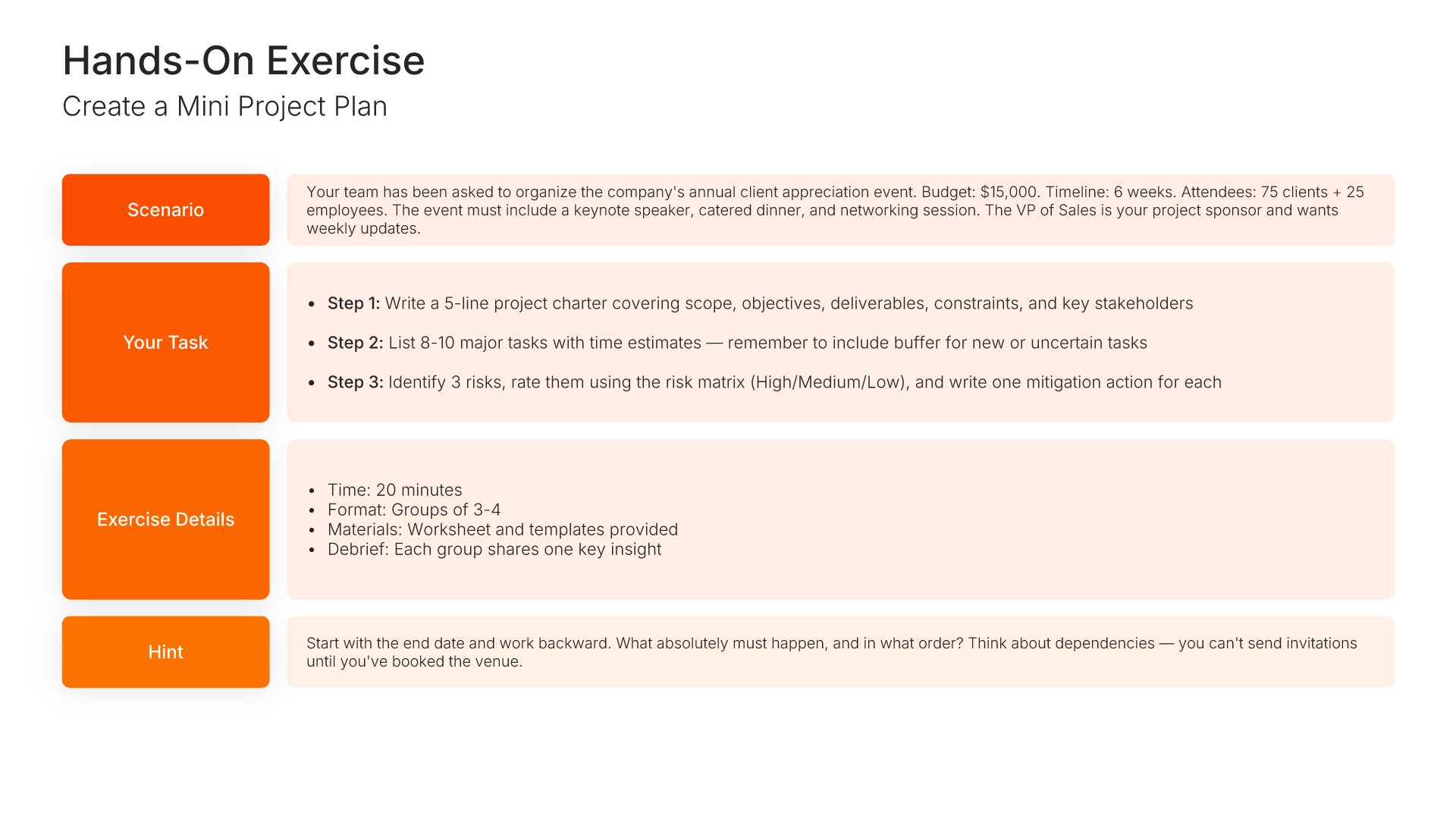
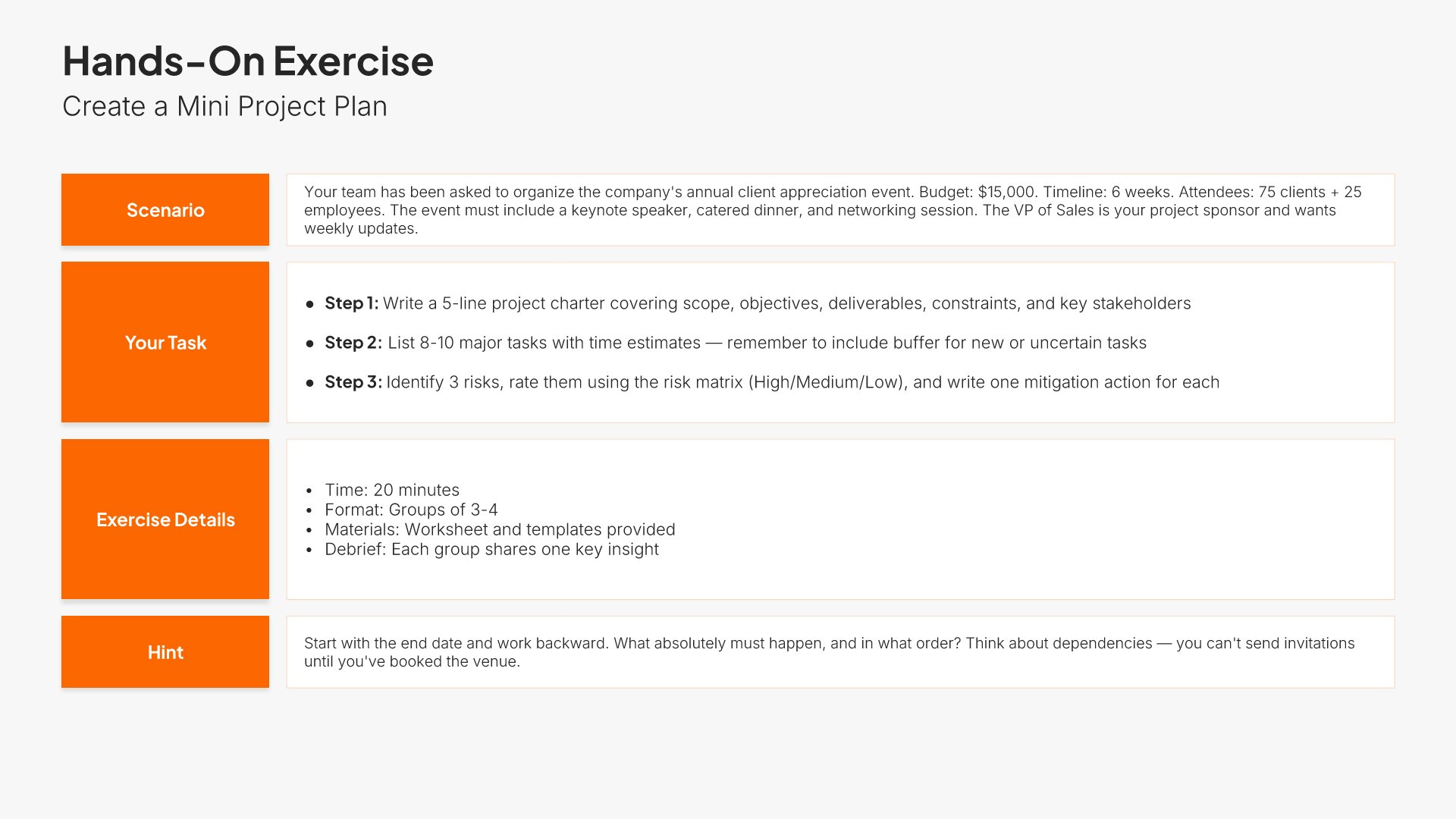
Hands-on exercise slides help you walk participants through applied practice during training. Use them to present the exercise scenario, instructions, time allotment, and expected outputs. A clear exercise view gives learners the structure they need to engage confidently and turn passive content into active skill building during the session.
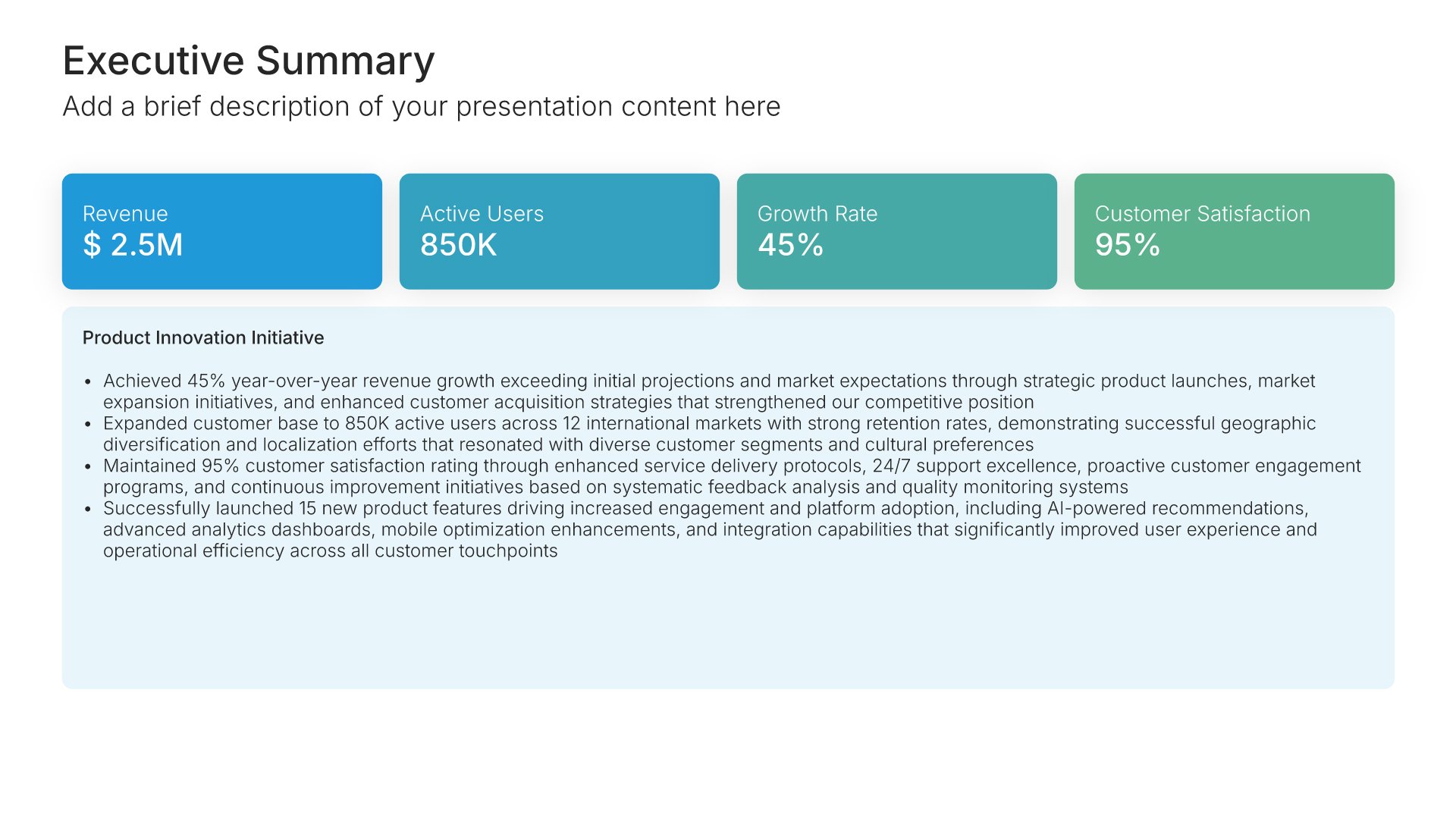
Built using Executive Summary slides

10. Knowledge Check

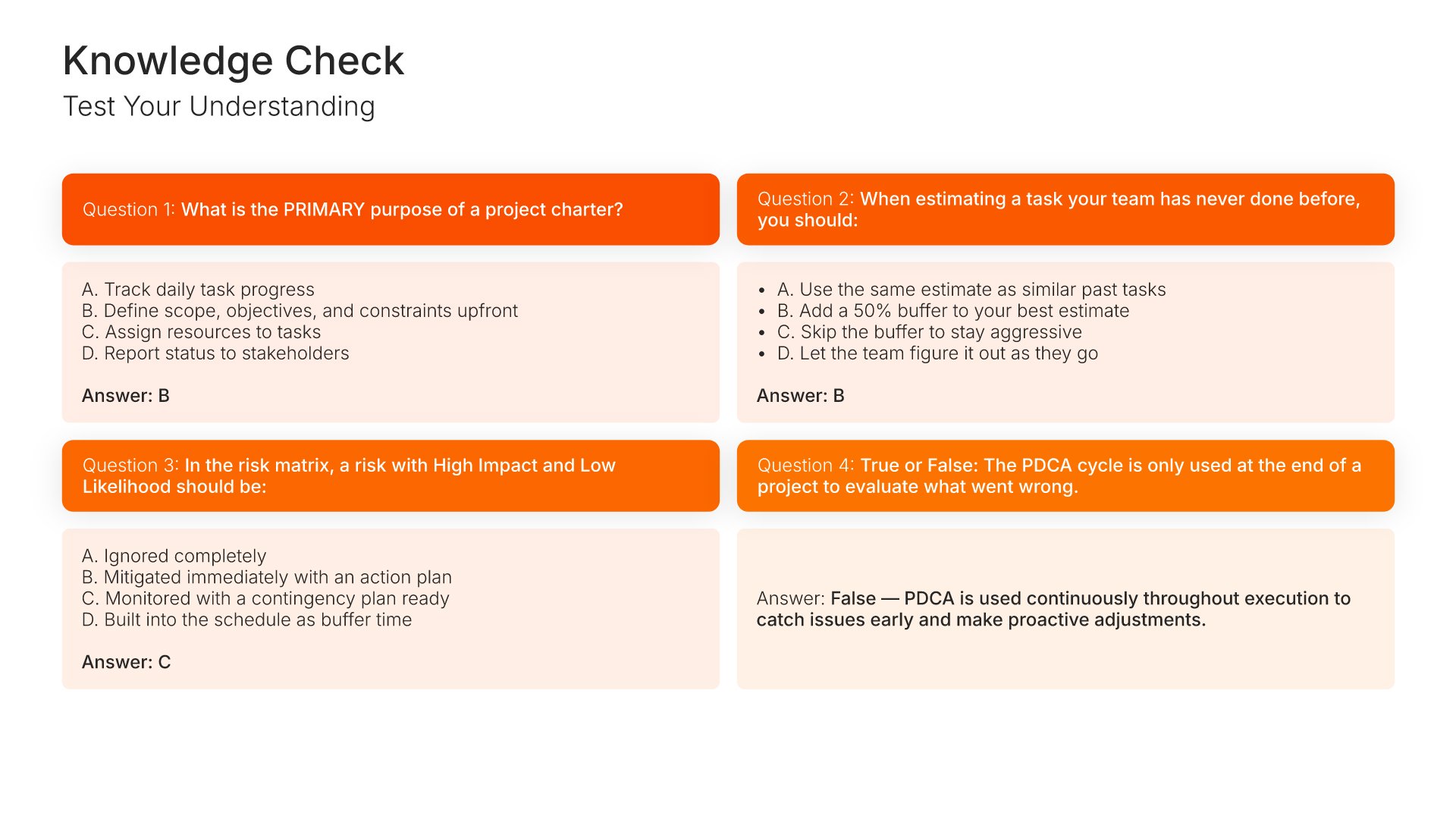
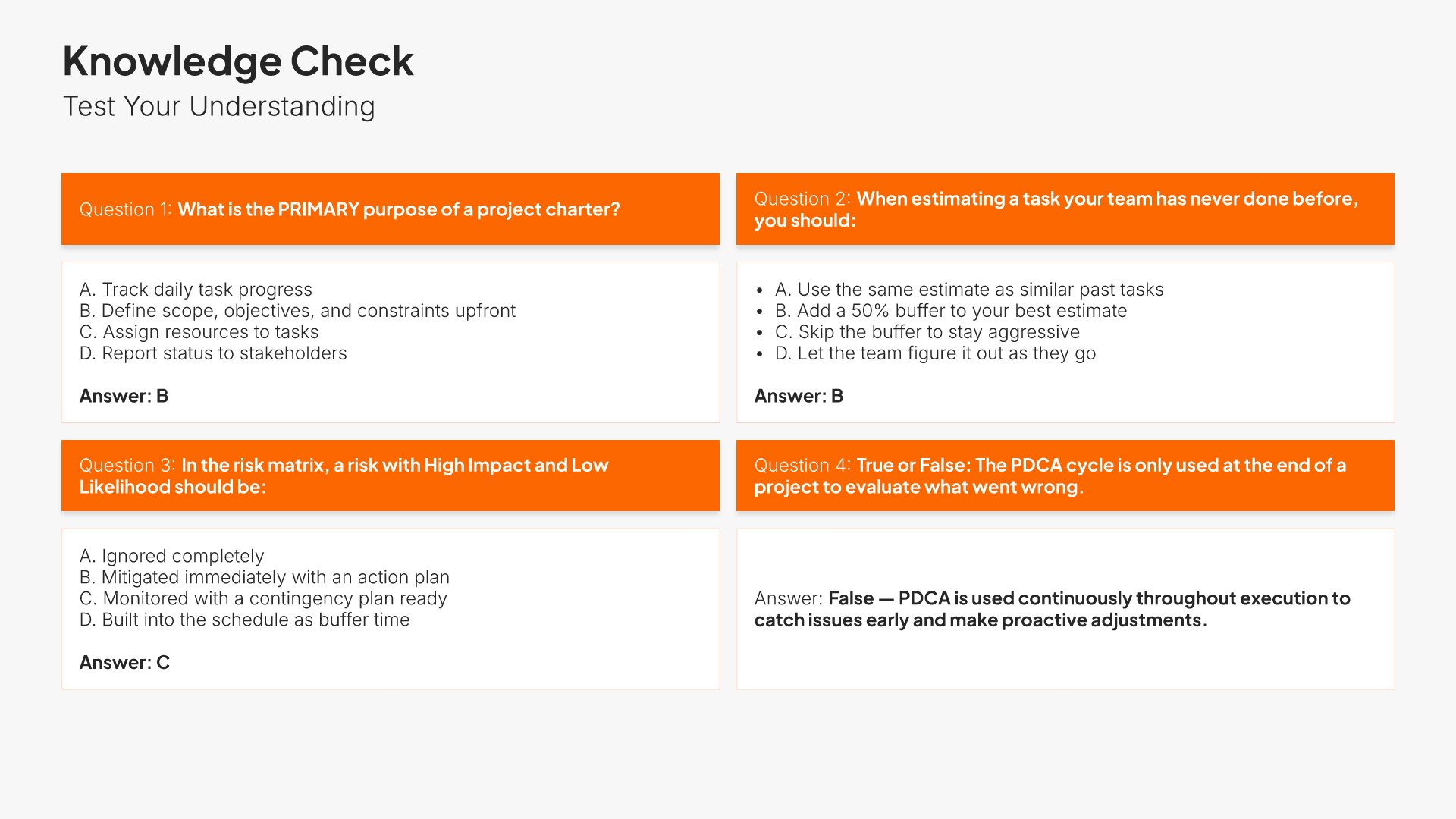
Knowledge check slides help you assess participant understanding throughout training. Use them to present quiz questions, reflection prompts, or scenario-based assessments. A clear knowledge check view reinforces learning, surfaces gaps in real time, and helps facilitators adjust pacing and emphasis based on how the group is tracking.
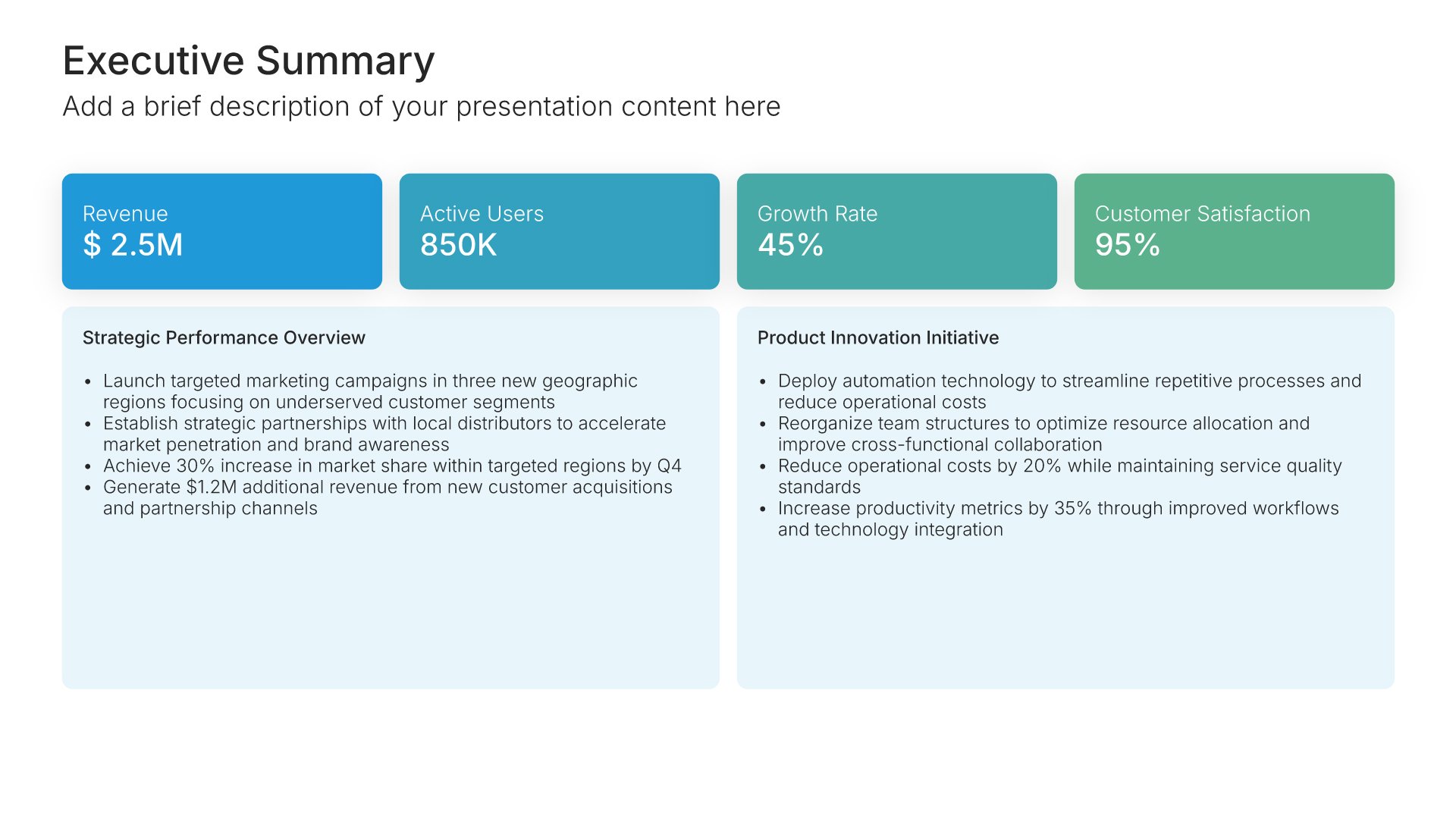
Built using Simple Text slides

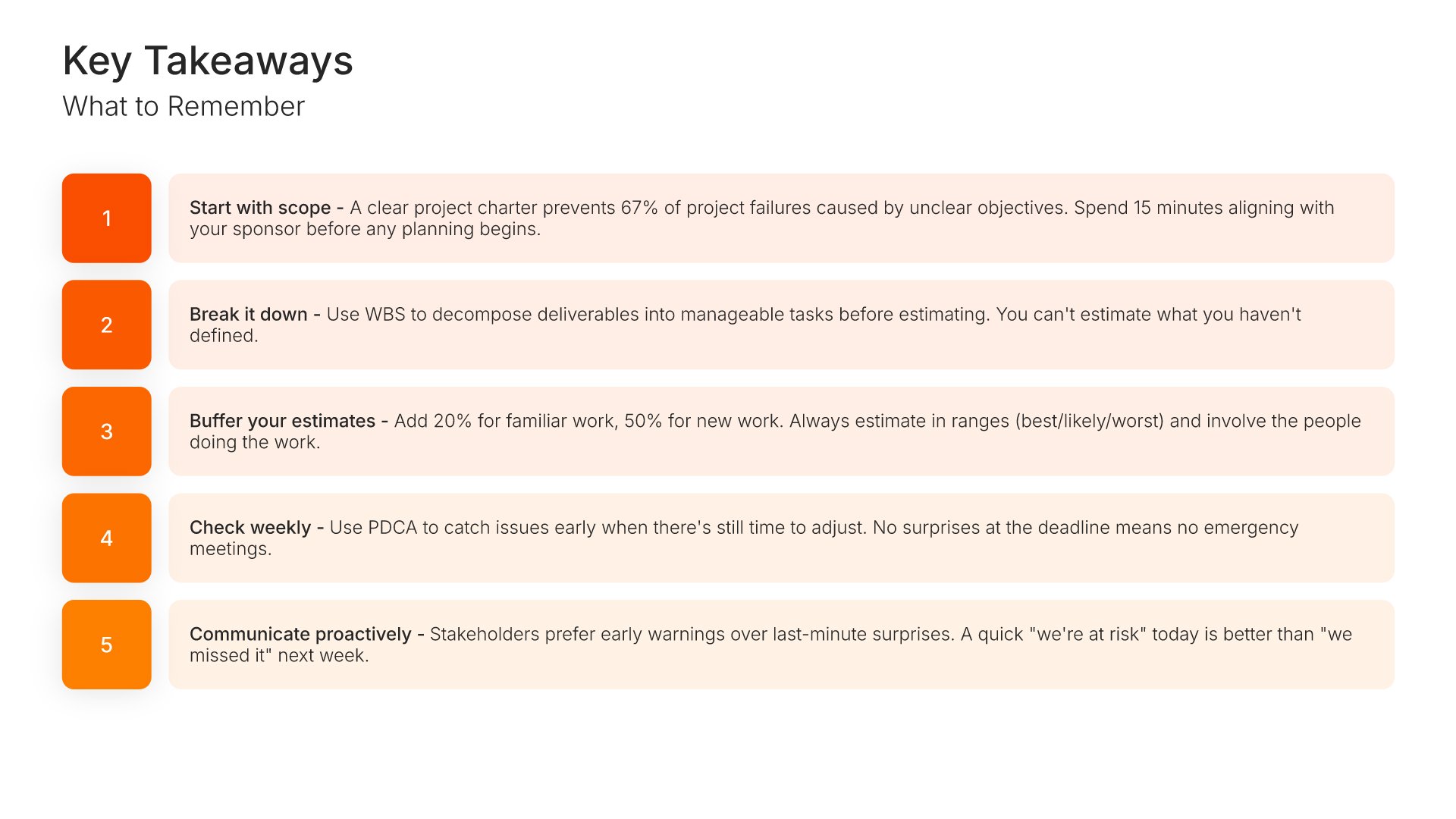
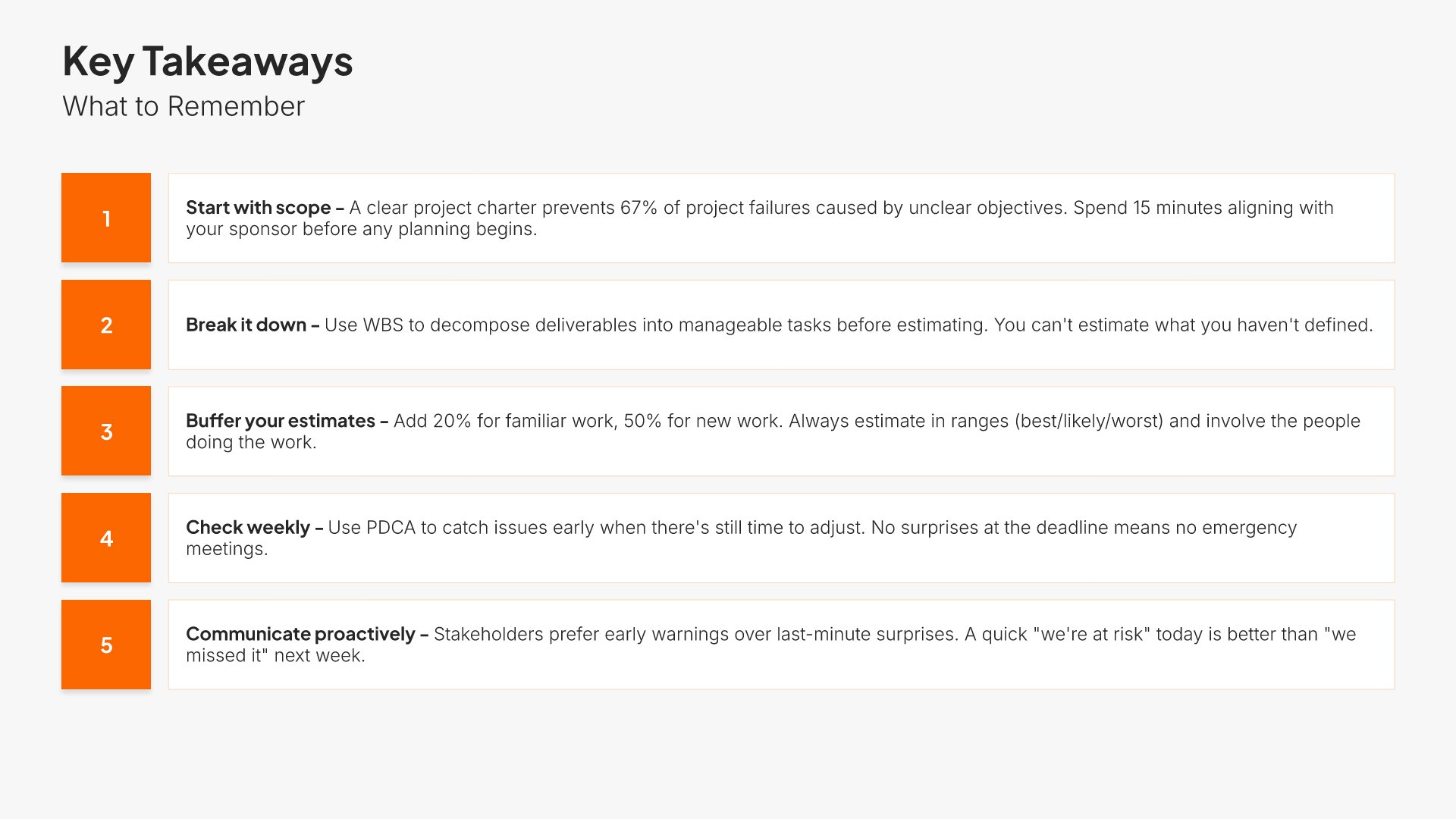
11. Key Takeaways

Key takeaways slides help you summarize the lessons learned and insights from your engagement. Use them to present what worked, what you learned, and how prospects can apply these insights. Sharing strategic lessons positions you as a thought leader and trusted advisor who adds value beyond the immediate project.
Built using Simple Text (with Numbers) slides

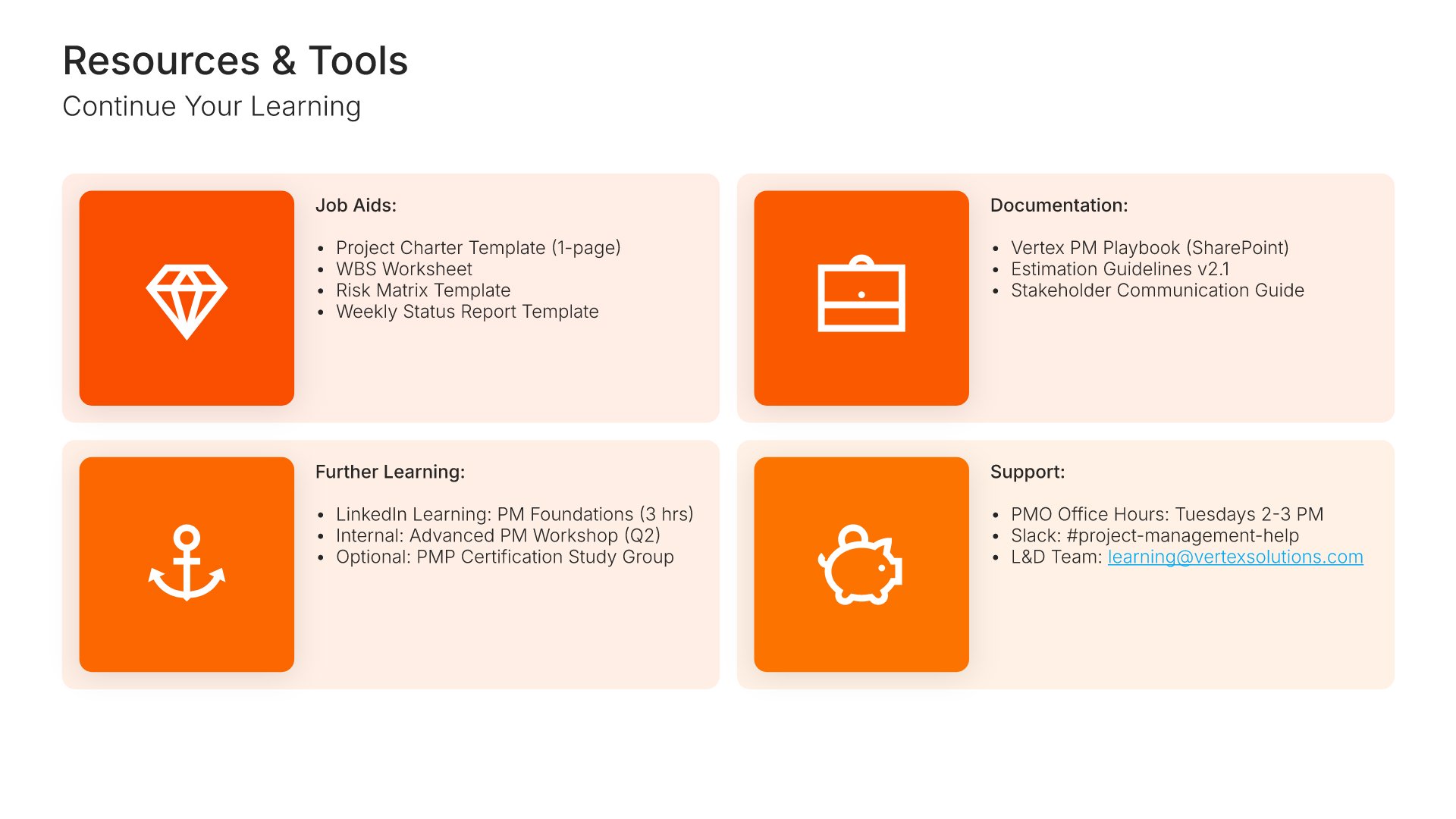
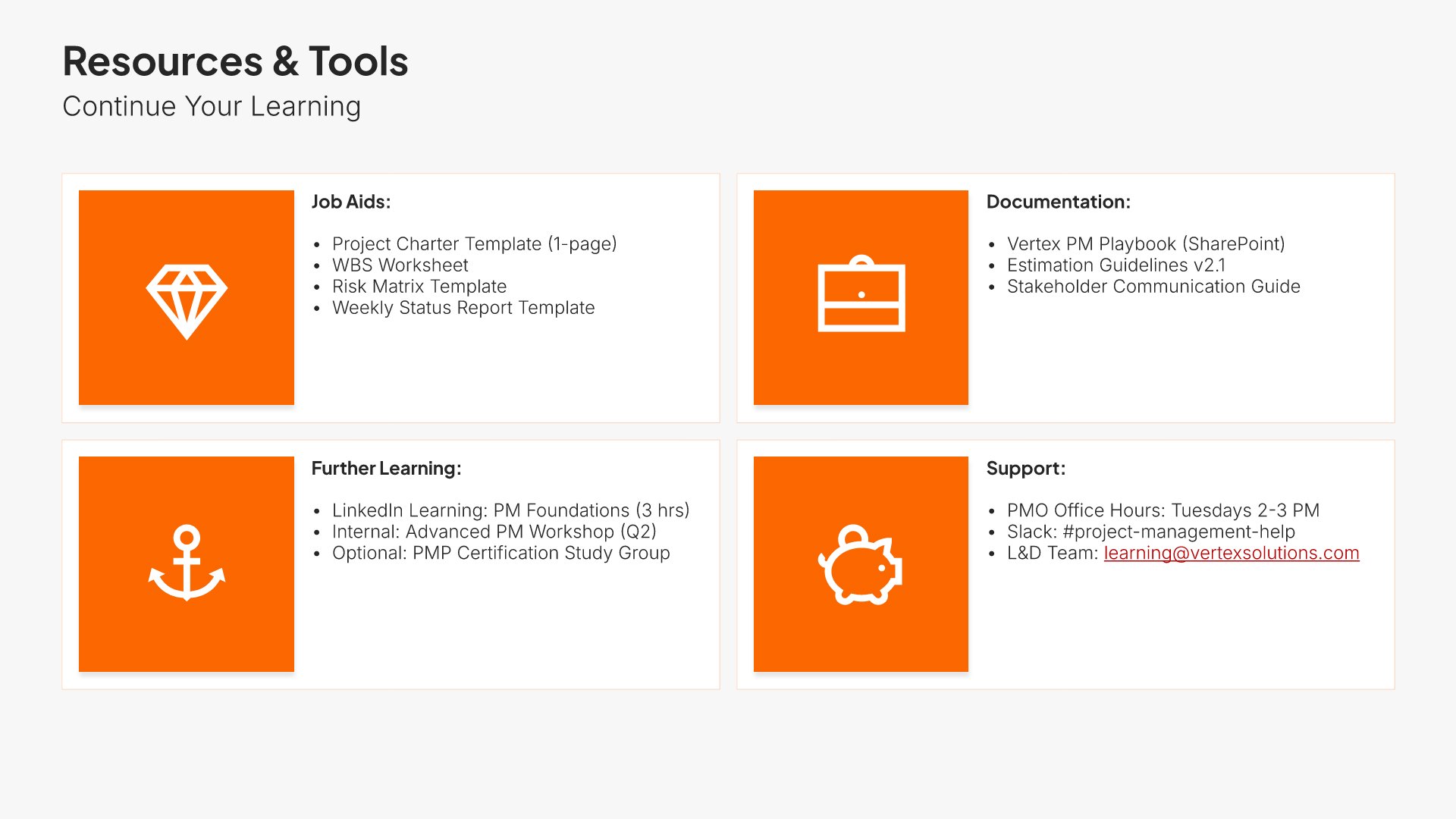
12. Resources

Resources slides help you point participants toward additional materials for continued learning. Use them to present recommended books, articles, courses, communities, and internal documentation. A clear resources view extends the value of the training beyond the session and supports the ongoing development of participants over time.
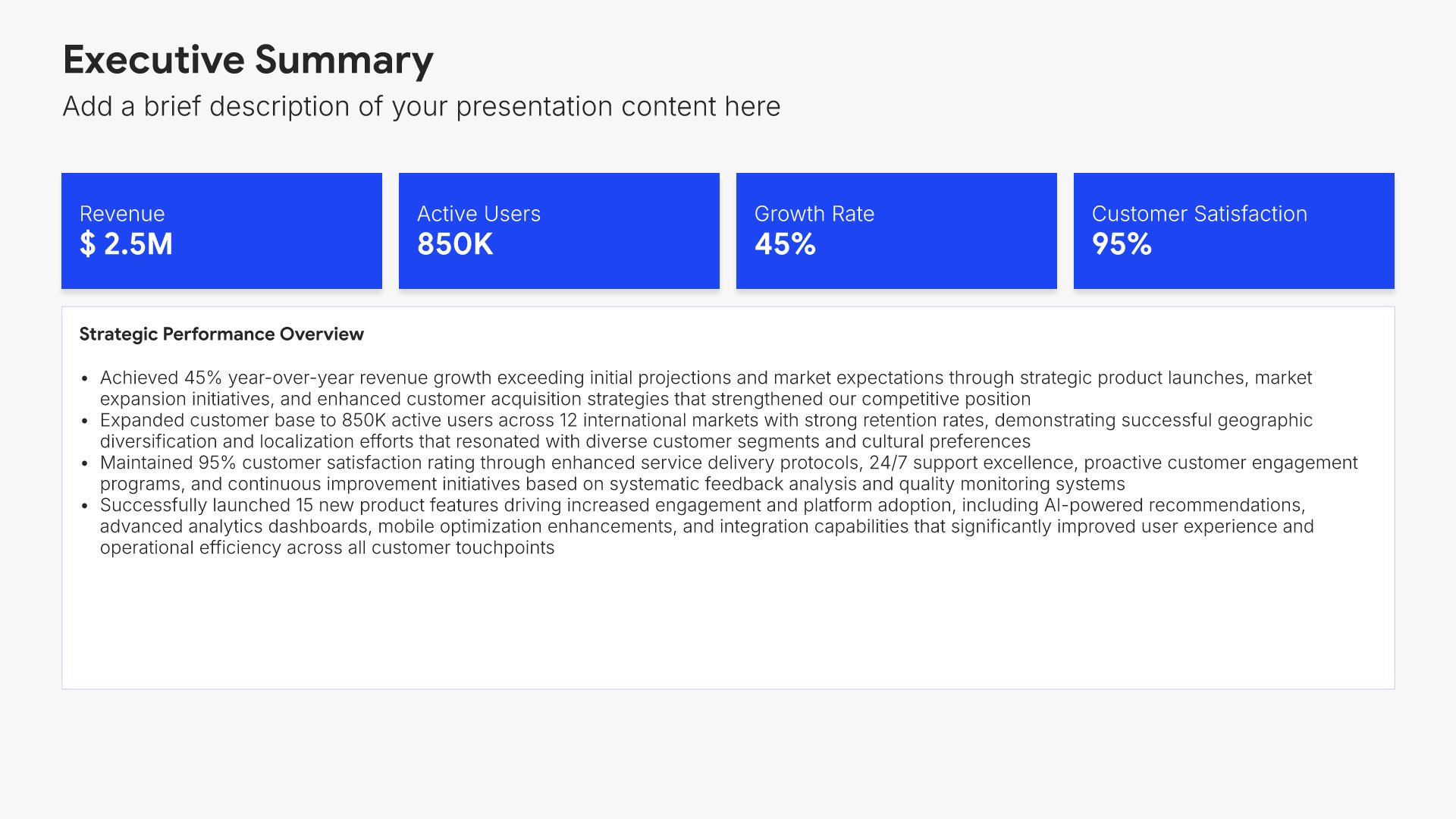
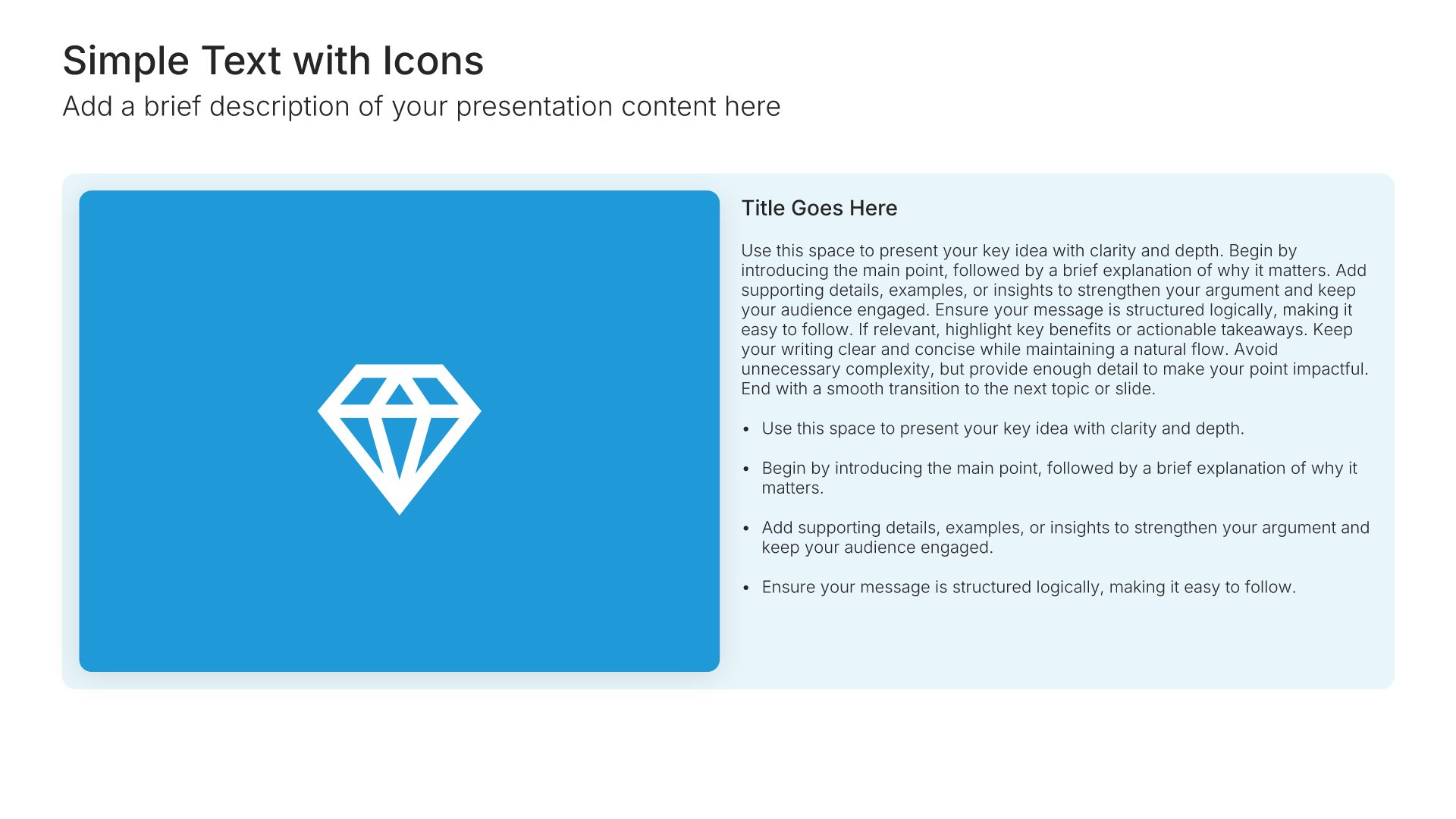
Built using Simple Text (with Icons) slides

13. Next Steps

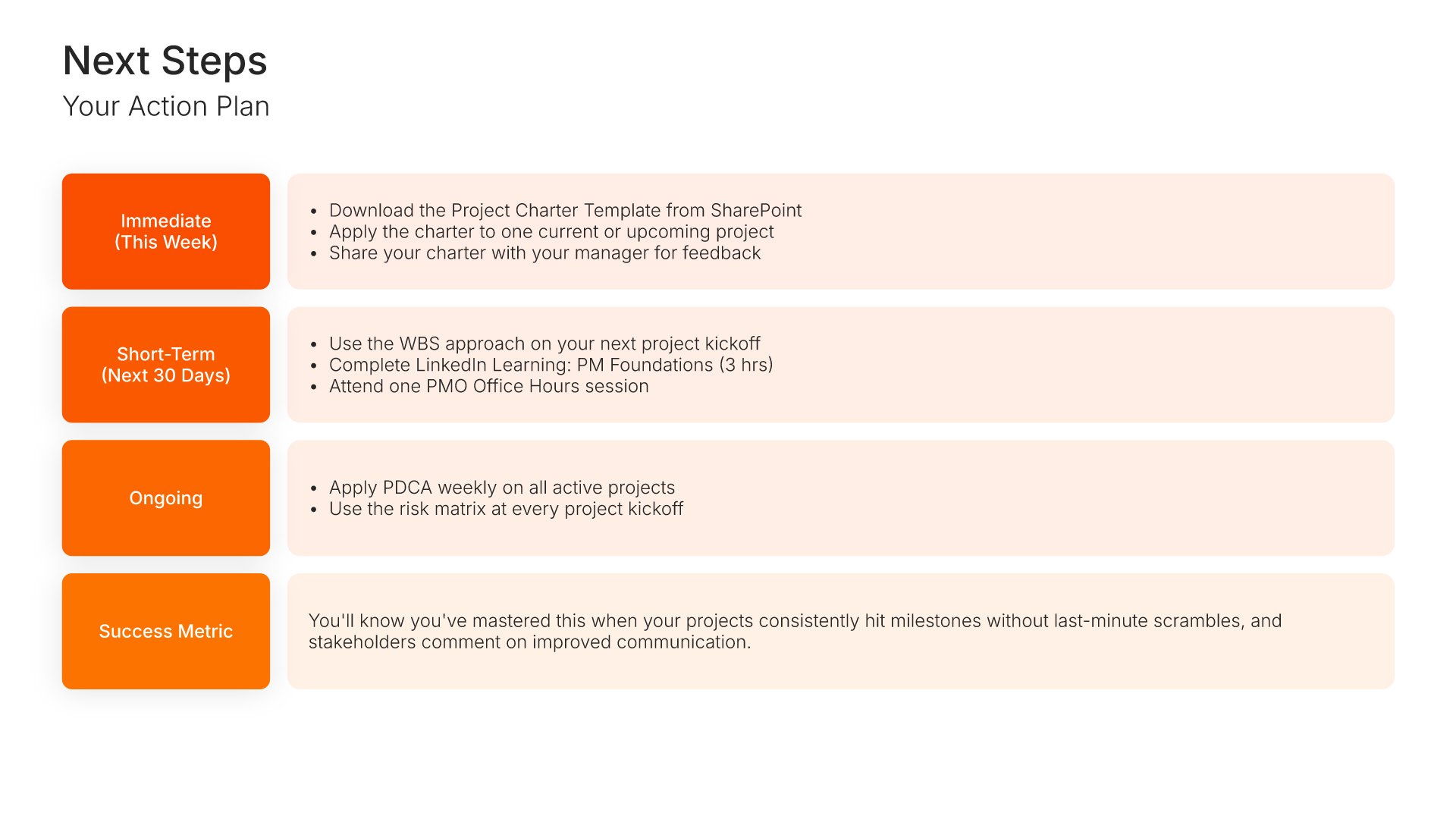
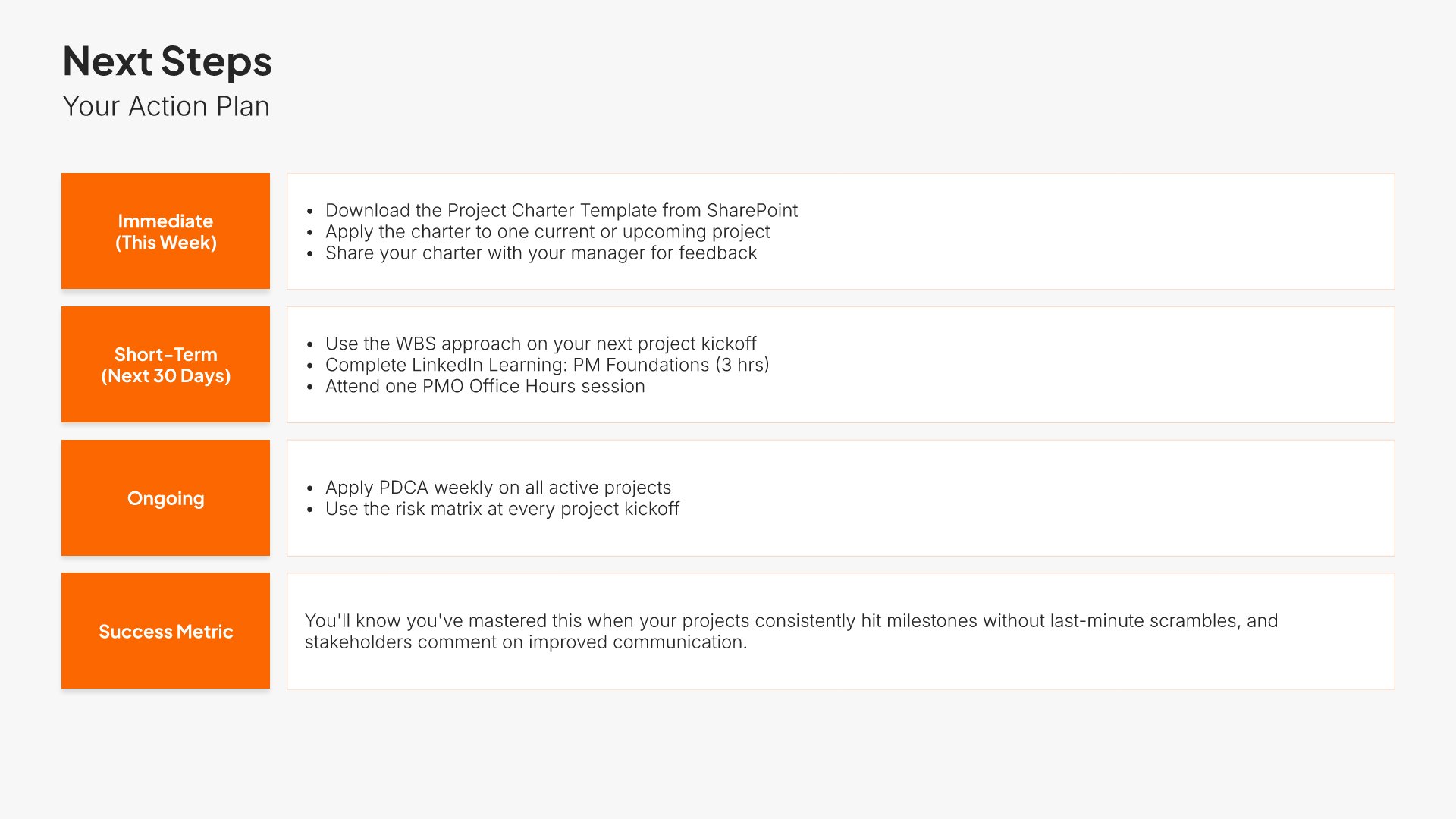
Next steps slides help you guide your audience toward action after your presentation. Use them to outline the specific actions, timeline, and commitments needed to move forward. Ideal for sales decks, proposals, and pitches where providing clear next steps keeps momentum going and advances the deal.
Built using Simple Text slides

14. Thank You

Thank you slides help you close presentations professionally. Use them to end with gratitude, provide contact information, and leave a polished final impression. Ideal for any presentation where a professional closing reinforces your message and gives your audience a clear way to follow up or stay connected.
Built using Title slides

Build your Training Presentation presentation with Choladeck

Transform your Training Presentation vision into reality with Choladeck’s user-friendly platform. Follow our step-by-step guide, harnessing our vast collection of slides and tools, to create a compelling and cohesive presentation that resonates with your audience.

Step 1

Browse & Select

Explore over 9,172+ professionally designed slides across 134 categories. Or if you want a head start, pick from 74+ premade presentation templates. Whatever you need, it's probably already here.

Step 2

Customize Your Slides

Swap icons and images instantly from our built-in libraries. Use Pointers to choose your count (2-box, 3-box, 4-box) and Variations to pick your design style. No more settling for "close enough." Get the exact slide you need.

Step 3

Brand Your Presentation

Add your logo, apply your brand colors, choose your fonts, and set custom backgrounds. One click and your entire presentation looks like it was made just for you. Because it was.

Step 4

Export Your Presentation

When you're ready, export to PowerPoint, Google Slides, or Keynote with a single click. Continue editing in your favorite tool if you want. Your workflow, your way.

Try Choladeck for free today and experience the ease of creating remarkable presentations.

No Sign-in or Credit Card Required

Wait!

Before you go, have you had the chance to experience Choladeck? If not try out – Choladeck for absolutely FREE!!

No Sign-in or Credit Card Required
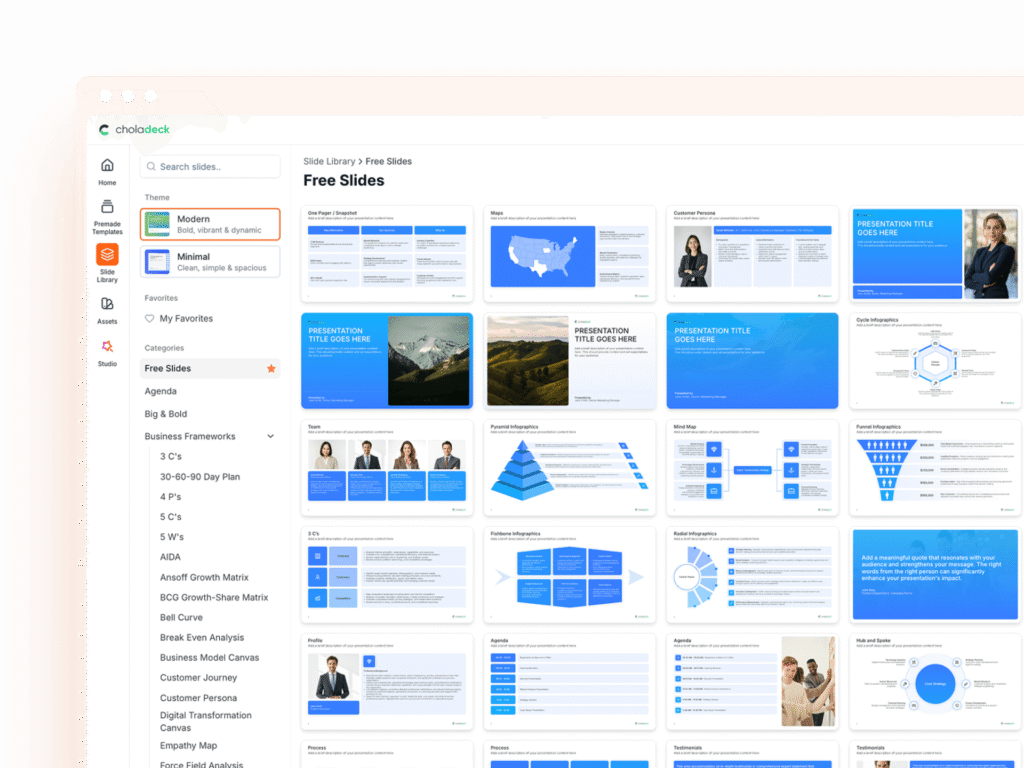
Experience Choladeck Yourself!
Why just read about it when you can experience it? Dive into our presentation library – absolutely FREE!

No Sign-in or Credit Card Required