Try Choladeck Free: Download Personalized Business Slides Today
Try Choladeck Free: Download Personalized Business Slides Today
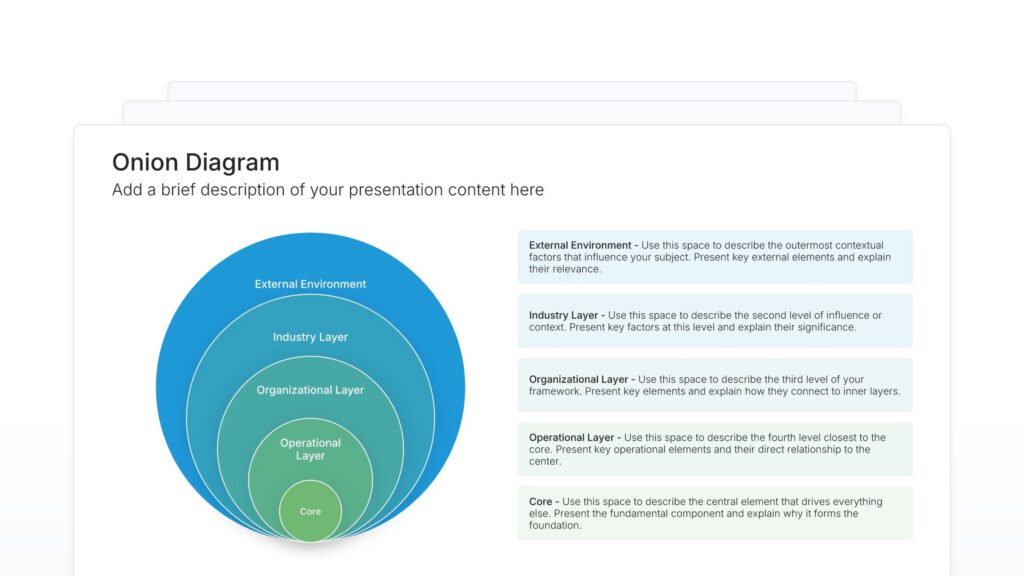
Onion diagram slides help you show layers from core to outer edge. Use them to visualize how elements build outward from a central focus, with each ring representing a different level or component. Ideal for organizational layers, security models, and any concept where understanding depth from center to periphery matters.
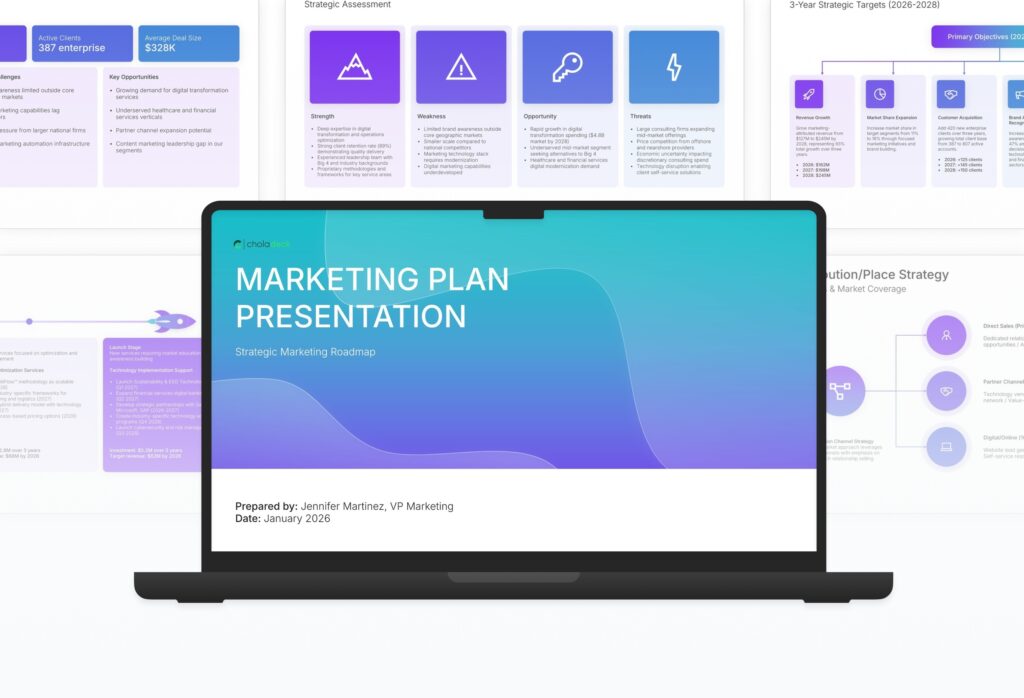
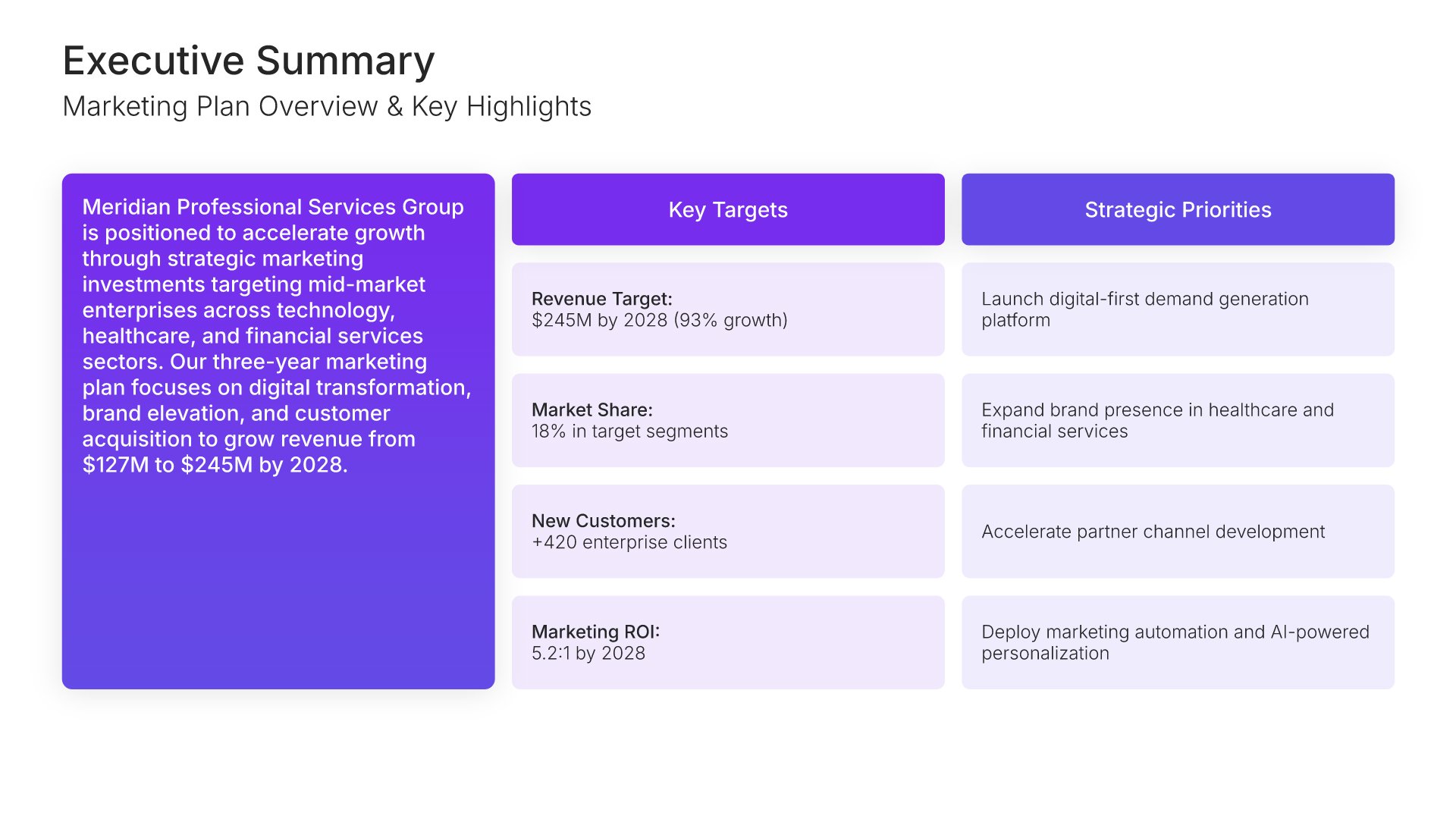
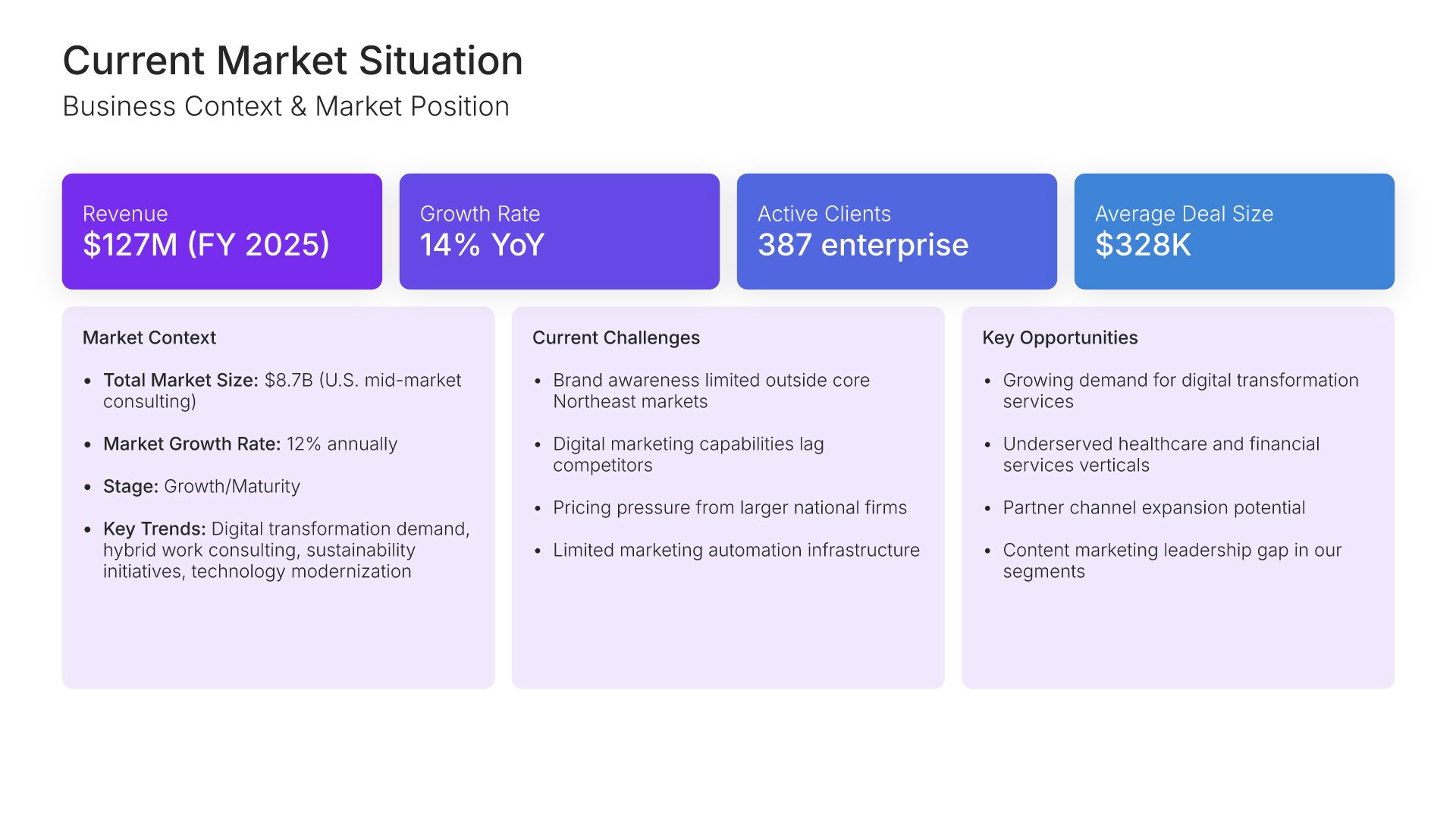
A comprehensive marketing plan template designed for organizations developing strategic marketing initiatives. Built on the Classic Philip Kotler Framework, this presentation covers market analysis, customer segmentation, competitive positioning, marketing mix strategy, budget allocation, and performance measurement. Ideal for annual planning.

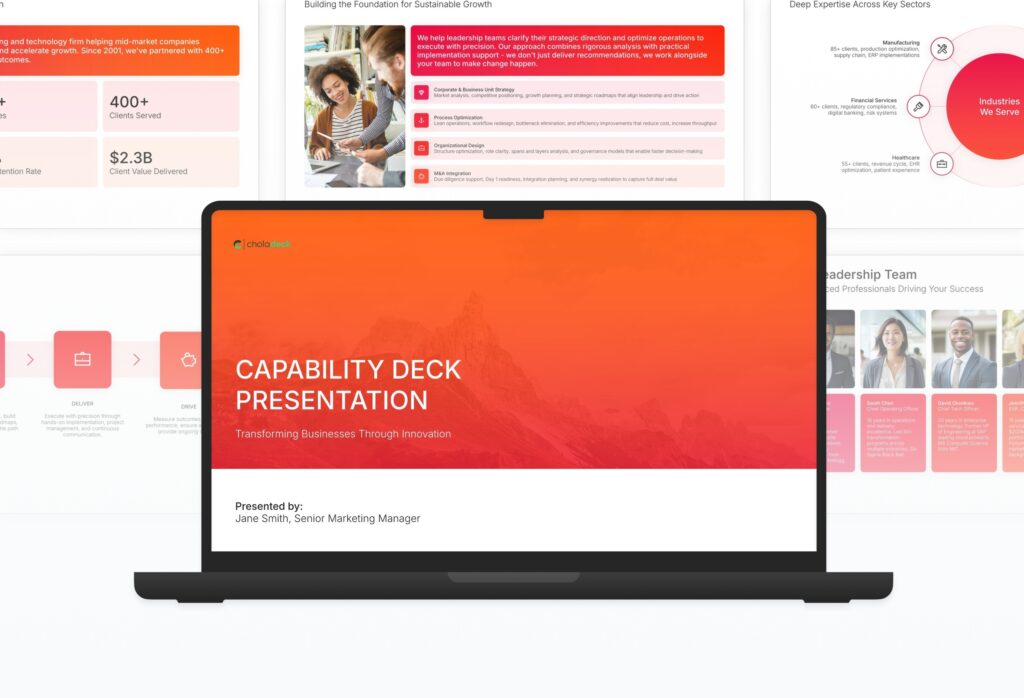
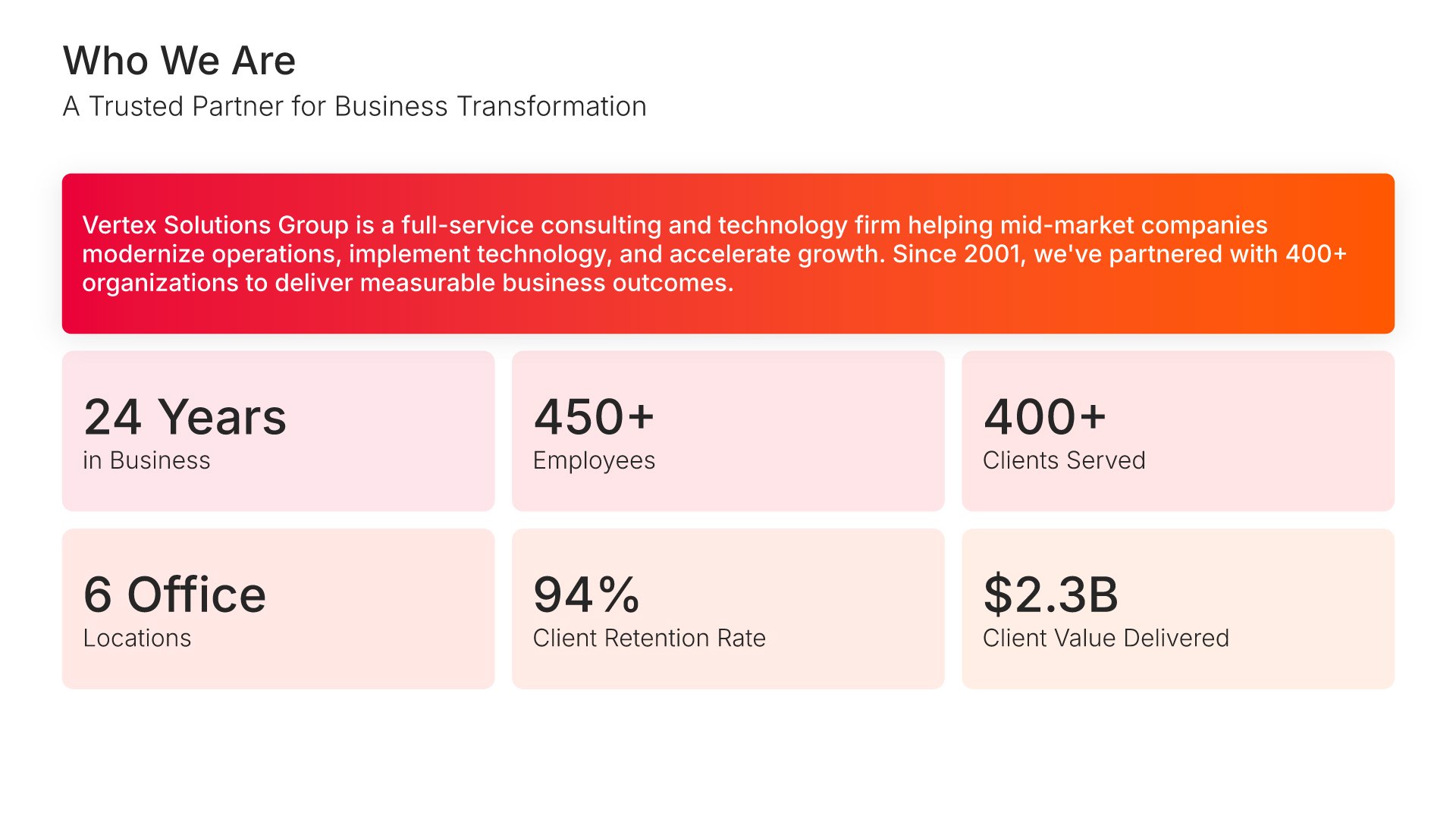
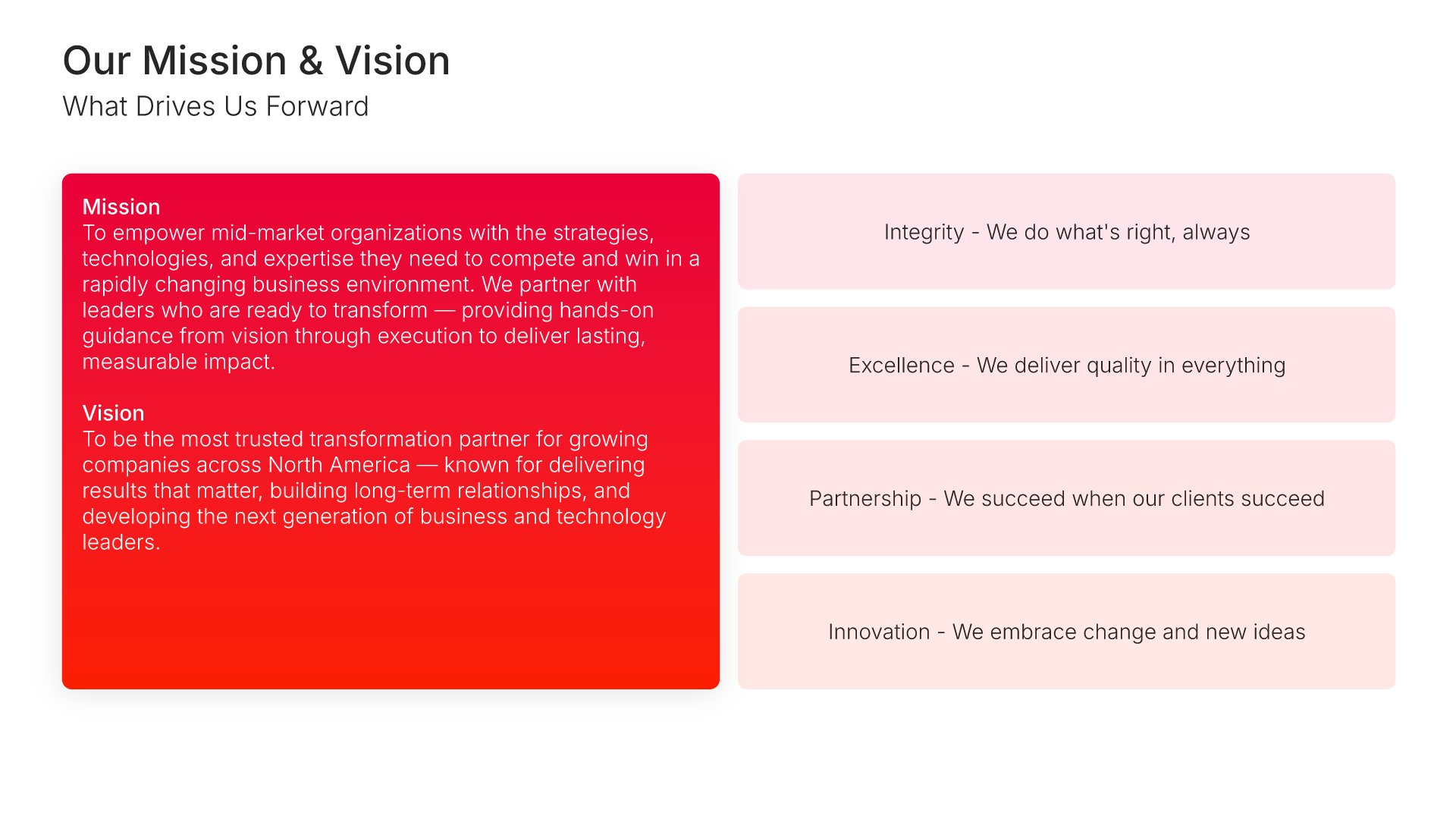
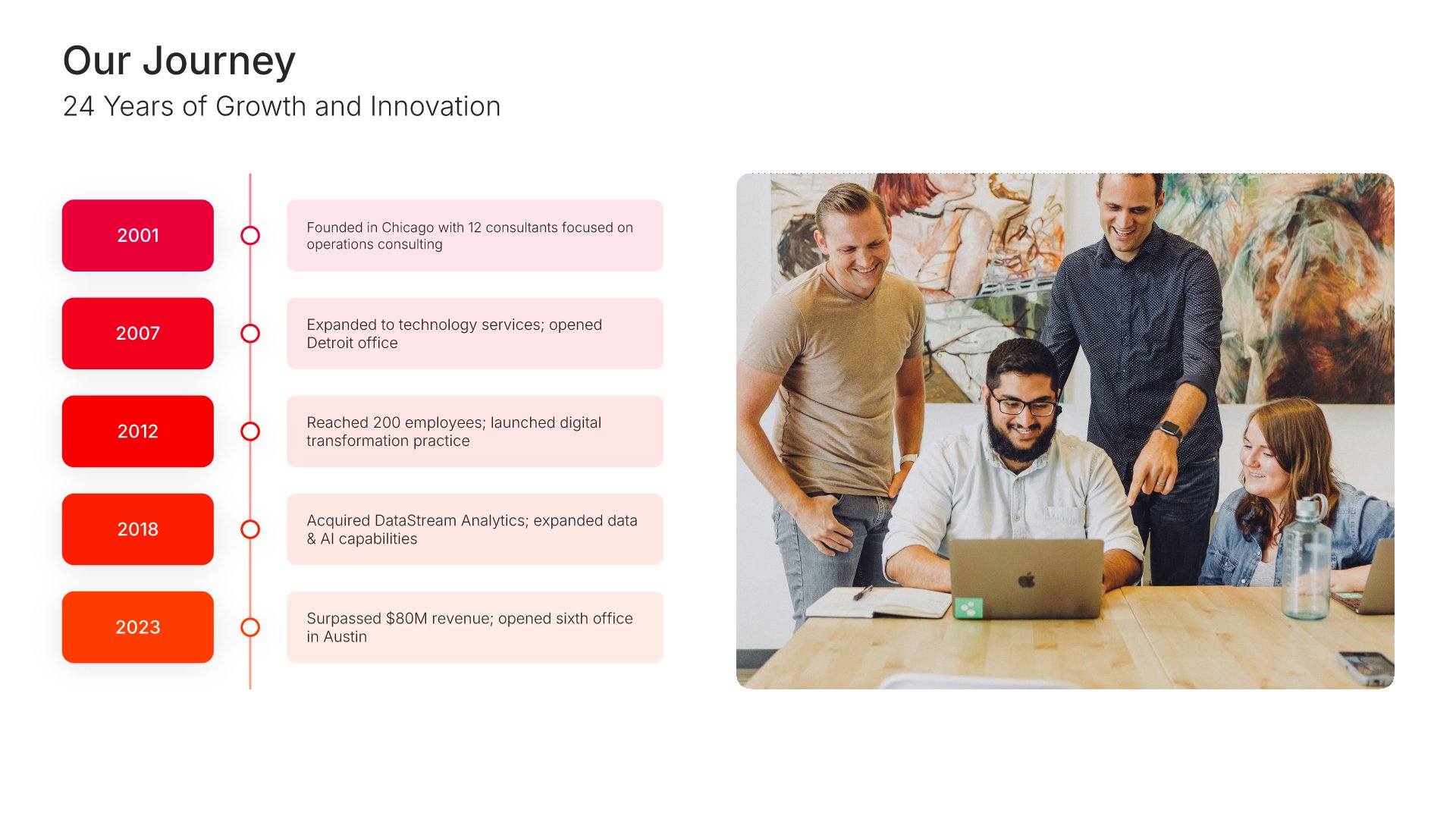
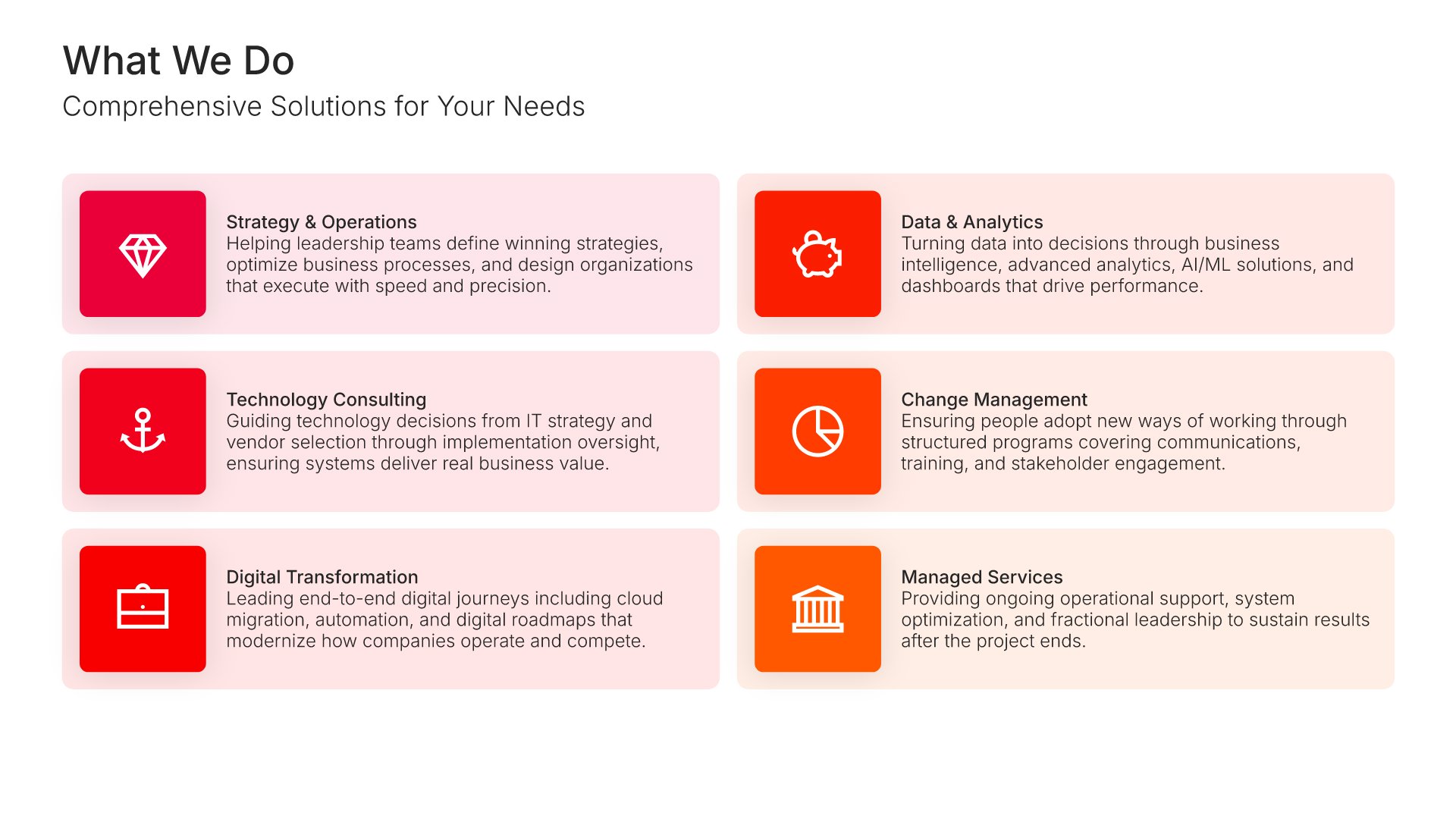
A comprehensive capability deck template designed for organizations showcasing their expertise to prospective clients. Built on the Classic Capability Showcase framework, this presentation covers company overview, service lines, methodology, case studies, team credentials, and differentiators. Ideal for sales meetings and RFP responses.

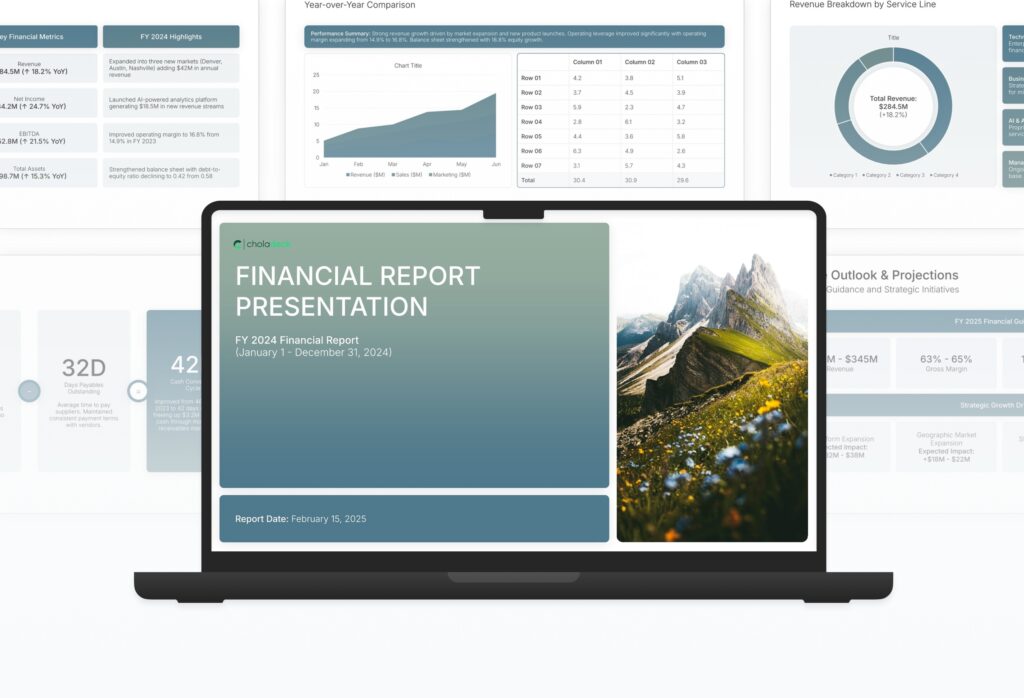
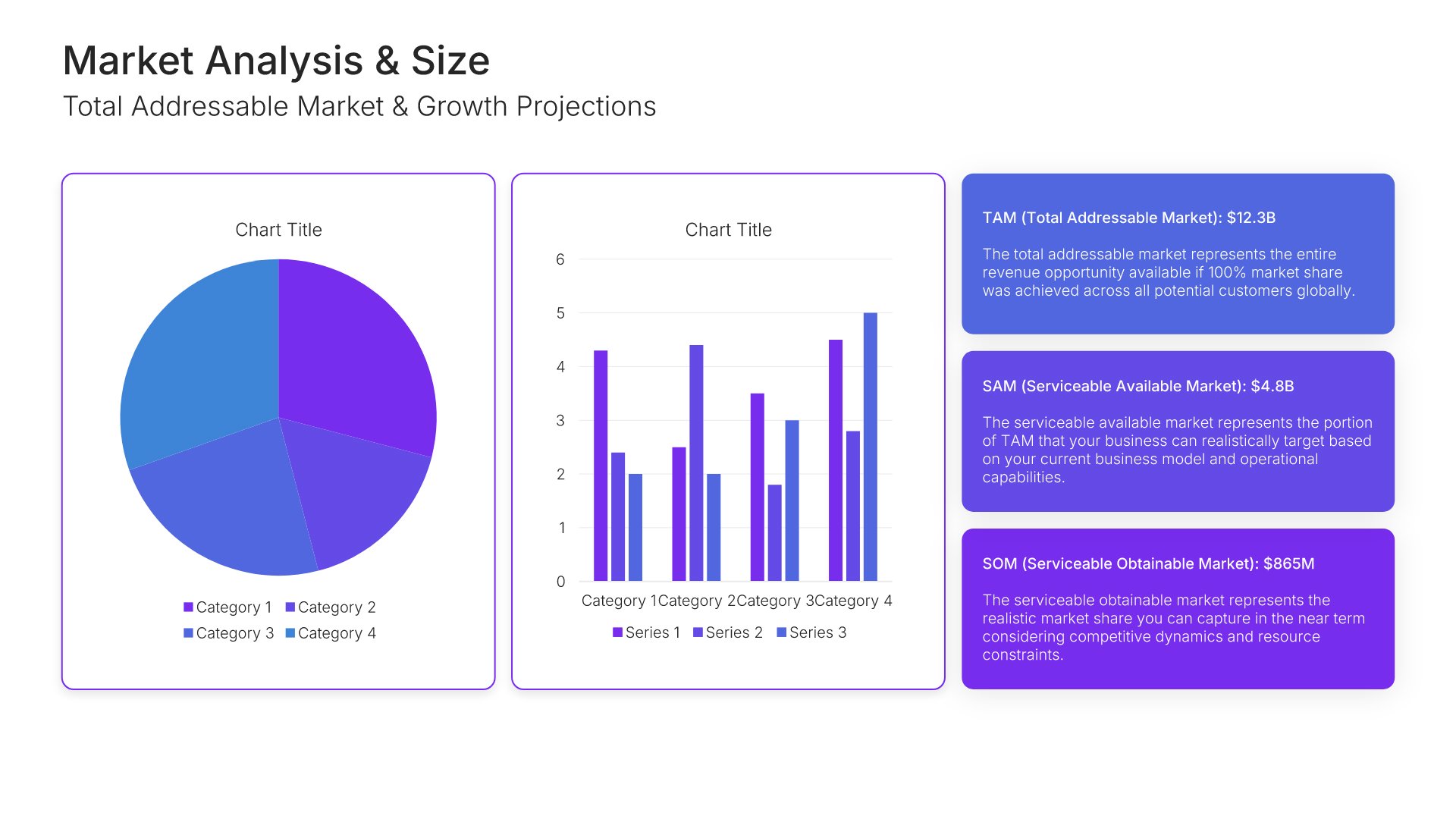
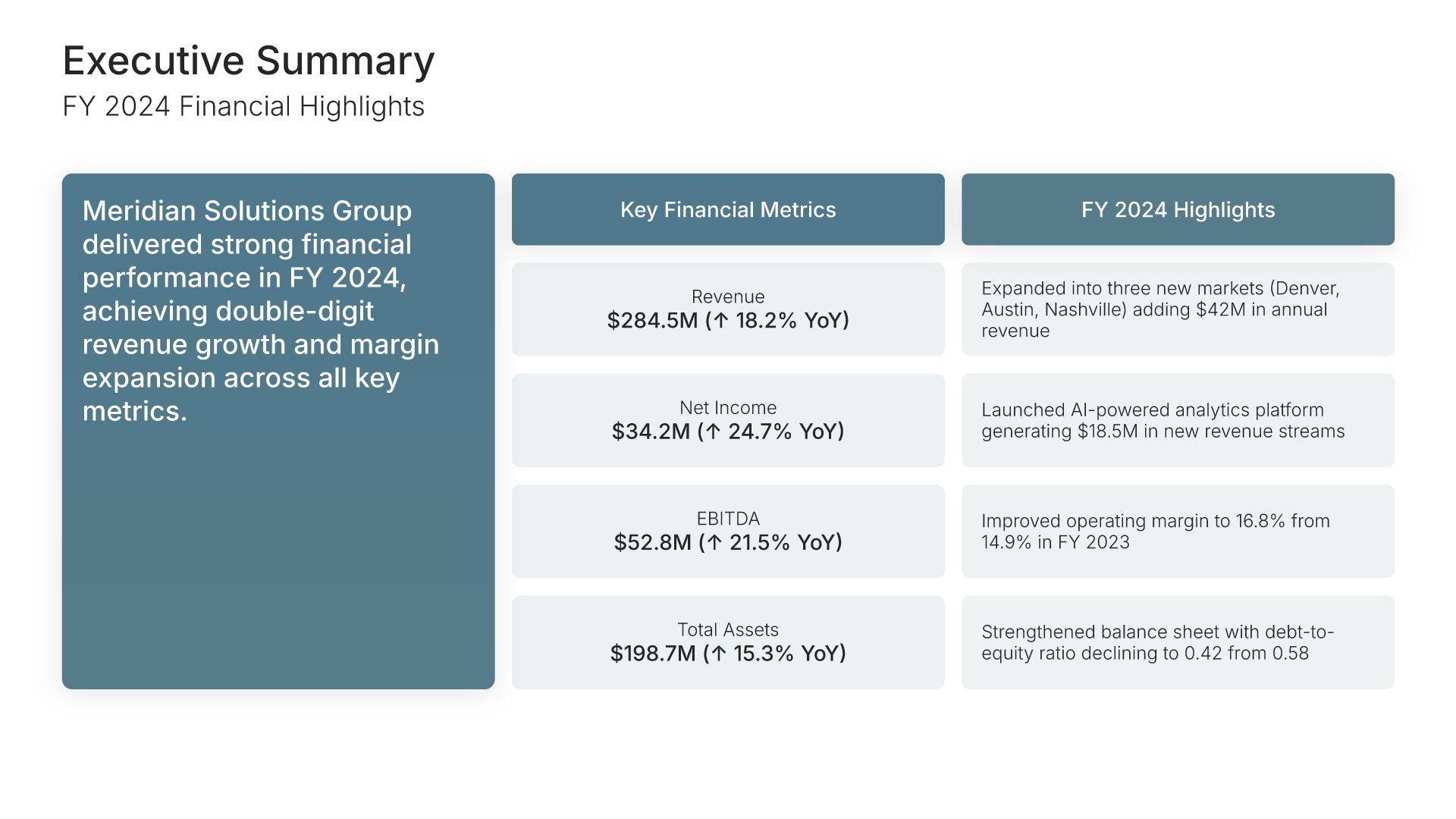
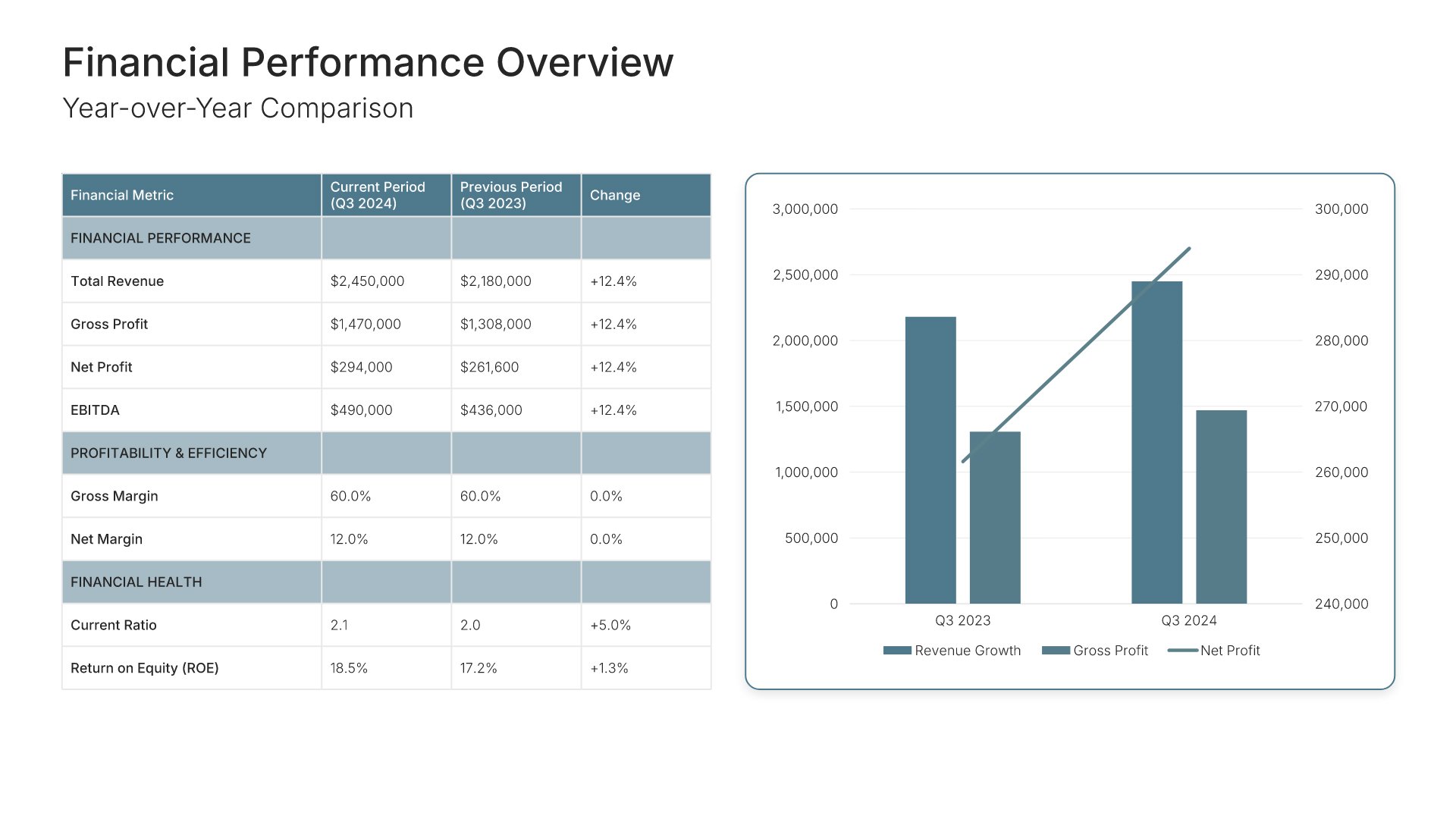
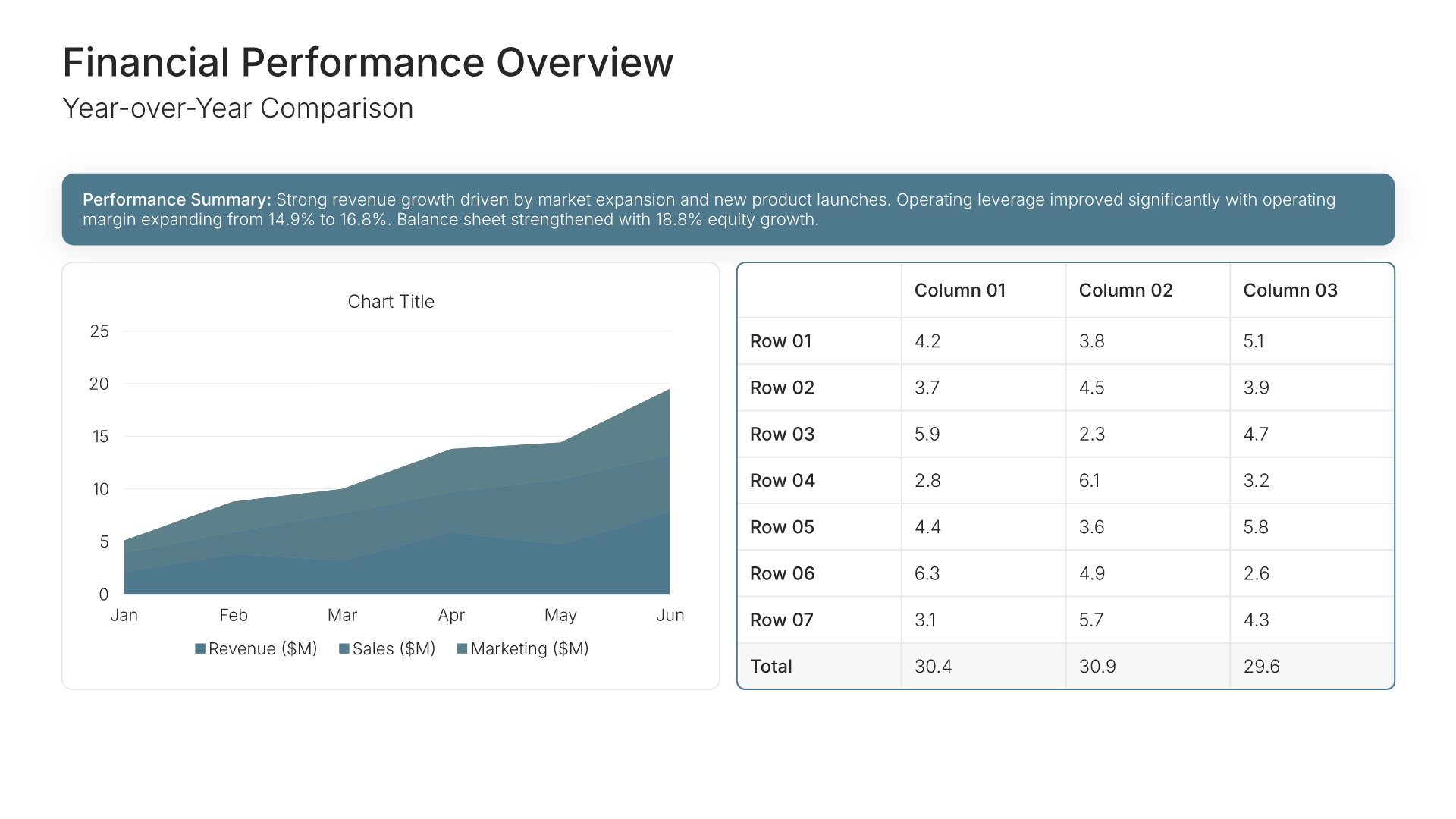
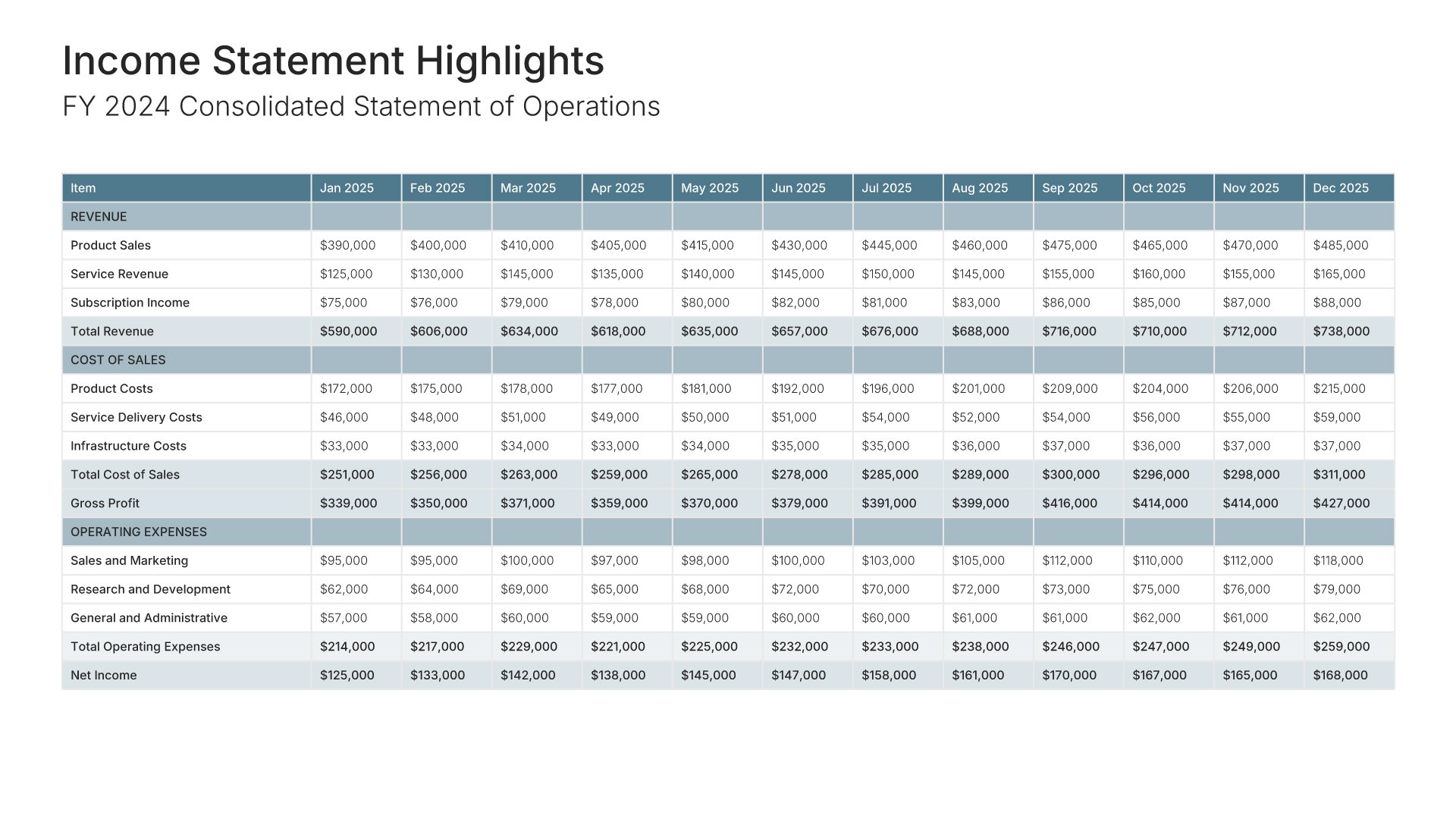
A comprehensive financial report template designed for organizations presenting annual or periodic financial results to stakeholders. Built on the Classic Financial Report framework, this presentation covers everything from income statements to cash flow analysis and future projections. Ideal for investor meetings and board presentations.

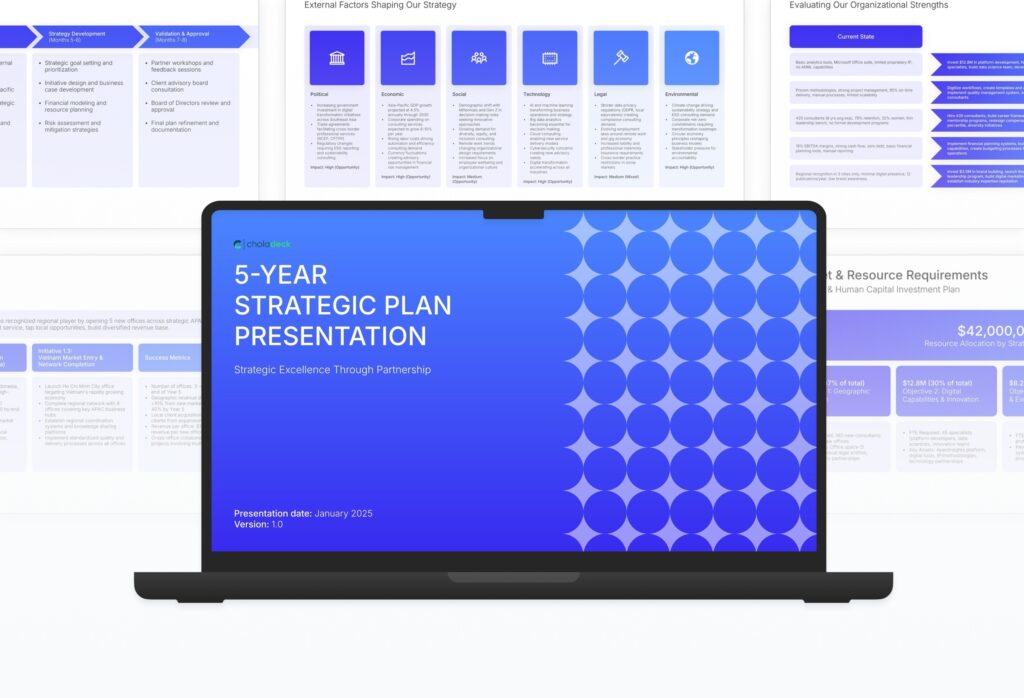
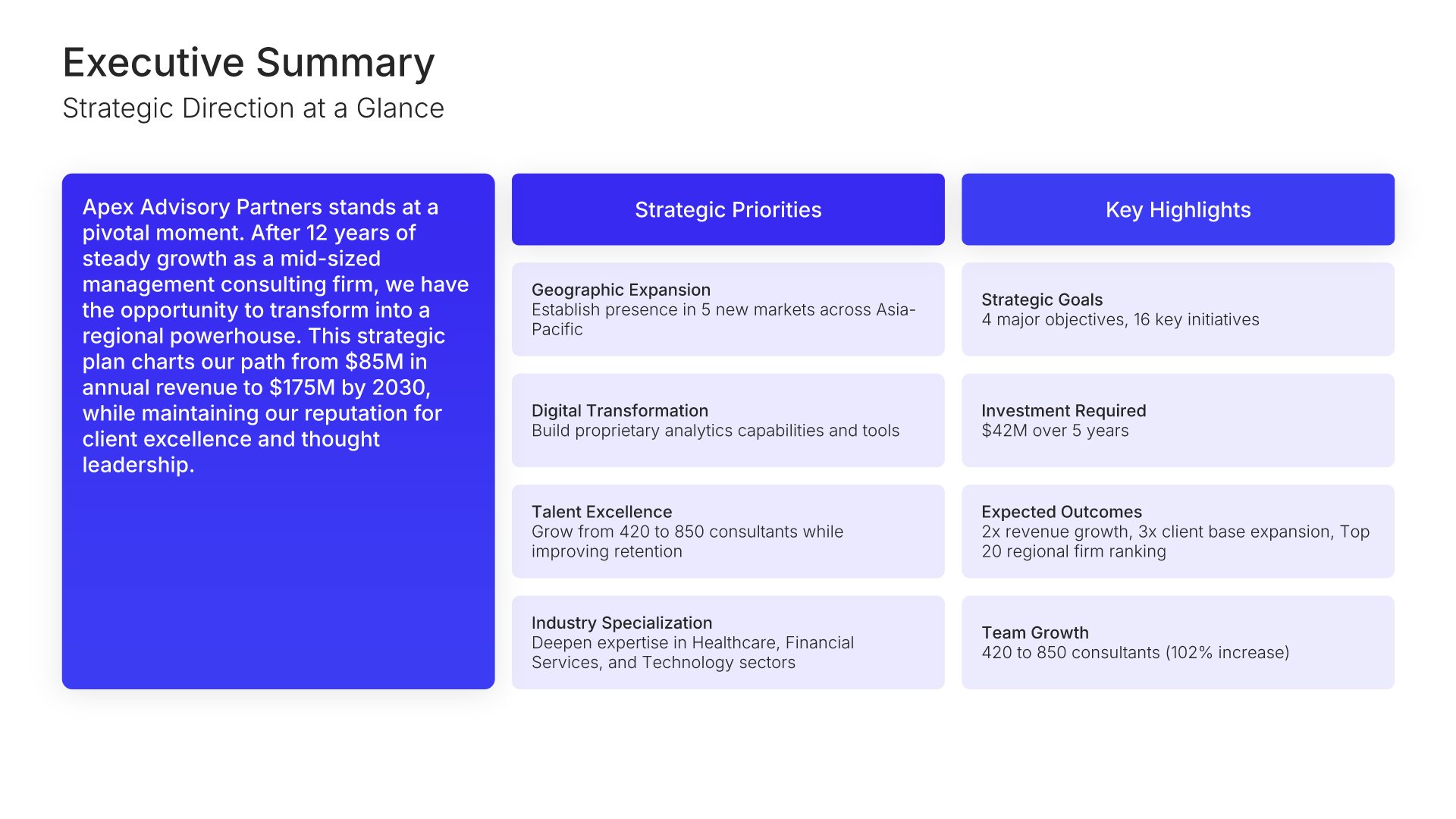
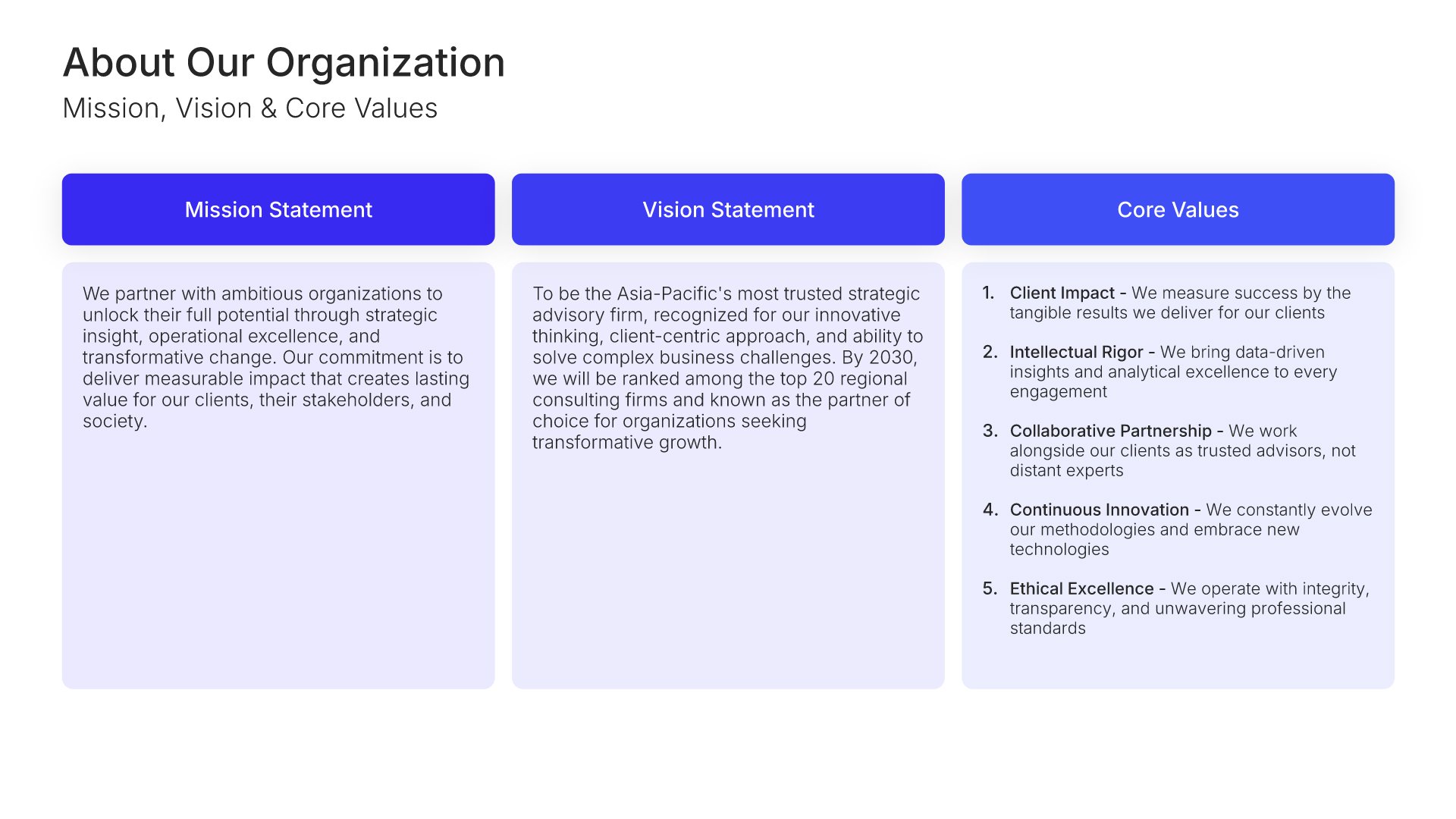
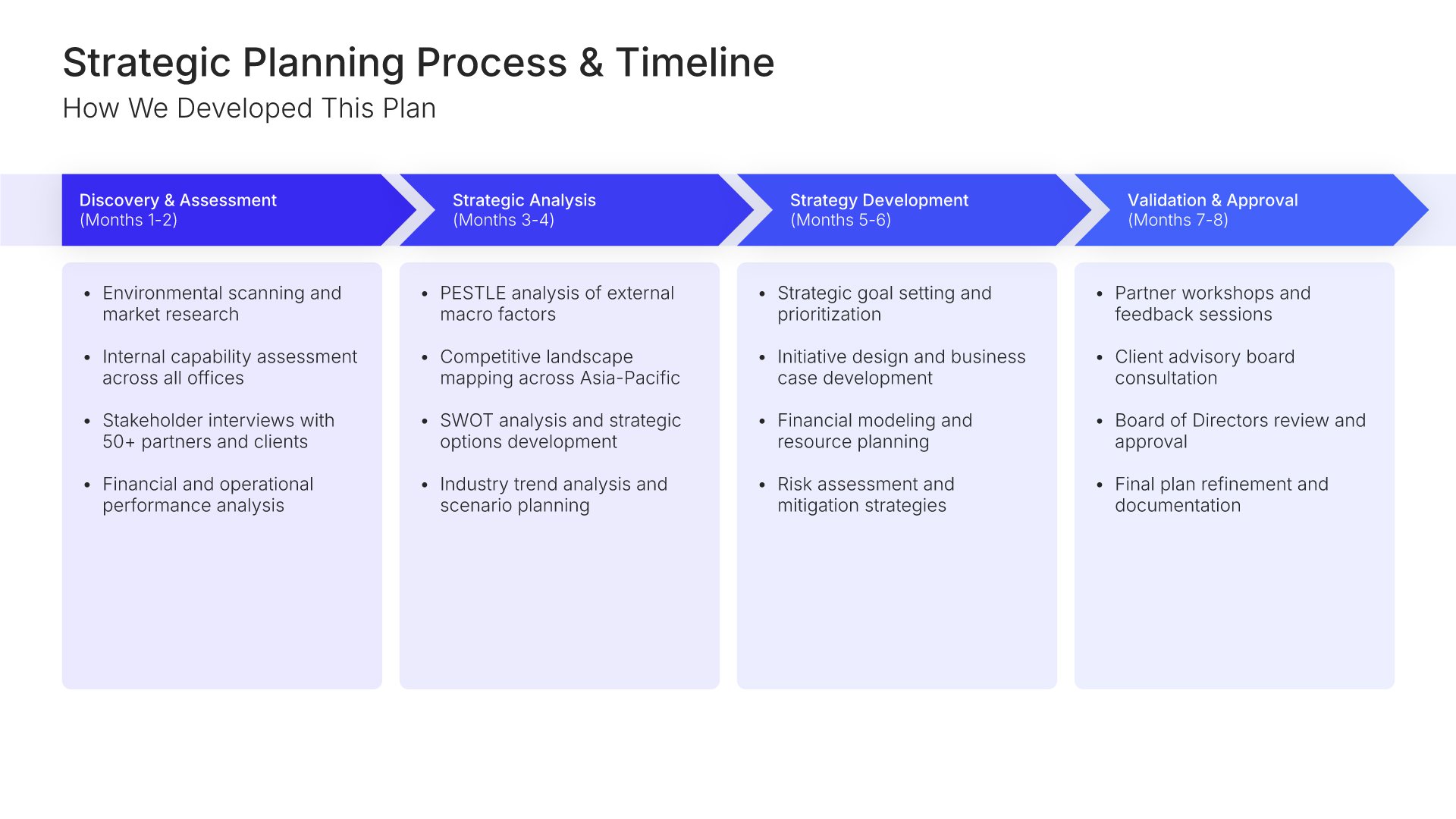
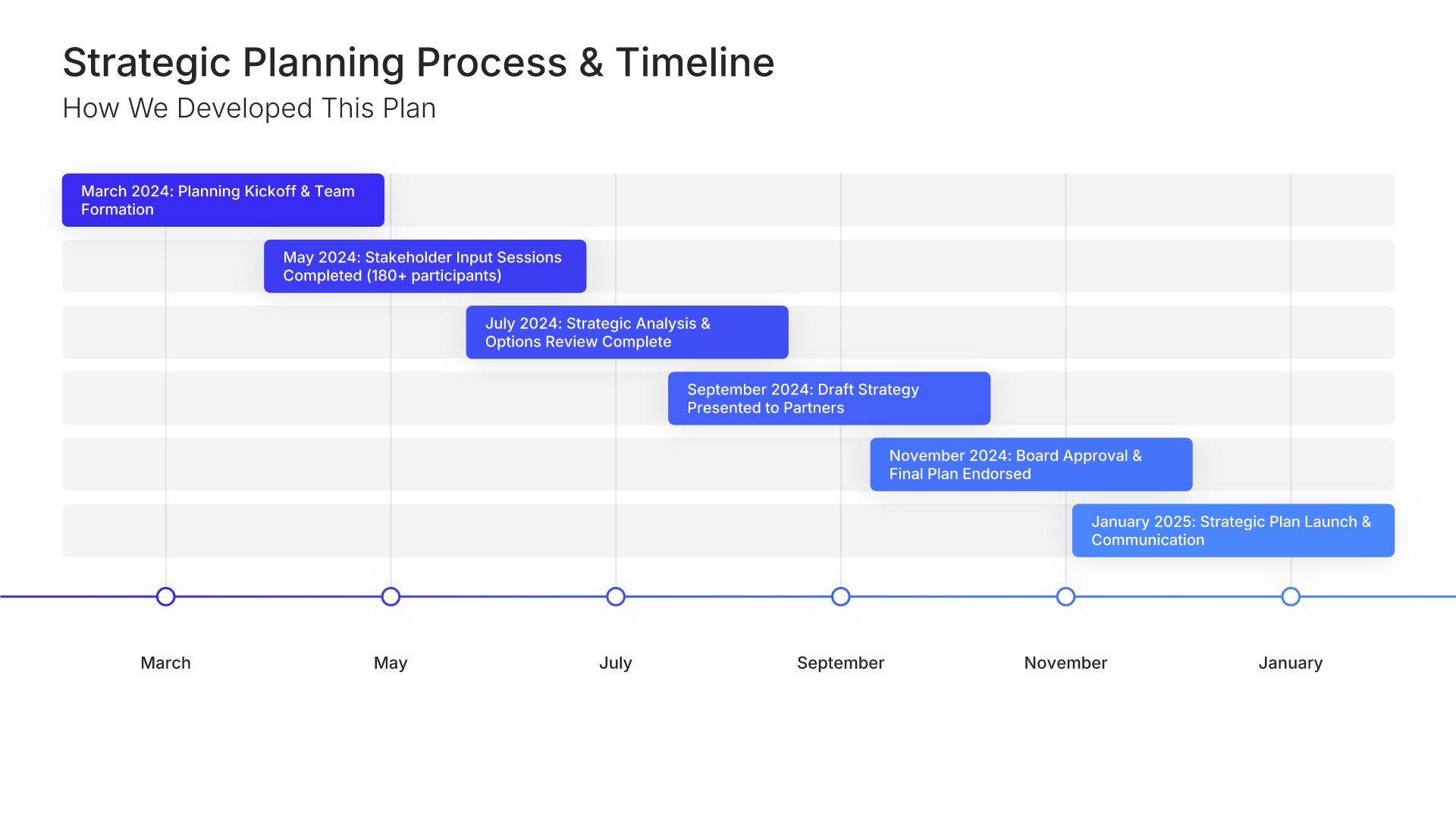
A comprehensive strategic plan template designed for organizations mapping their long-term direction and growth. Built on the classic 5-year planning framework, this presentation covers everything from environmental analysis to implementation roadmaps and KPIs. Ideal for executive teams, board presentations, and strategic offsites.

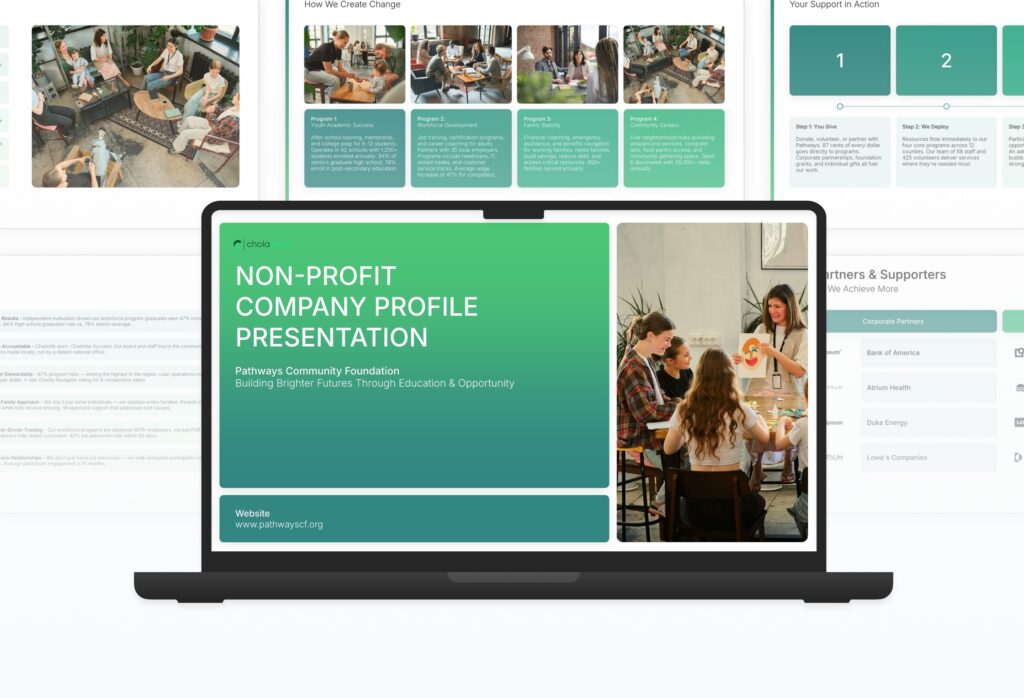
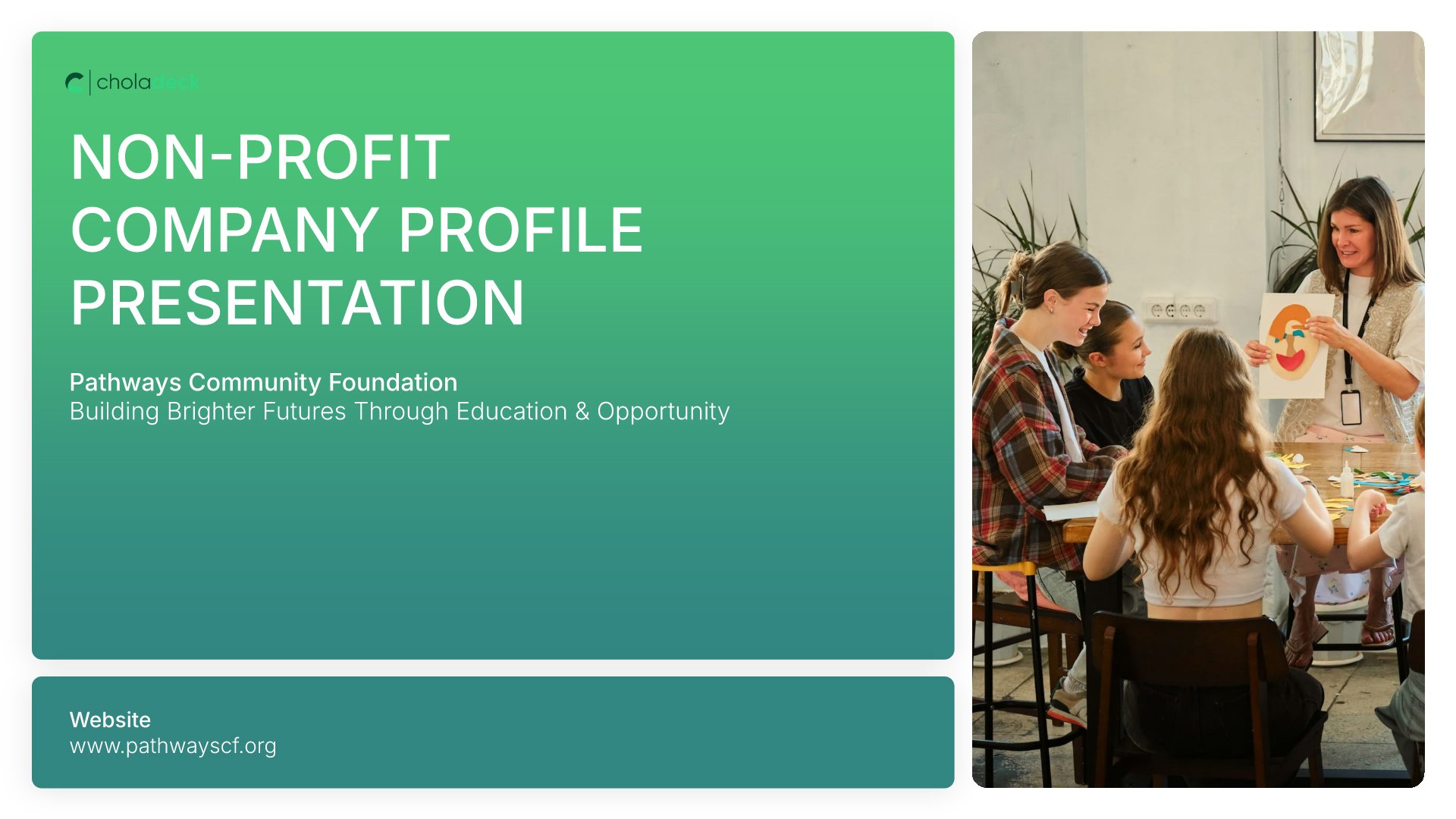
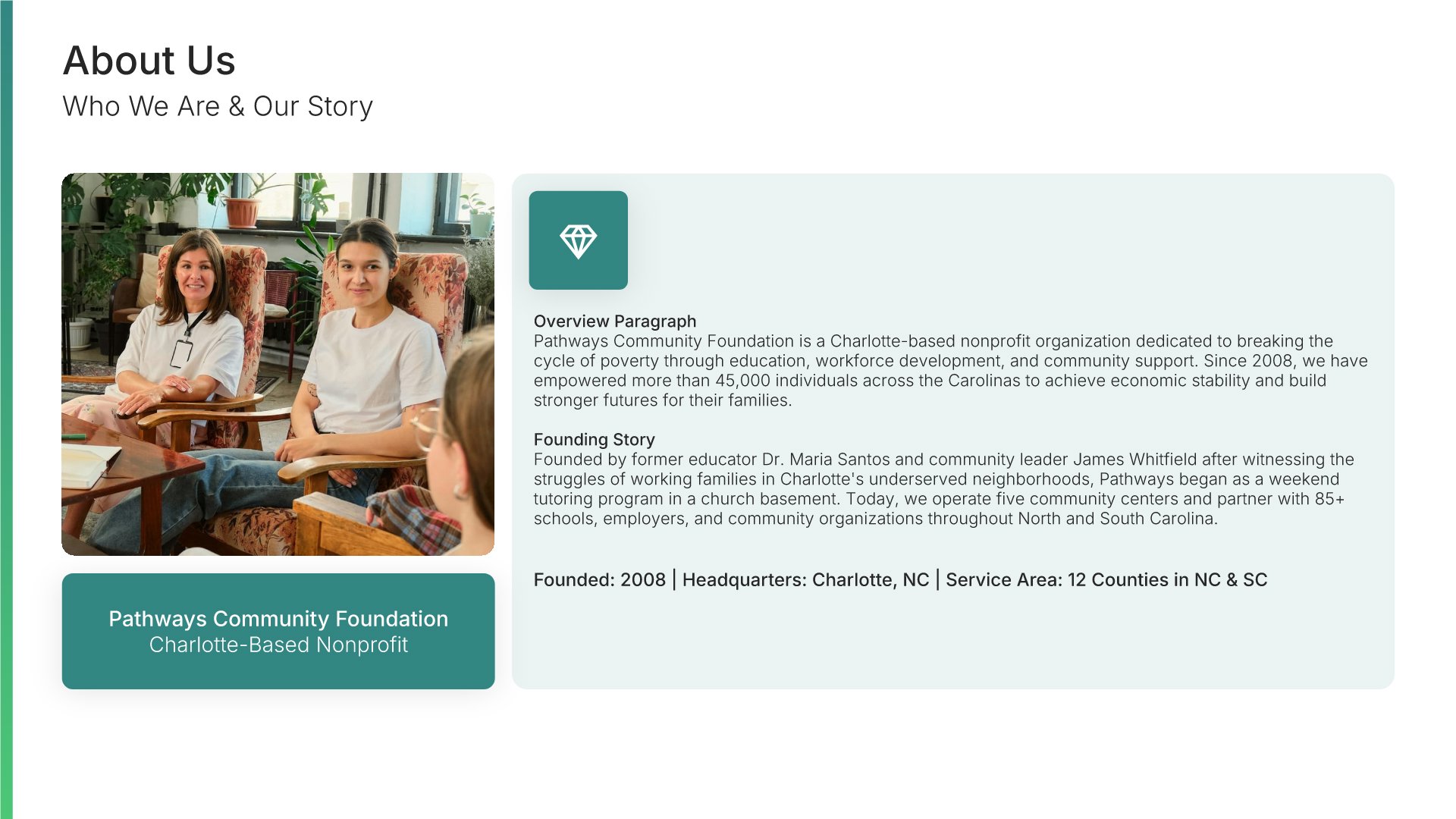
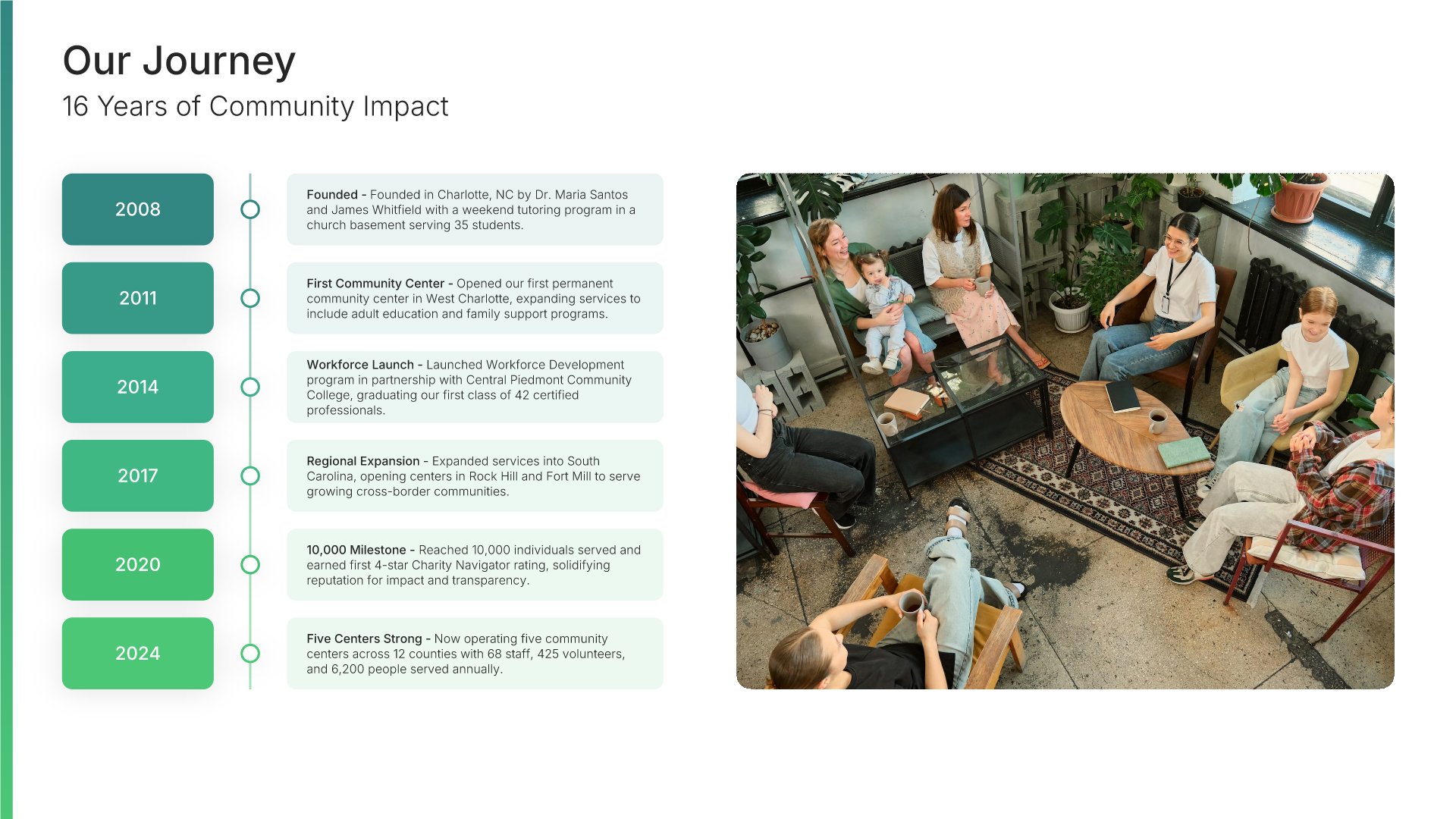
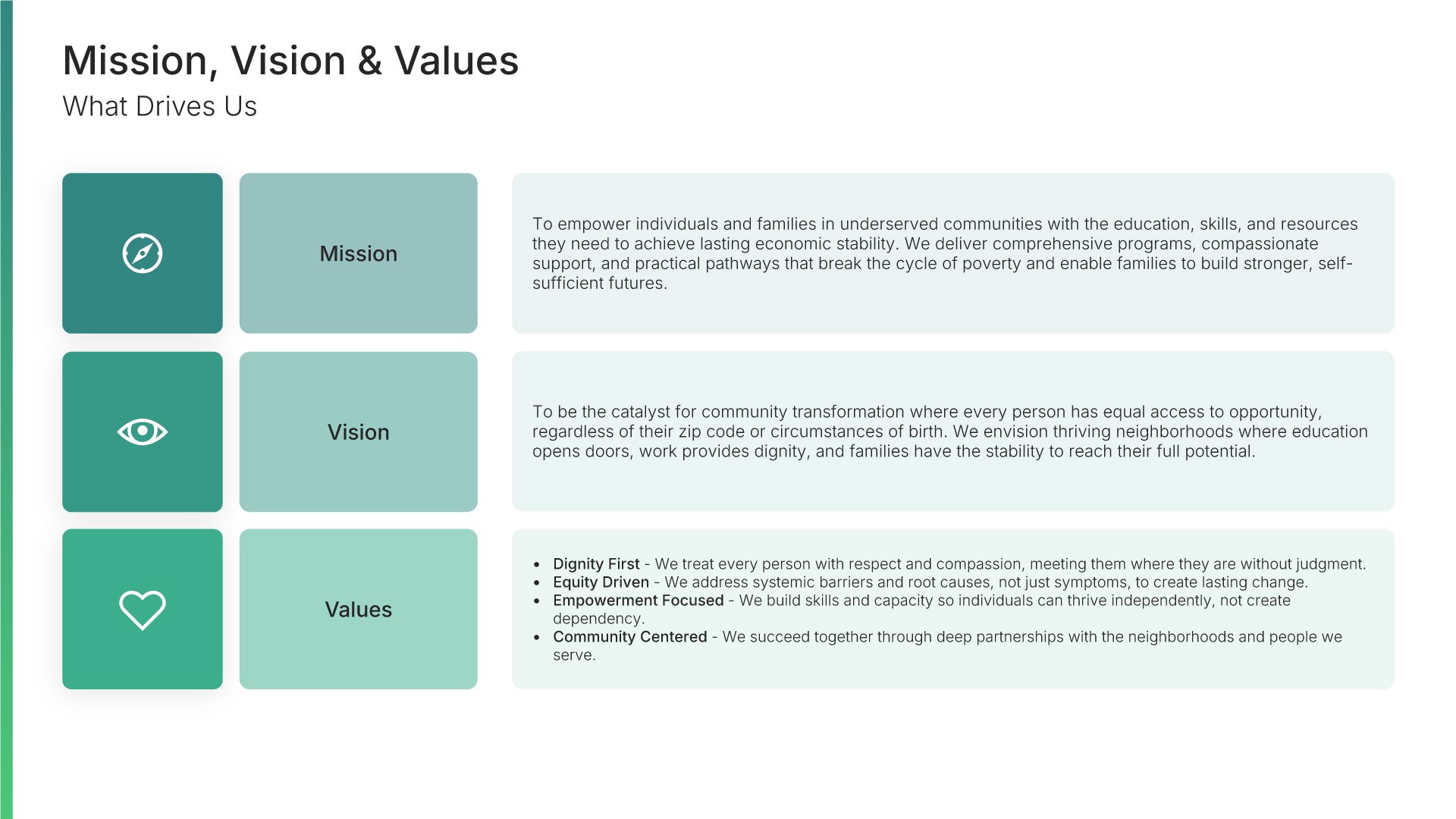
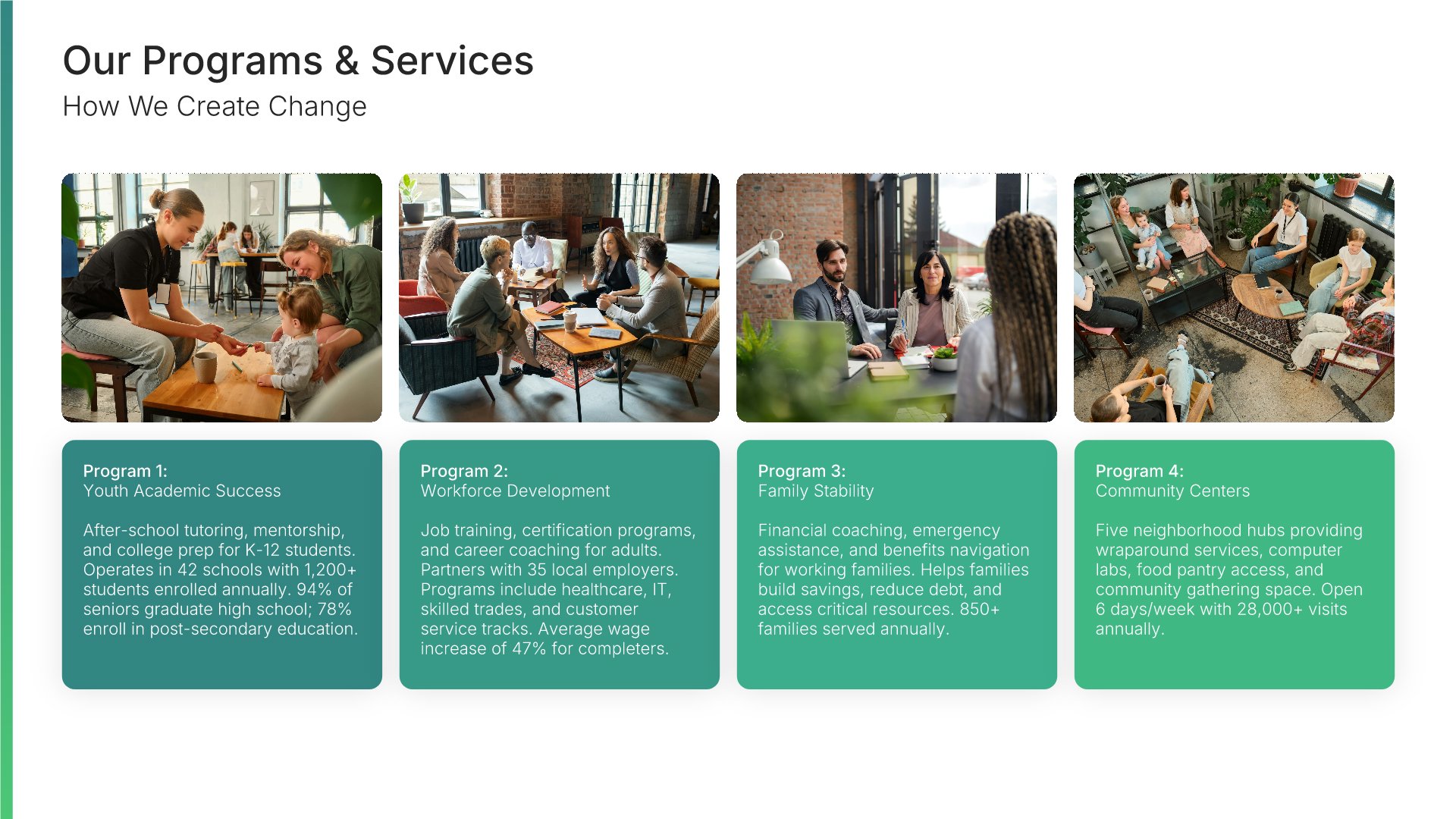
A professionally structured non-profit company profile template following the Universal Company Profile framework adapted for charitable organizations. Built for non-profits showcasing their mission to donors, volunteers, and partners. Covers organization history, programs, impact metrics, leadership, success stories, and partnership opportunities.
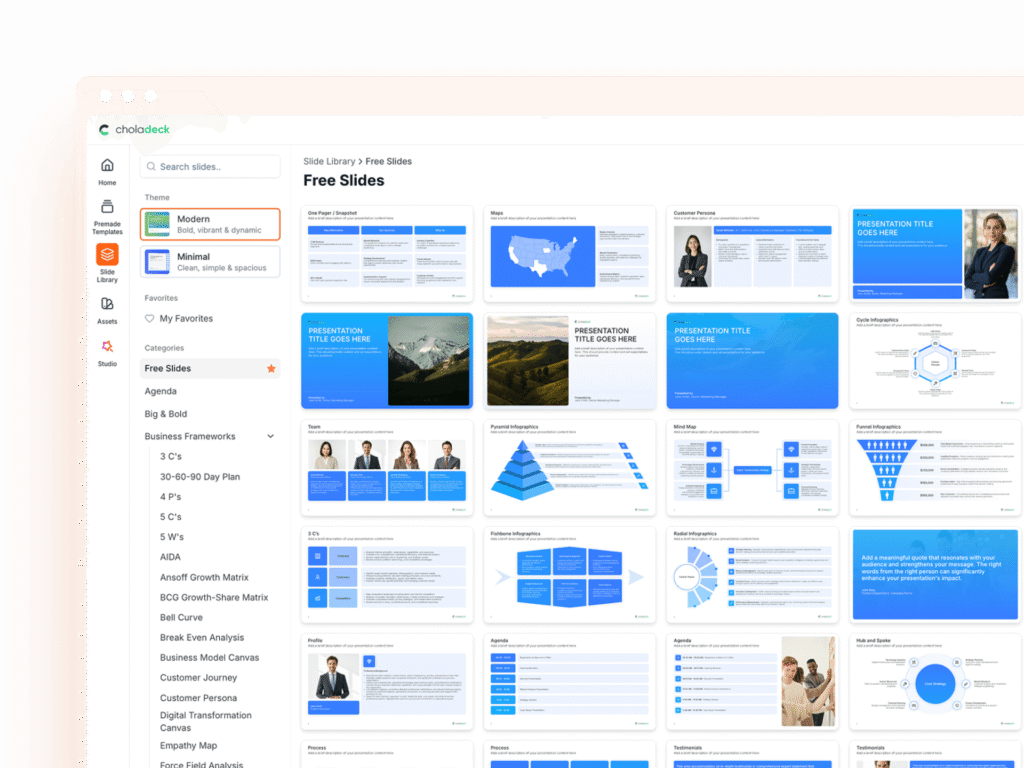
Explore over 9,172+ professionally designed slides across 134 categories. Or if you want a head start, pick from 74+ premade presentation templates. Whatever you need, it's probably already here.
Swap icons and images instantly from our built-in libraries. Use Pointers to choose your count (2-box, 3-box, 4-box) and Variations to pick your design style. No more settling for "close enough." Get the exact slide you need.
Add your logo, apply your brand colors, choose your fonts, and set custom backgrounds. One click and your entire presentation looks like it was made just for you. Because it was.
When you're ready, export to PowerPoint, Google Slides, or Keynote with a single click. Continue editing in your favorite tool if you want. Your workflow, your way.
No Sign-in or Credit Card Required
Before you go, have you had the chance to experience Choladeck? If not try out – Choladeck for absolutely FREE!!
No Sign-in or Credit Card Required
No Sign-in or Credit Card Required
