Pricing

Layer infographic slides

Layer infographic slides show how a system is built in levels, each one sitting on top of the one below: a technology stack, an organization, a product, or a strategy. Pick one of 12 layouts, brand it to your company in one click, label each layer, and export to PowerPoint, Google Slides, or Keynote.

Free to start. No credit card required.
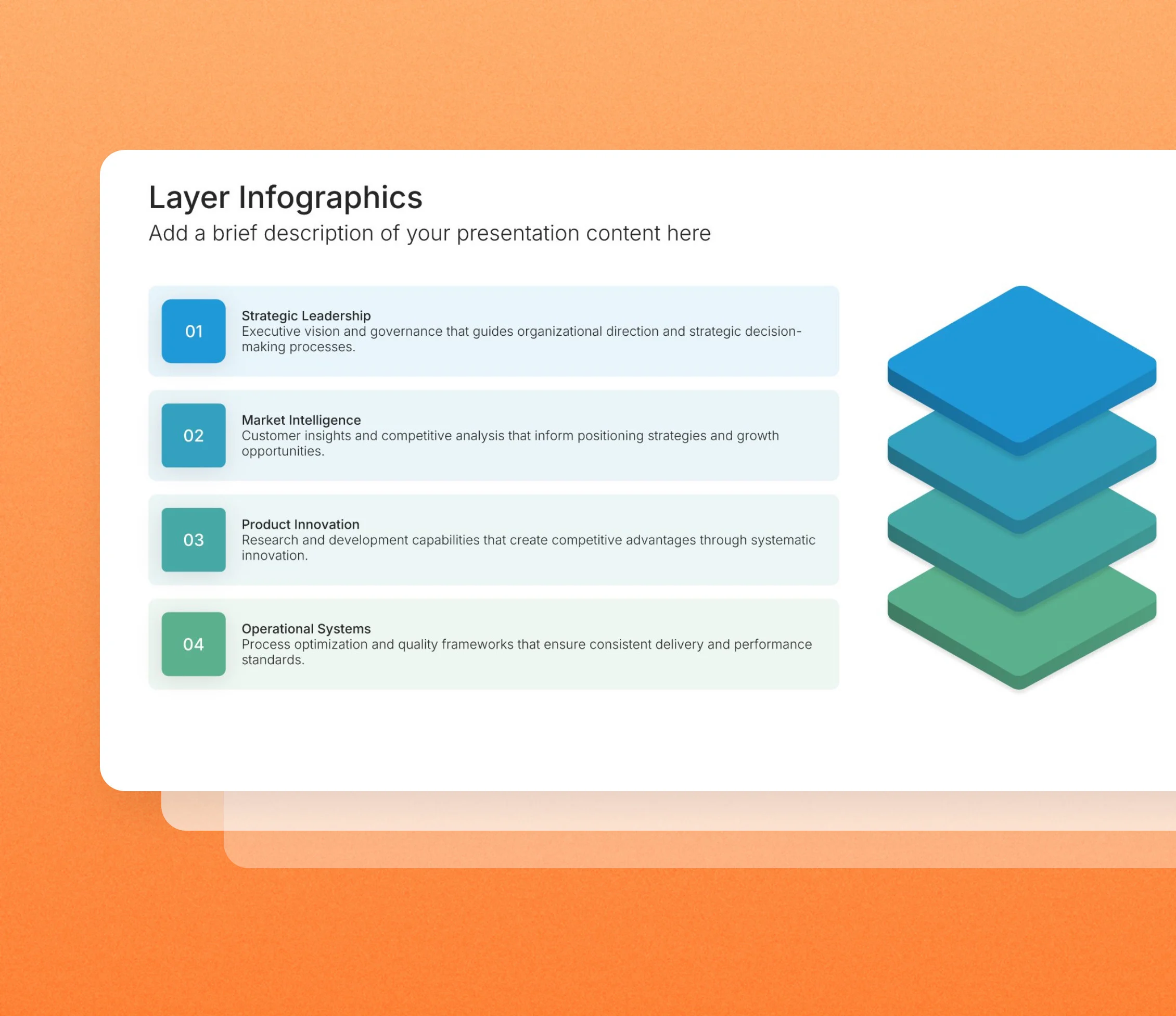
Layer infographic slides in the Choladeck slide library

Browse layer infographic slides

12 ways to show what sits on what, all fully editable.
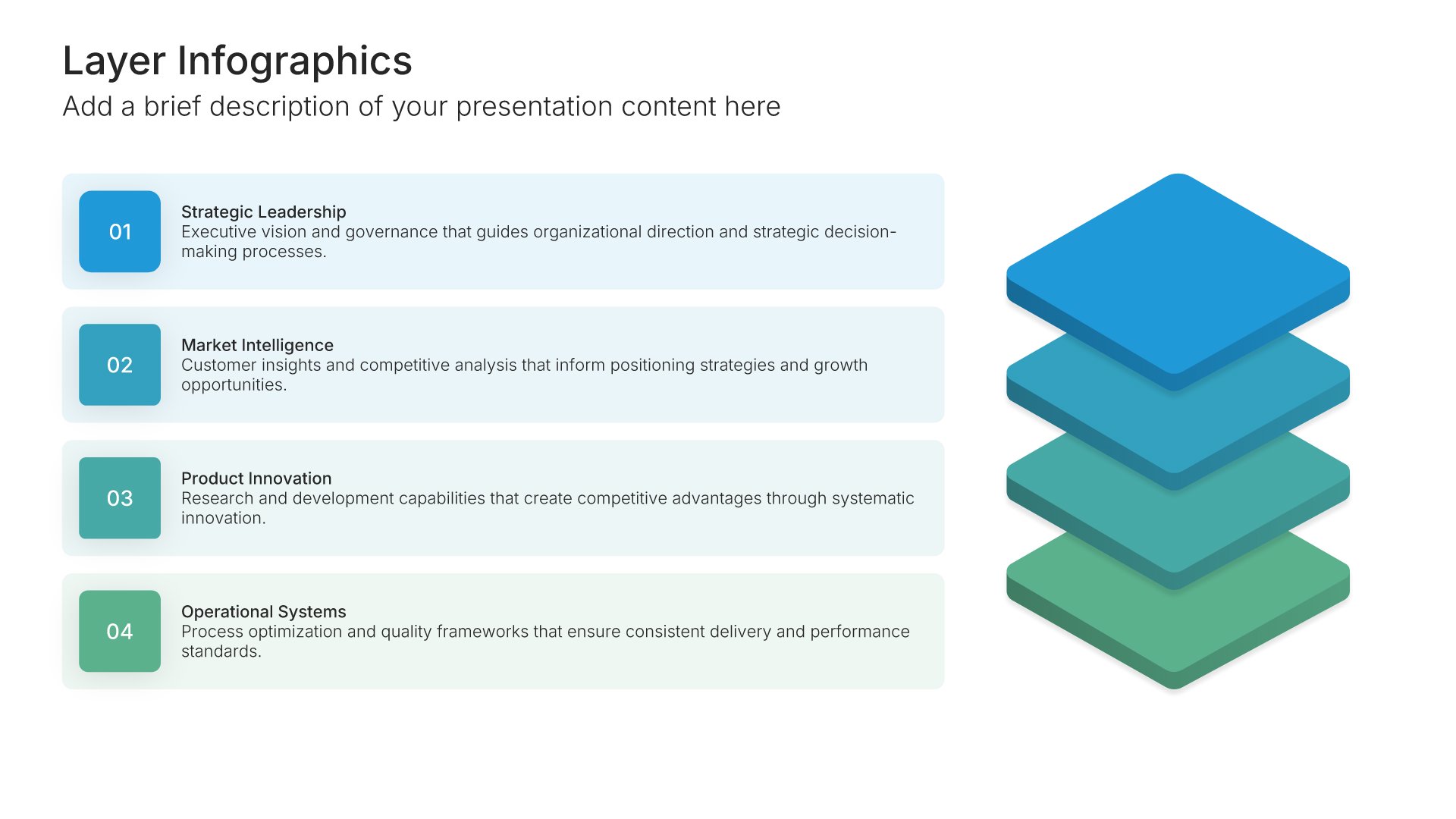
Layer Infographics • Slide Library • Layout 01 of 12

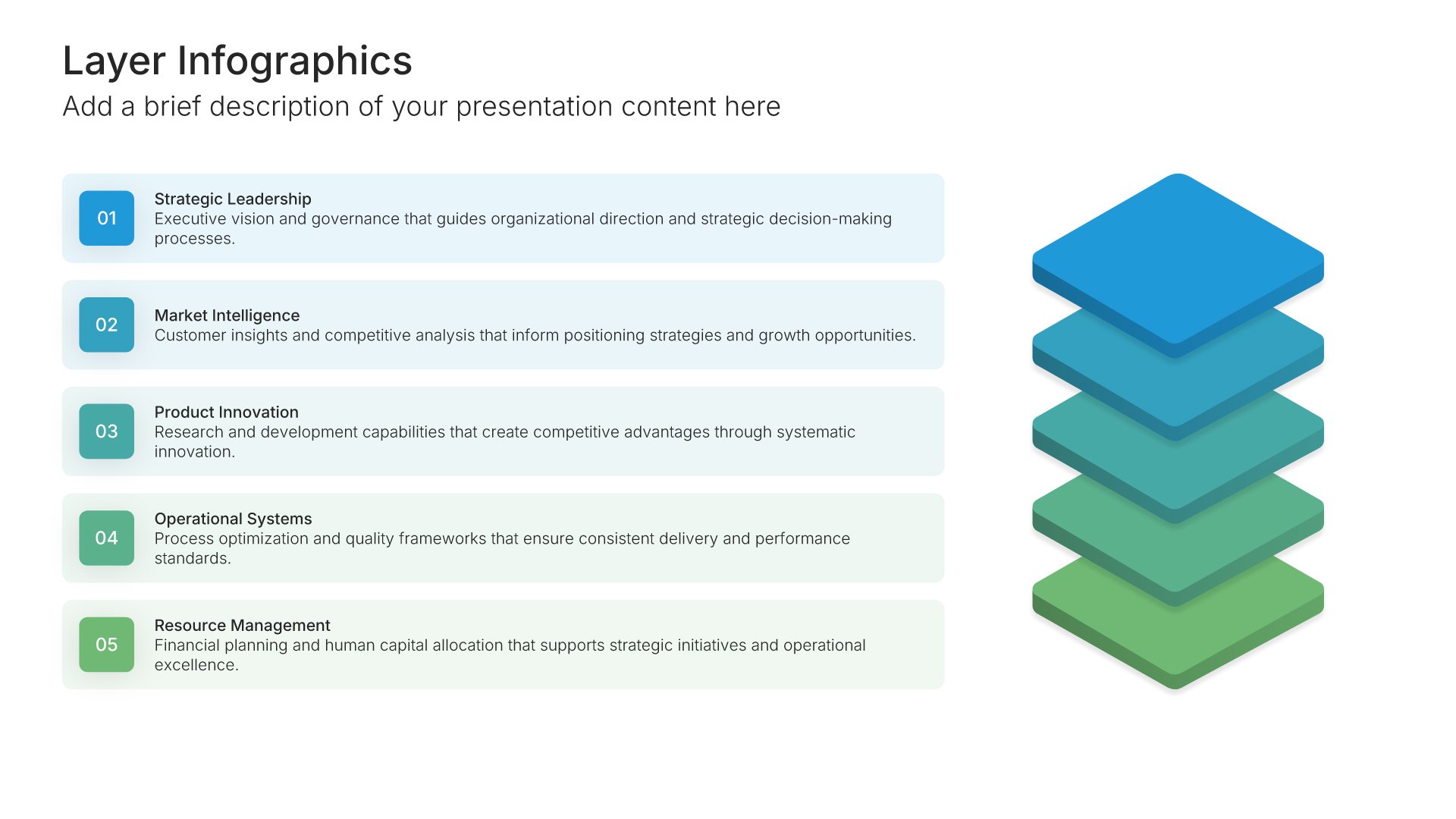
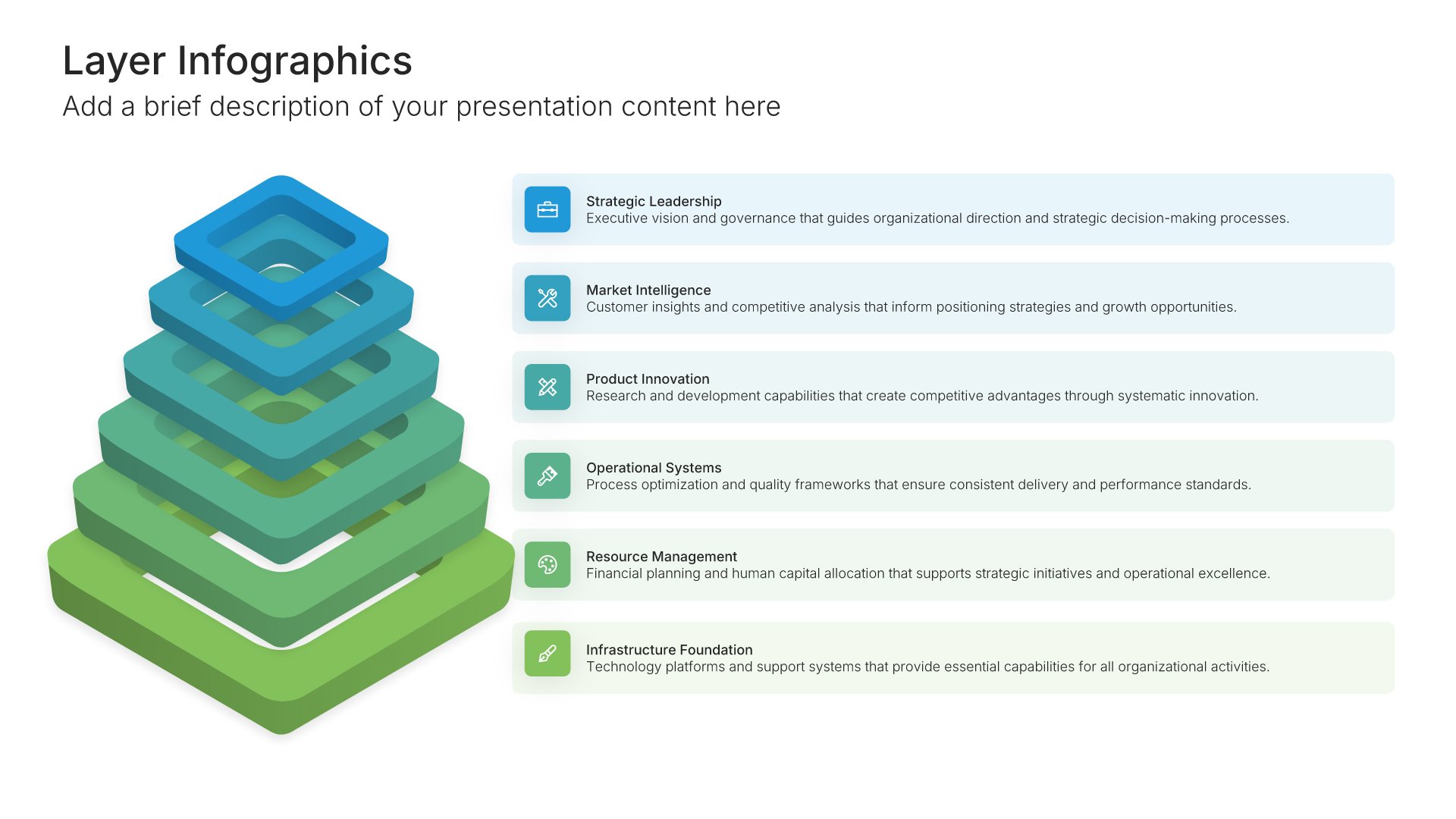
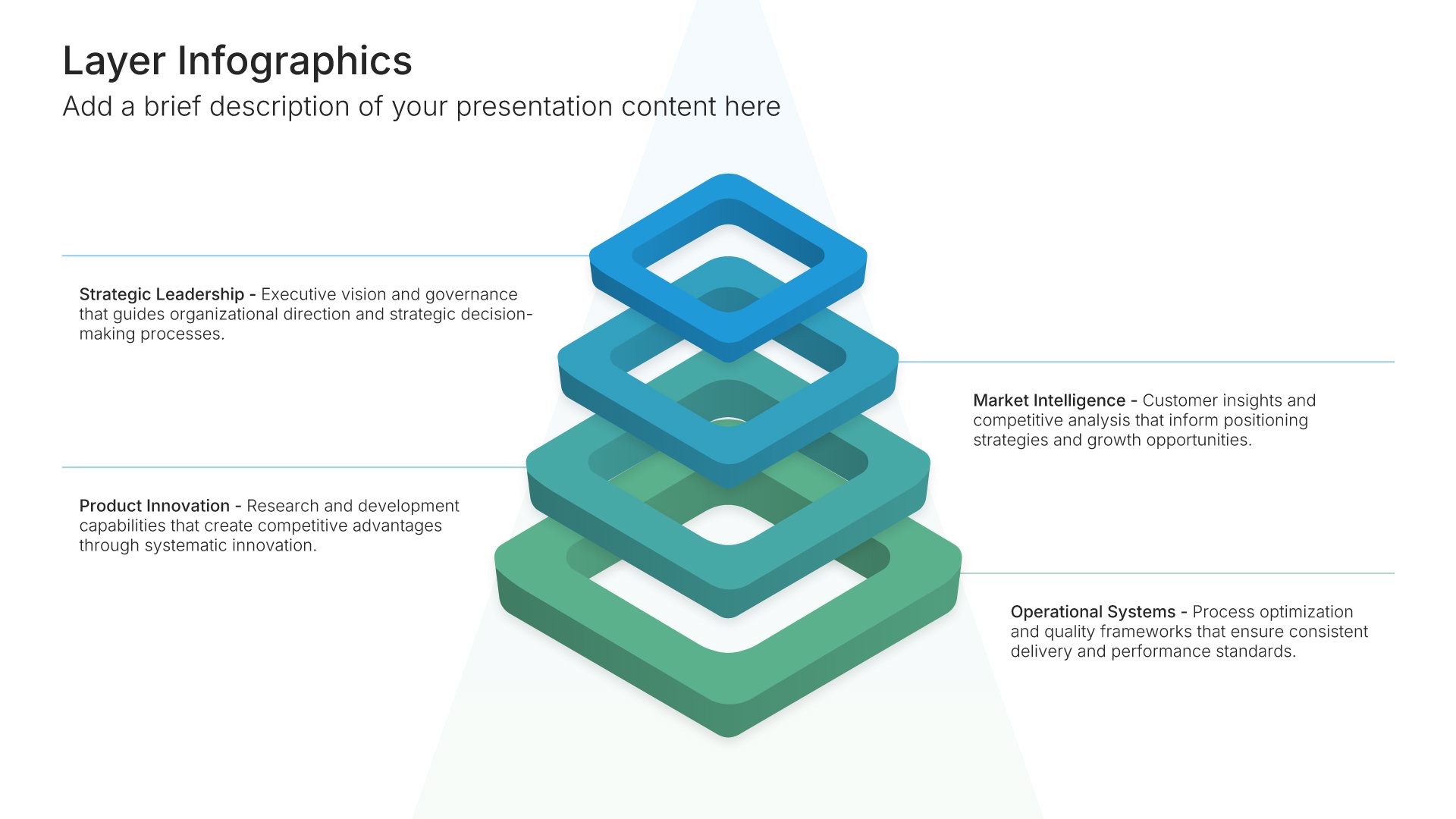
Layer infographic slide, layout 01

Layout 01

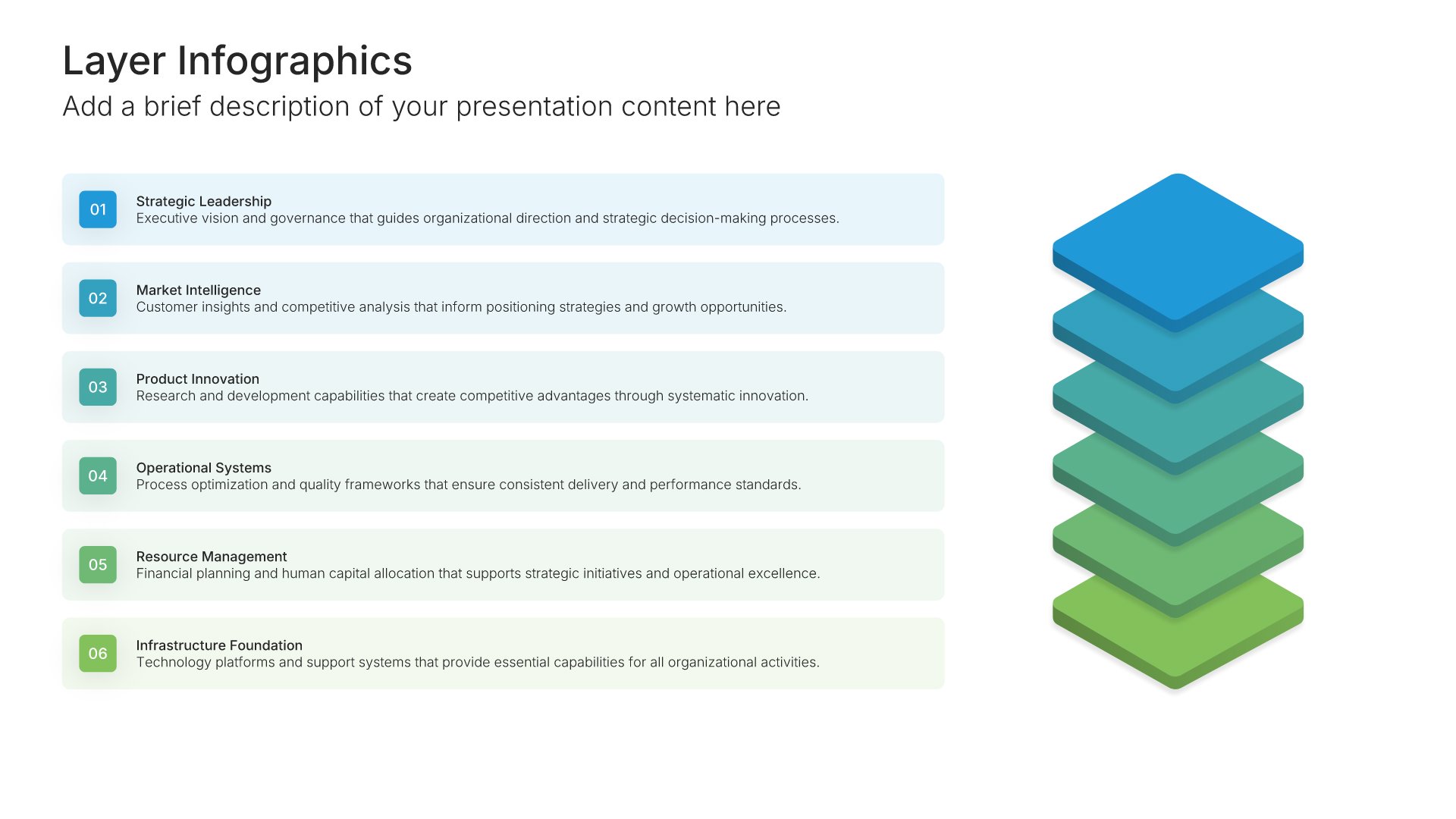
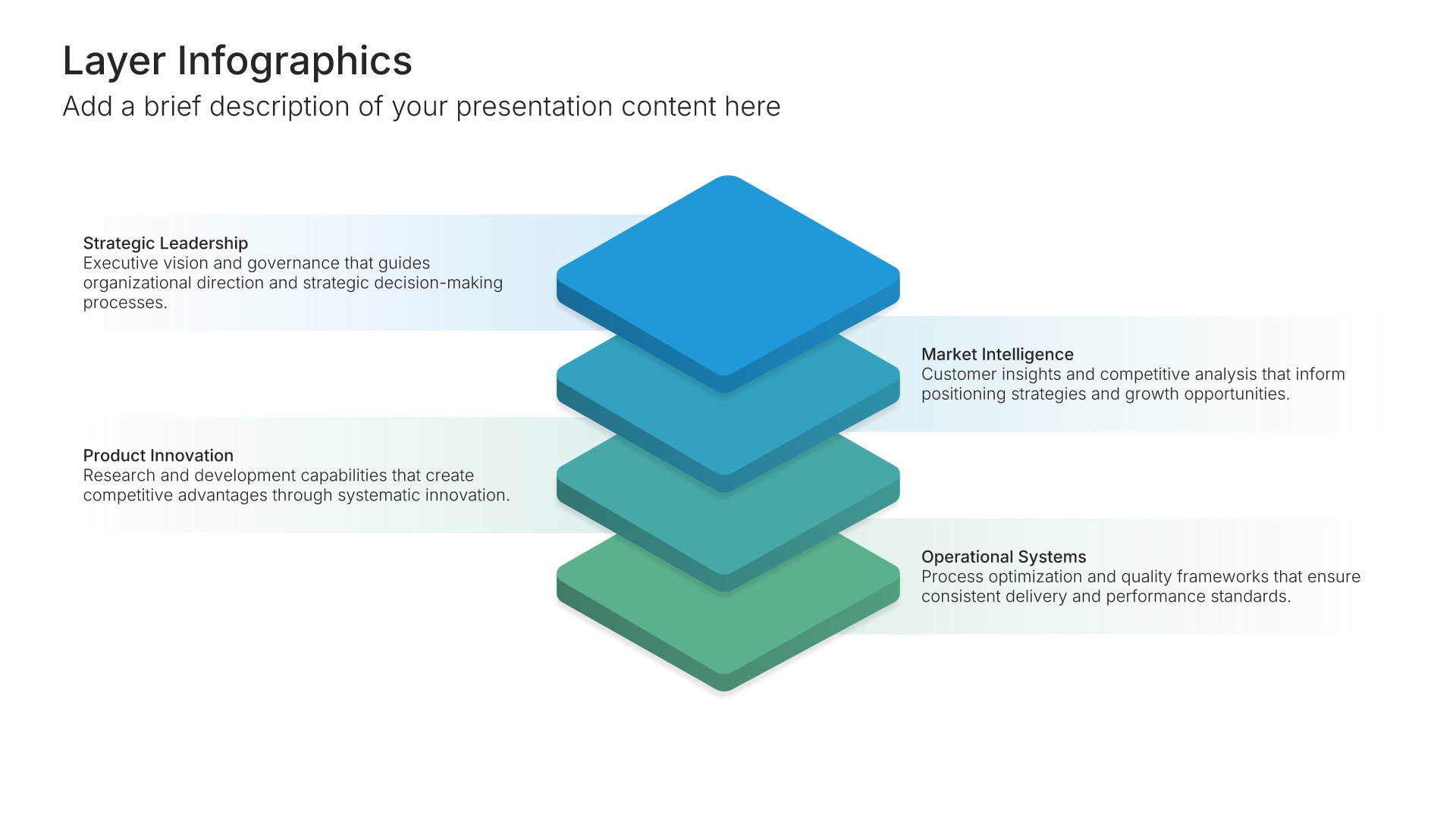
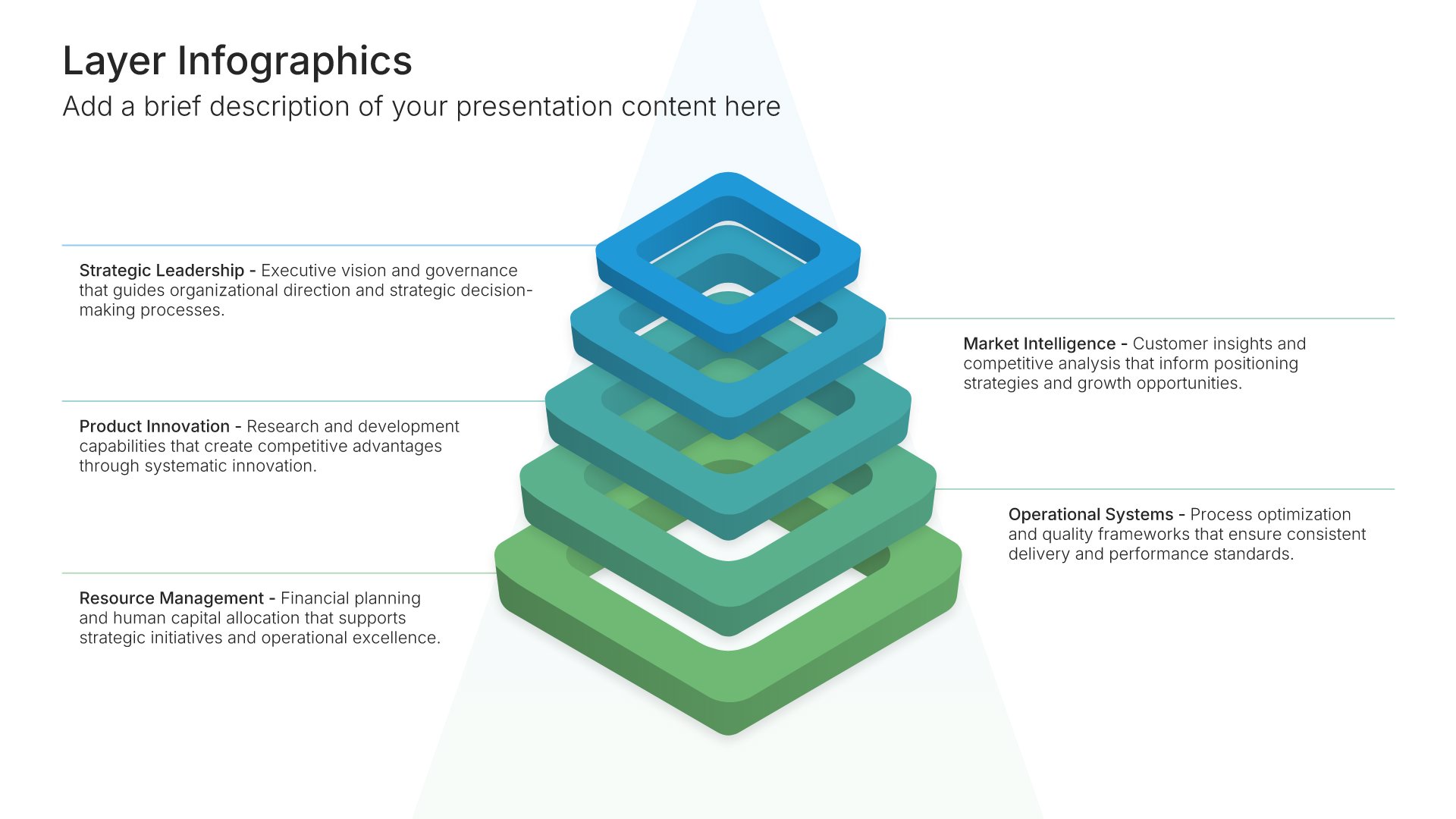
Layer infographic slide, layout 02

Layout 02

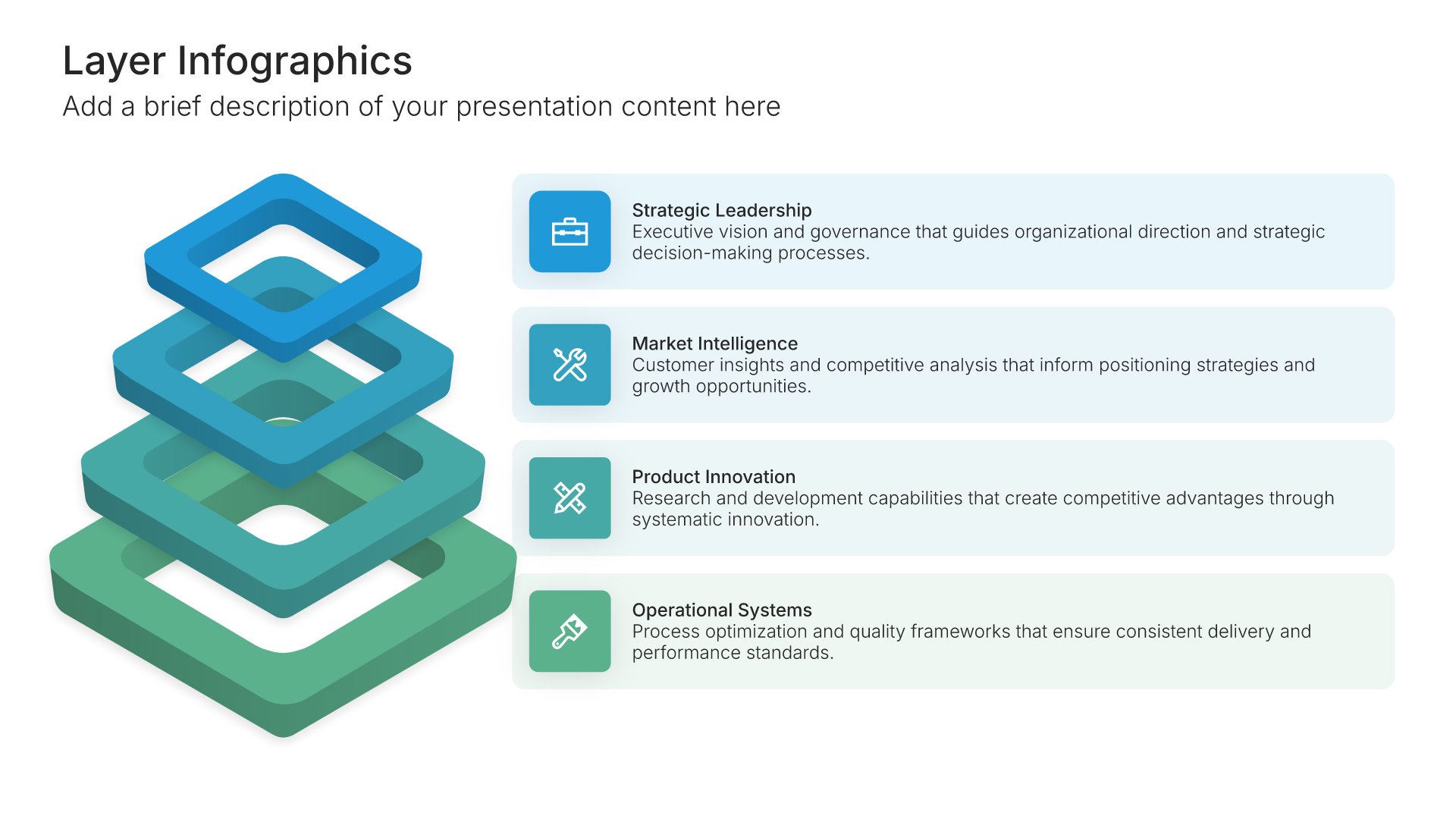
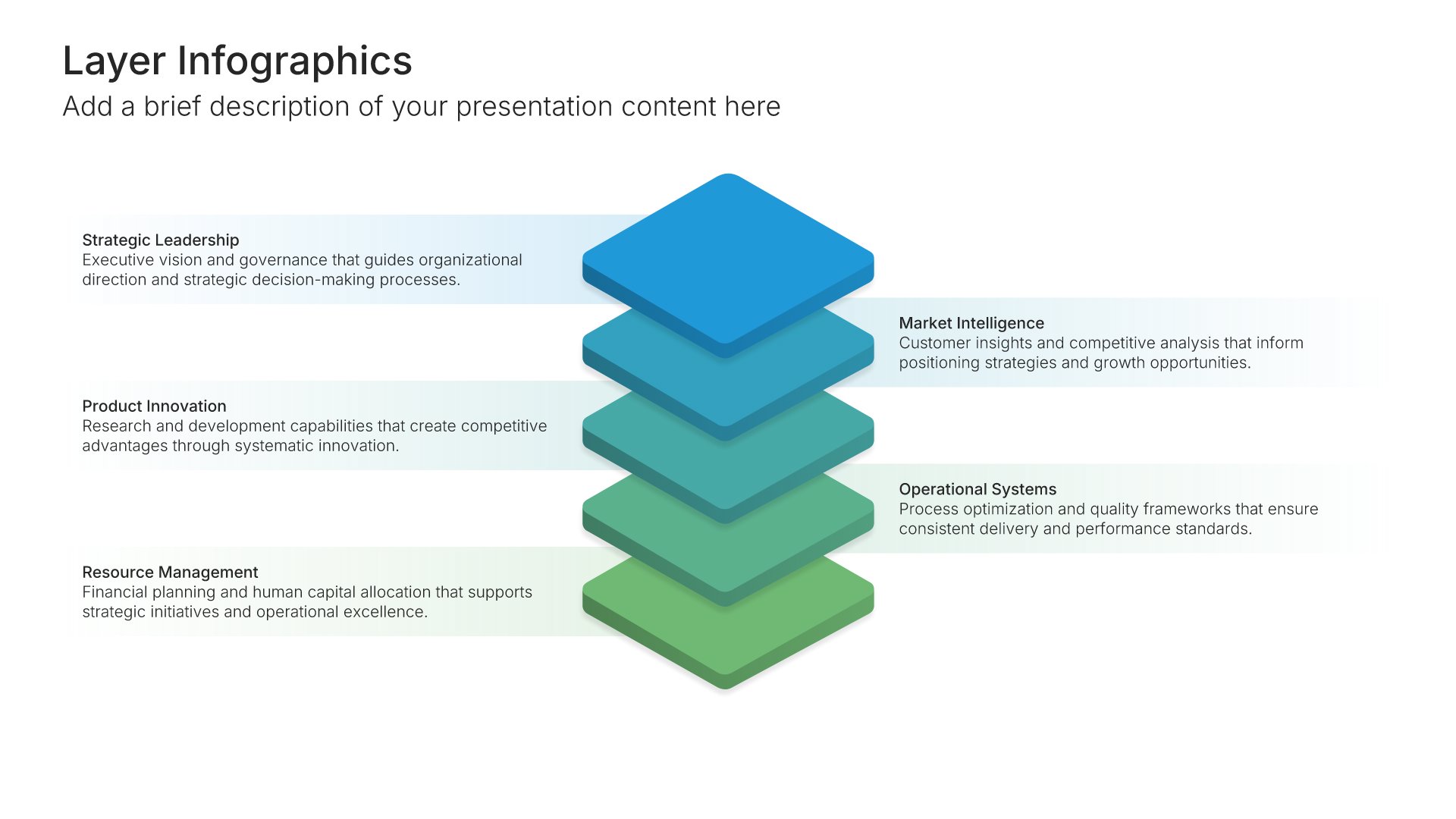
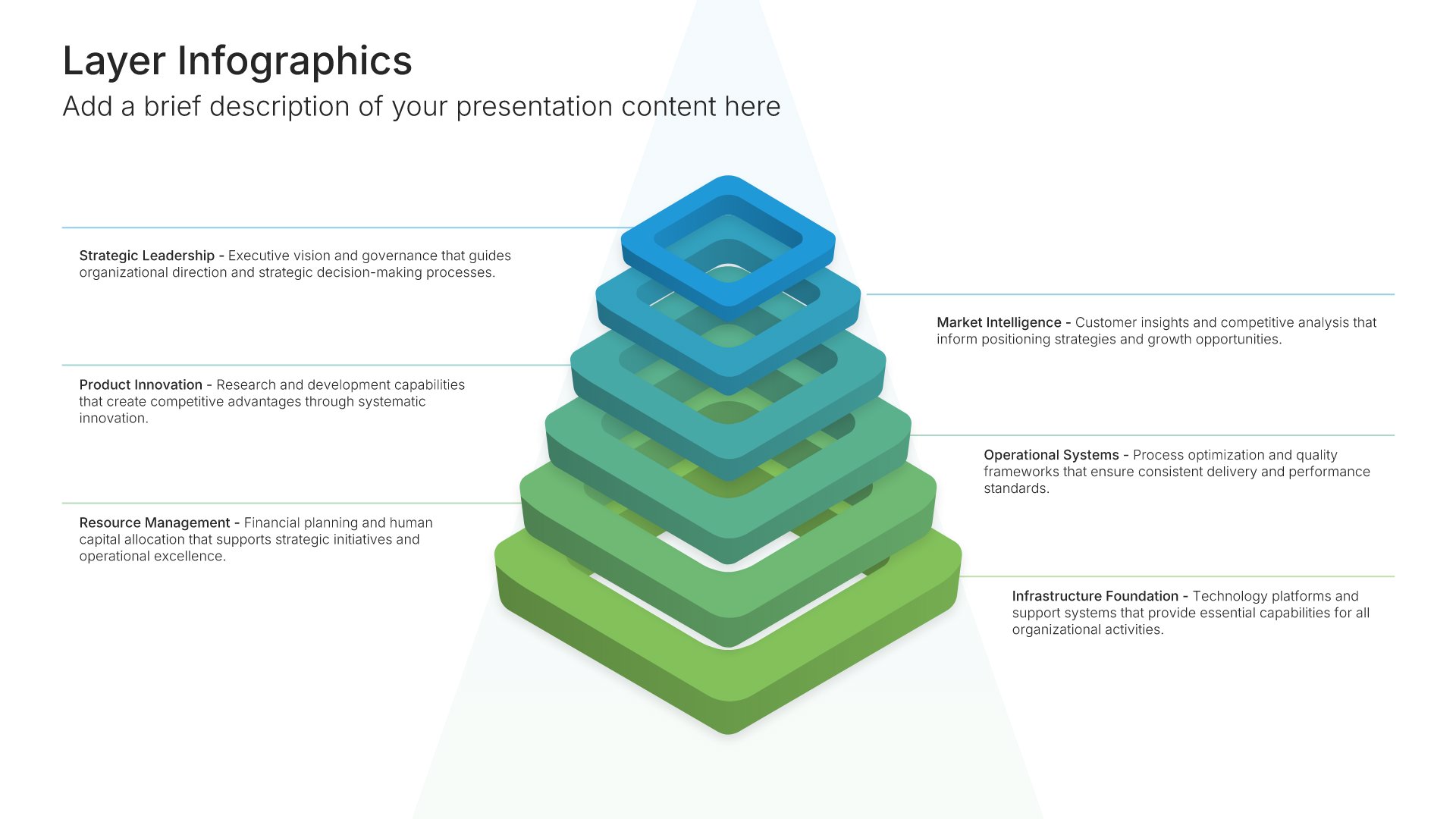
Layer infographic slide, layout 03

Layout 03

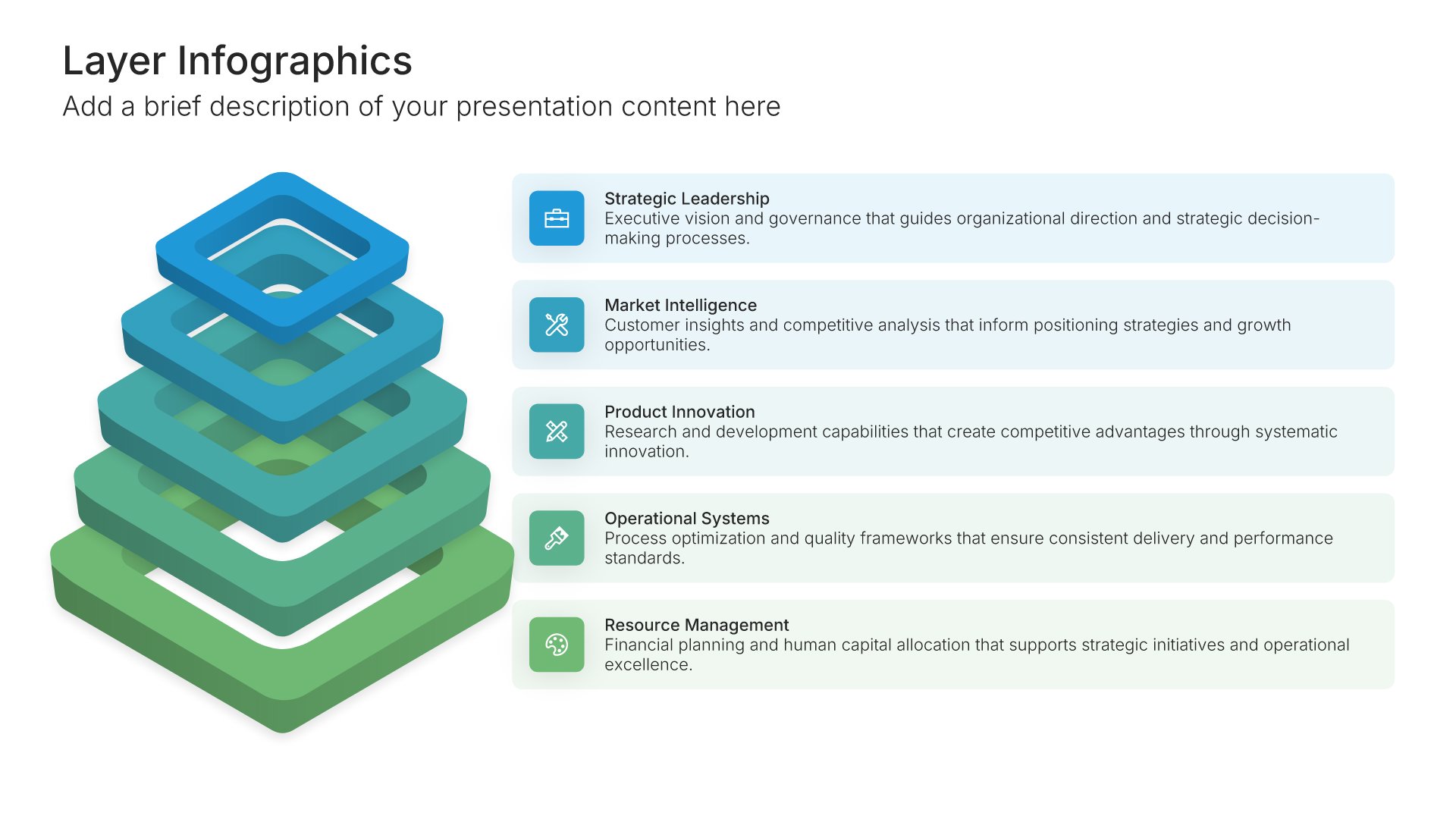
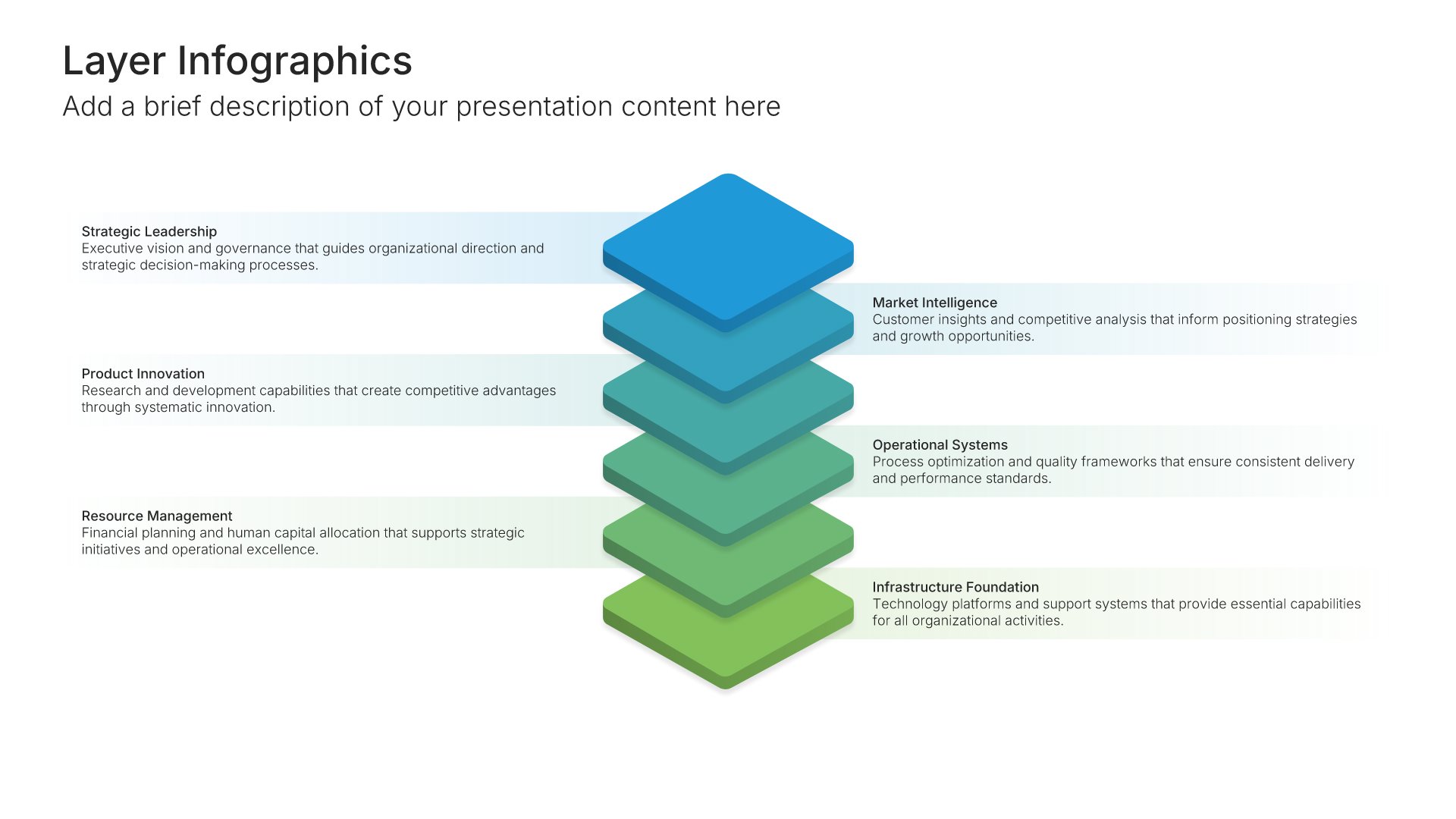
Layer infographic slide, layout 04

Layout 04

Layer infographic slide, layout 05

Layout 05

Layer infographic slide, layout 06

Layout 06

Layer infographic slide, layout 07

Layout 07

Layer infographic slide, layout 08

Layout 08

Layer infographic slide, layout 09

Layout 09

Layer infographic slide, layout 10

Layout 10

Layer infographic slide, layout 11

Layout 11

Layer infographic slide, layout 12

Layout 12

About our layer slides

What the slide does, how to use it, your brand, and a file you can edit anywhere.

Built to show what sits on what

Many things are easiest to understand as layers: infrastructure under applications, strategy over operations, core offer surrounded by services. A layer infographic shows those levels stacked in order, so the audience sees what sits on what. Our layer slides keep each level distinct, so the structure reads from top to bottom.

Why stacking shows dependency

When layers are drawn one above another, the audience assumes each one relies on the layer beneath it. That’s usually exactly the point. So a layer slide explains how a system hangs together without a diagram full of arrows.

Brand the whole presentation in one click

Add your logo, colors, fonts, and background once. It applies to the whole presentation and the entire slide library at the same time. Layer slides often explain your platform or organization, so once branded, every layer looks like your company.

Export to PowerPoint, Google Slides, or Keynote

You get a real file, not a locked link. Export it and keep editing in the tool you already use. Layers, labels, and descriptions stay editable, so you can add or reorder levels as the system changes.

How Choladeck works

From blank page to finished presentation in four steps.

STEP 01

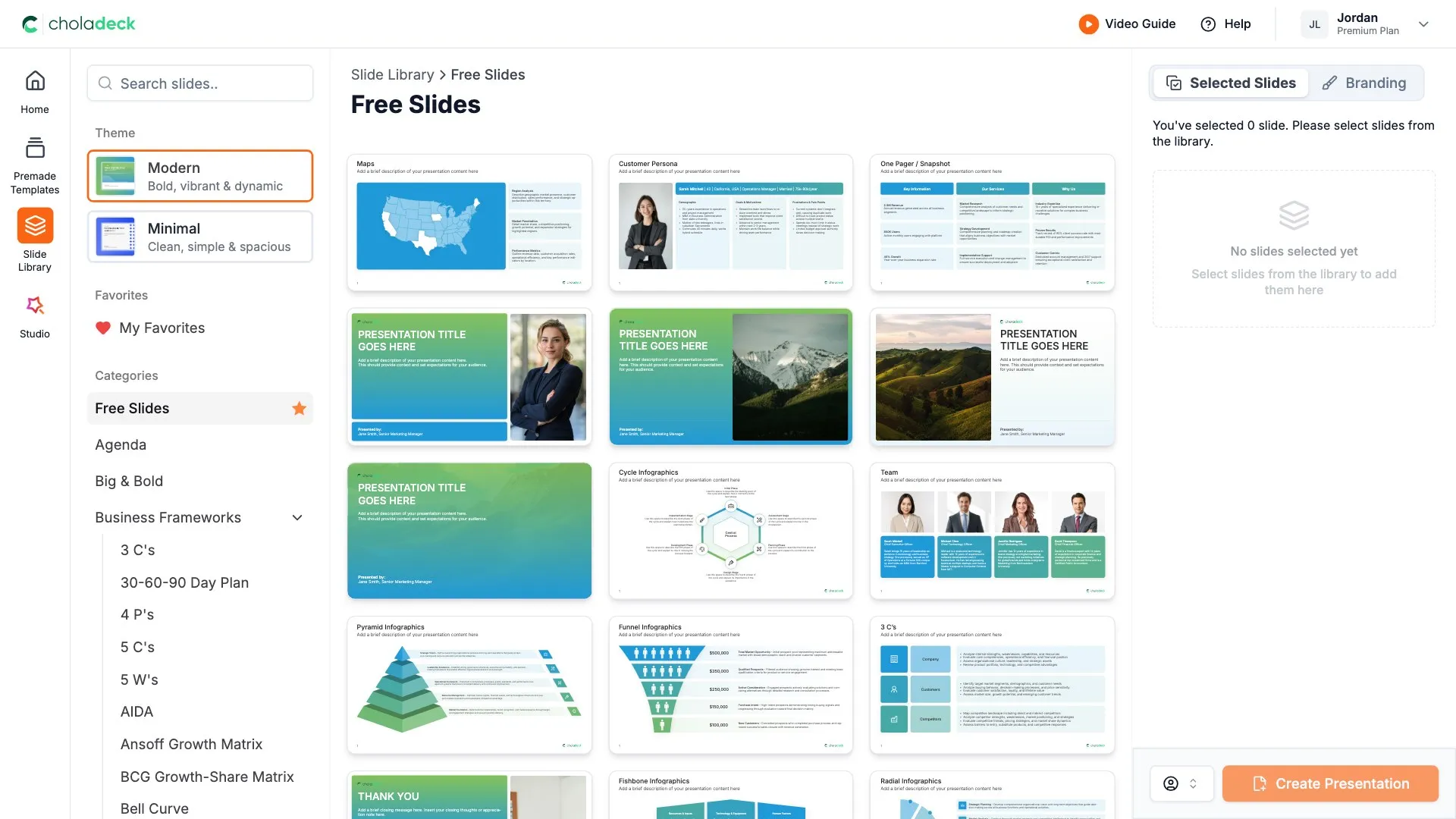
Browse 9,000+ slides across 134+ categories, or open one of the 74 premade presentations.

STEP 02

Add your logo, colors, and fonts in one click. The whole presentation instantly matches your company.

STEP 03

Add your text, numbers, charts, and tables. Everything on the slide is editable.

STEP 04

Send it to PowerPoint, Google Slides, or Keynote, and present.
Start from a template

Need a complete presentation instead?

If you're starting from nothing rather than fixing a few slides, open one of 74+ premade presentations instead. Each one is complete and built for one purpose, from pitch decks to business plans and company profiles.

Choladeck premade templates with the Type of Presentation filter and the Consulting Company Profile deck shown larger

Questions about layer infographic slides

How the slides work, and how far you can change them.

Using the slides

Can I edit these slides in PowerPoint?

+

Yes. Export to PowerPoint, Google Slides, or Keynote, and every layer and label stays editable. Nothing is locked and nothing is a flat image.

How do I brand them to my company?

+

Add your logo, colors, fonts, and background once. It applies to the whole presentation and the entire slide library at the same time.

Can I mix them with other slides from the library?

+

Yes. Add a layer slide to any premade template, or pair it with building blocks or pyramid slides from the library. Branding applies across all of them.

About layer infographics

When should I use a layer infographic?

+

When the parts of something depend on each other in order, such as a technology stack or an operating model.

How is a layer infographic different from a pyramid?

+

A pyramid suggests the levels shrink toward the top. Layers can be any size and focus on how they stack.

How many layers should the slide have?

+

Three to six usually works. More than that and each layer gets too thin to label.

Your next layer infographic slide is already designed

Pick a layout, brand it in one click, add your content, and export.

Free to start. No credit card required.