Pricing

Arrow infographic slides

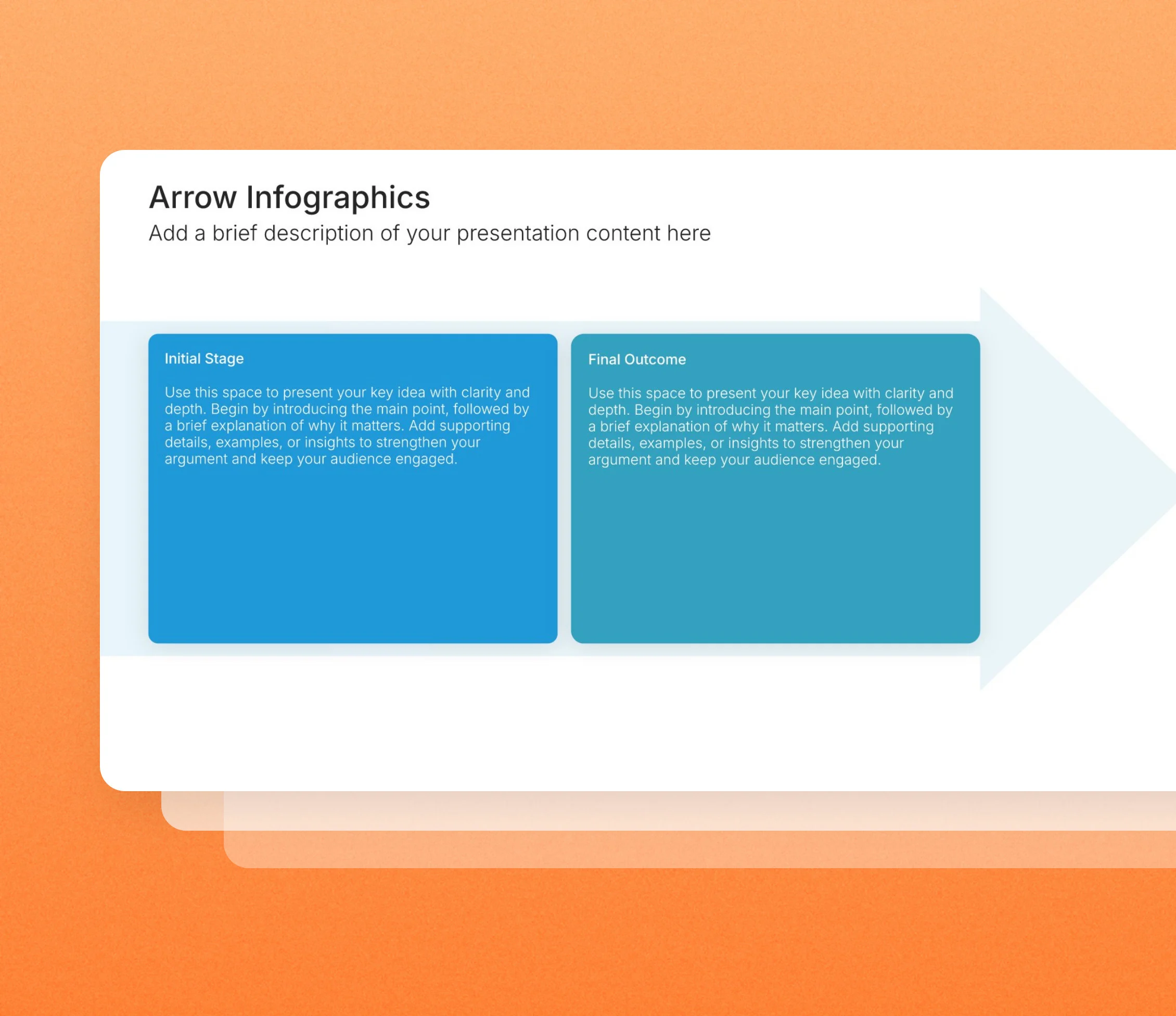
Arrow infographics show movement: a process moving forward, a cause leading to an effect, or several inputs coming together. Pick one of 5 layouts, brand it to your company in one click, add your content, and export to PowerPoint, Google Slides, or Keynote.

Free to start. No credit card required.
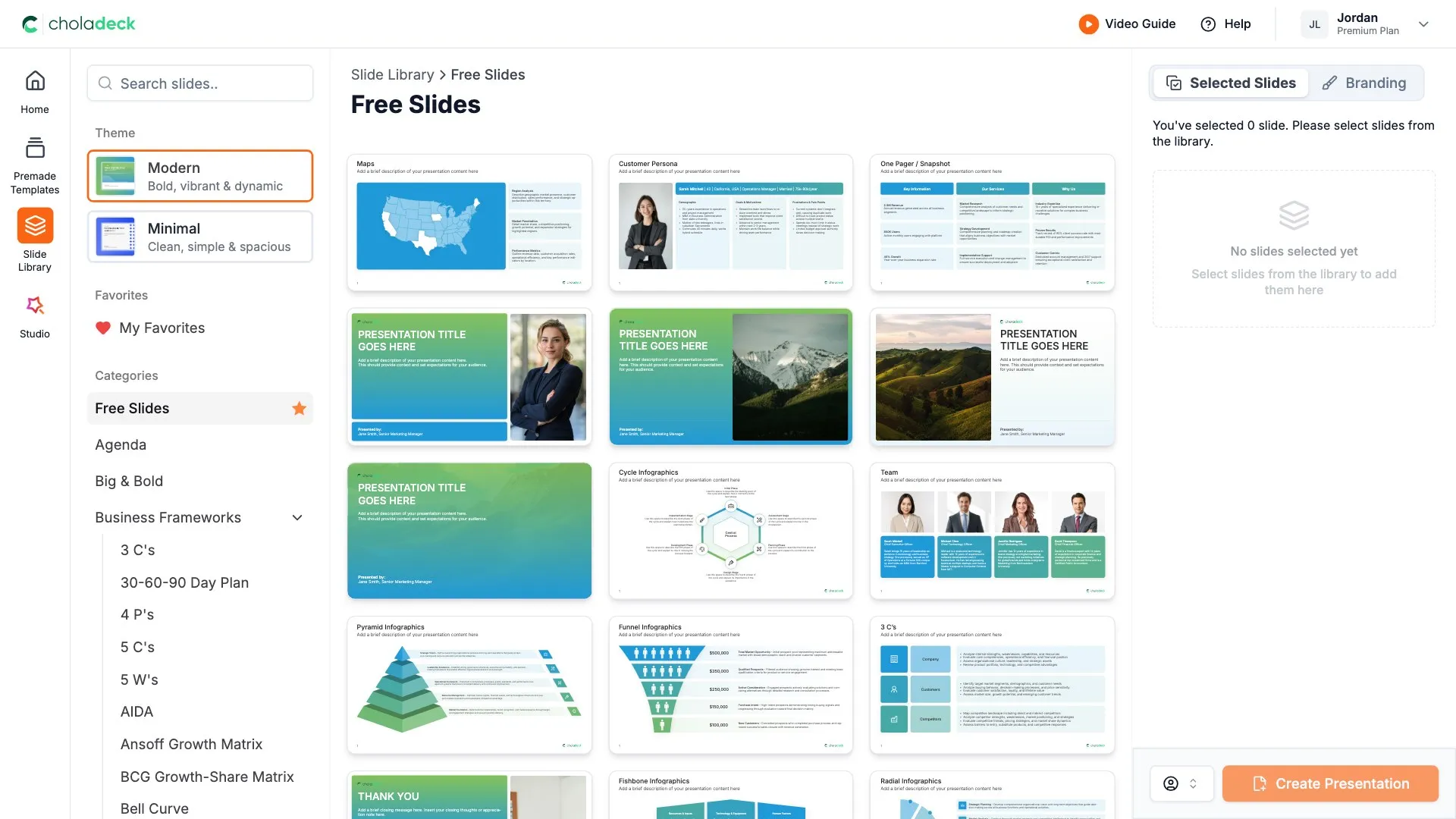
Arrow infographic slides in the Choladeck slide library

Browse arrow infographic slides

5 ways to show direction and flow, all fully editable.
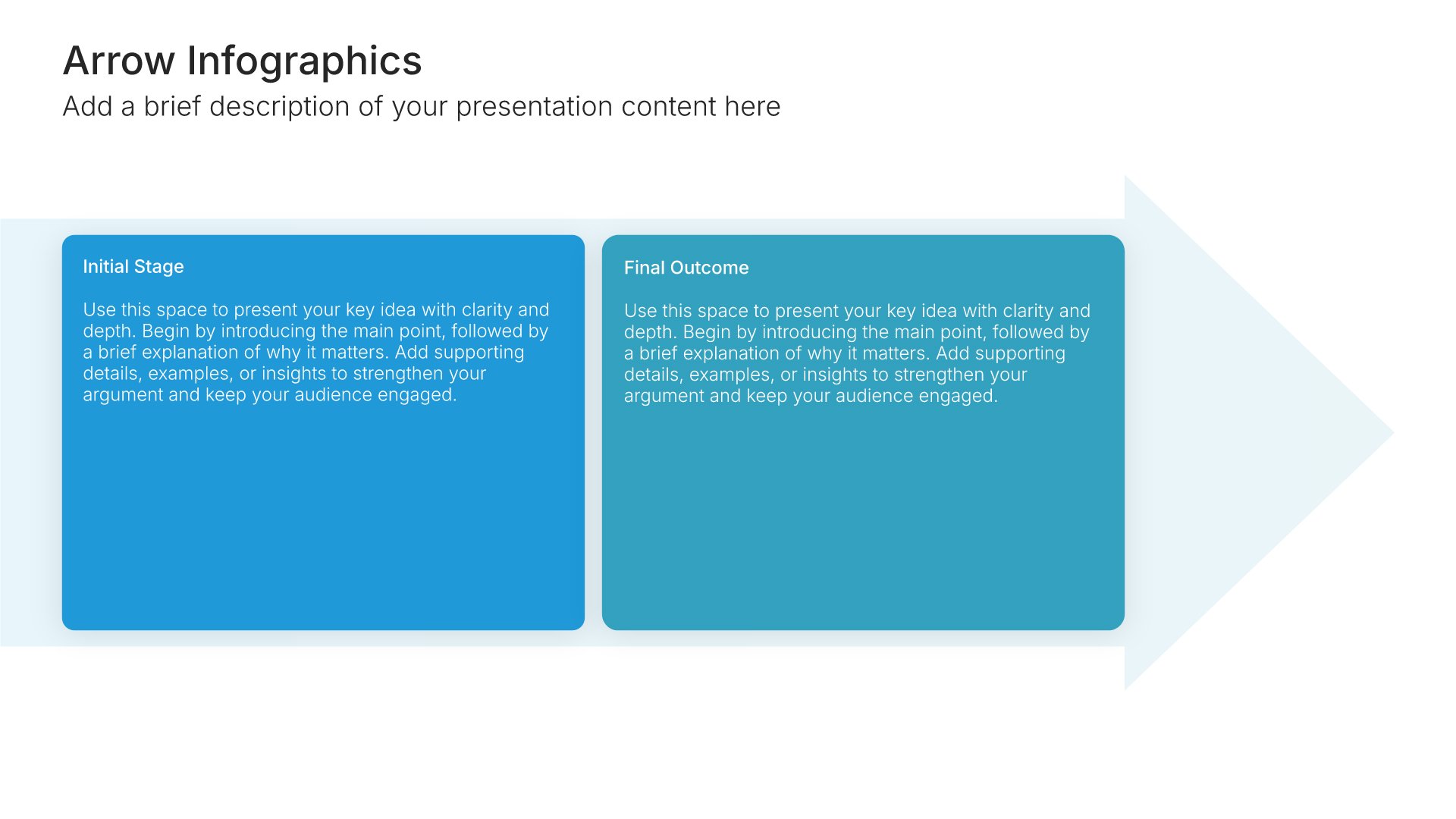
Arrow Infographics • Slide Library • Layout 01 of 5

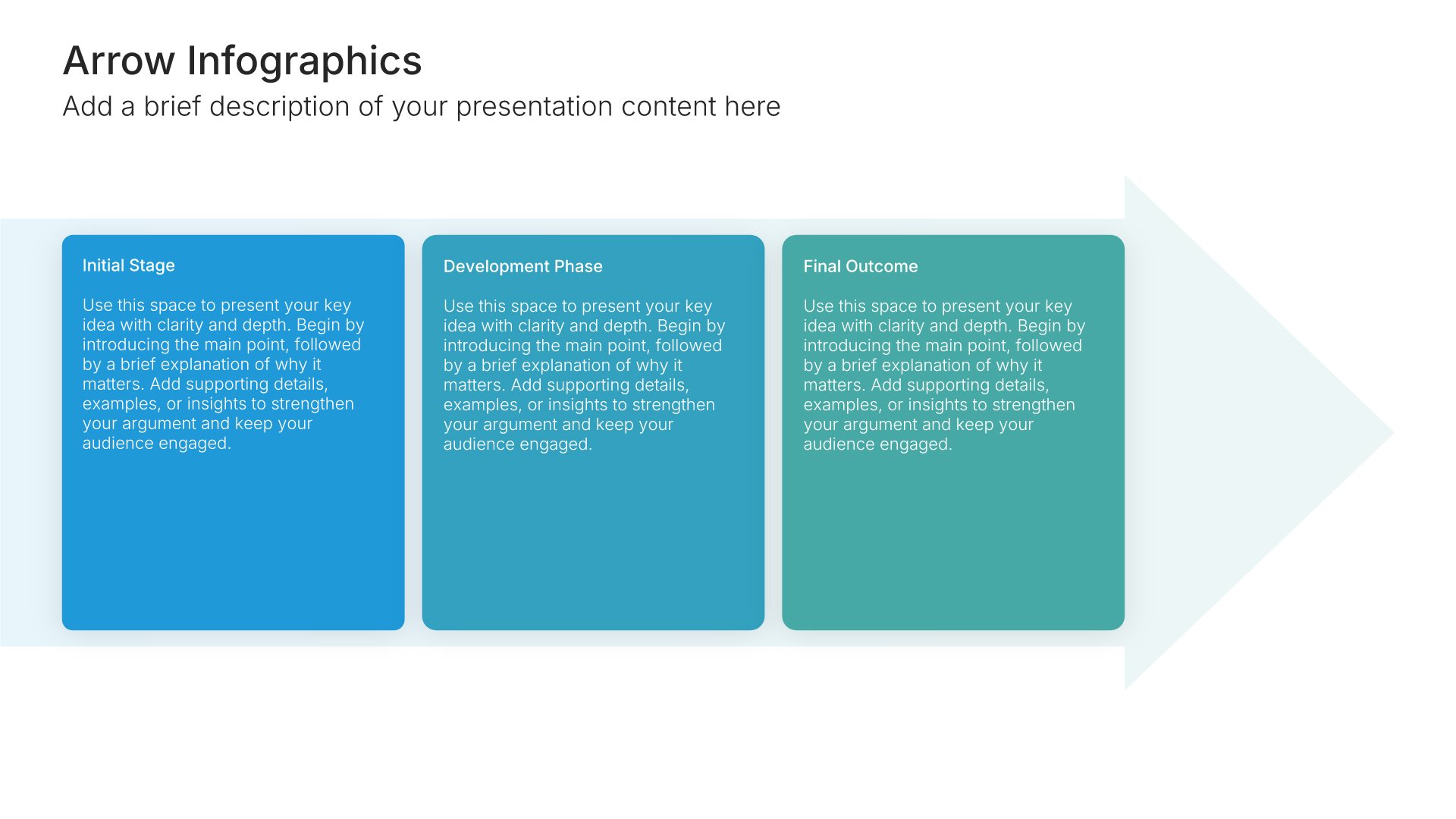
Arrow infographic slide, layout 01

Layout 01

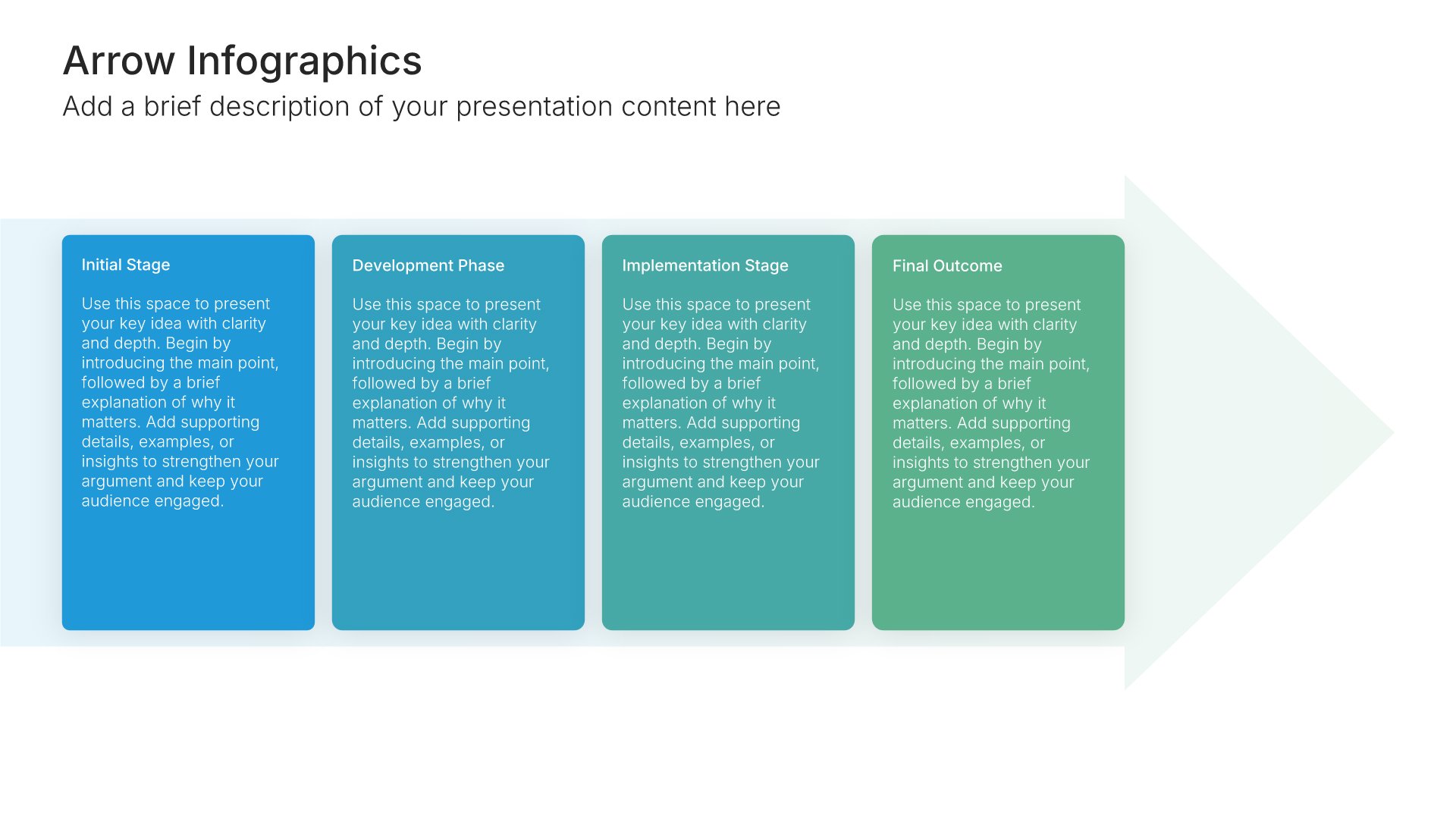
Arrow infographic slide, layout 02

Layout 02

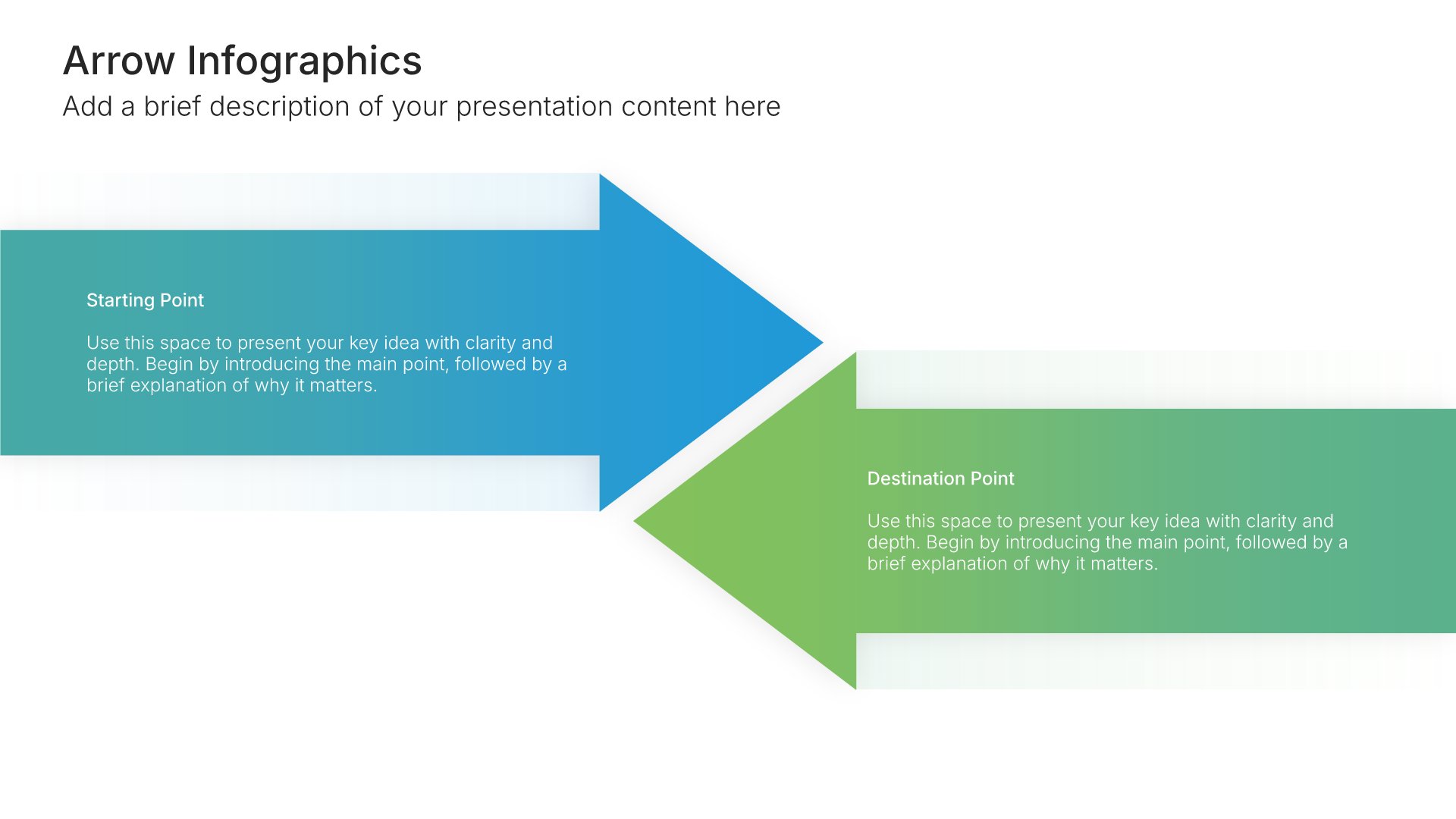
Arrow infographic slide, layout 03

Layout 03

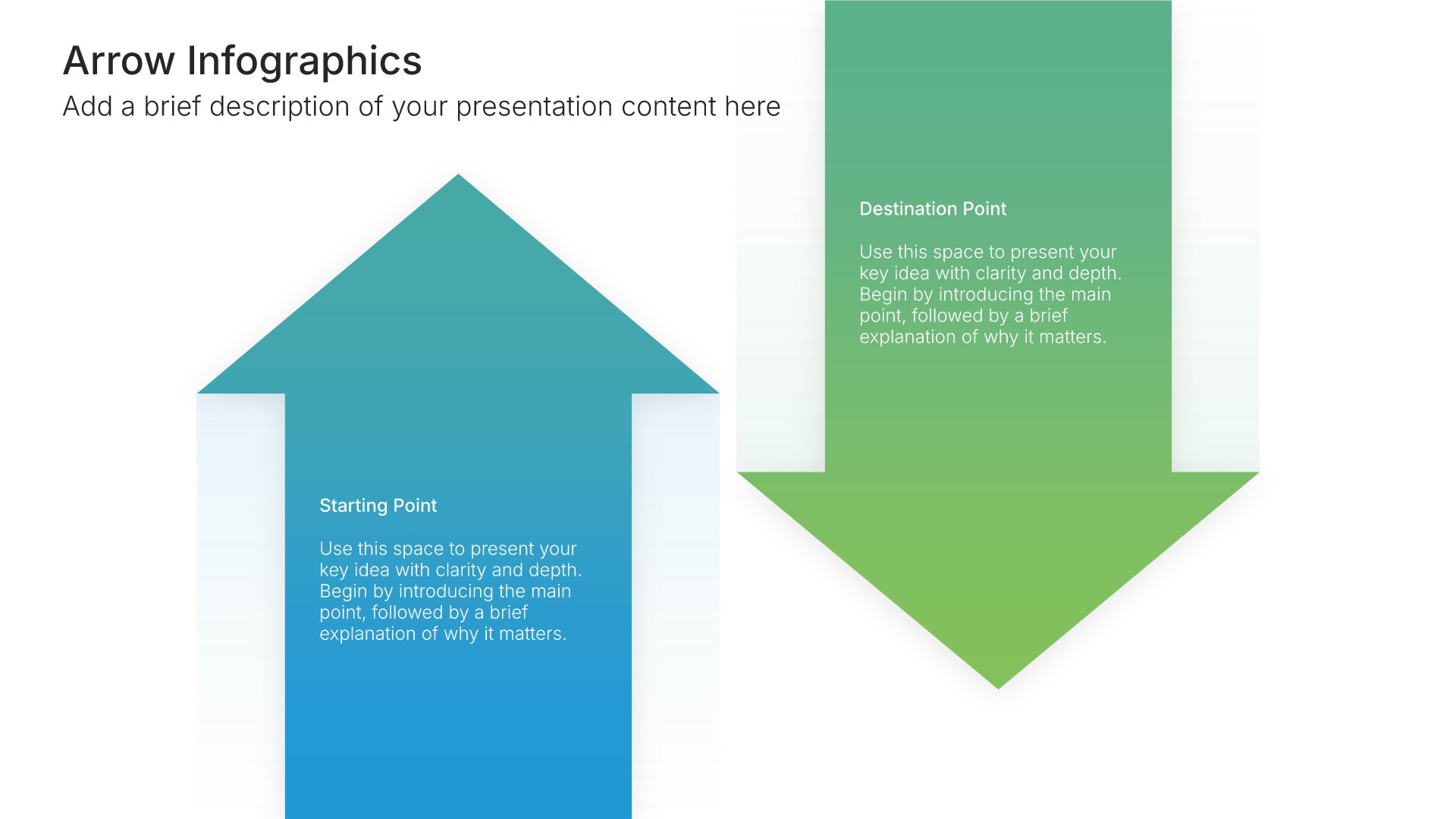
Arrow infographic slide, layout 04

Layout 04

Arrow infographic slide, layout 05

Layout 05

About our arrow slides

What the slide does, how to use it, your brand, and a file you can edit anywhere.

Built to turn a list of points into a direction

Arrows are the simplest way to show that one thing leads to another. An arrow infographic turns a list of points into a sequence or a direction, so the audience understands the relationship, not just the items. Our arrow slides keep the direction obvious, so the story reads the right way around.

Why direction changes how a slide reads

Put four points in a row and the audience reads them as a list. Connect them with arrows and they read as a process with a start and an end. So the same content feels like progress instead of an inventory. Use Pointers to set how many steps you need and you get a layout designed for that number.

Brand the whole presentation in one click

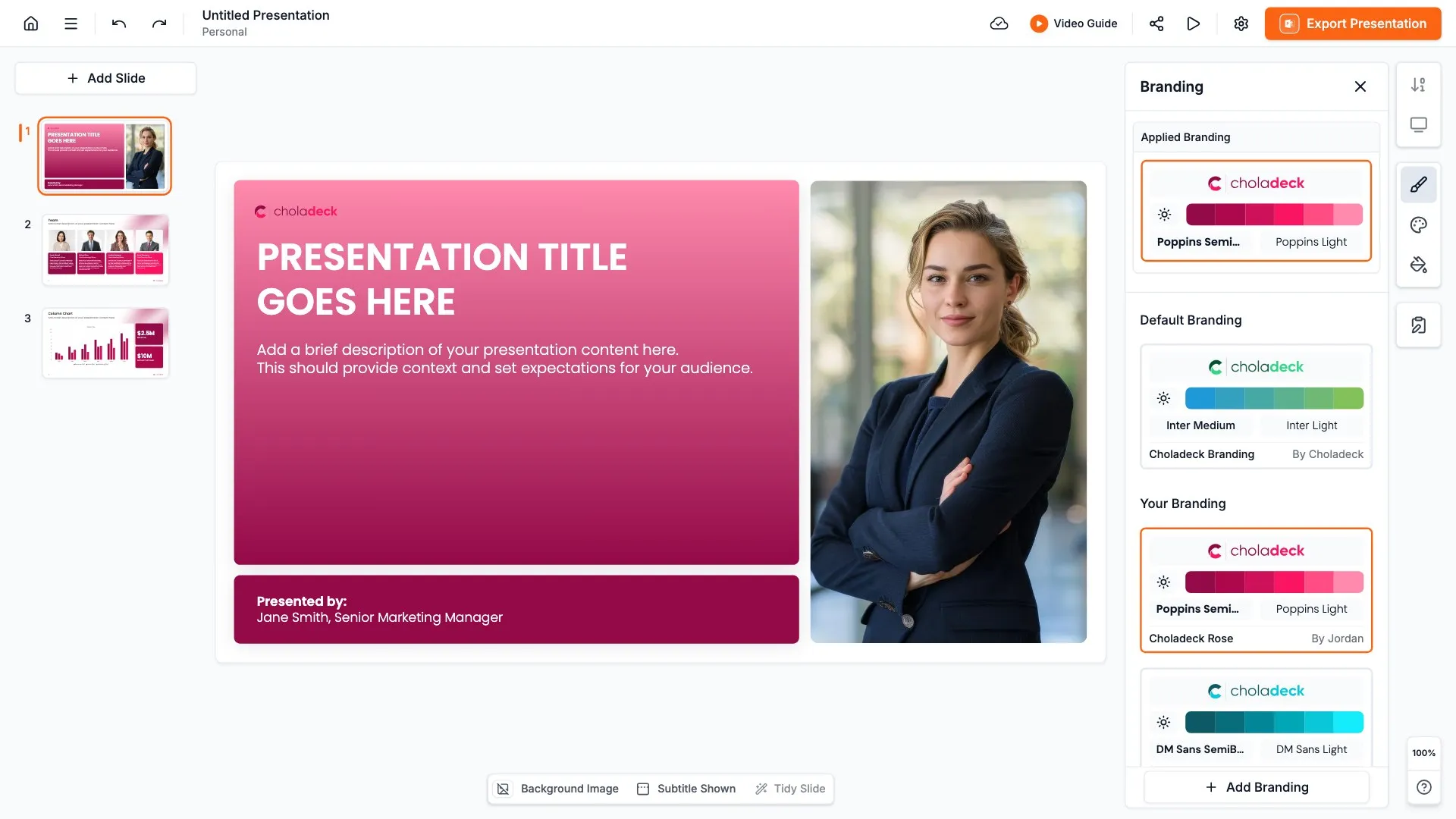
Add your logo, colors, fonts, and background once. It applies to the whole presentation and the entire slide library at the same time. Arrows often carry a process or a plan across several slides, so consistent colors keep the story connected from one slide to the next.

Export to PowerPoint, Google Slides, or Keynote

You get a real file, not a locked link. Export it and keep editing in the tool you already use. Arrows, labels, and text stay editable, so you can add or change steps wherever you present.

How Choladeck works

From blank page to finished presentation in four steps.

STEP 01

Browse 9,000+ slides across 134+ categories, or open one of the 74 premade presentations.

STEP 02

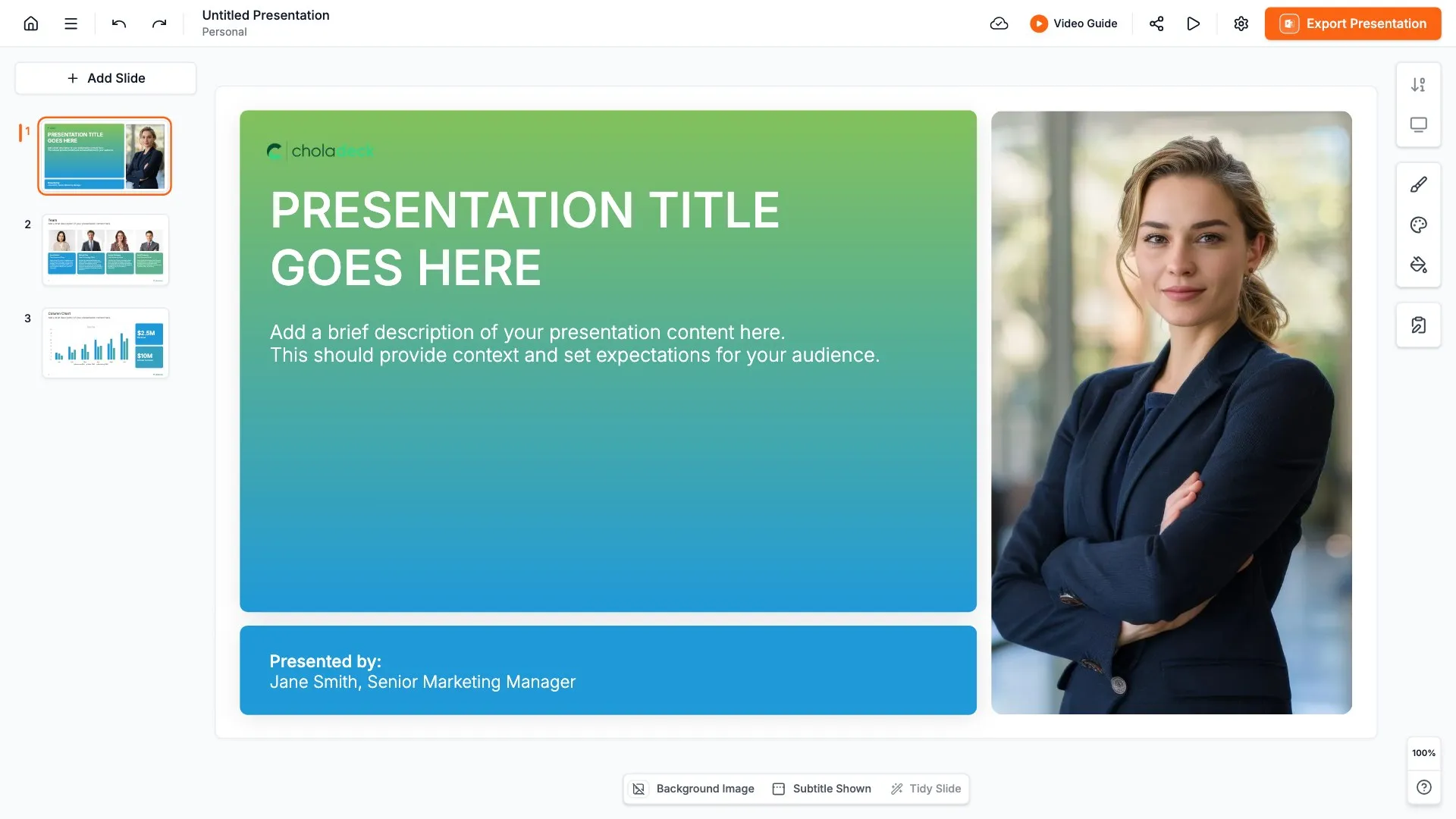
Add your logo, colors, and fonts in one click. The whole presentation instantly matches your company.

STEP 03

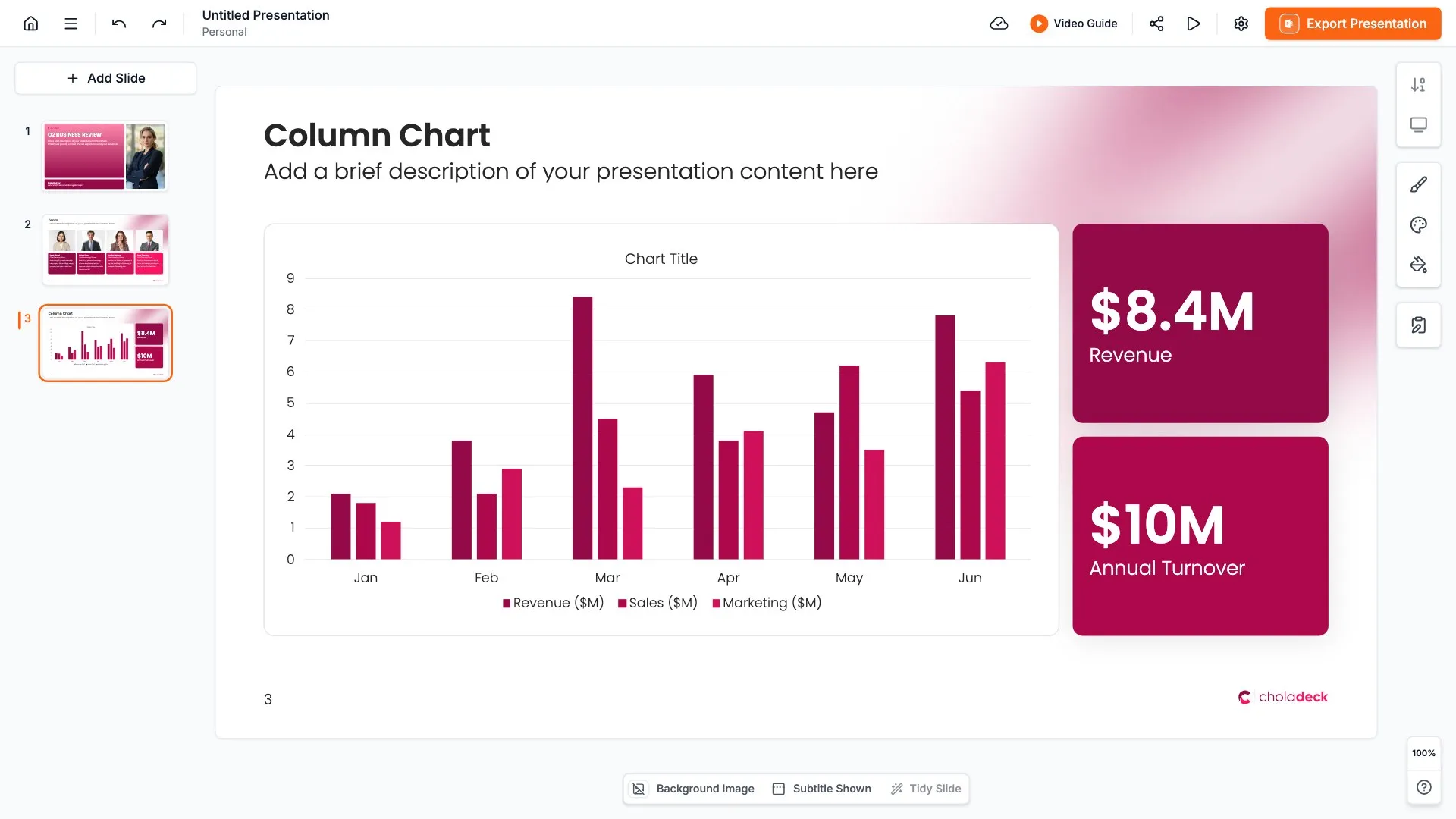
Add your text, numbers, charts, and tables. Everything on the slide is editable.

STEP 04

Send it to PowerPoint, Google Slides, or Keynote, and present.
Start from a template

Need a complete presentation instead?

If you're starting from nothing rather than fixing a few slides, open one of 74+ premade presentations instead. Each one is complete and built for one purpose, from pitch decks to business plans and company profiles.
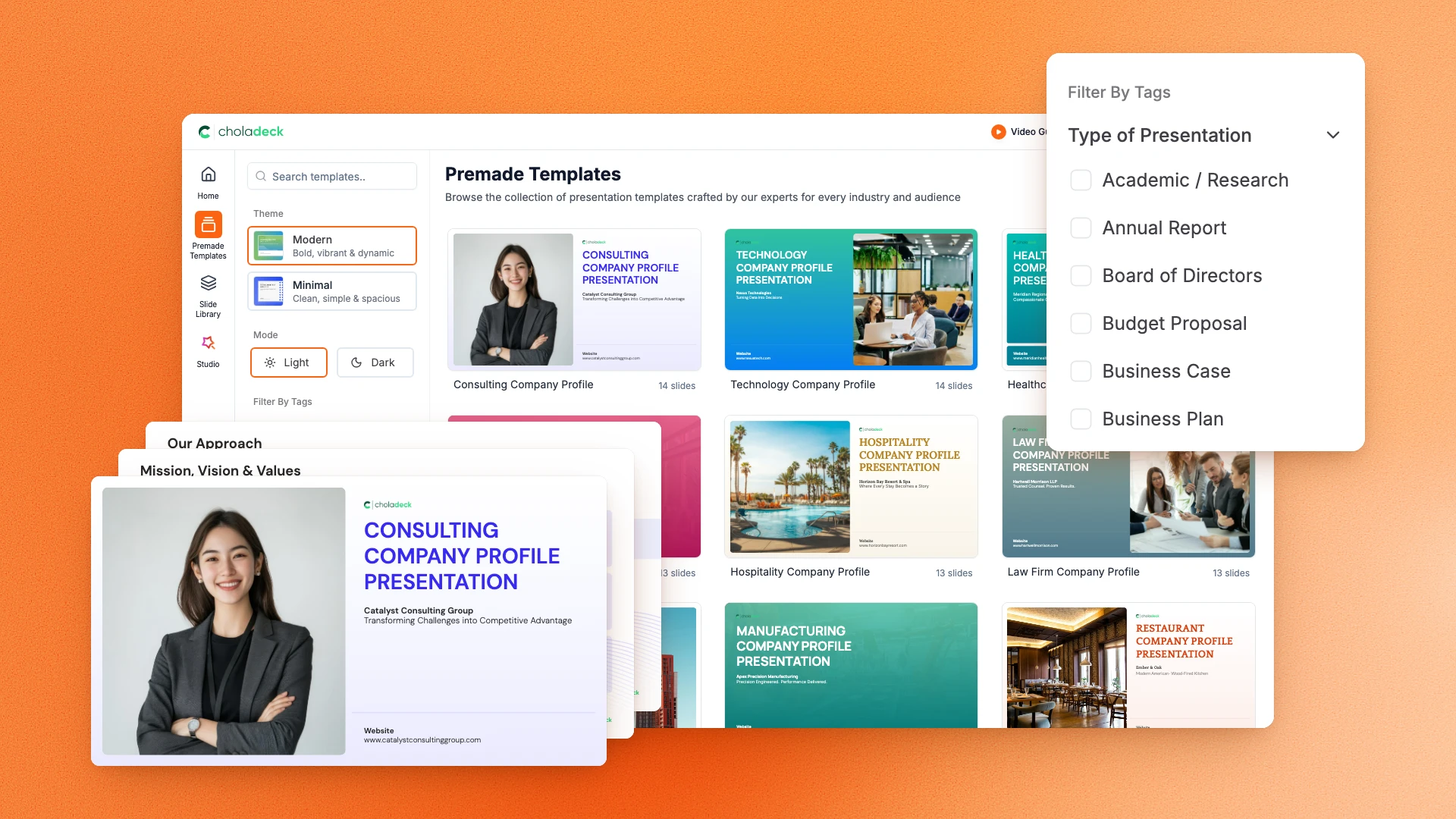
Choladeck premade templates with the Type of Presentation filter and the Consulting Company Profile deck shown larger

Questions about arrow infographic slides

How the slides work, and how far you can change them.

Using the slides

Can I edit these slides in PowerPoint?

+

Yes. Export to PowerPoint, Google Slides, or Keynote, and every arrow and label stays editable. Nothing is locked and nothing is a flat image.

How do I brand them to my company?

+

Add your logo, colors, fonts, and background once. It applies to the whole presentation and the entire slide library at the same time.

Can I mix them with other slides from the library?

+

Yes. Add an arrow slide to any premade template, or pair it with process or timeline slides from the library. Branding applies across all of them.

About arrow infographics

When should I use an arrow infographic?

+

Whenever order or direction matters: a process, a timeline, a cause and effect, or a before and after.

How is an arrow infographic different from a process slide?

+

A process slide is built around steps. An arrow infographic is built around direction, so it also works for flows, cycles, and inputs that come together.

How many steps can an arrow slide have?

+

As many as the audience can follow at a glance. If the flow gets long, split it across two slides.

Your next arrow infographic slide is already designed

Pick a layout, brand it in one click, add your content, and export.

Free to start. No credit card required.