PDF is now in Export Settings
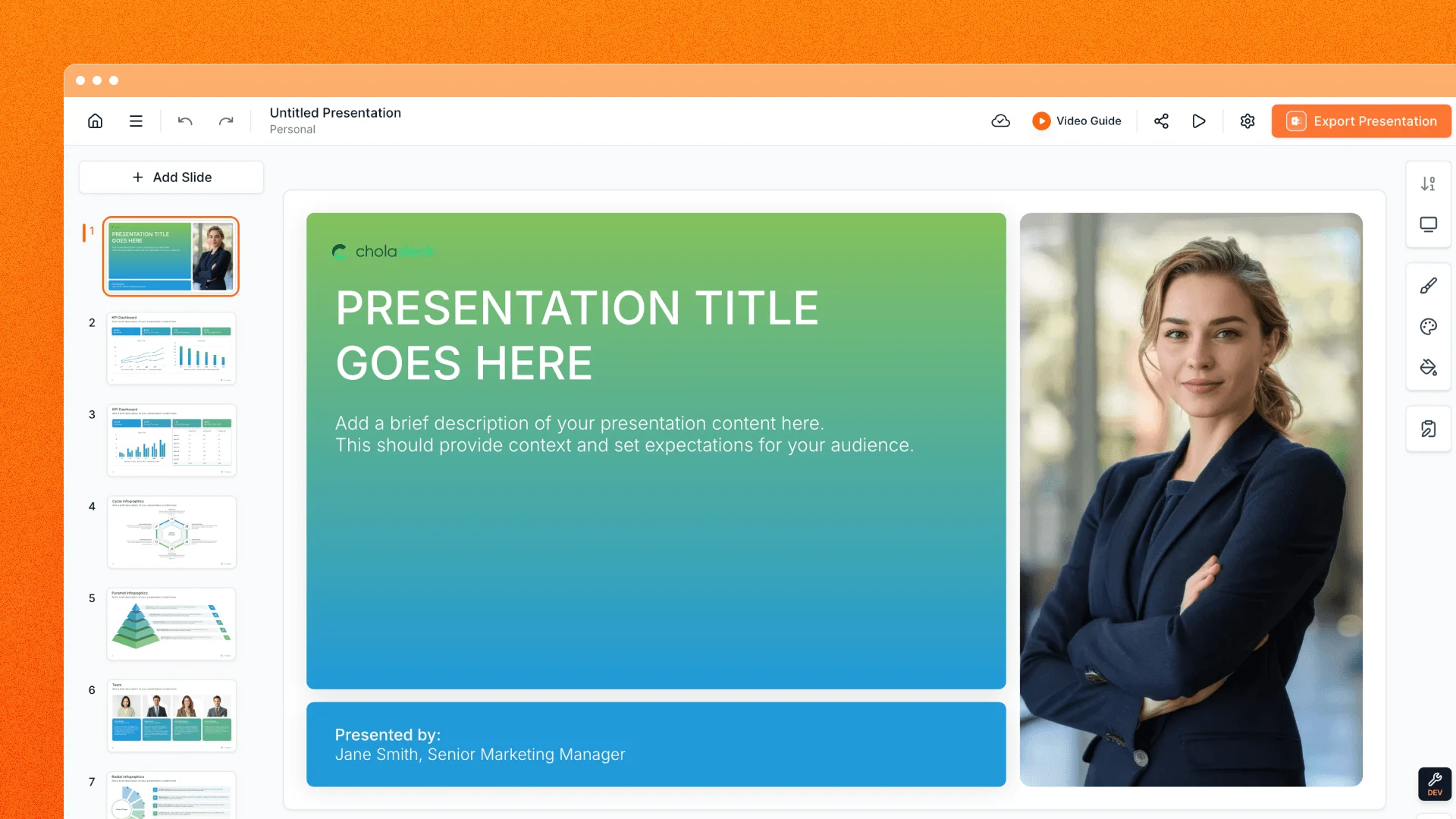
When you need a document version of your presentation, open Export Settings and choose PDF File (.pdf). It sits alongside the other export choices in the editor, making it easy to pick the format that fits your next step.
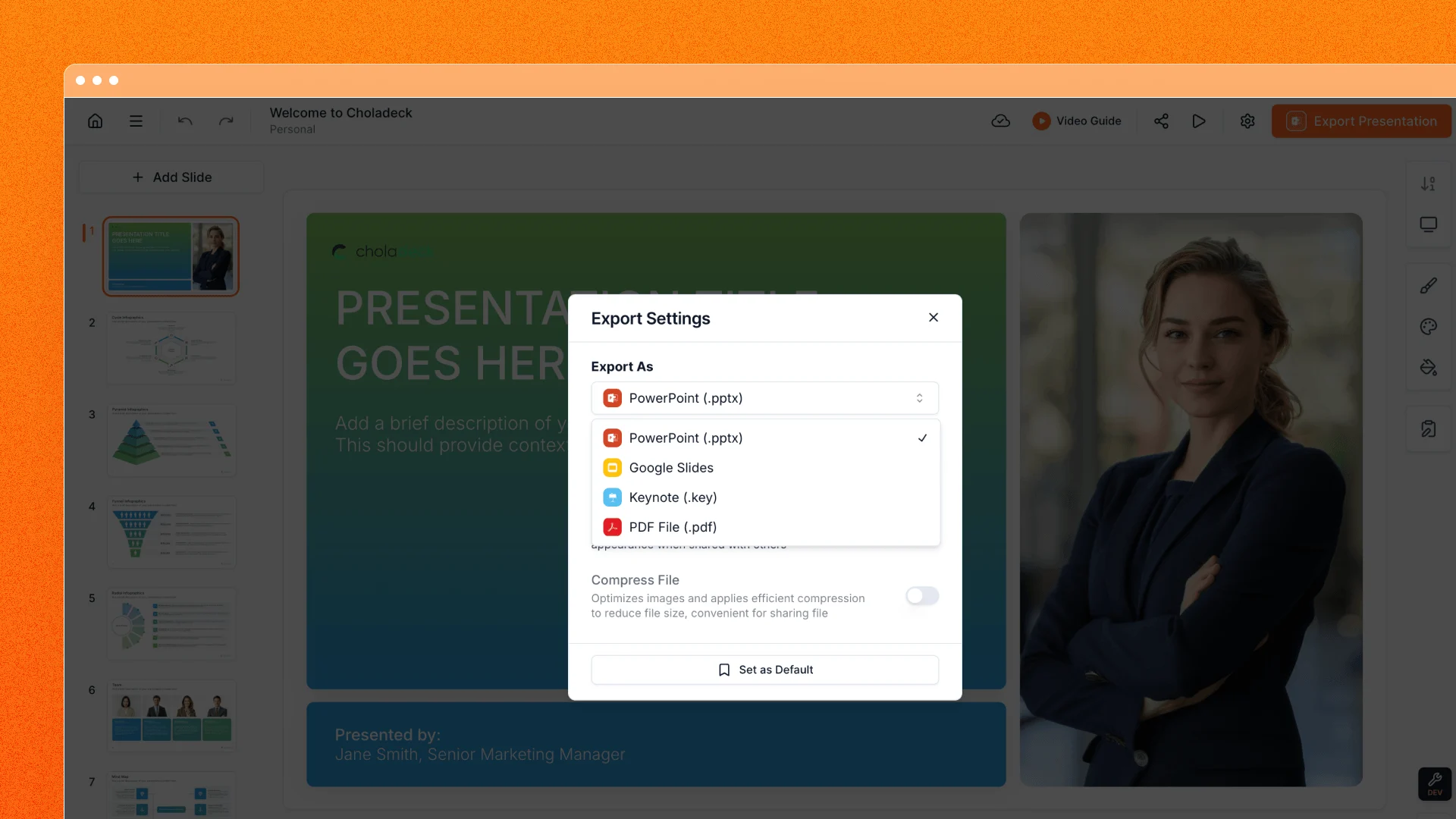
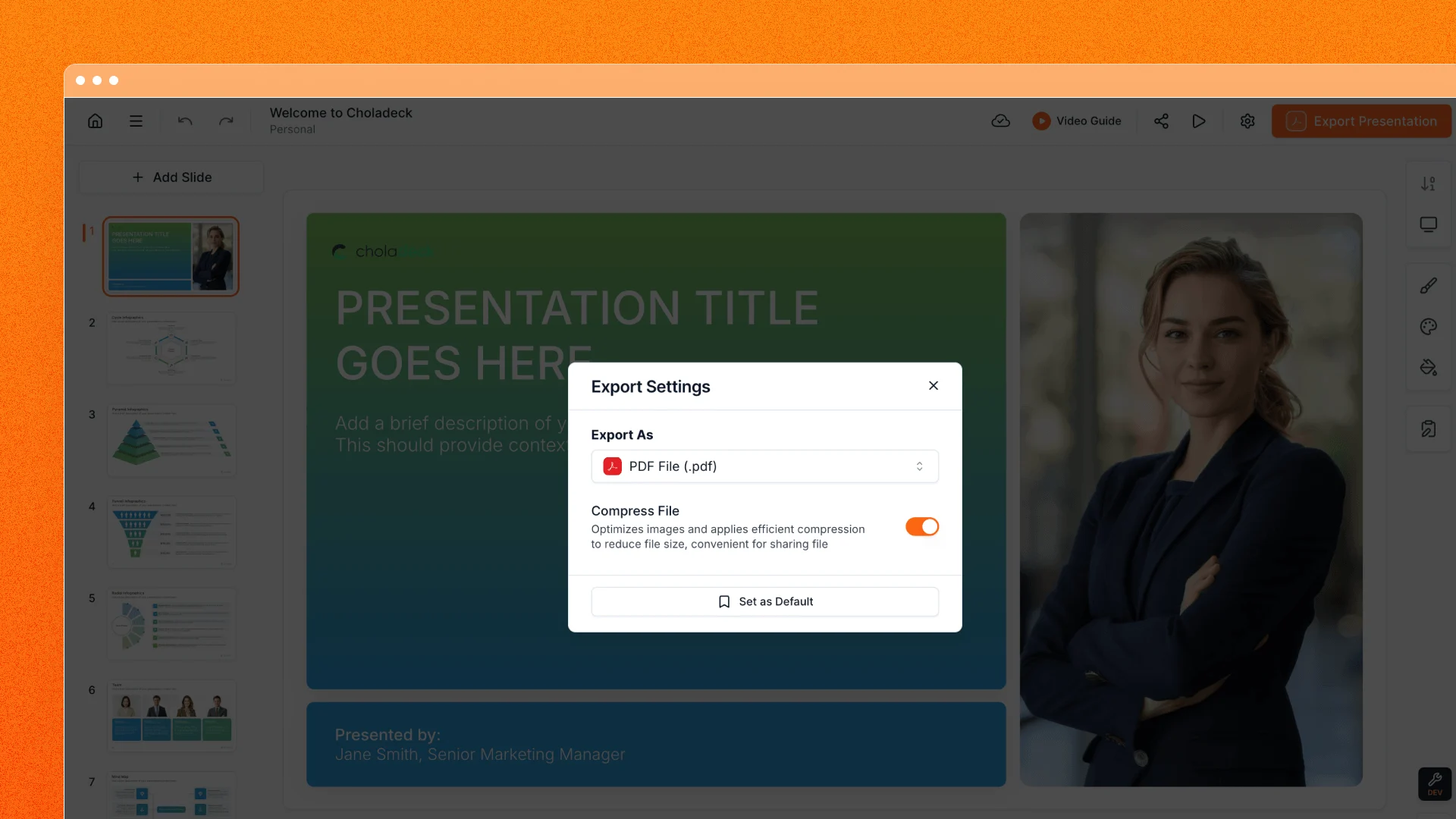
Make image-heavy downloads easier to share
Export Settings also includes Compress File. Turn it on when you want Choladeck to optimize the images in your export. The export process can remove hidden parts of cropped pictures and adjust image resolution and compression, helping reduce file size for image-heavy presentations. The result depends on the images and format in your deck.
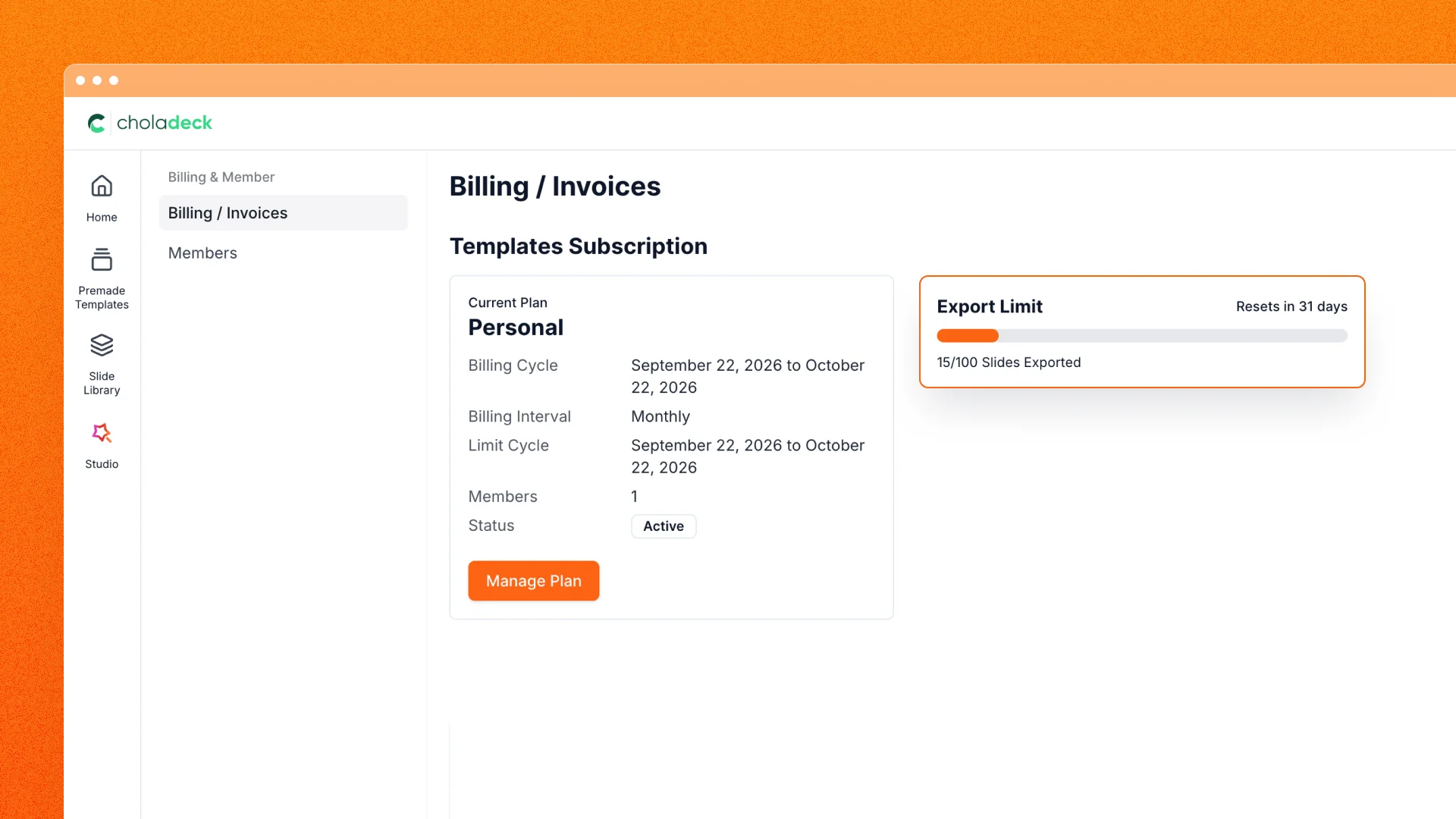
Save PDFs without using your slide-download allowance
PDF exports do not count against your slide-download allowance, leaving that allowance for other presentation downloads. Existing access rules for premium slides still apply.
Open a presentation and visit Export Settings to try PDF export or the optional Compress File switch.