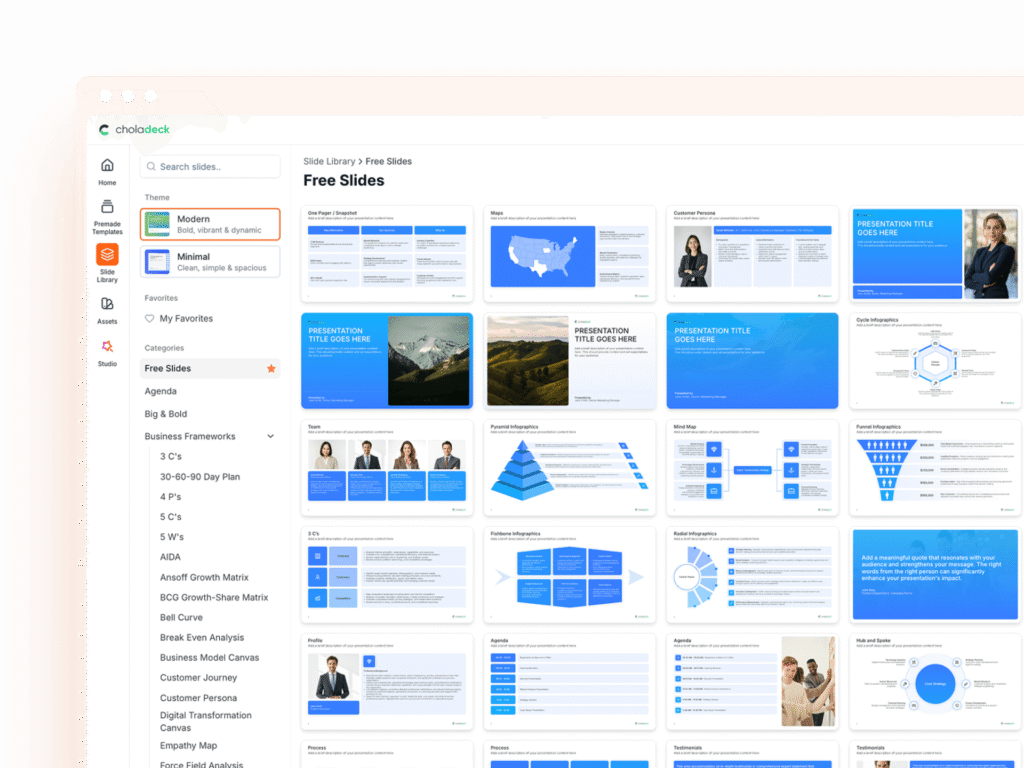
Direct presentation editing is now available to every eligible Choladeck user. Select supported text, pictures, icons, charts, or tables inside a slide and work with controls designed for that content, with undo and redo available as part of the standard editor.
The editing experience also includes a precision desktop canvas, pinch zoom and mobile controls, multi-slide operations, autosave feedback, and Tidy for content that outgrows its designed space.
Full Editing Is Part of the Standard Experience
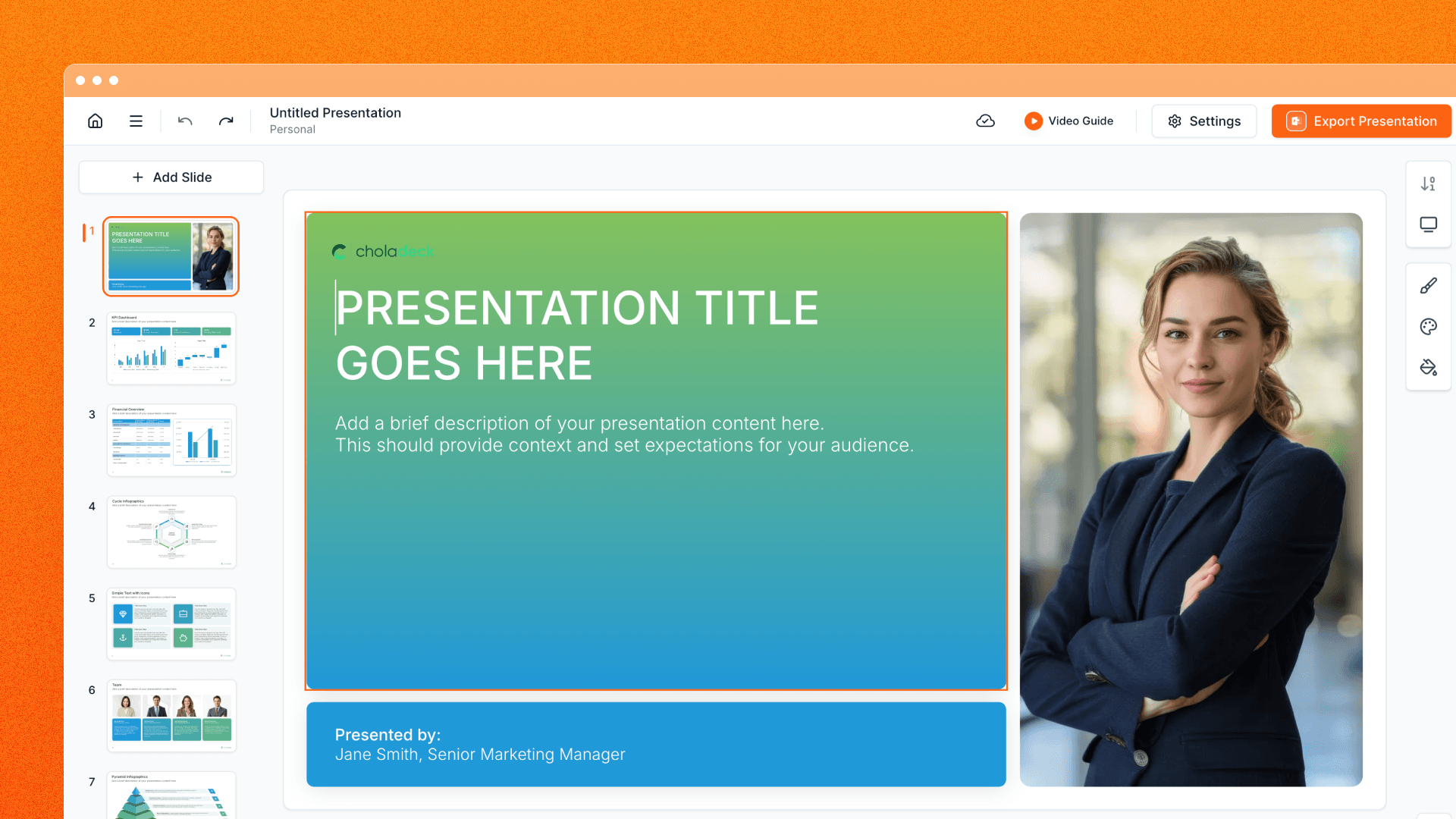
Full editing previously reached selected beta users through limited access. It is now enabled as the standard experience for signed-in Choladeck users who have normal permission to edit a presentation.
Open a presentation, select a supported element, and the editor presents the controls relevant to it. Text receives formatting and link controls. Pictures receive image tools. Icons can be changed and recolored. Charts and tables open their dedicated editing experiences.
This update is about broader access to the complete editor, not a single new control. Features developed across Choladeck’s editor are now available together in the normal presentation workflow.
Charts and tables have their own data, formatting, mobile, and PowerPoint story, covered in the dedicated Charts and Tables Product Update.
Edit Text Where It Appears on the Slide
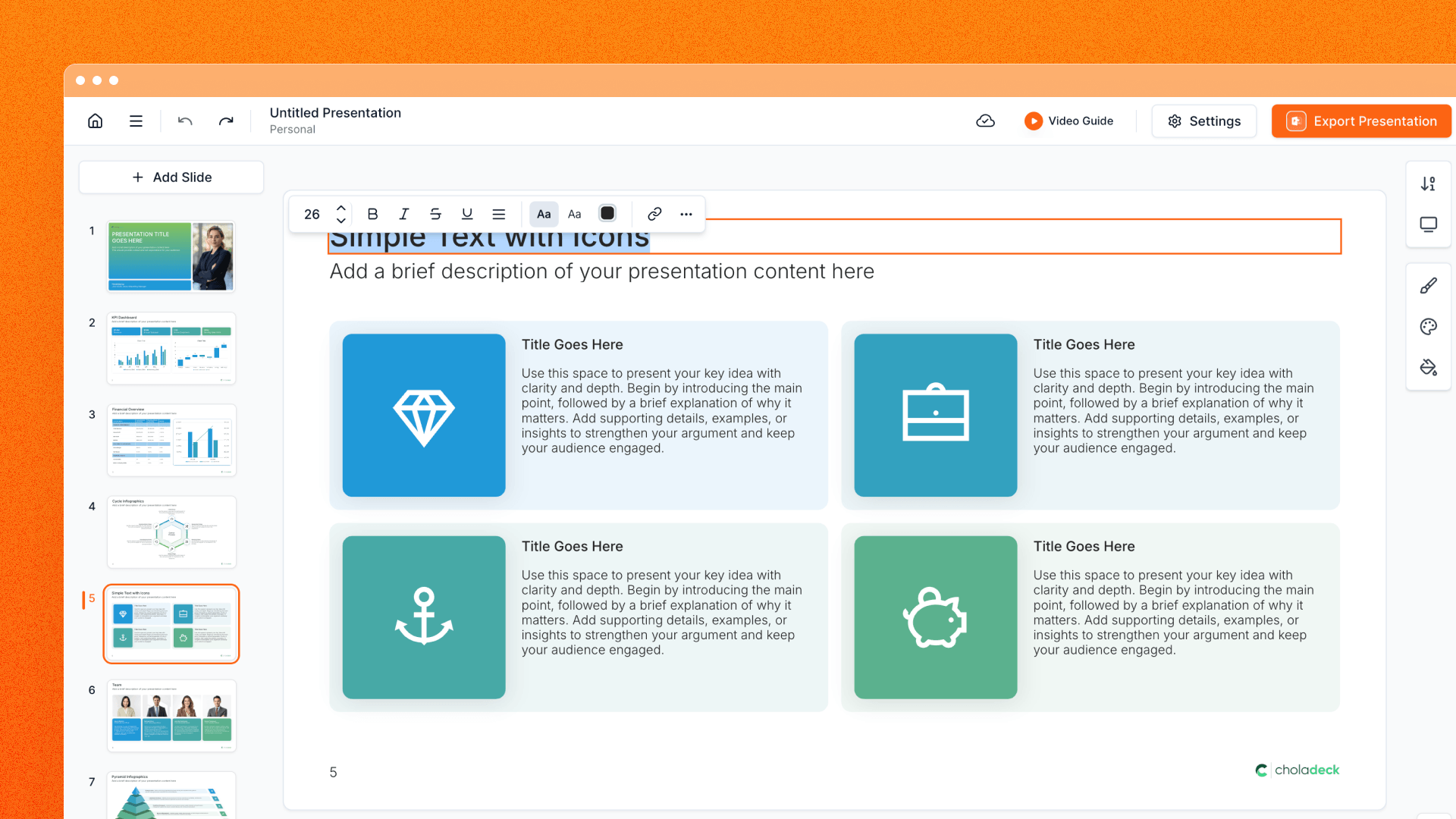
Select supported text and edit it directly in the presentation. The text menu brings the most relevant formatting choices close to the active content while keeping the slide visible.
Text controls include font size, primary and secondary brand fonts, bold, italic, underline, color, shadow, horizontal alignment, and vertical alignment. Bulleted and numbered lists can be applied within supported text areas, while link controls connect selected text to a URL or supported slide destination.
Keyboard shortcuts cover common formatting and editing actions, and copy and paste retain more of the text structure as content moves through the editor.
Because the text remains inside its designed slide structure, changes can be evaluated in the context of the complete layout.
Work With Pictures and Icons in Place

Pictures and icons have controls tailored to visual content.
For pictures, open the image chooser to add or change the visual, crop it around the intended focal point, adjust the crop zoom, flip it, or rotate it. A color overlay can use a solid or gradient treatment with adjustable opacity, helping photography sit more naturally within the presentation’s brand direction.
Icons can be changed from the icon library and recolored with the same theme-aware color system used elsewhere in the editor.
These edits are recorded in the editor history, so visual changes can be reviewed with undo and redo alongside text and slide updates.
Manage One Slide or a Complete Section

The slide navigator supports both individual actions and multi-slide workflows.
Select several slides to move, duplicate, or delete them together. Cut, copy, and paste work through familiar keyboard shortcuts and context-menu actions, while drag and drop can reorder a single slide or a selected group.
Slides can also be copied into another presentation. Choladeck carries the slide content, branding context, and supported internal links through the operation, then reconciles the content with the destination presentation and theme.
This makes the editor useful at both levels: refining the content within a slide and shaping the structure of the complete deck.
Zoom and Pan for Precise Desktop Editing

The desktop canvas can move from a full-slide overview into detailed editing without losing the surrounding presentation context.
Zoom controls show the current percentage and provide zoom in, zoom out, 125%, 150%, and 200% presets. Fit Slide returns to the complete composition, while Fit Selection frames the element currently being edited. The canvas supports zooming up to 400% of its fitted size.
Cmd or Ctrl shortcuts provide quick access to common zoom actions. Modifier-wheel and trackpad gestures can zoom around the pointer, regular trackpad movement pans the canvas, and holding Space while dragging provides another way to move around a detailed slide.
Editing menus remain aligned with the selected content as the canvas changes scale and position.
Edit From a Phone With a Canvas Built for Touch

Mobile editing uses the full available screen for the slide and adapts controls into touch-friendly panels.
Pinch zoom helps frame the complete slide or move closer to an element. Selecting a supported shape brings it into a comfortable editing view, while mobile controls provide access to text, links, colors, pictures, icons, charts, and tables.
The interface also accounts for the mobile keyboard and changing viewport height. Controls remain positioned around the available space, and the active table cell or selected content stays visible as the keyboard opens.
Mobile does not simply shrink the desktop toolbar. It reorganizes the editing experience around touch, limited screen space, and the way a phone viewport changes during input.
Undo, Save, and Keep Content Fitting
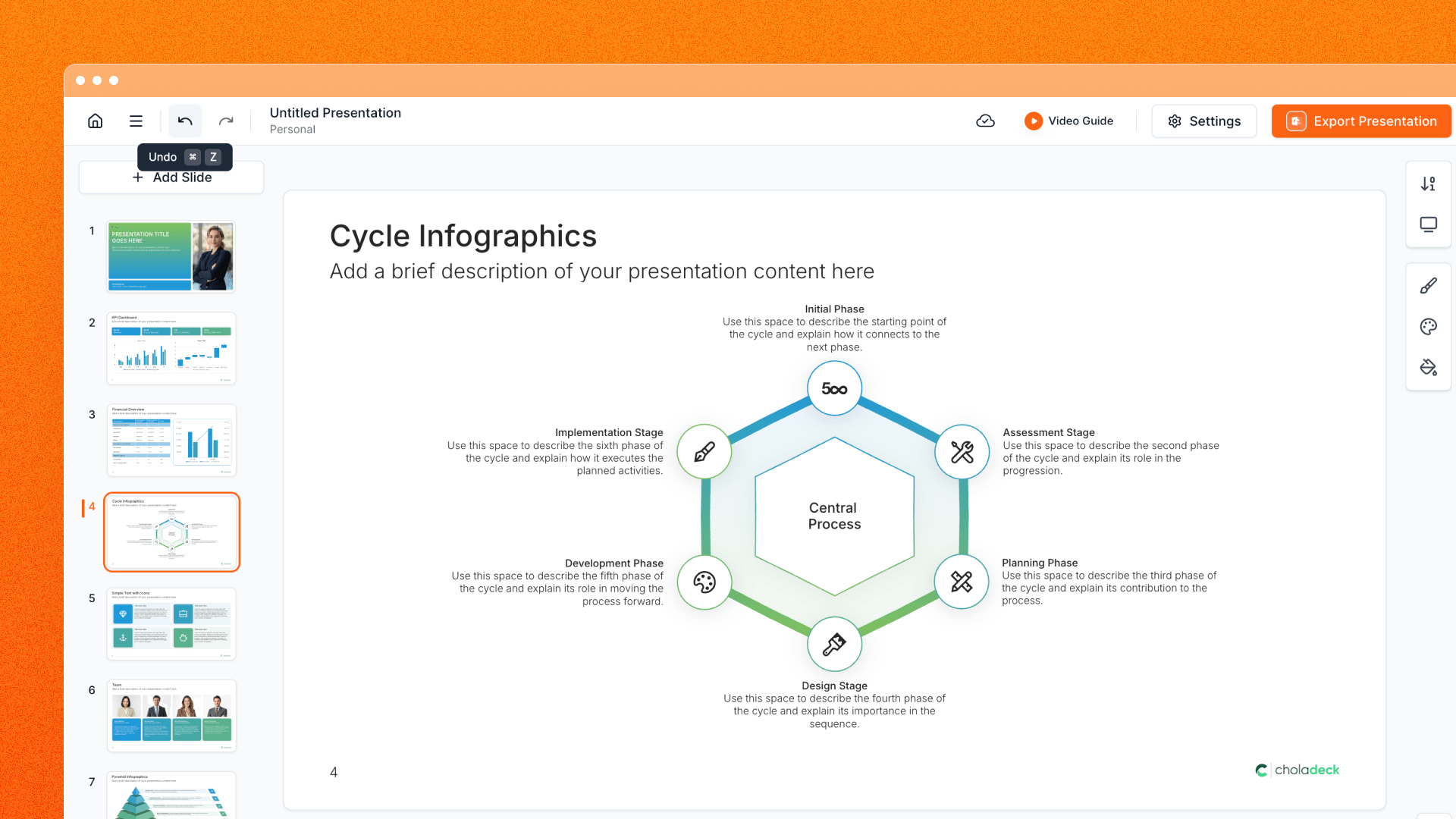
Undo and redo are available in the standard editor, covering changes across supported text, pictures, slide operations, charts, and tables. Related live adjustments are grouped into useful history steps so a visual change does not require undoing every small movement separately.
Autosave feedback shows when the presentation is saving and helps protect pending changes during navigation. Additional safeguards cover unsaved work and mobile page changes, giving the editor clearer continuity across longer sessions.
When edited text or table content grows beyond the space designed for it, Choladeck identifies the overflow and shows how many areas need attention. Tidy can fit affected content on the current slide, while the export warning points to an affected slide when overflow remains.
Together, history, save feedback, and Tidy make it easier to explore an edit while keeping track of the presentation’s current state.
Availability and Editing Permissions
Full editing is available to eligible signed-in Choladeck users with normal edit permission for the presentation.
“Open to everyone” does not mean anonymous editing or unrestricted simultaneous co-editing. Presentation ownership and permissions continue to apply. When another person holds the active editor role, Choladeck can place additional viewers in view-only mode and identify who is currently editing.
The editing controls apply to supported elements and structures included in Choladeck slides. The product remains design-aware and structured; this update does not add unrestricted blank-canvas shape creation.
Open a Presentation and Start Editing
Choose a presentation from Home, select a supported element, and work directly in the slide. Refine text, adjust a picture, recolor an icon, reorganize several slides, zoom into a detailed layout, or continue from a phone.
Open Choladeck and use the complete editor on your next presentation.