Radial infographic slides
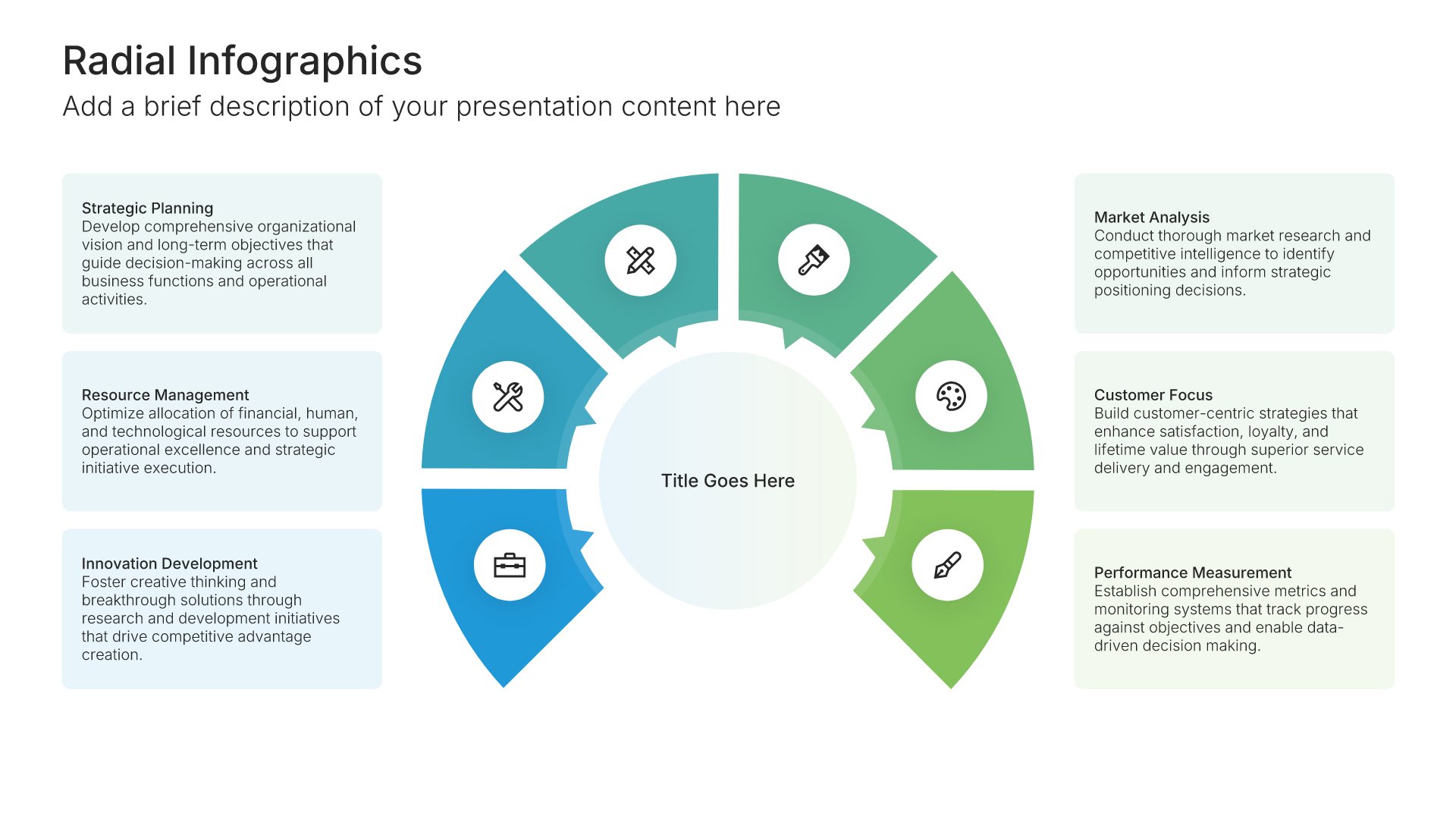
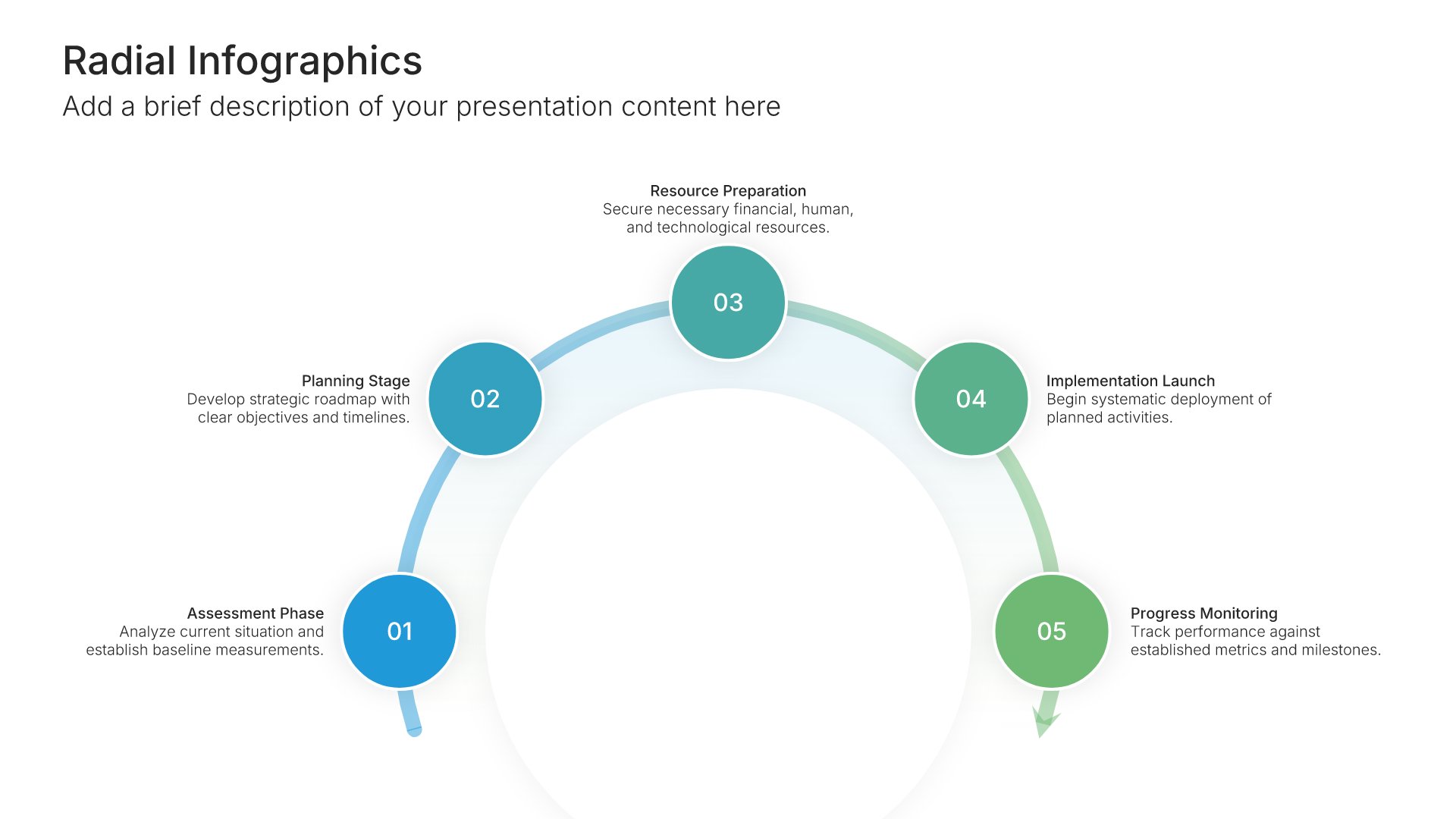
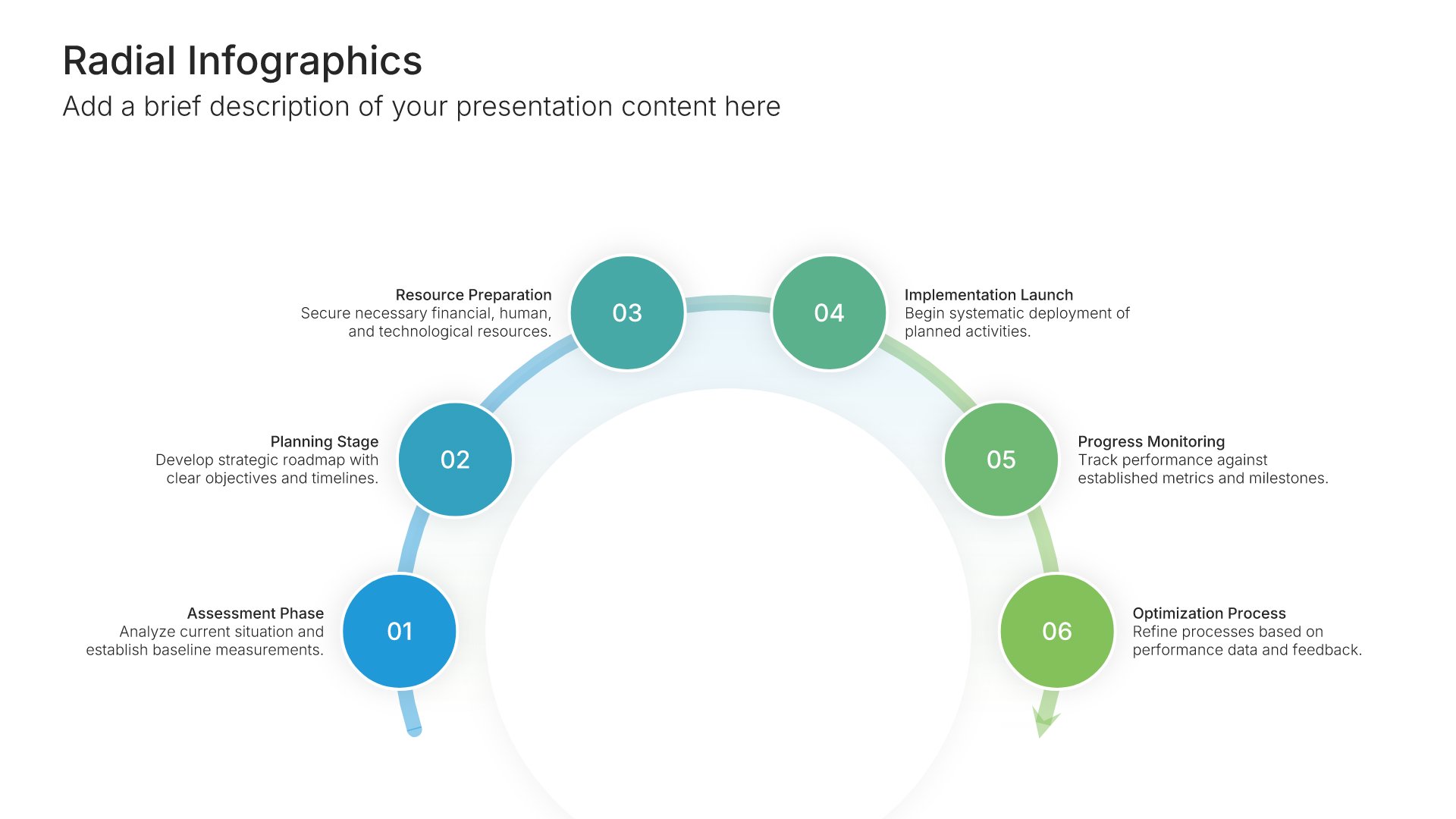
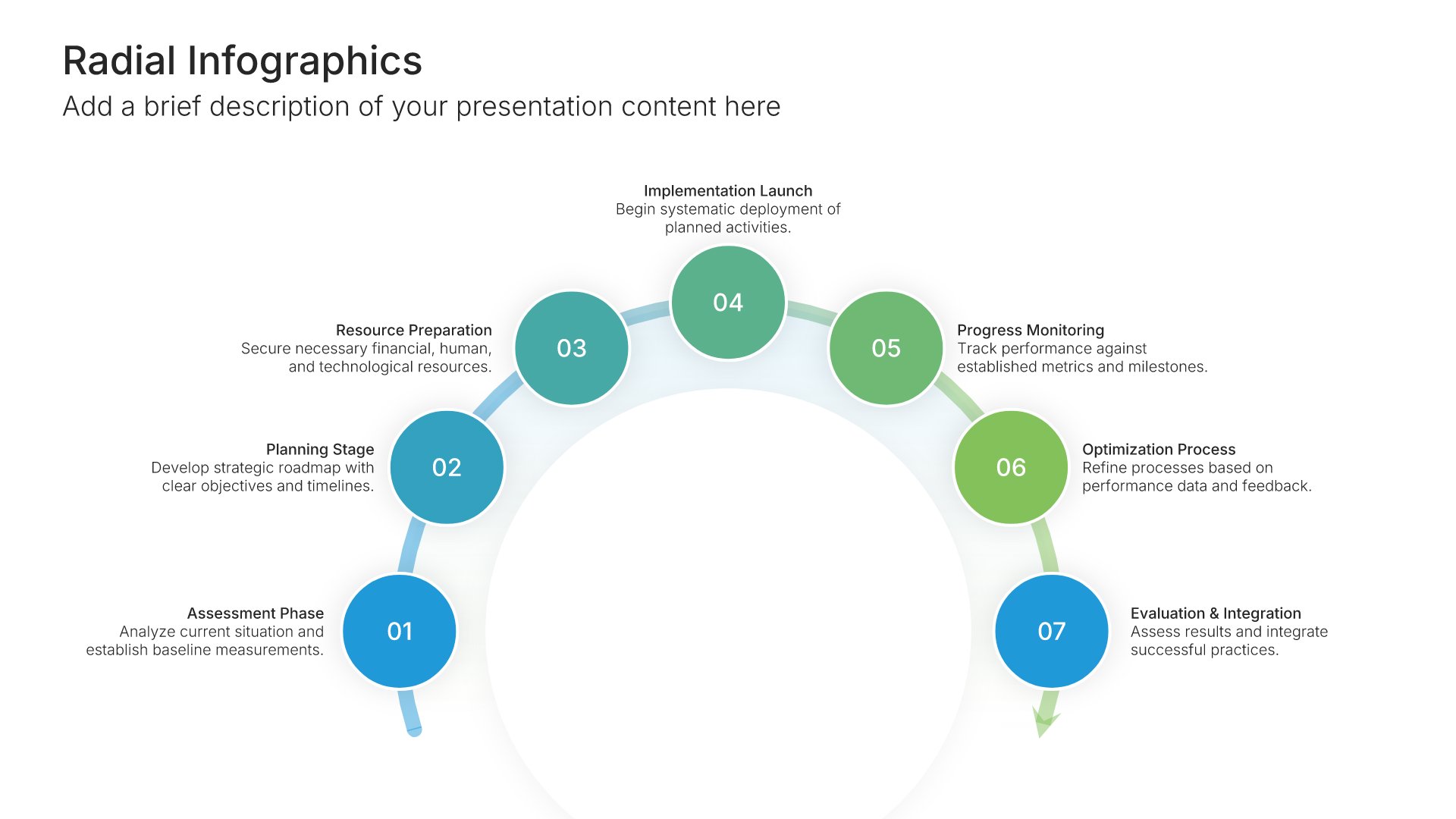
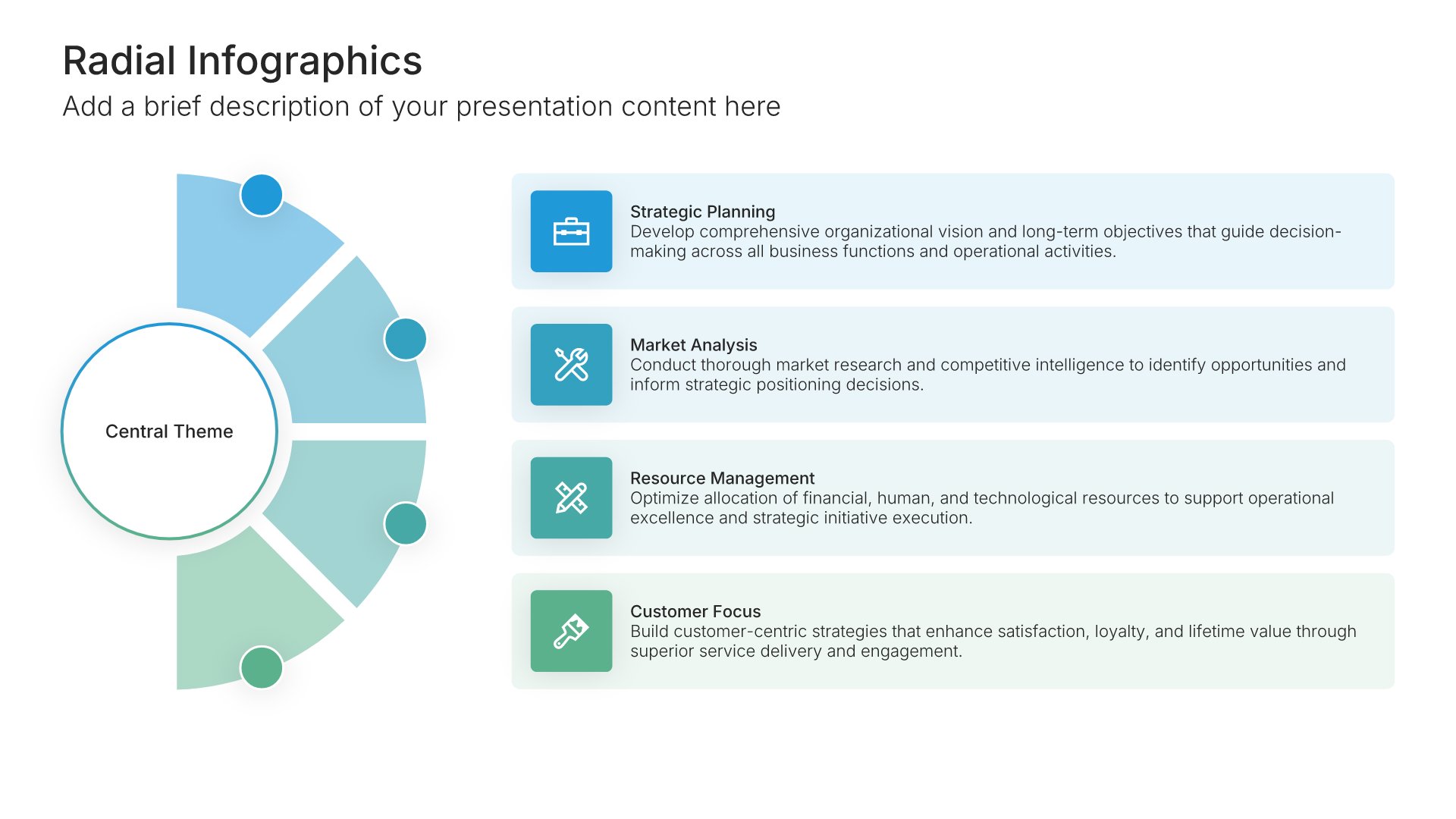
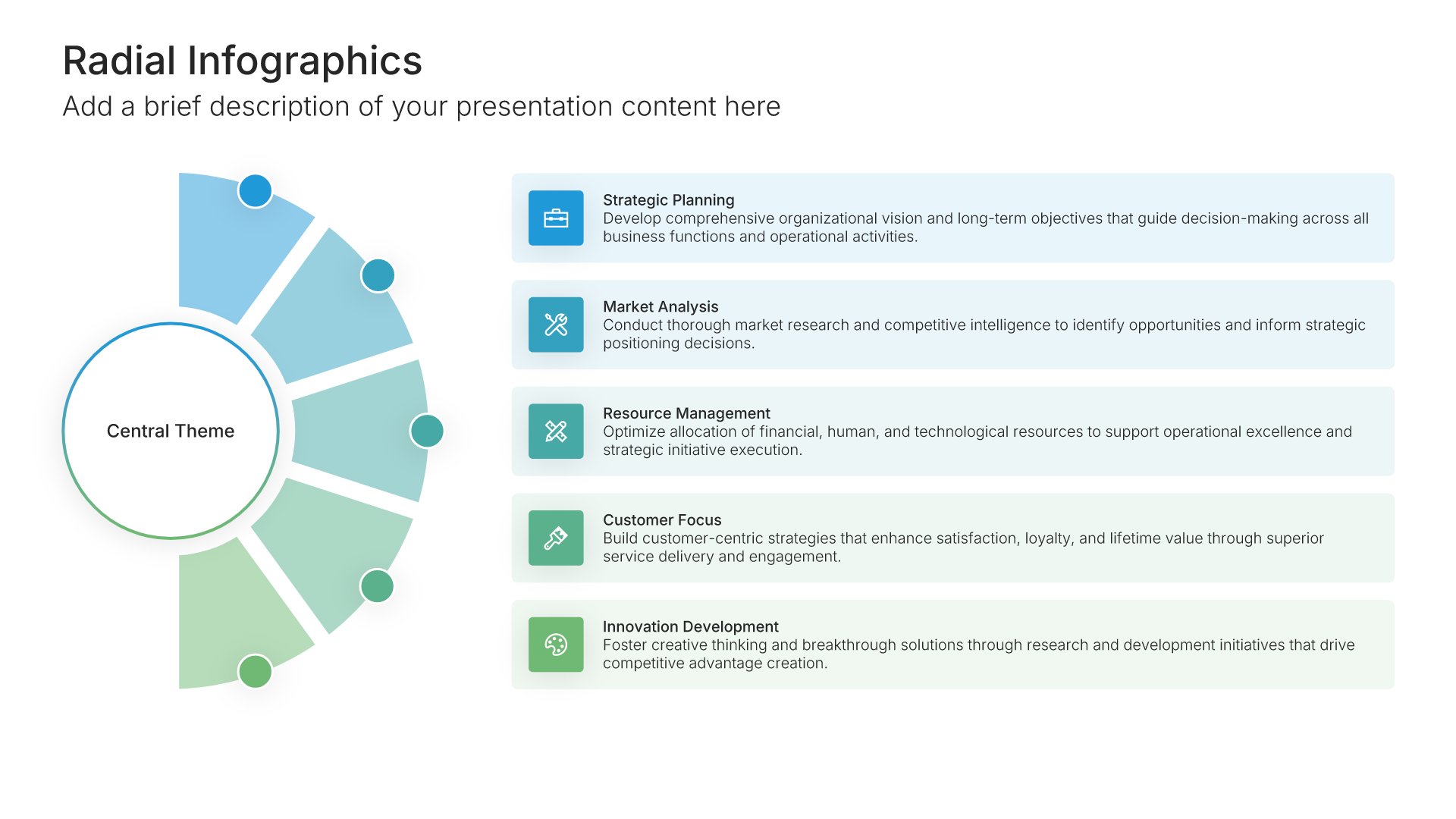
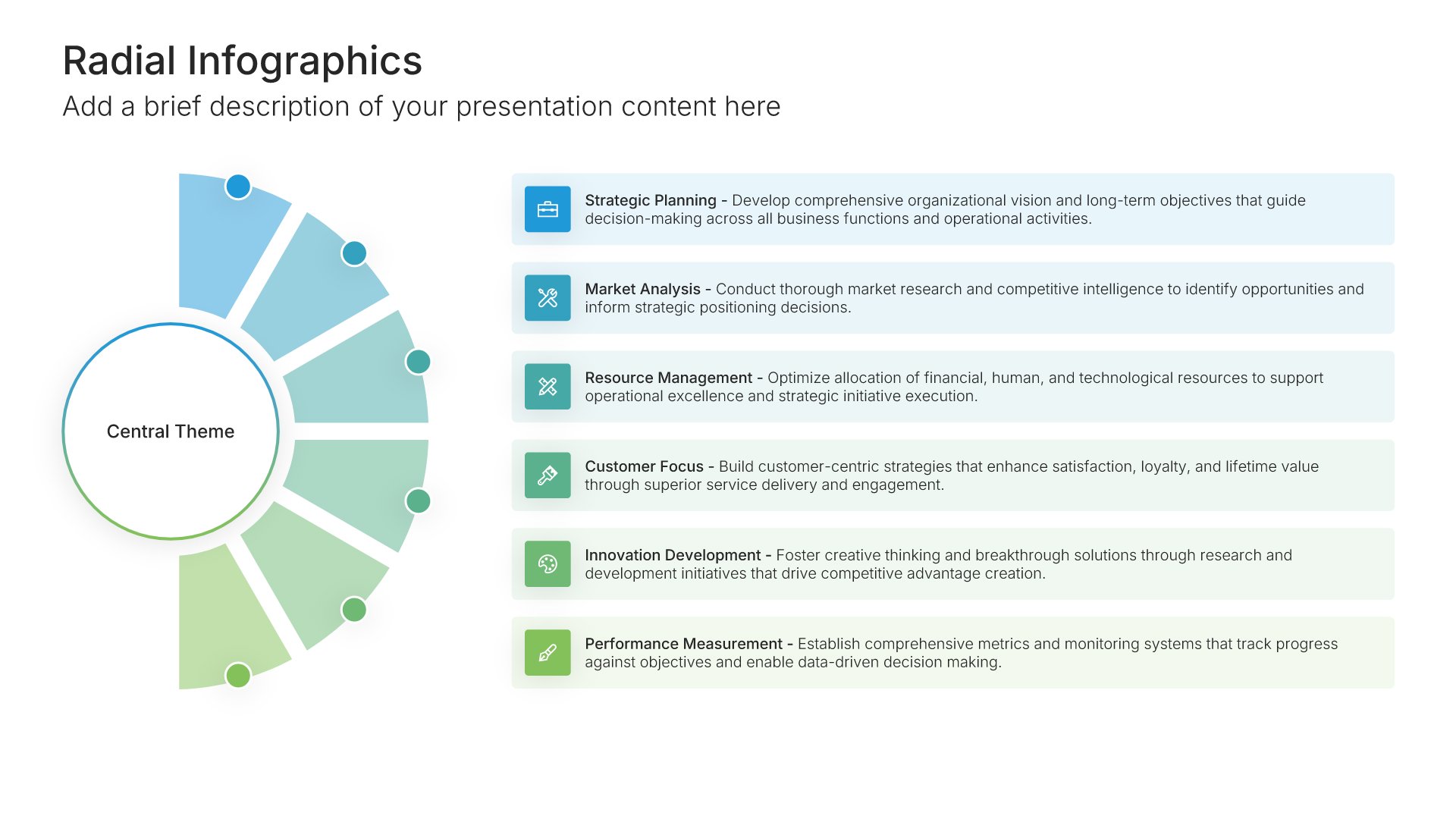
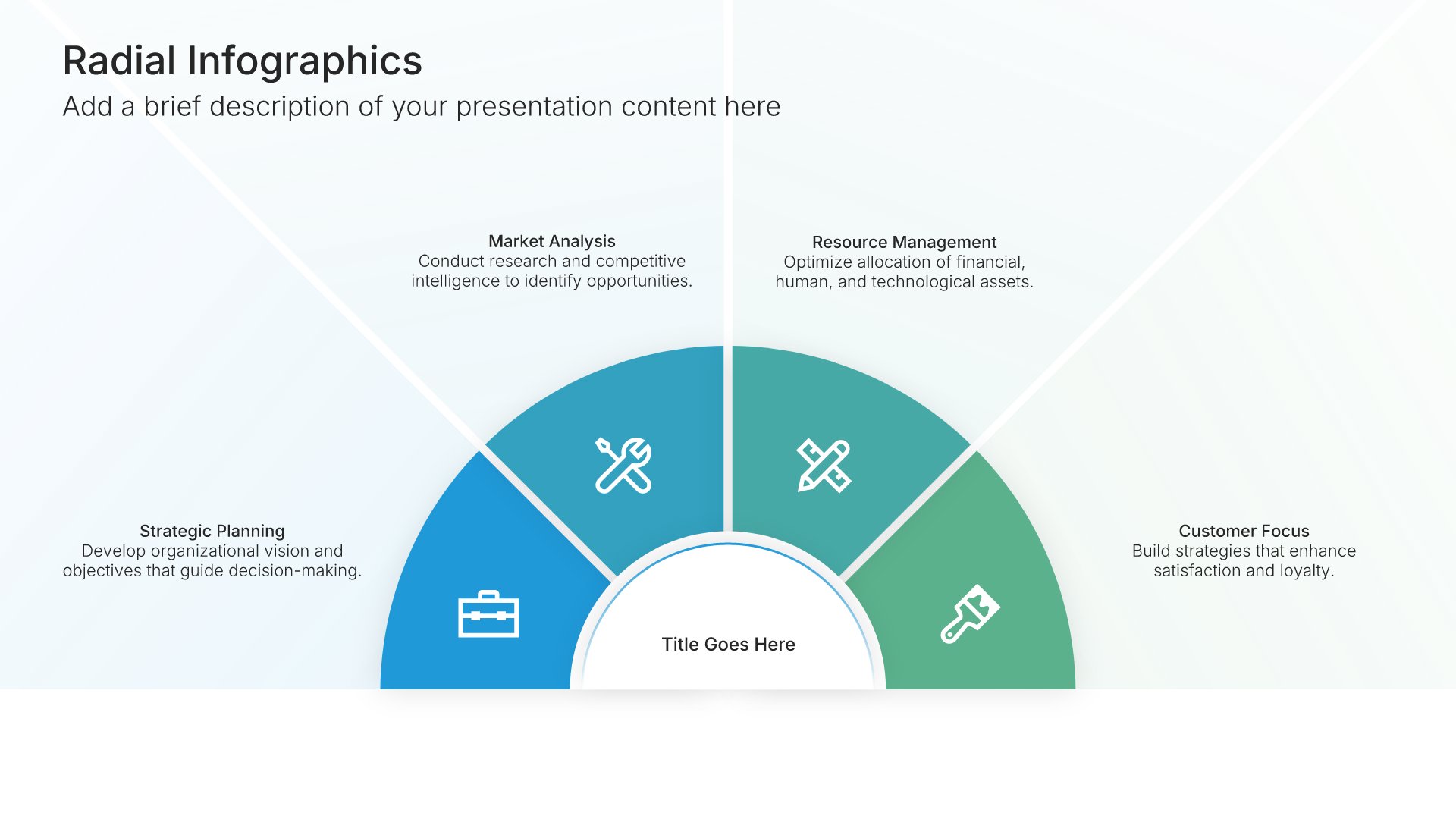
Radial infographic slides arrange segments all the way around a central theme, so the audience sees a subject from every angle at once. Pick one of 11 layouts, brand it to your company in one click, label each segment, and export to PowerPoint, Google Slides, or Keynote.
Free to start. No credit card required.
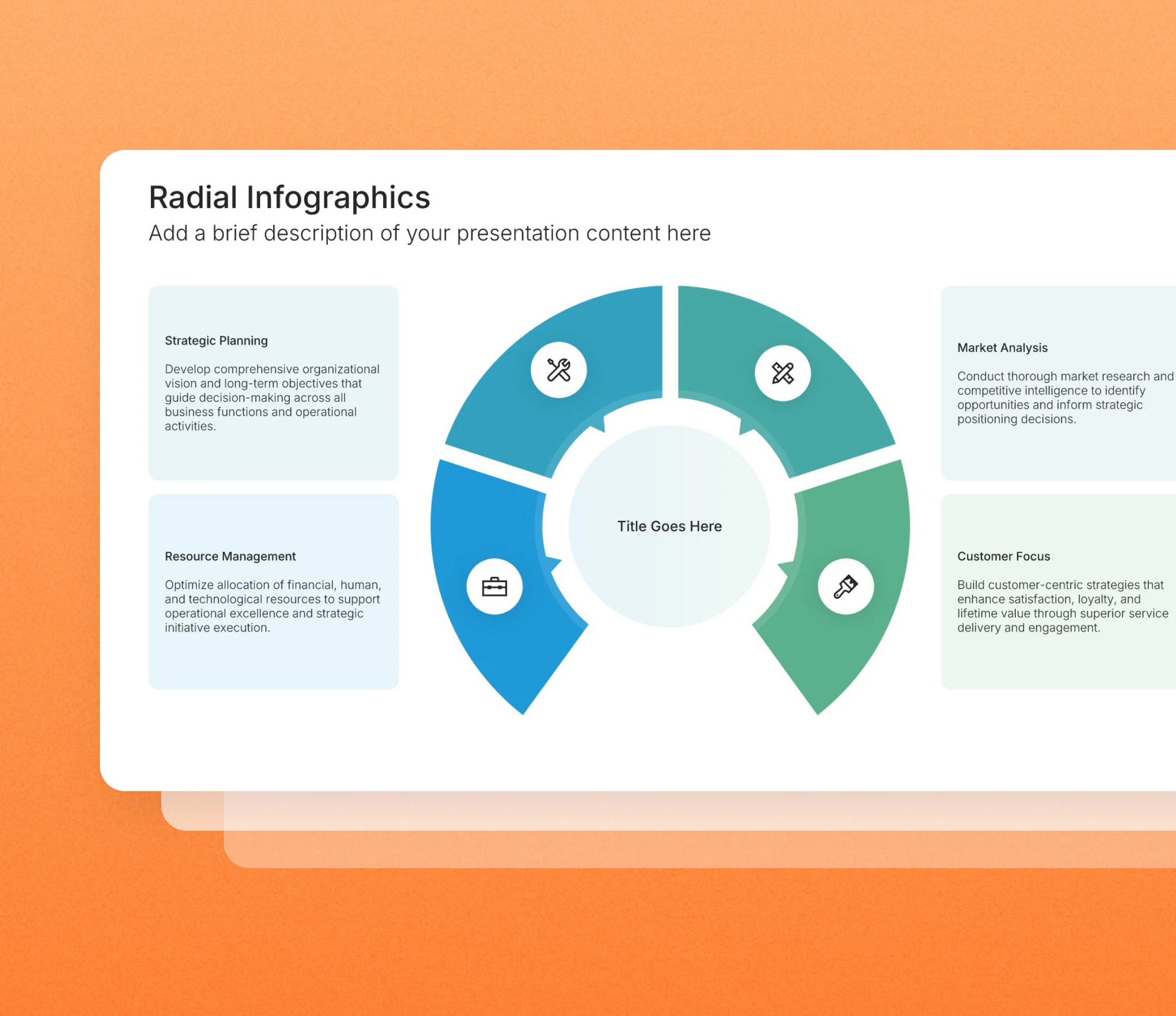
Browse radial infographic slides
11 ways to wrap your segments around one theme, all fully editable.
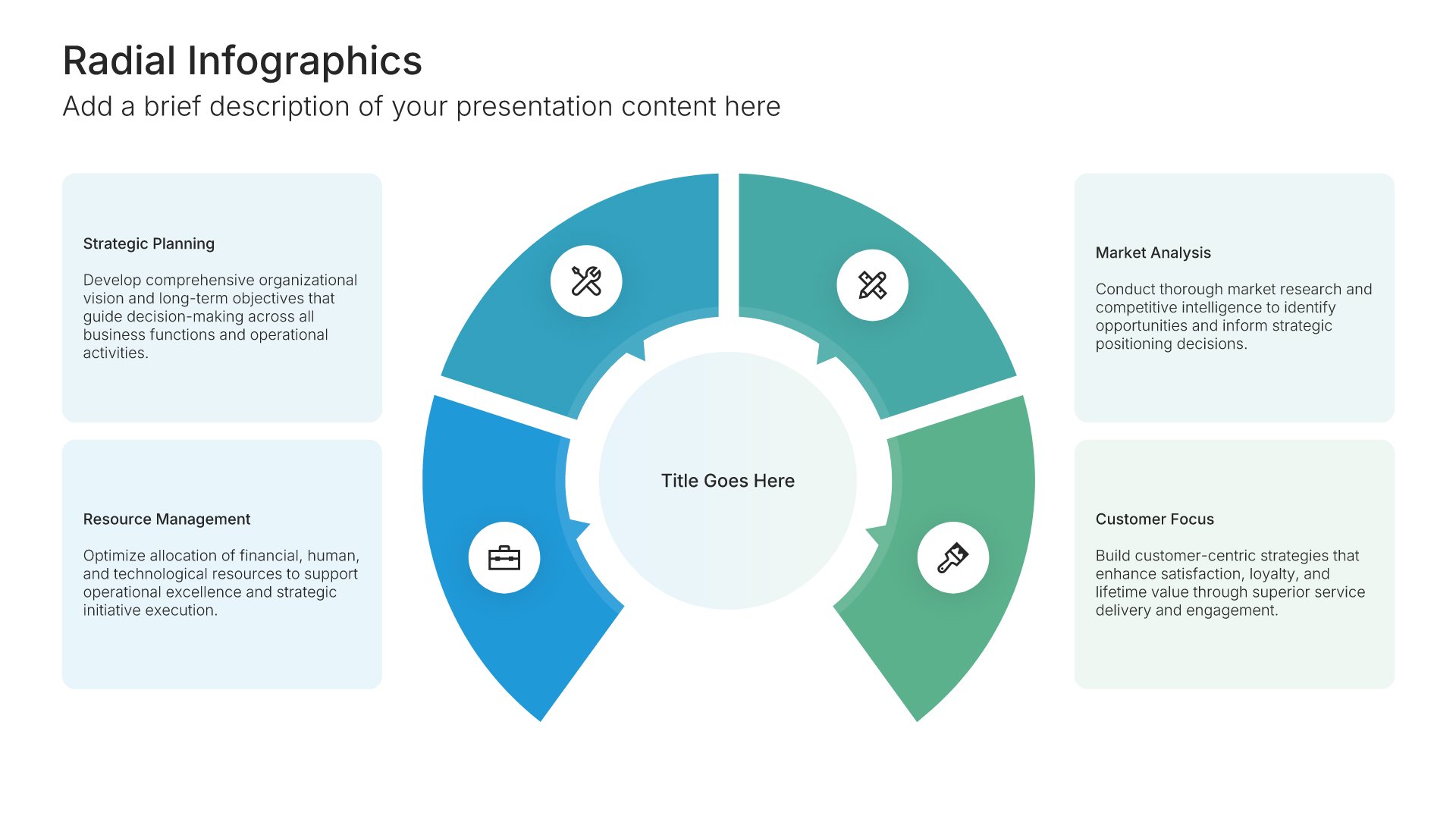
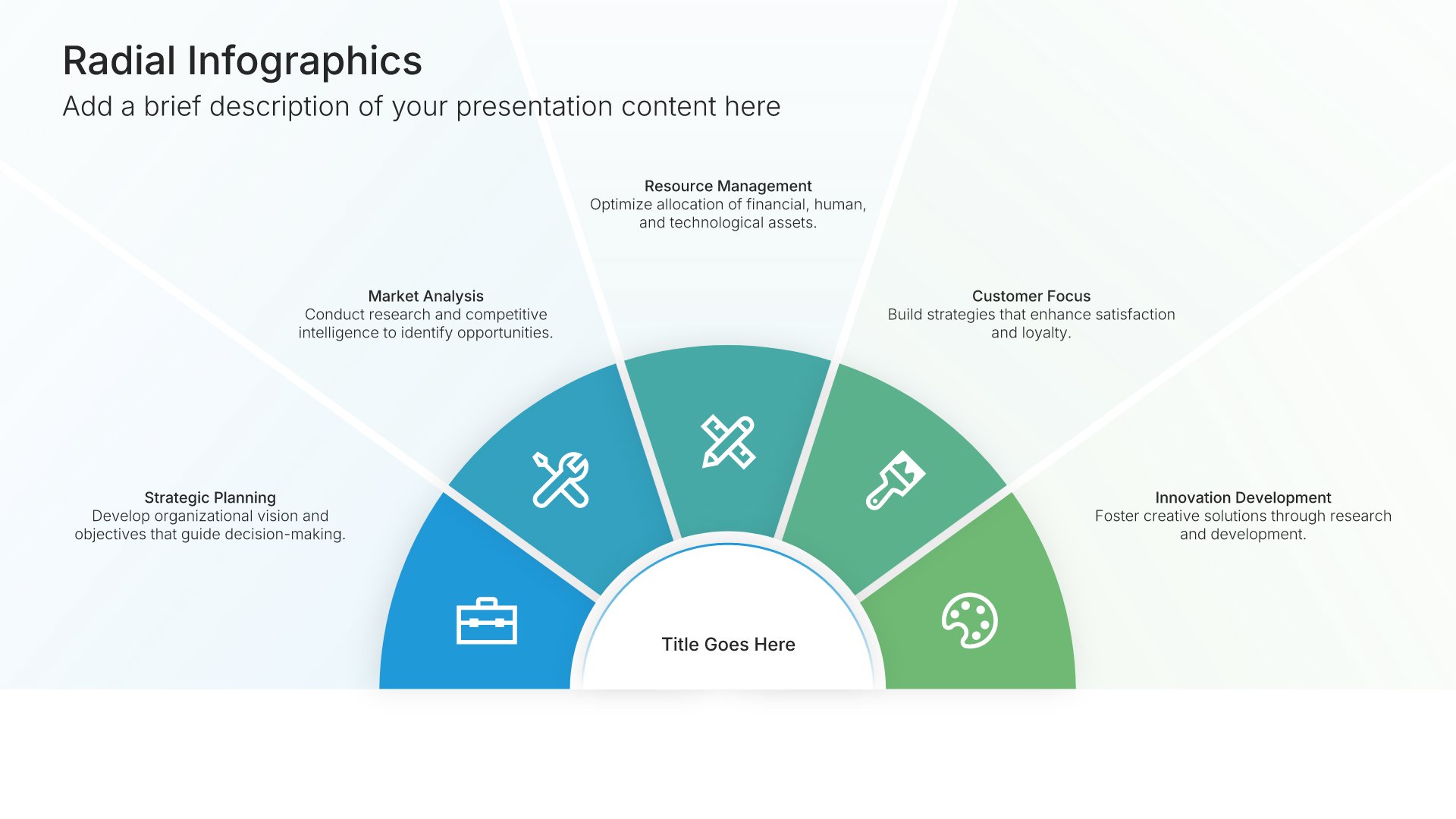
Radial Infographics • Slide Library • Layout 01 of 11
Layout 01
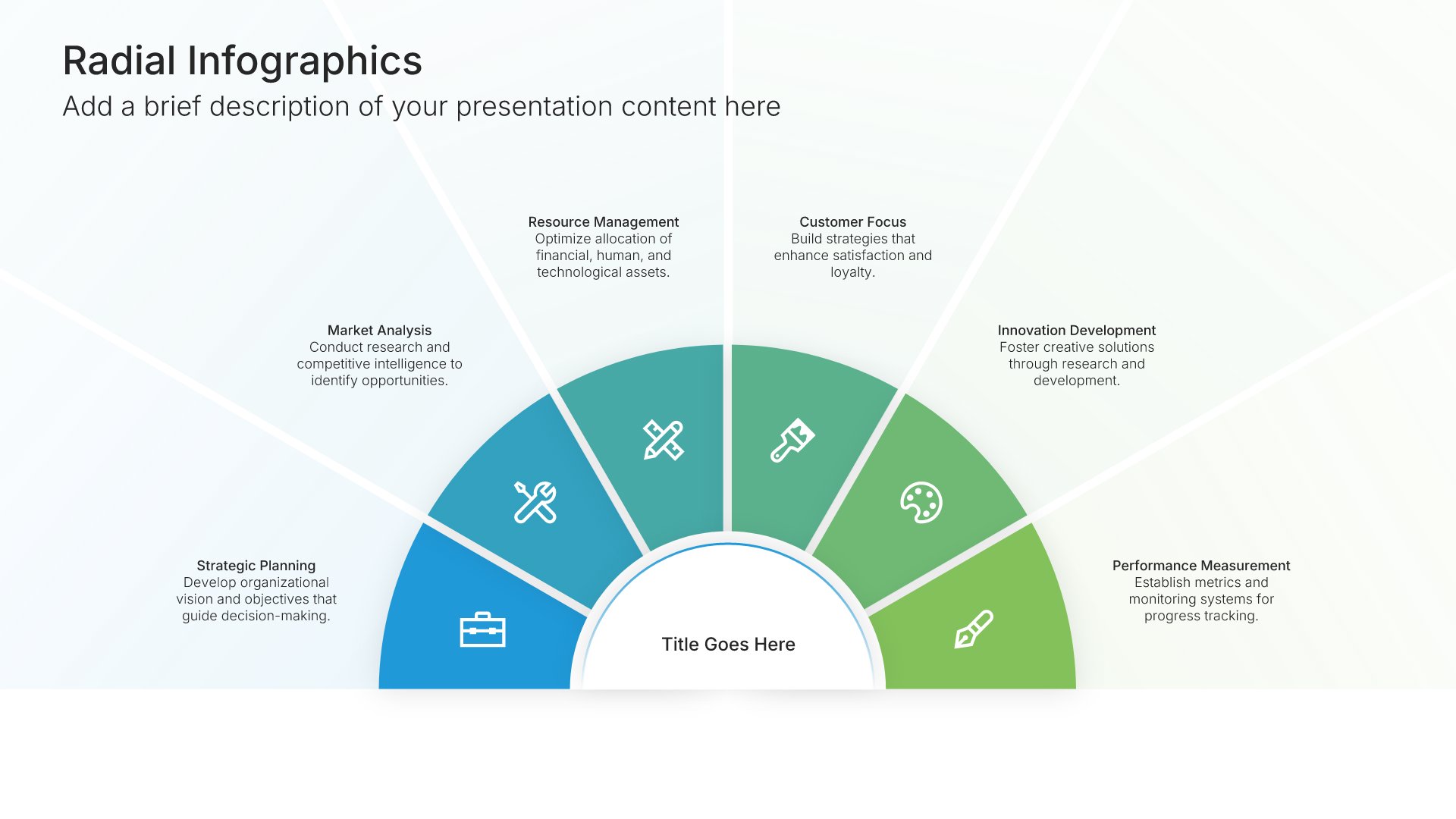
Layout 02
Layout 03
Layout 04
Layout 05
Layout 06
Layout 07
Layout 08
Layout 09
Layout 10
Layout 11
About our radial slides
What the slide does, how to use it, your brand, and a file you can edit anywhere.
Built to show a subject from every angle
Some topics are best understood as a full circle of perspectives: a customer seen from every department, a service covering every need, a capability reaching every market. A radial infographic puts the theme at the center and wraps the segments around it, which signals completeness. The audience can see that nothing has been left out, and which segments carry the most weight.
Why a full circle signals complete coverage
A list can always be one item longer. A circle closes. When segments fill the whole ring around a center, the audience reads it as the whole picture, not a sample. So a radial layout is a good fit when your point is that you’ve covered every angle.
Brand the whole presentation in one click
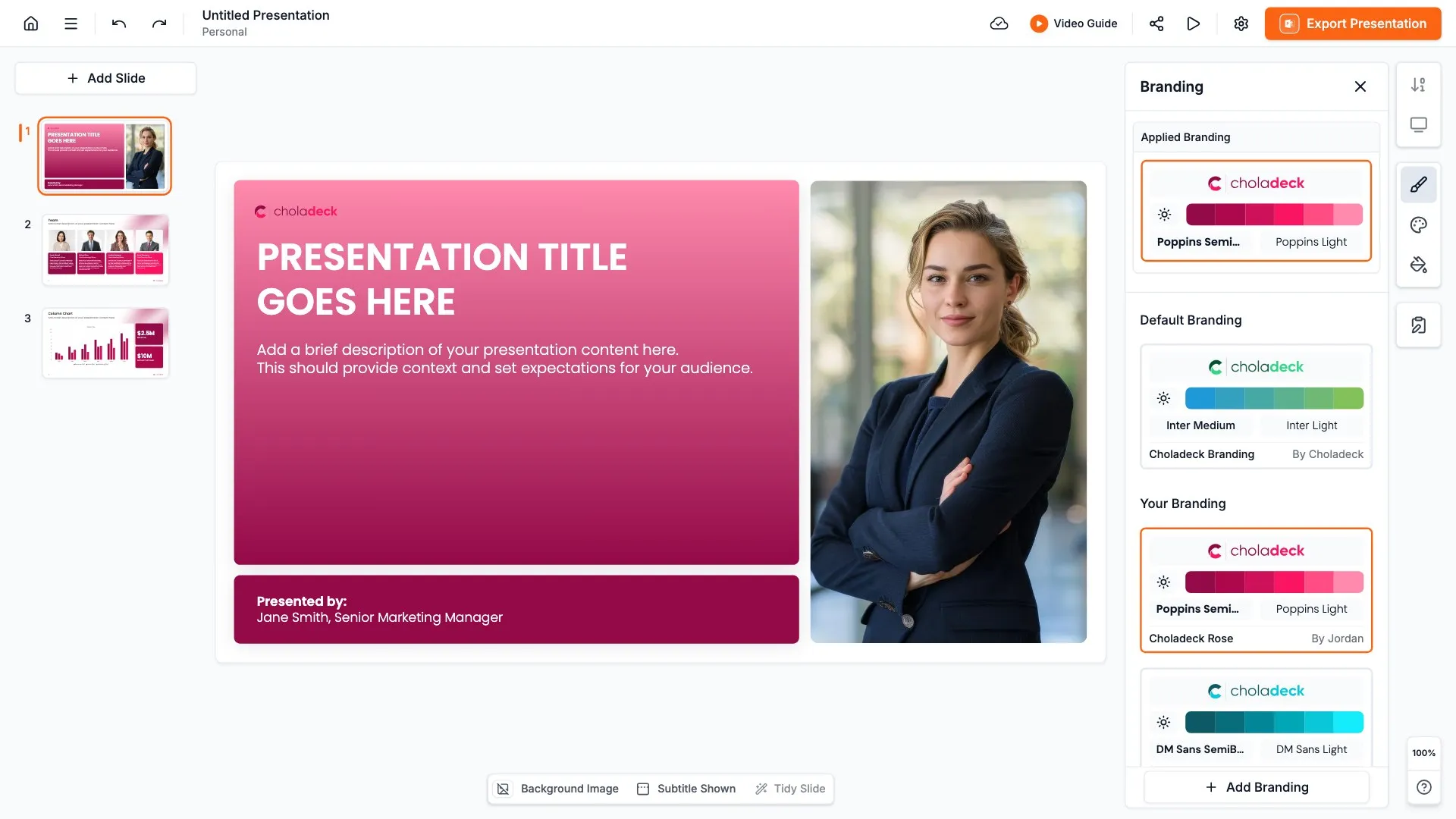
Add your logo, colors, fonts, and background once. It applies to the whole presentation and the entire slide library at the same time. Radial slides often show a company’s full offer or a 360-degree view of a customer, so once branded, the whole ring carries your colors.
Export to PowerPoint, Google Slides, or Keynote
You get a real file, not a locked link. Export it and keep editing in the tool you already use. Segments, labels, and the center stay editable, so you can add or rename segments as your picture changes.
How Choladeck works
From blank page to finished presentation in four steps.
STEP 01
Browse 9,000+ slides across 134+ categories, or open one of the 74 premade presentations.
STEP 02
Add your logo, colors, and fonts in one click. The whole presentation instantly matches your company.
STEP 03
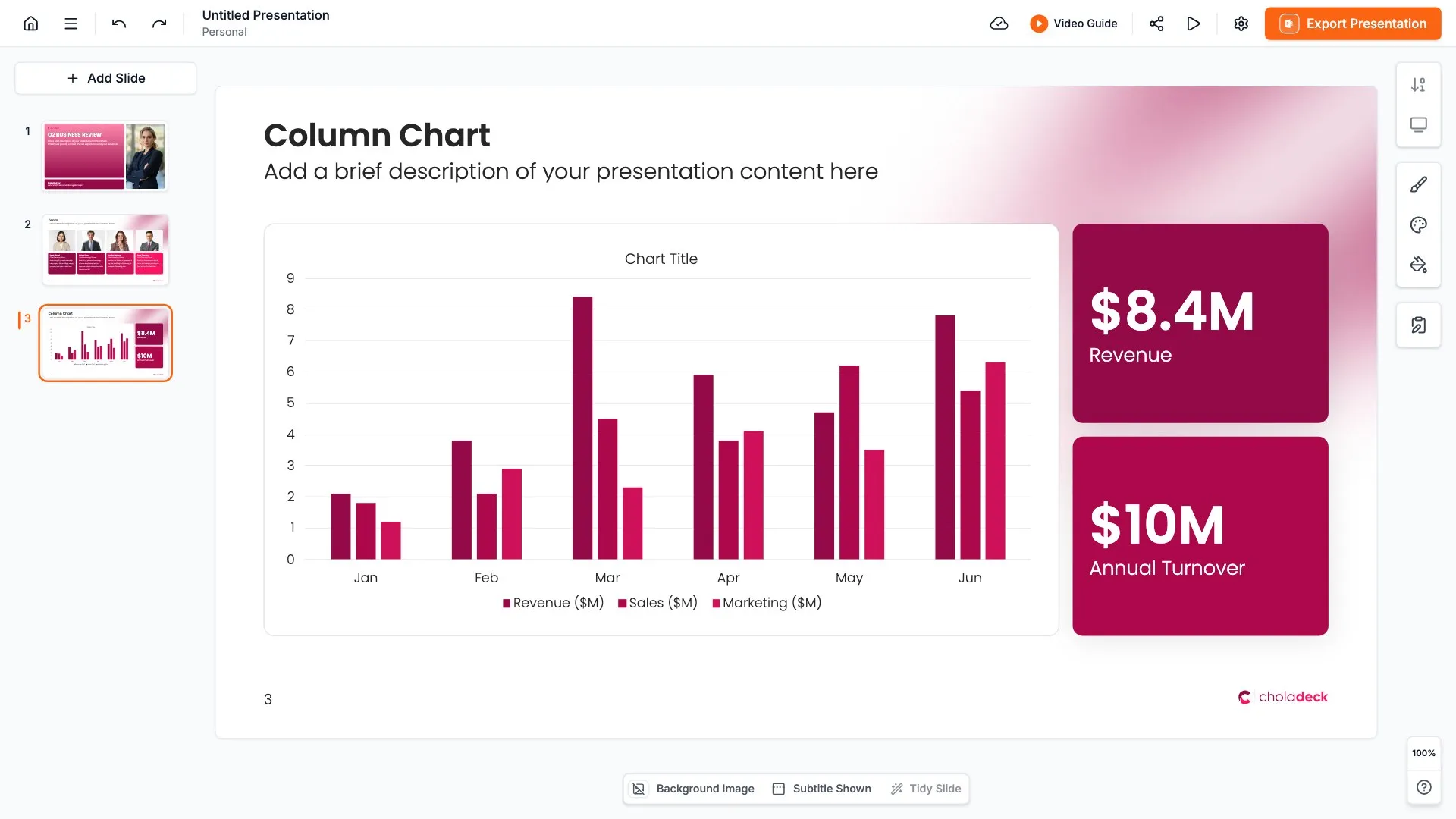
Add your text, numbers, charts, and tables. Everything on the slide is editable.
STEP 04
Send it to PowerPoint, Google Slides, or Keynote, and present.
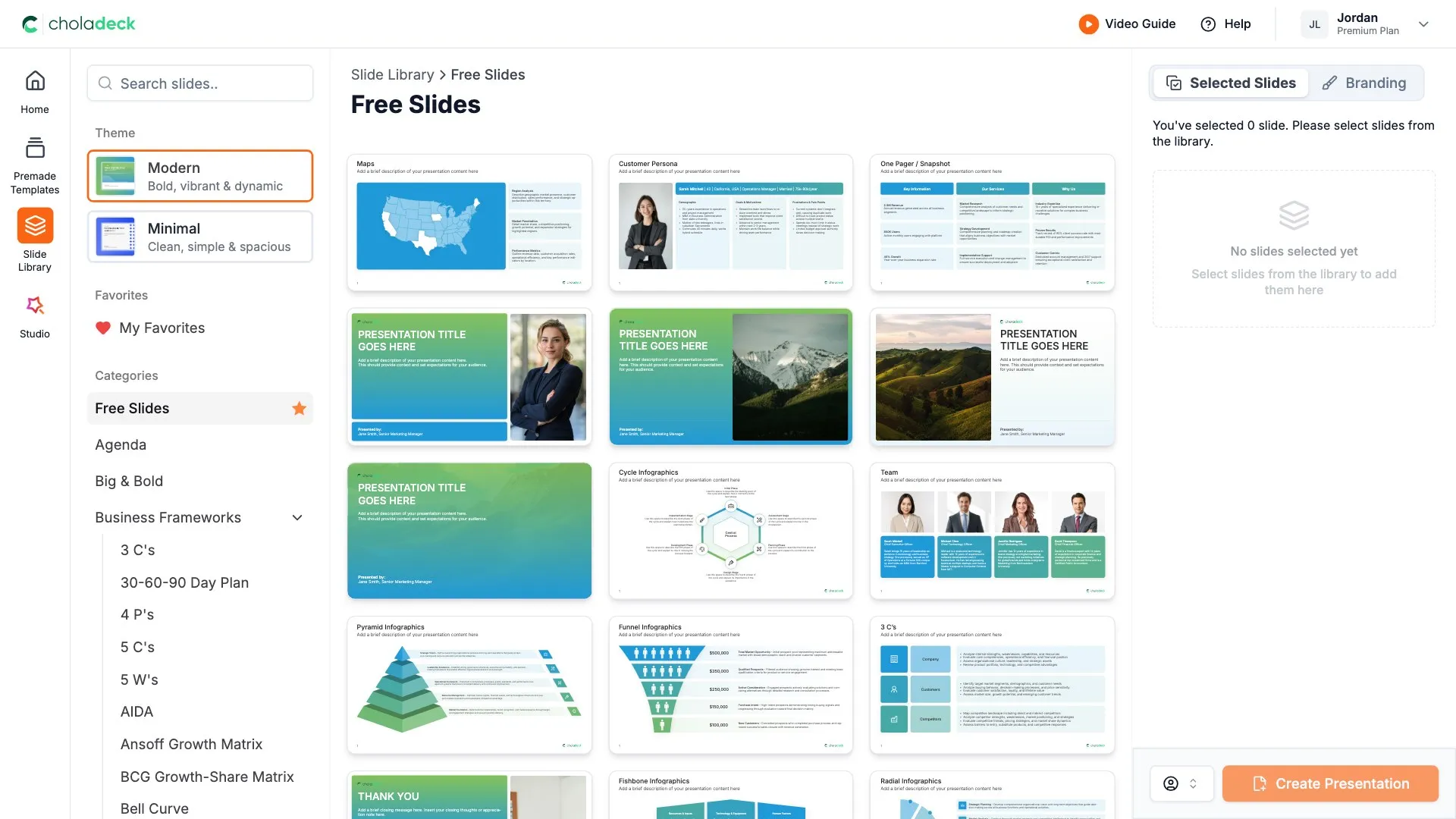
Need a complete presentation instead?
If you're starting from nothing rather than fixing a few slides, open one of 74+ premade presentations instead. Each one is complete and built for one purpose, from pitch decks to business plans and company profiles.

Questions about radial infographic slides
How the slides work, and how far you can change them.
Using the slides
Can I edit these slides in PowerPoint?
+Yes. Export to PowerPoint, Google Slides, or Keynote, and the center, every segment, and every label stay editable. Nothing is locked and nothing is a flat image.
How do I brand them to my company?
+Add your logo, colors, fonts, and background once. It applies to the whole presentation and the entire slide library at the same time.
Can I mix them with other slides from the library?
+Yes. Add a radial slide to any premade template, or pair it with circle or hub and spoke slides from the library. Branding applies across all of them.
About radial infographics
When should I use a radial infographic?
+When you want to show a complete view of a topic, such as every service you offer, every team involved, or every factor behind a result.
How is it different from a hub and spoke diagram?
+A hub and spoke stresses the connection from each item back to the center. A radial layout stresses coverage, with segments filling the whole circle.
How many segments should a radial slide have?
+Four to eight usually reads well. With more, each segment gets too thin to label.
Your next radial infographic slide is already designed
Pick a layout, brand it in one click, add your content, and export.
Free to start. No credit card required.