Comparison slide templates
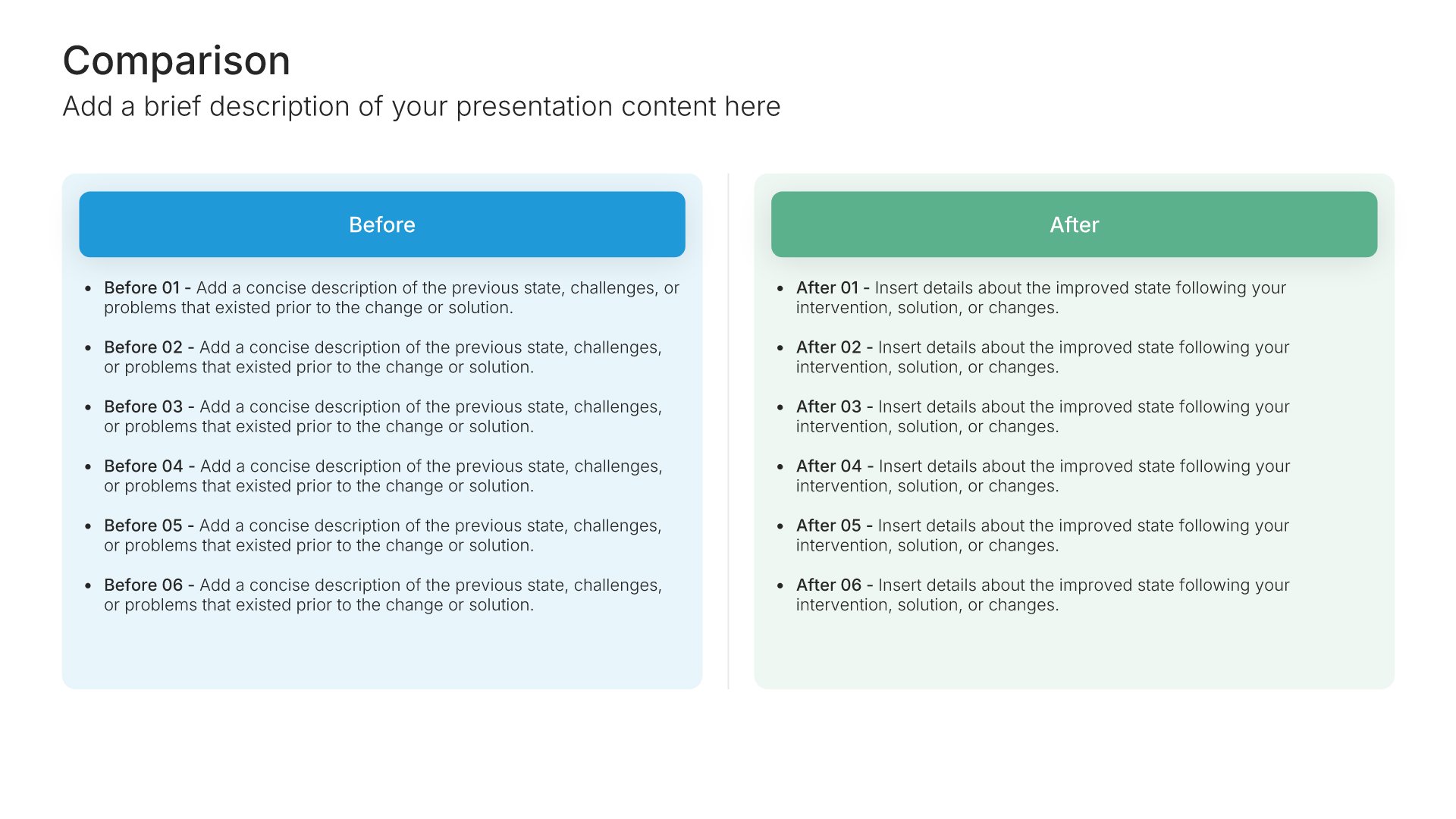
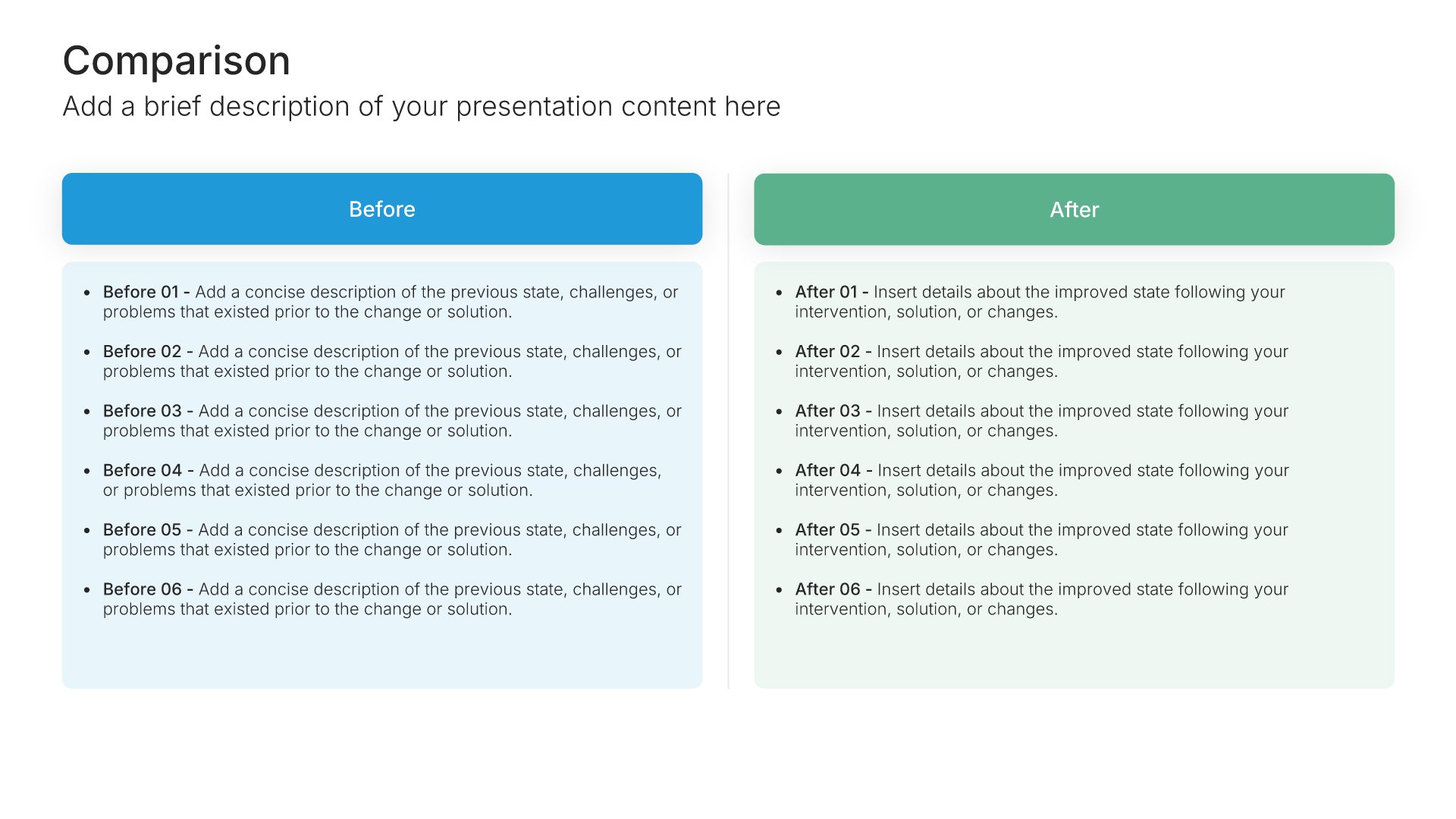
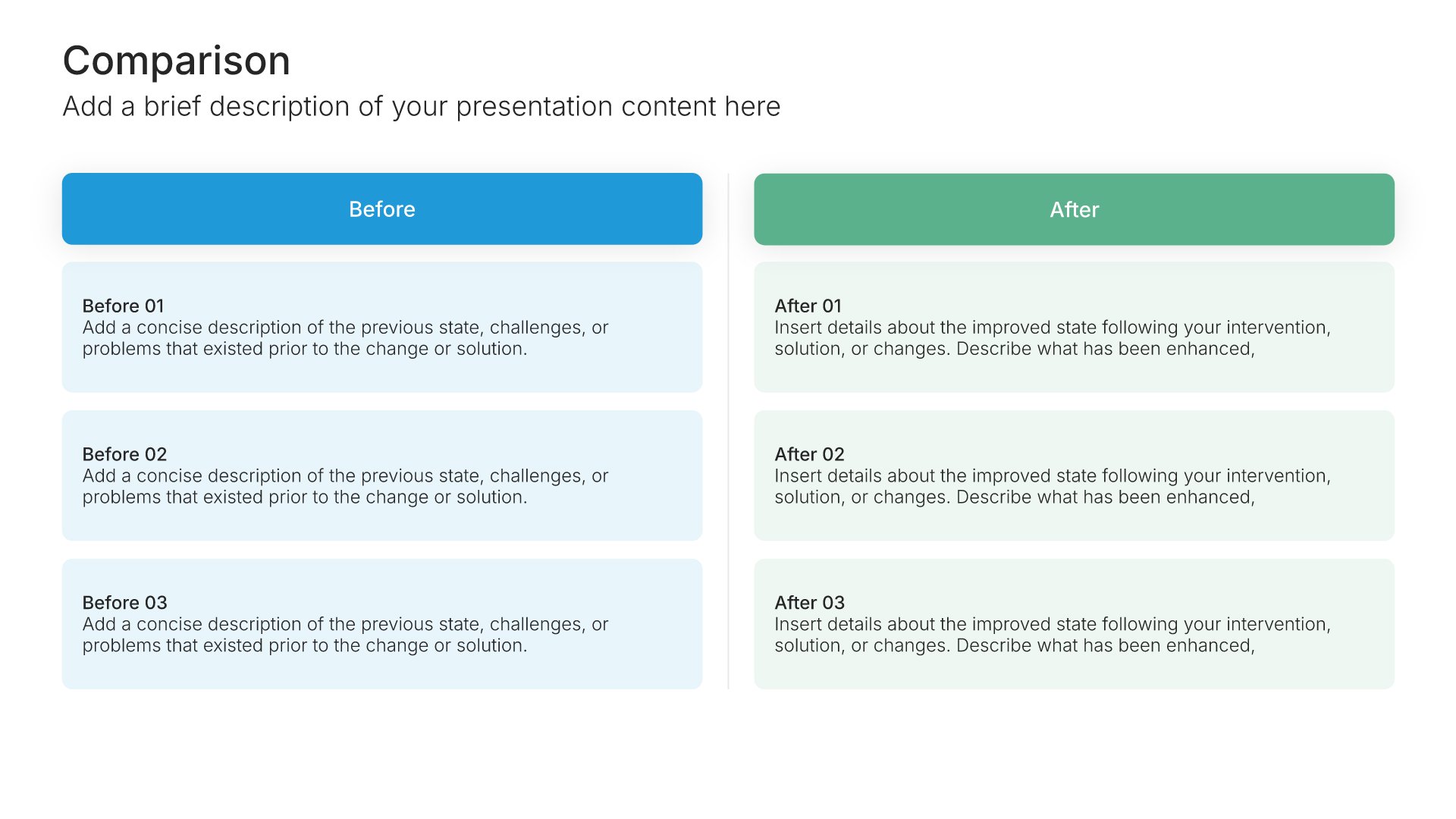
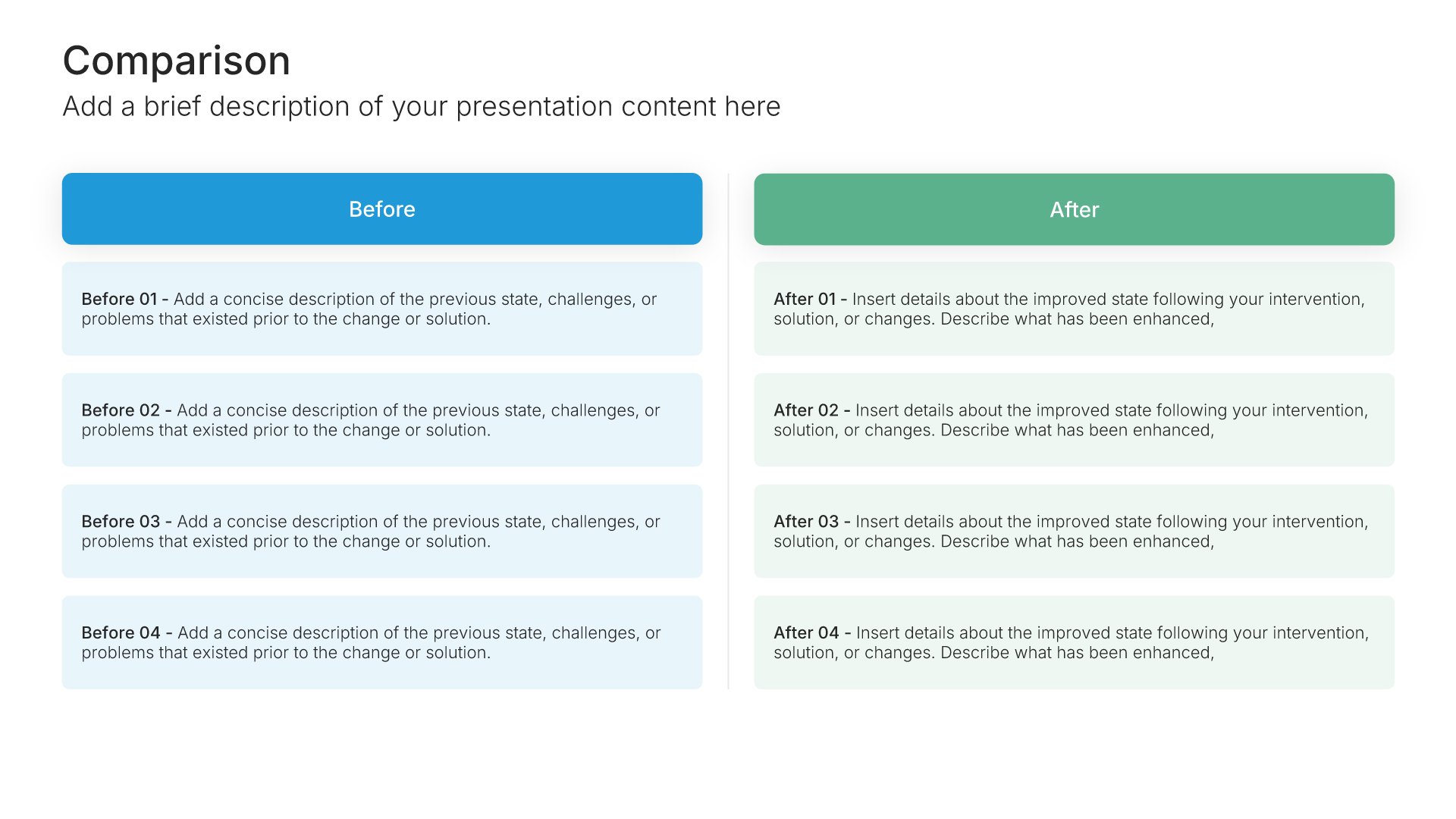
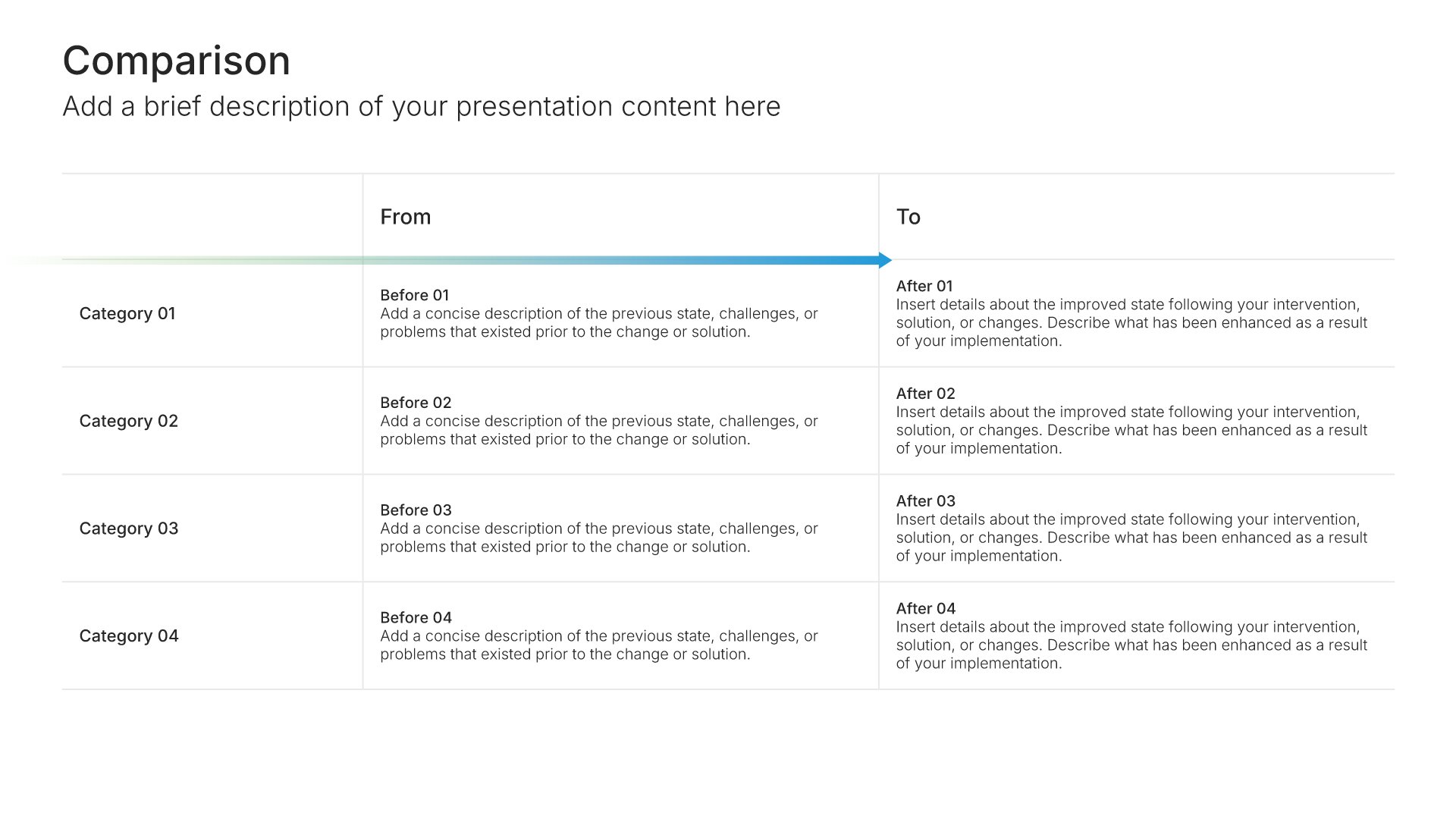
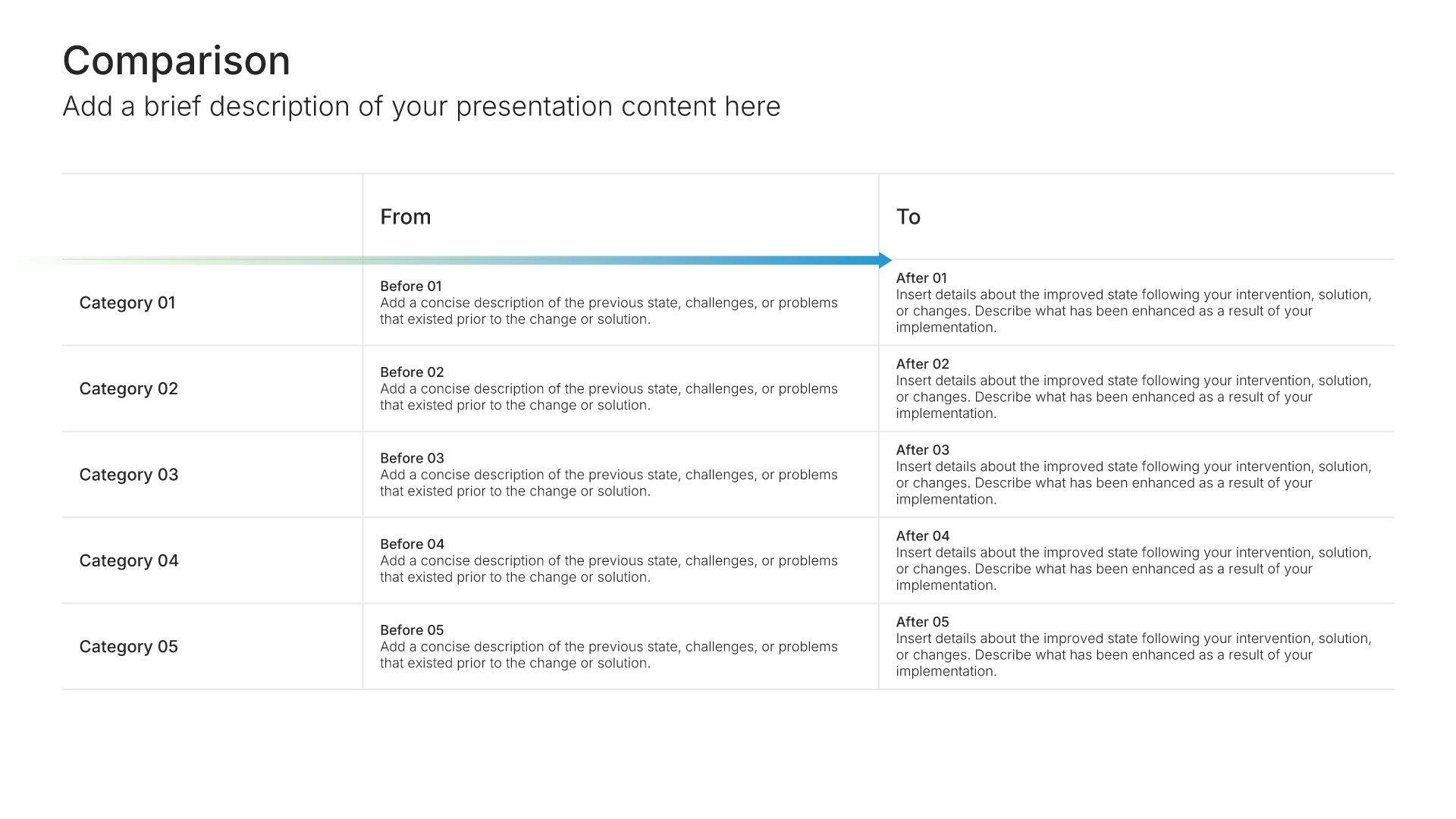
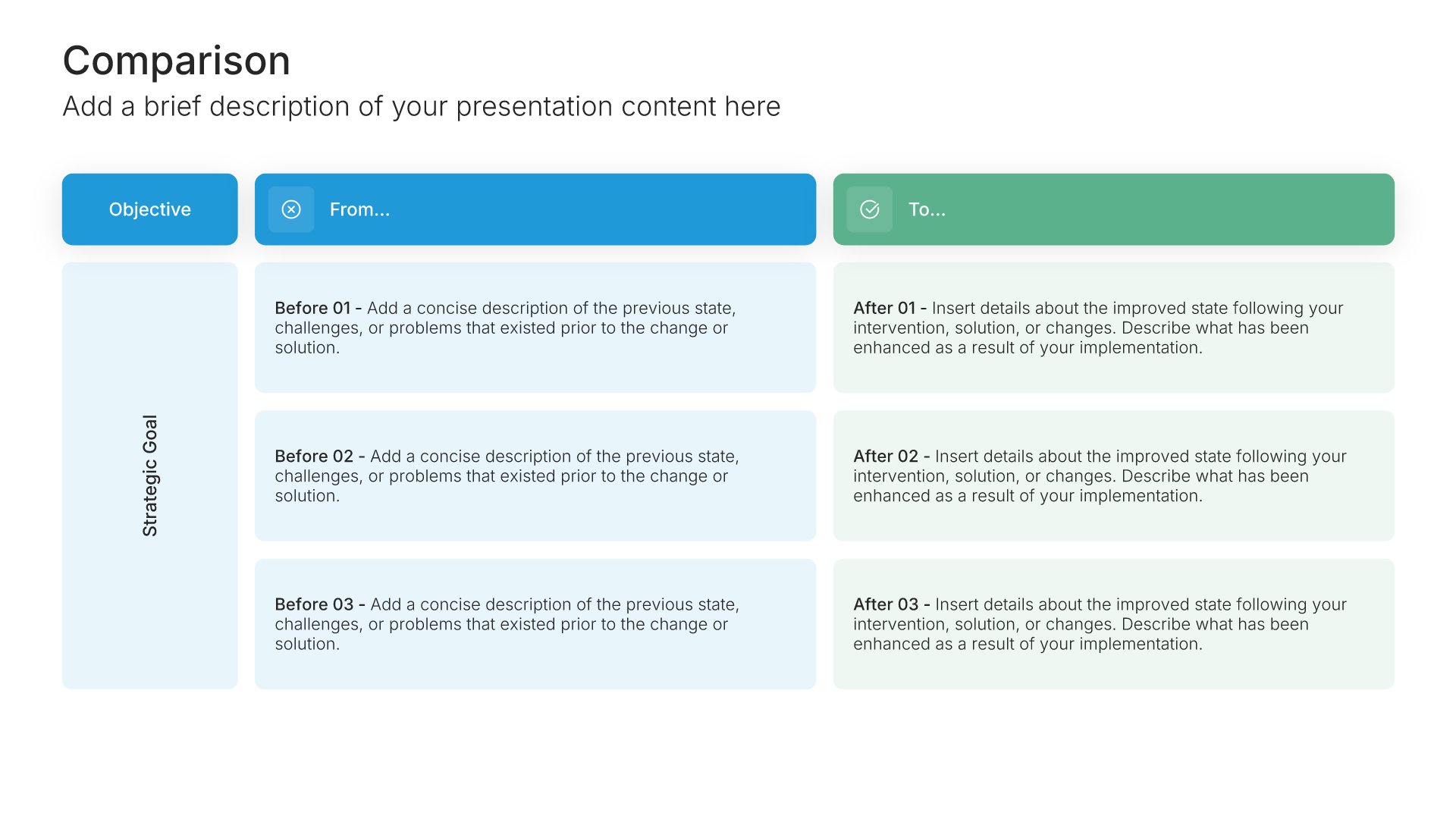
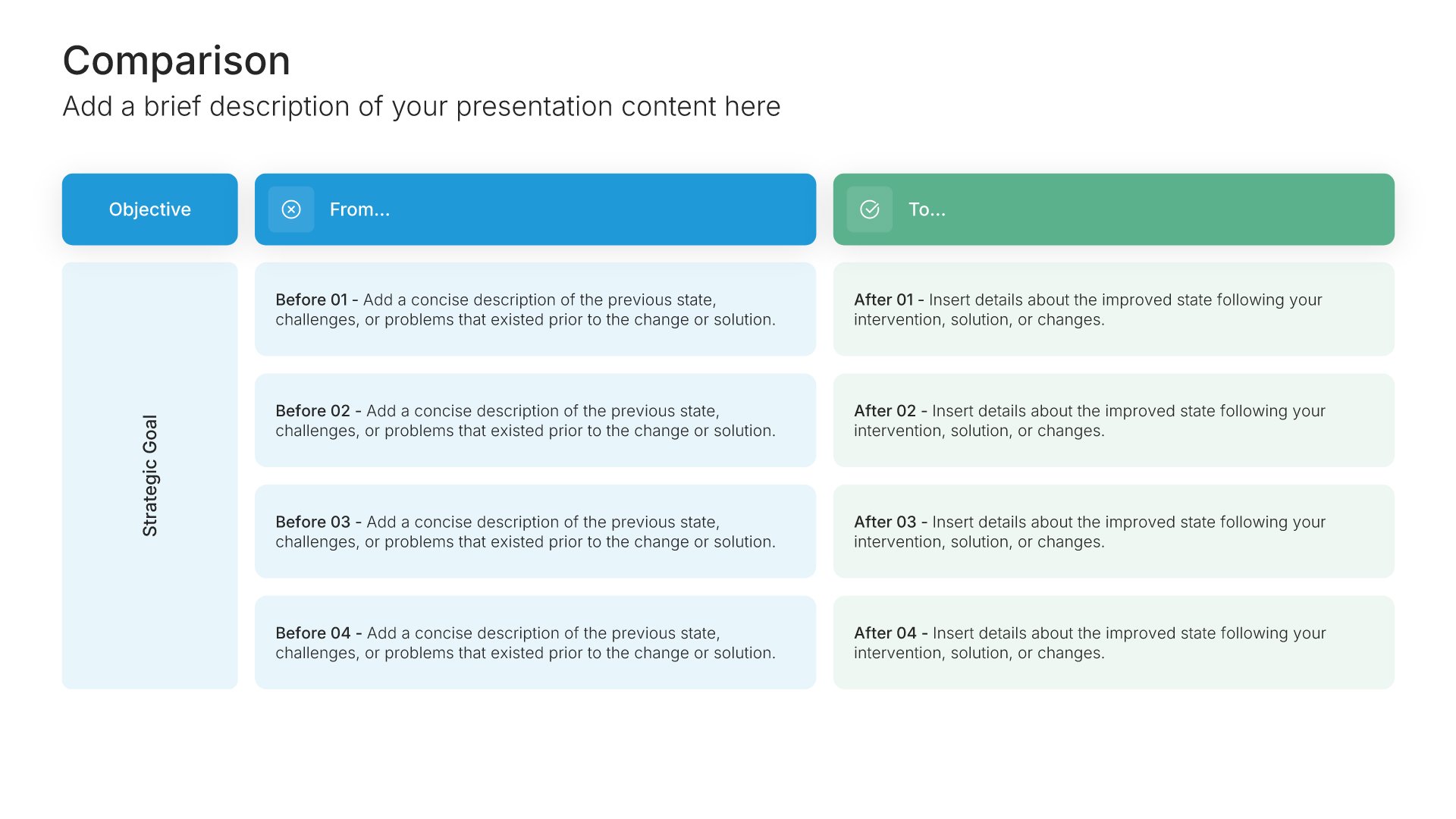
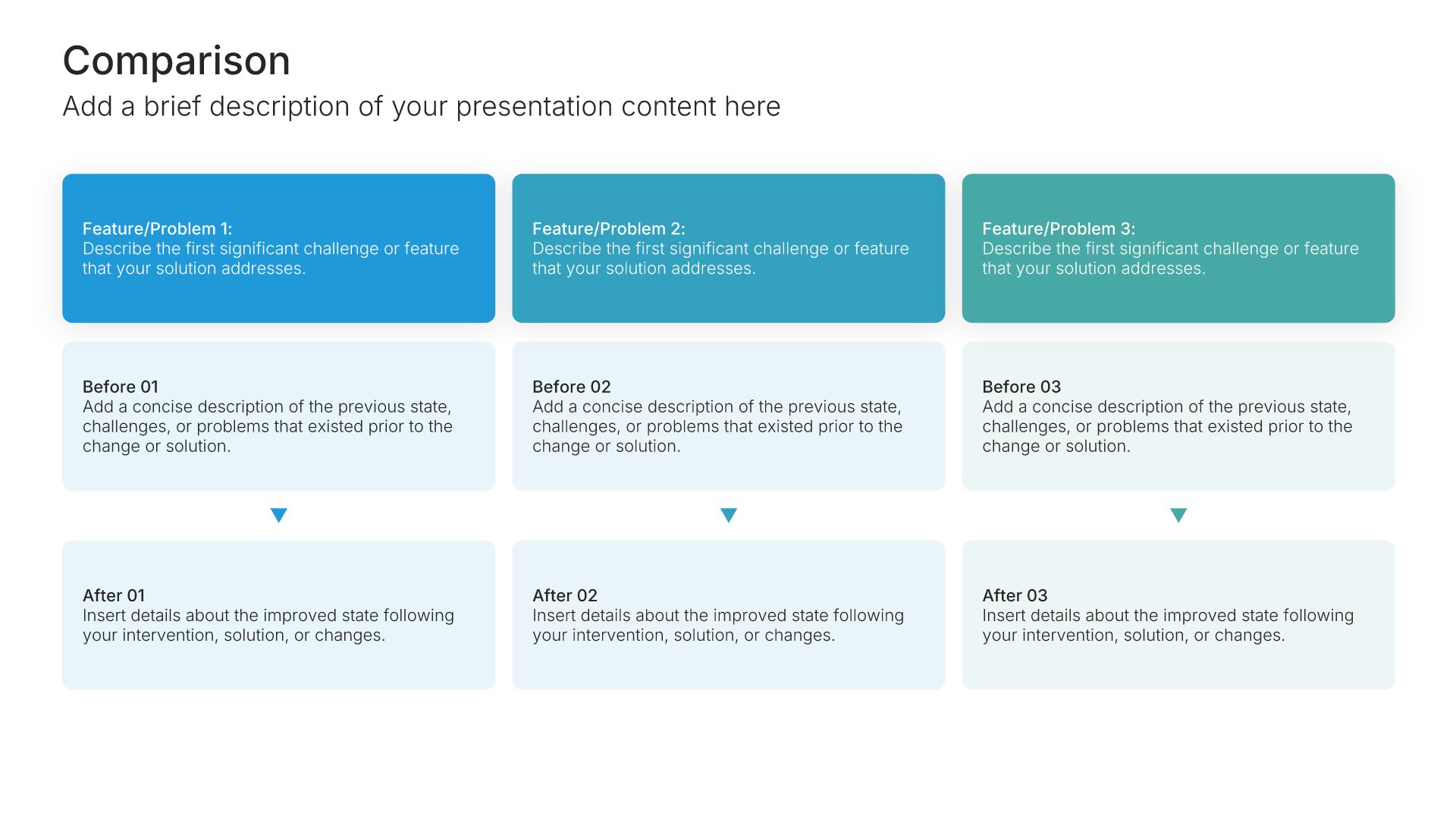
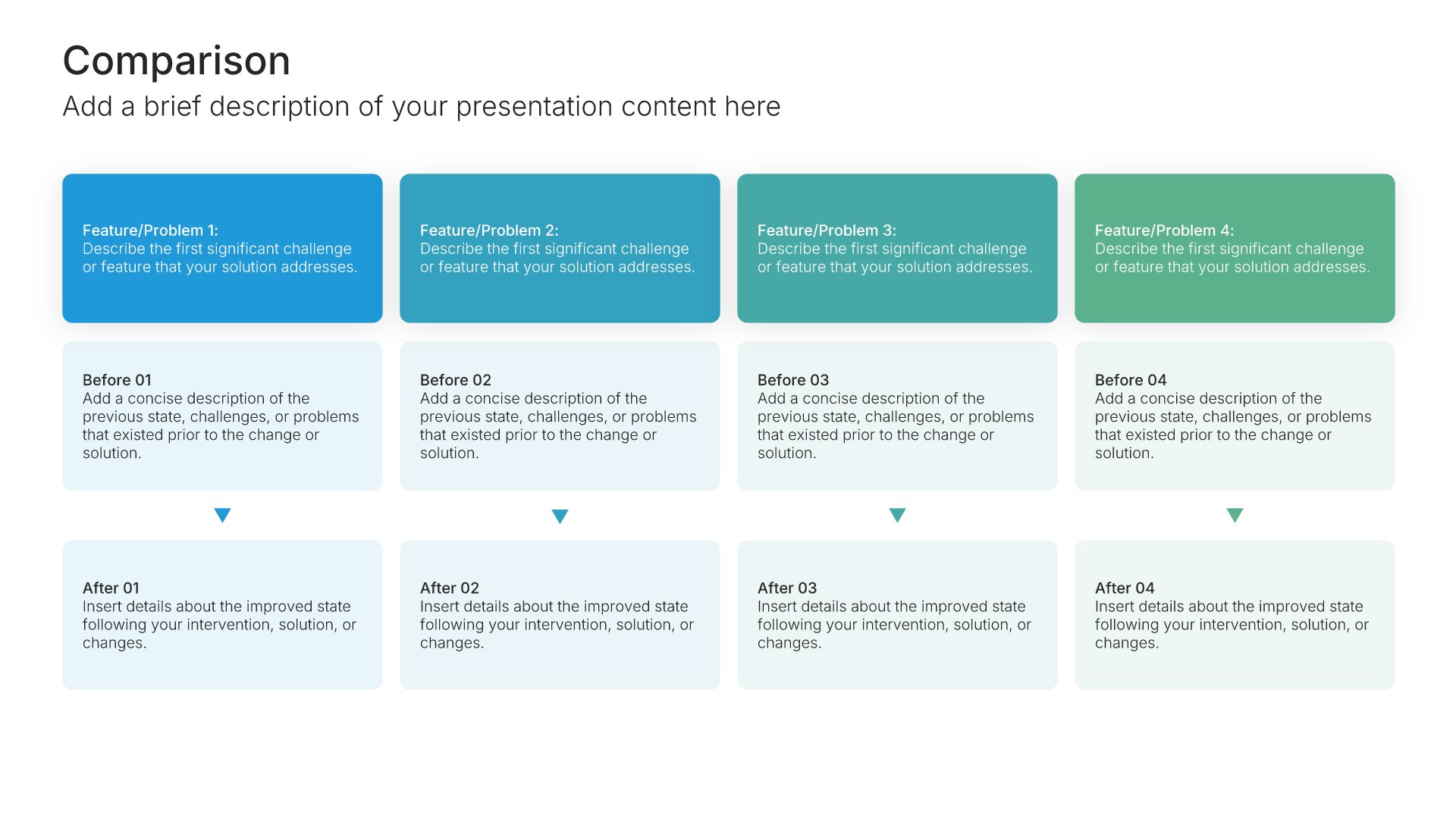
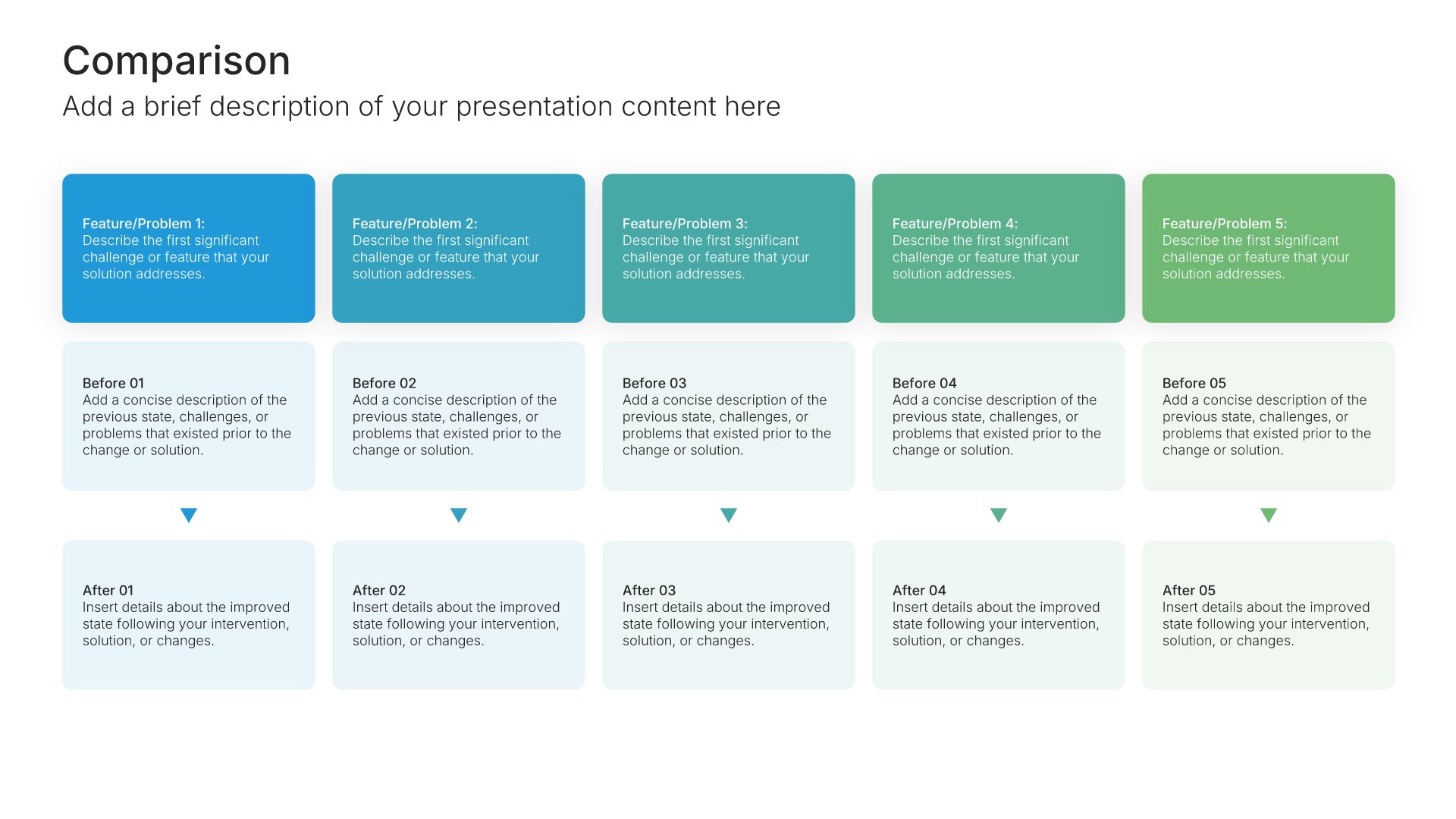
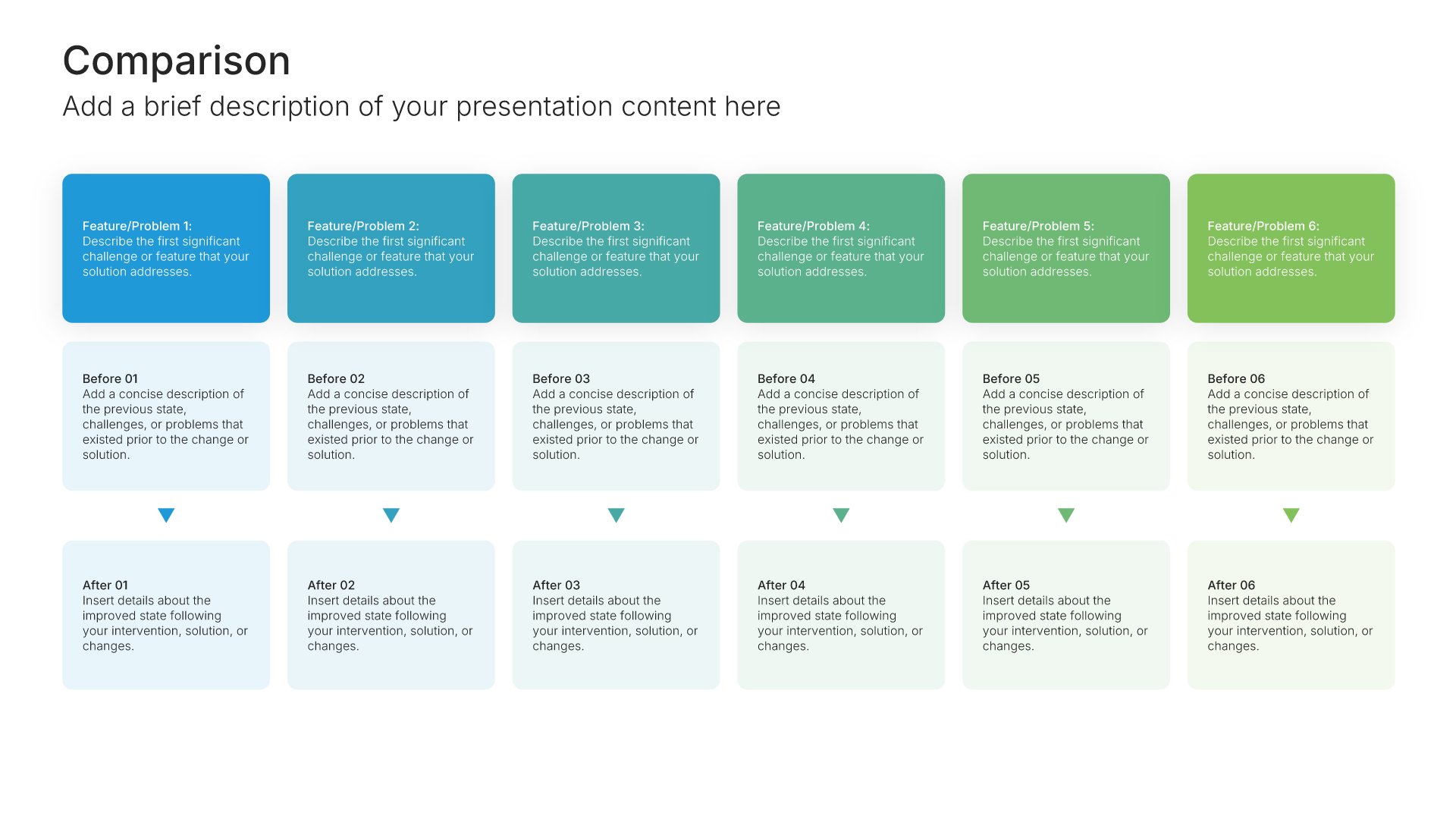
Comparison slides put two or more options side by side so the audience can weigh them in one look. Pick one of 72 layouts, brand it to your company in one click, add your options, and export to PowerPoint, Google Slides, or Keynote.
Free to start. No credit card required.
Browse comparison slides
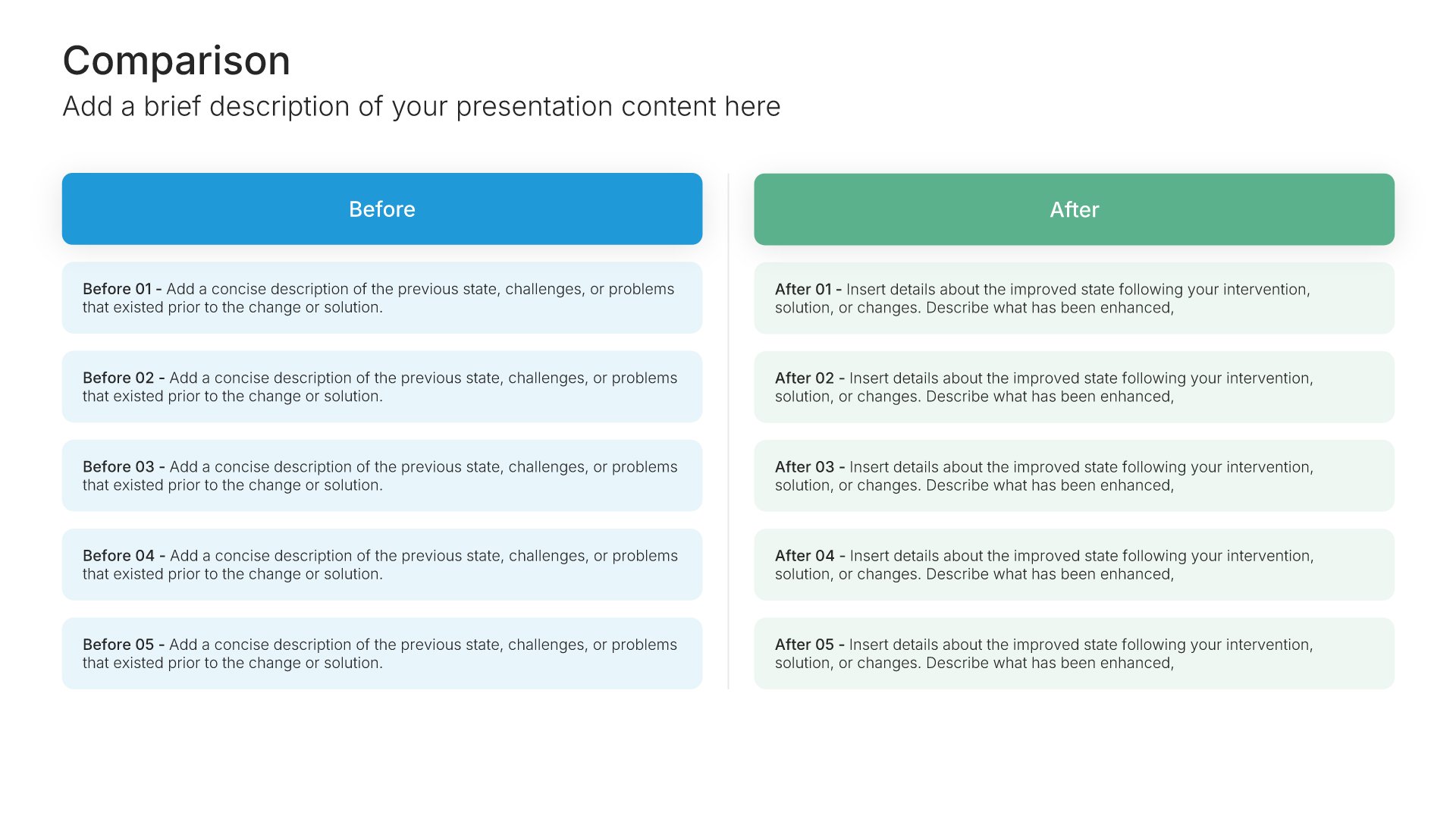
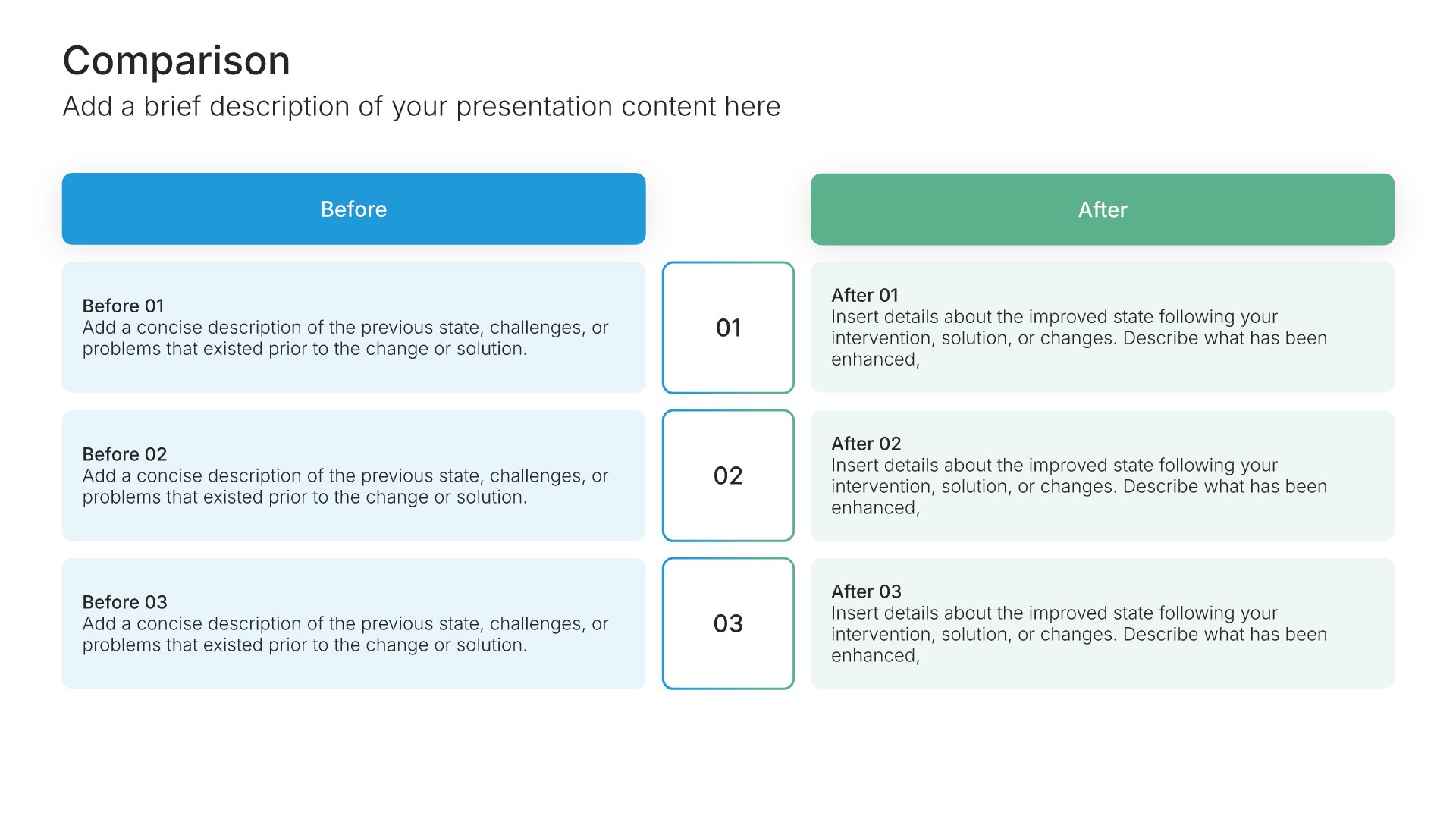
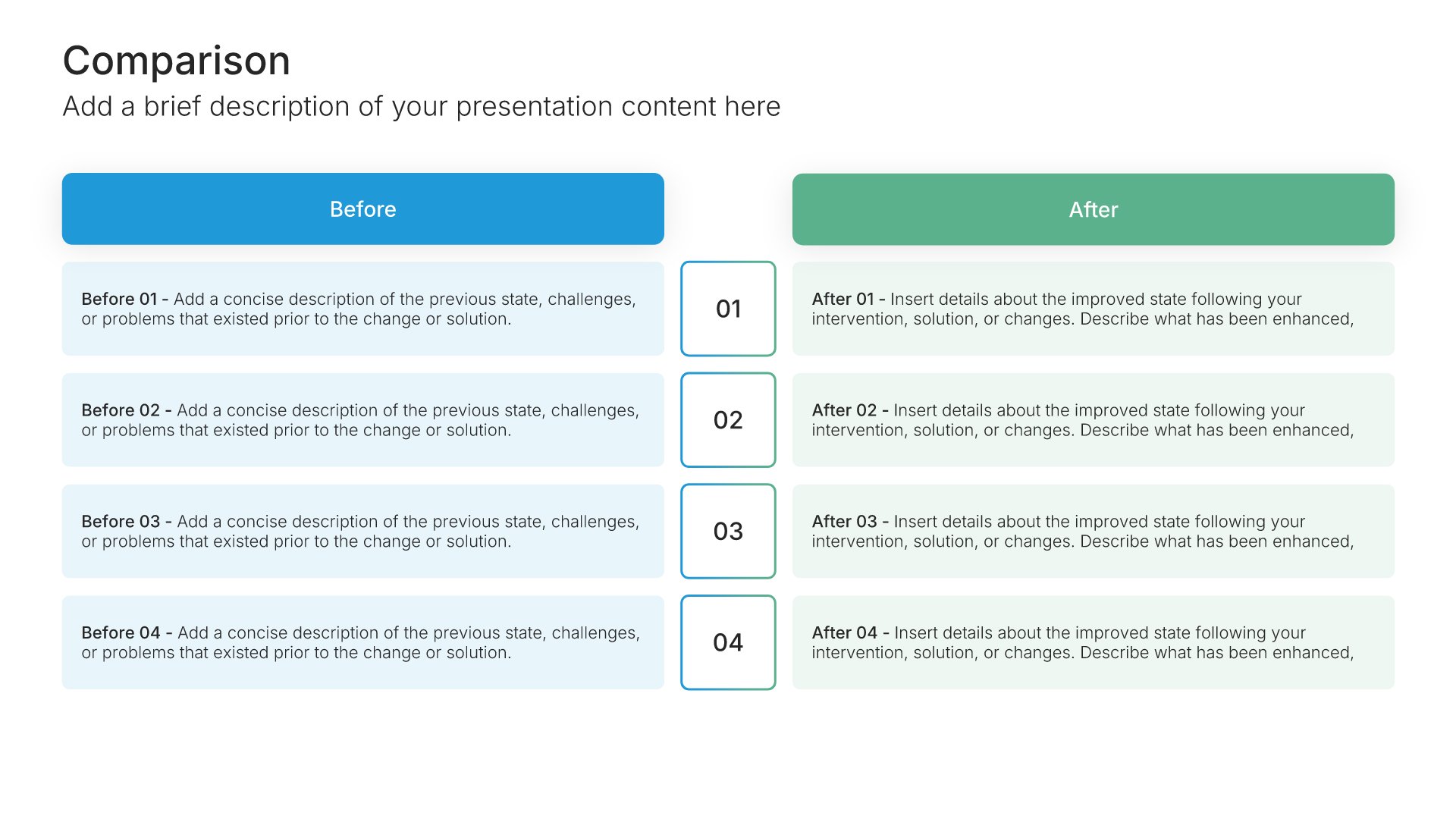
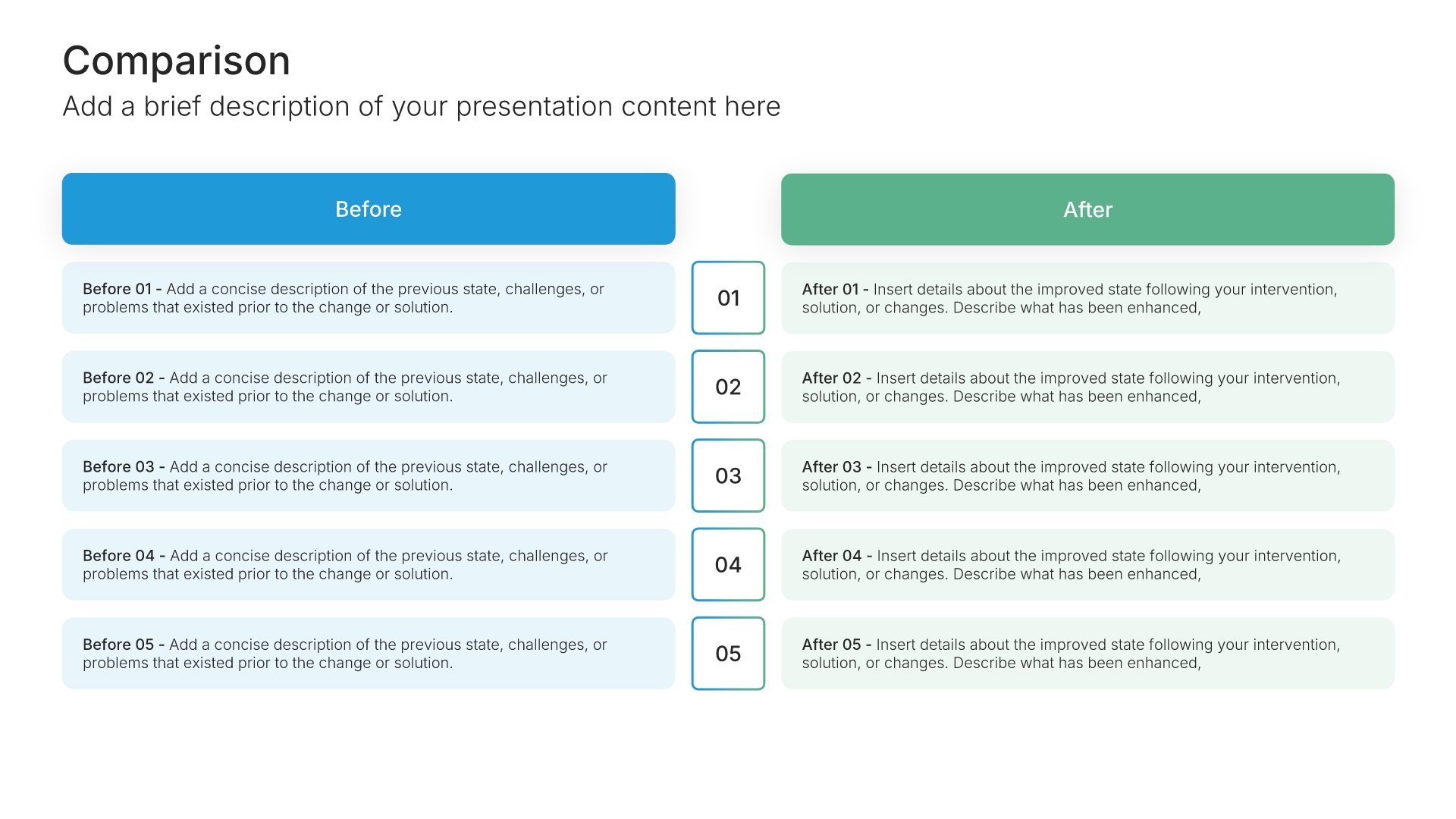
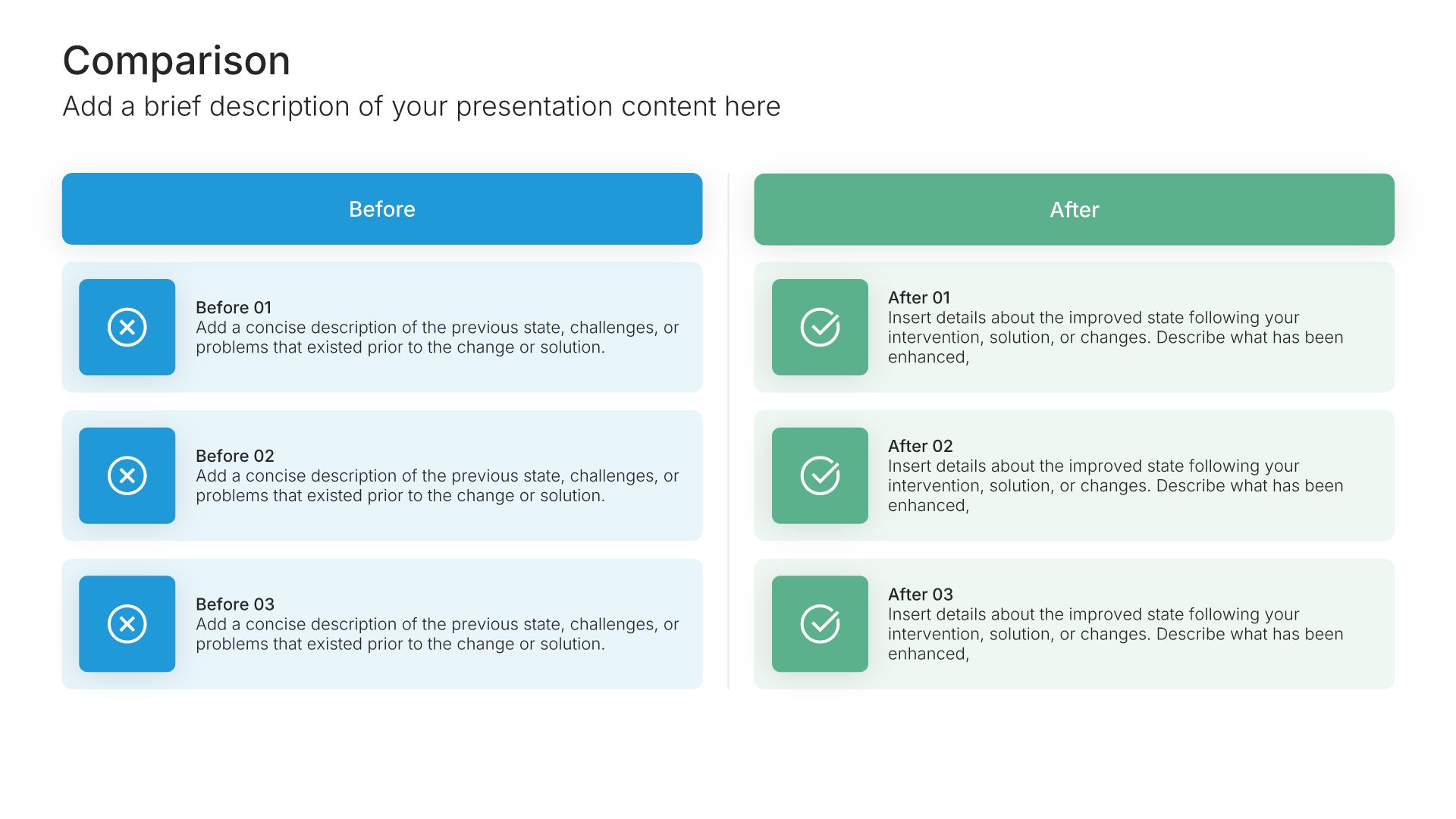
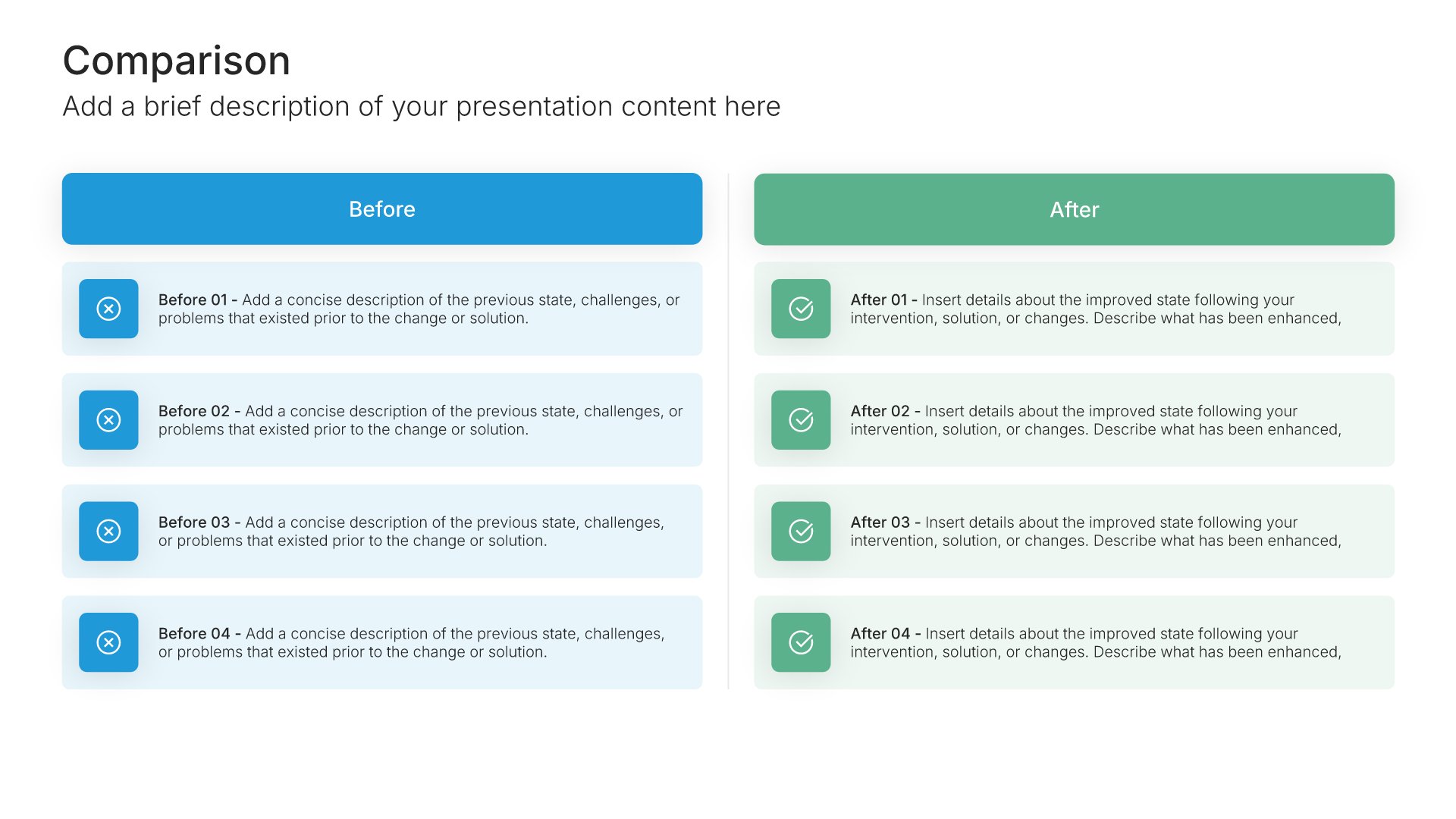
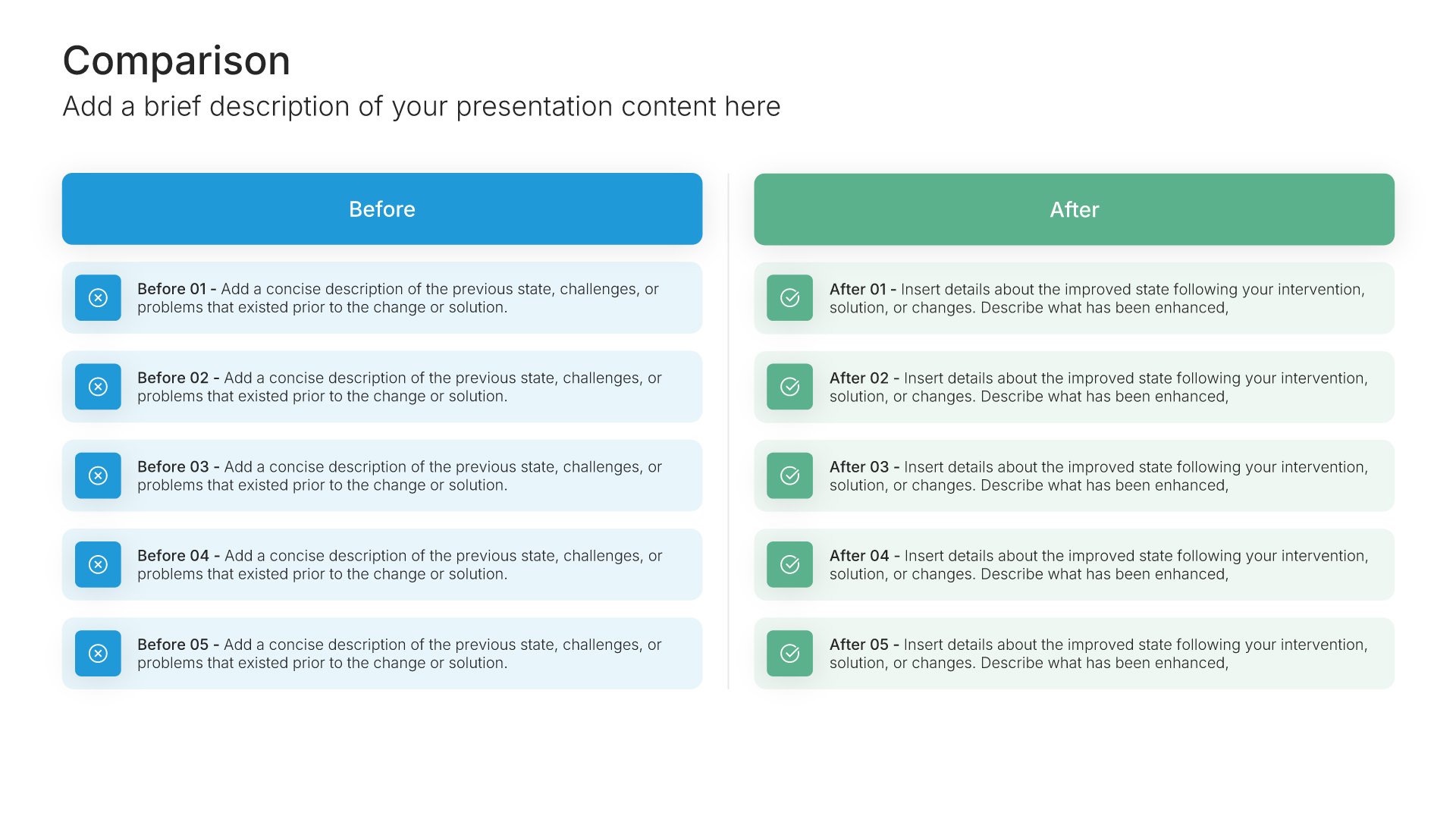
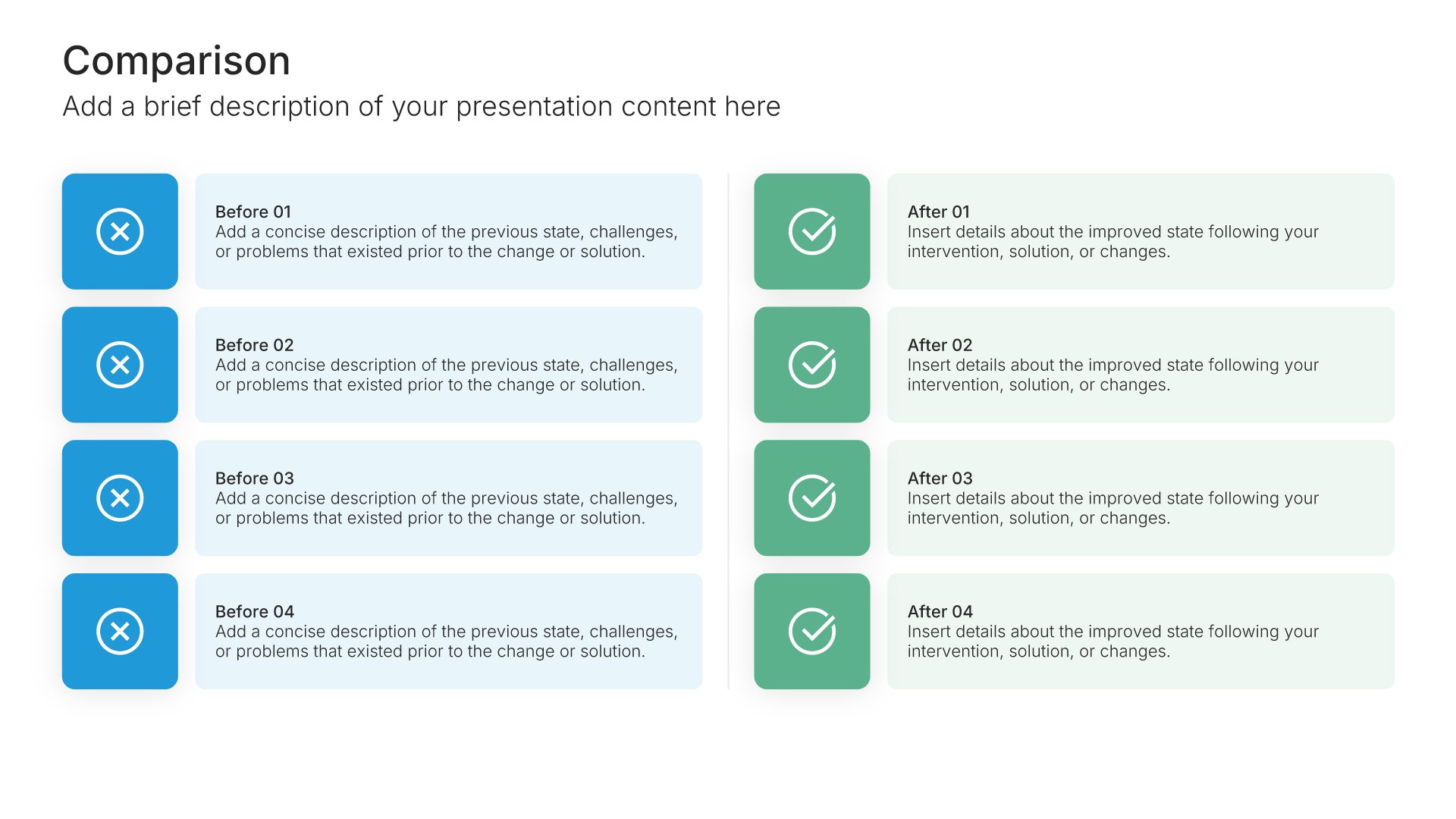
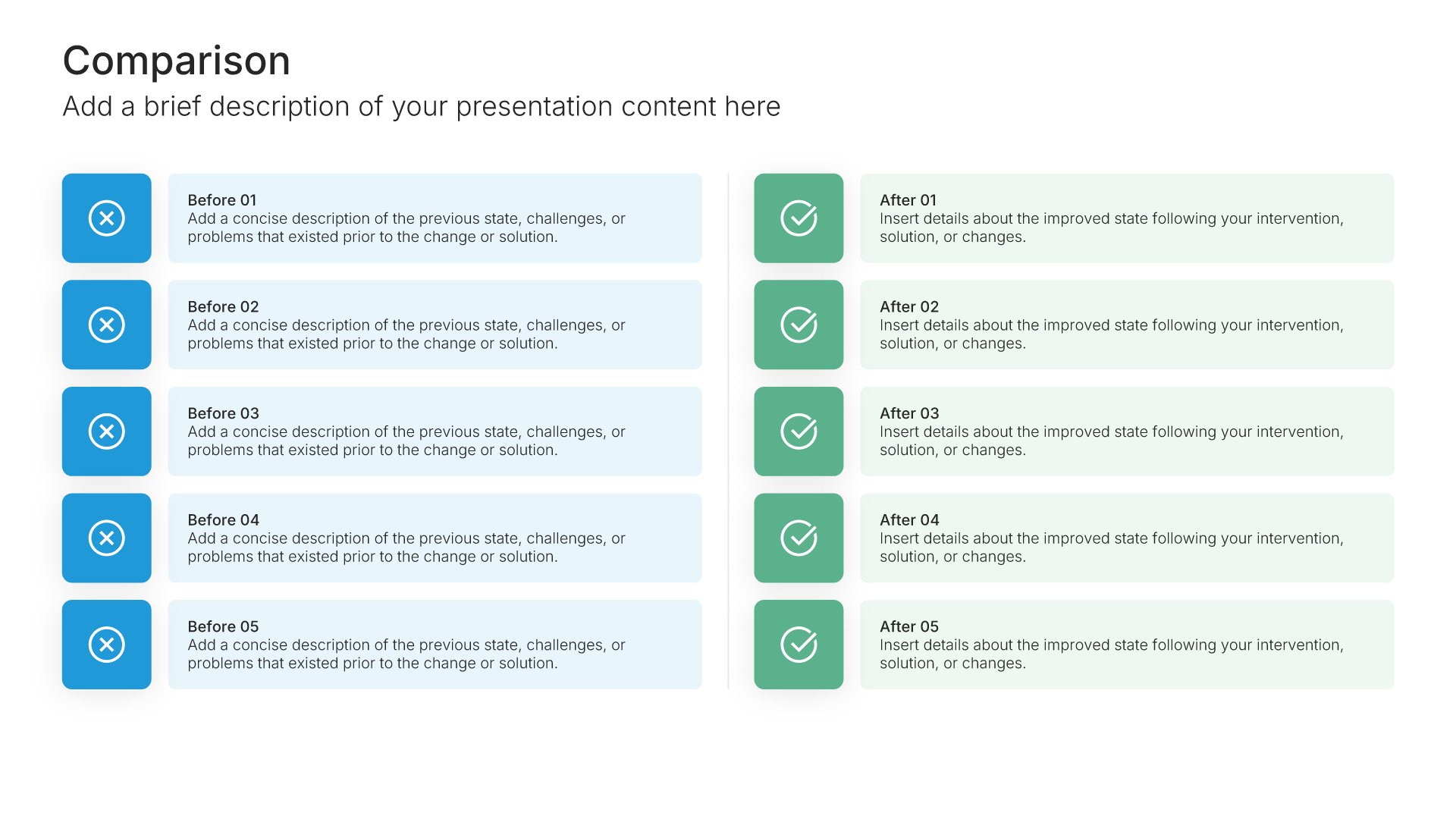
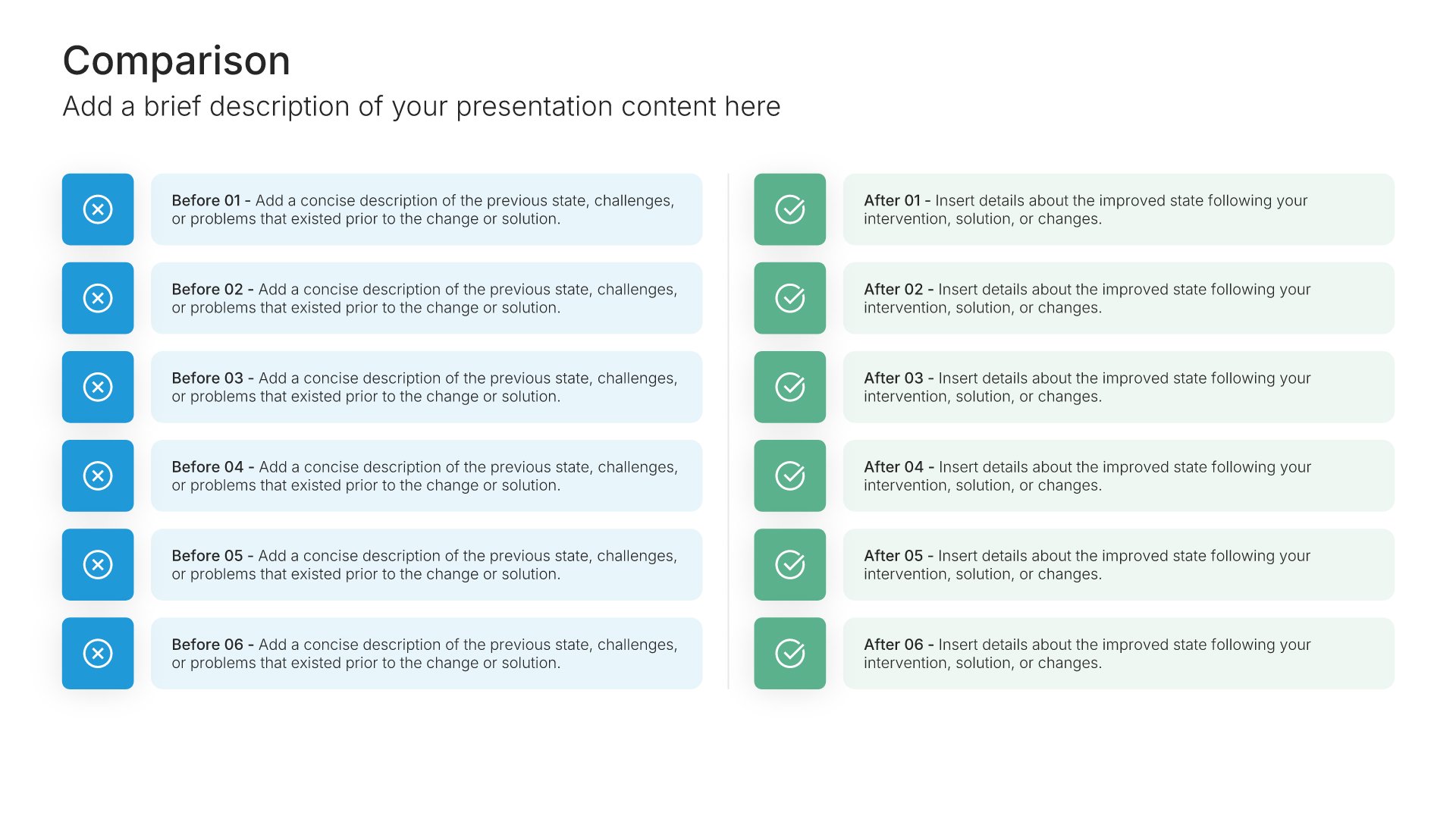
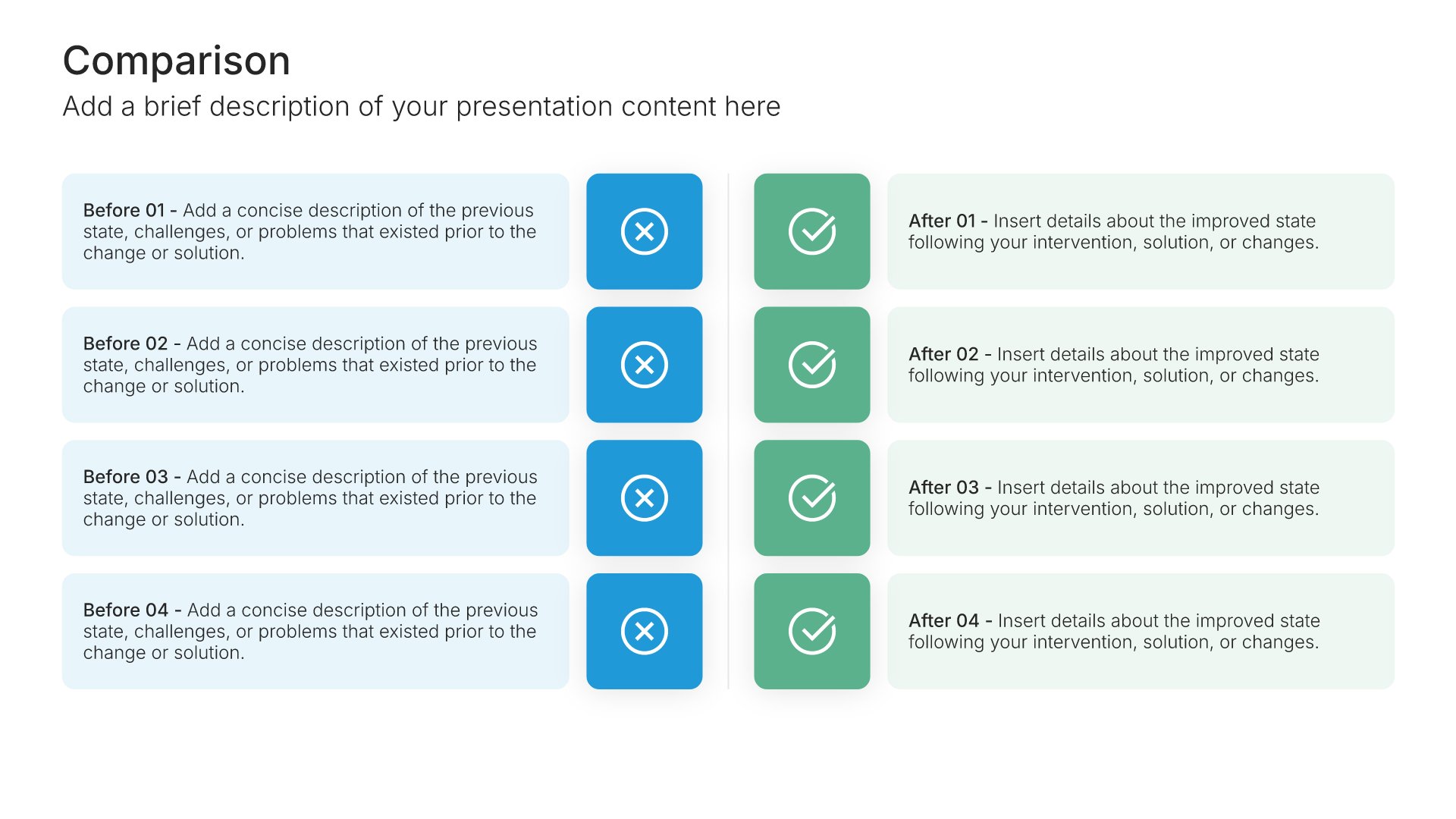
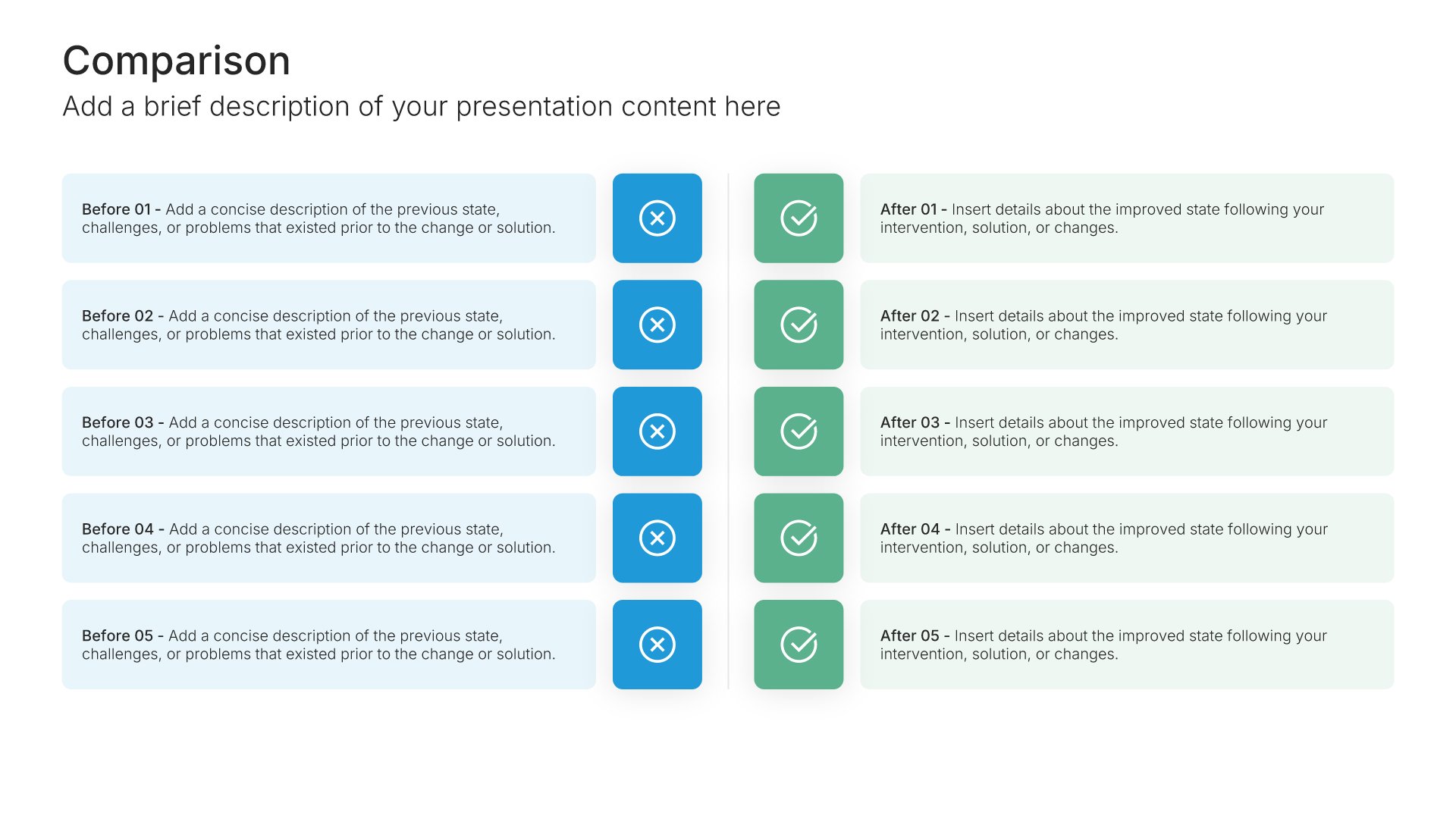
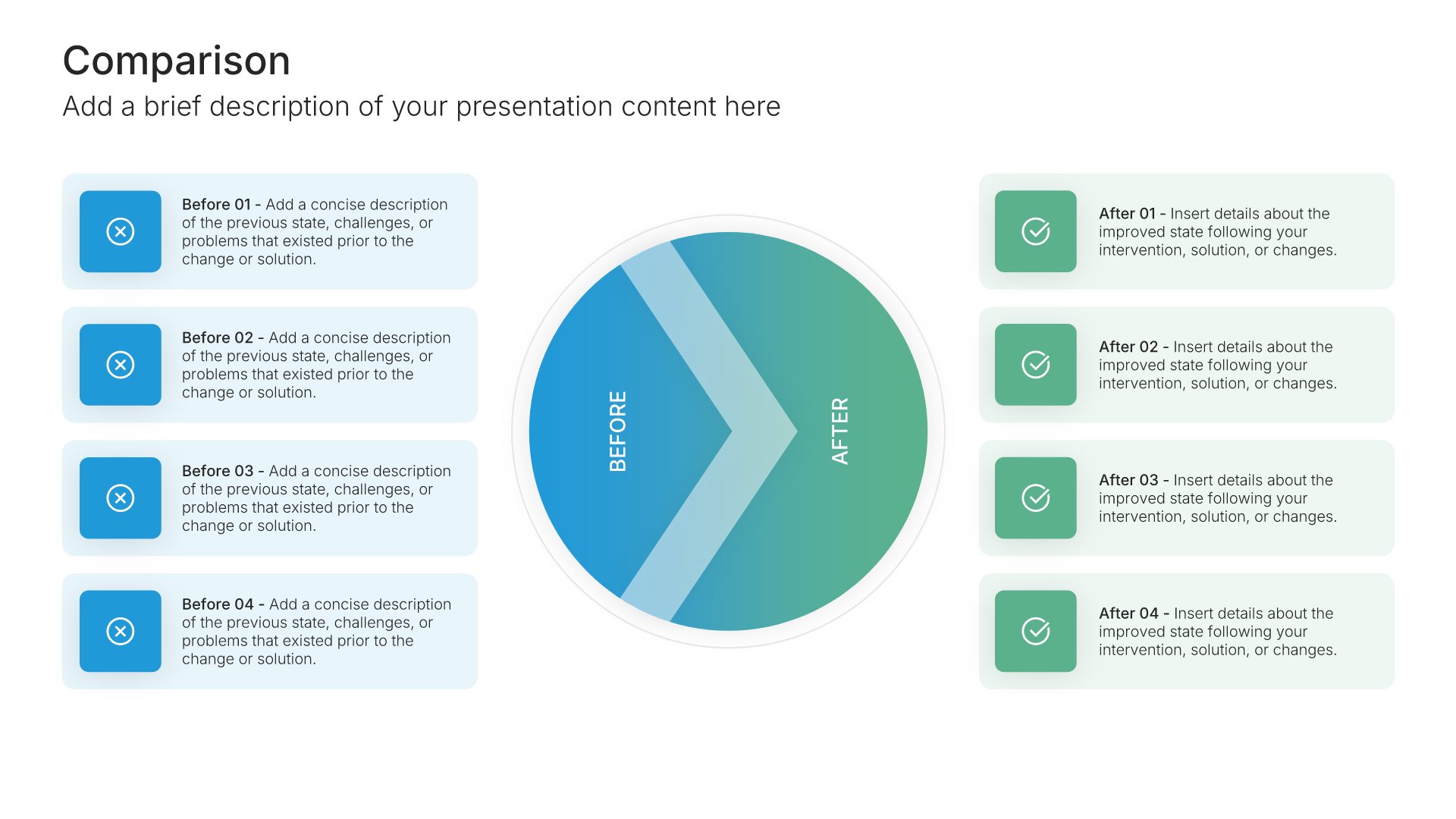
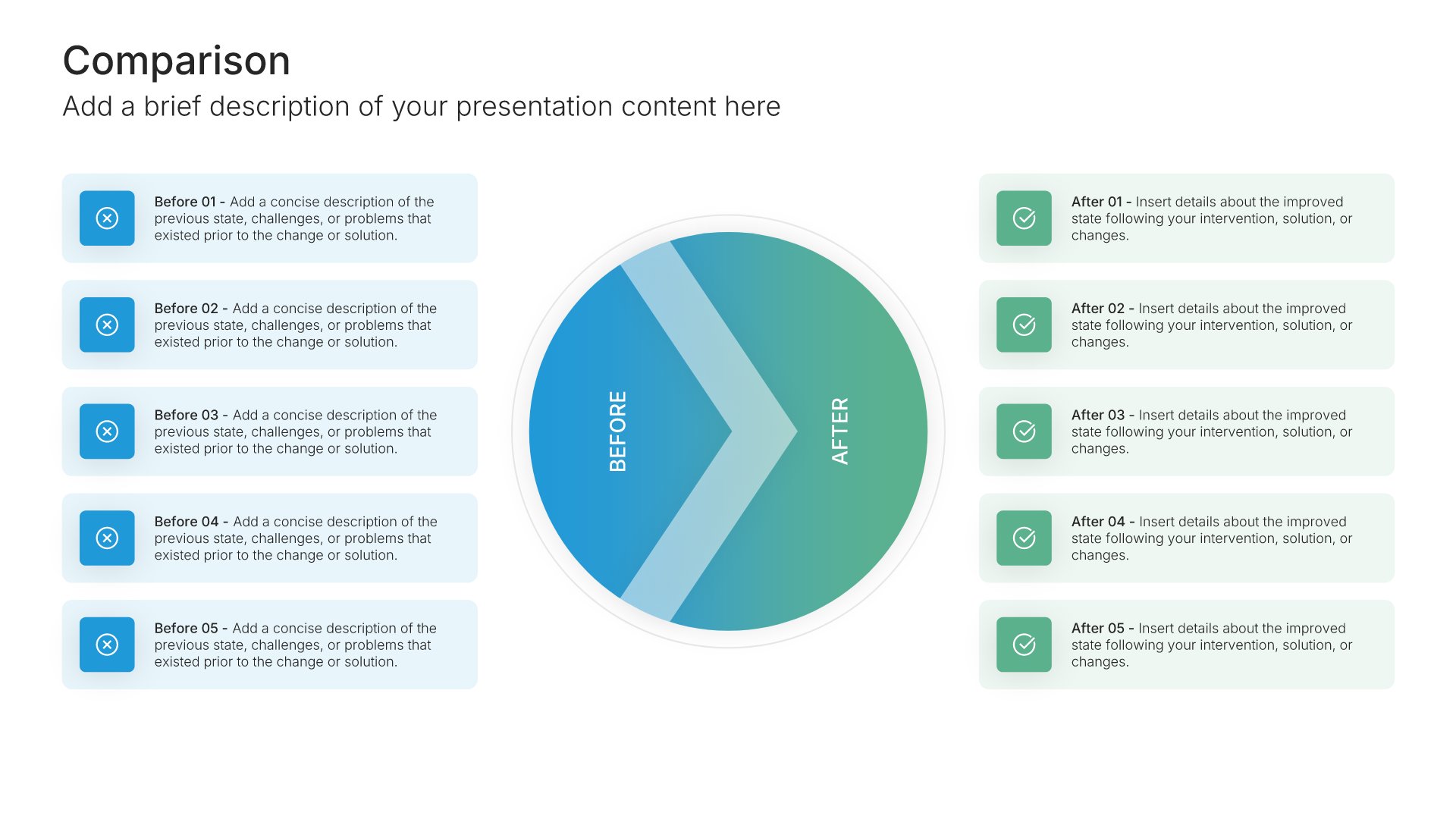
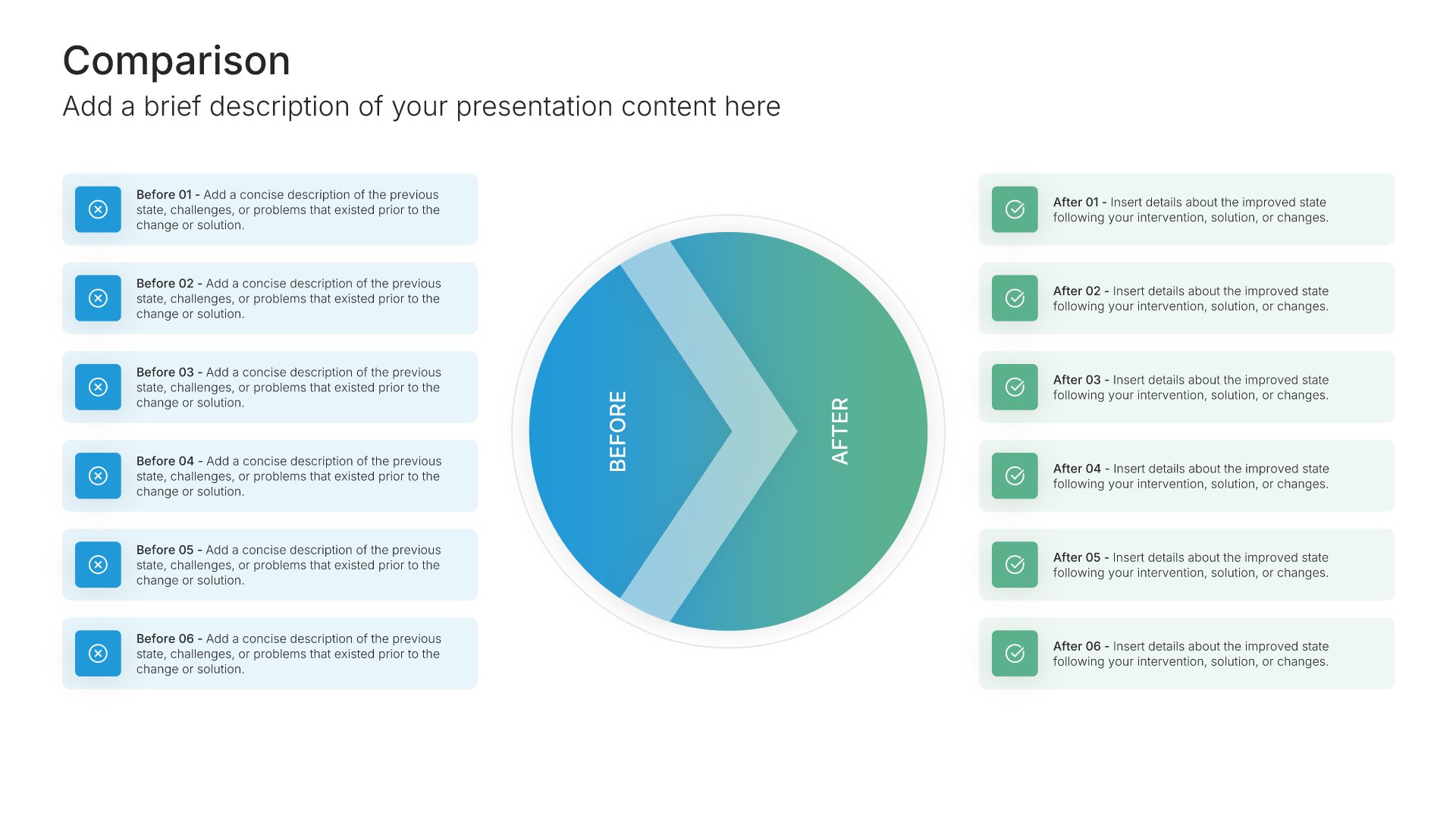
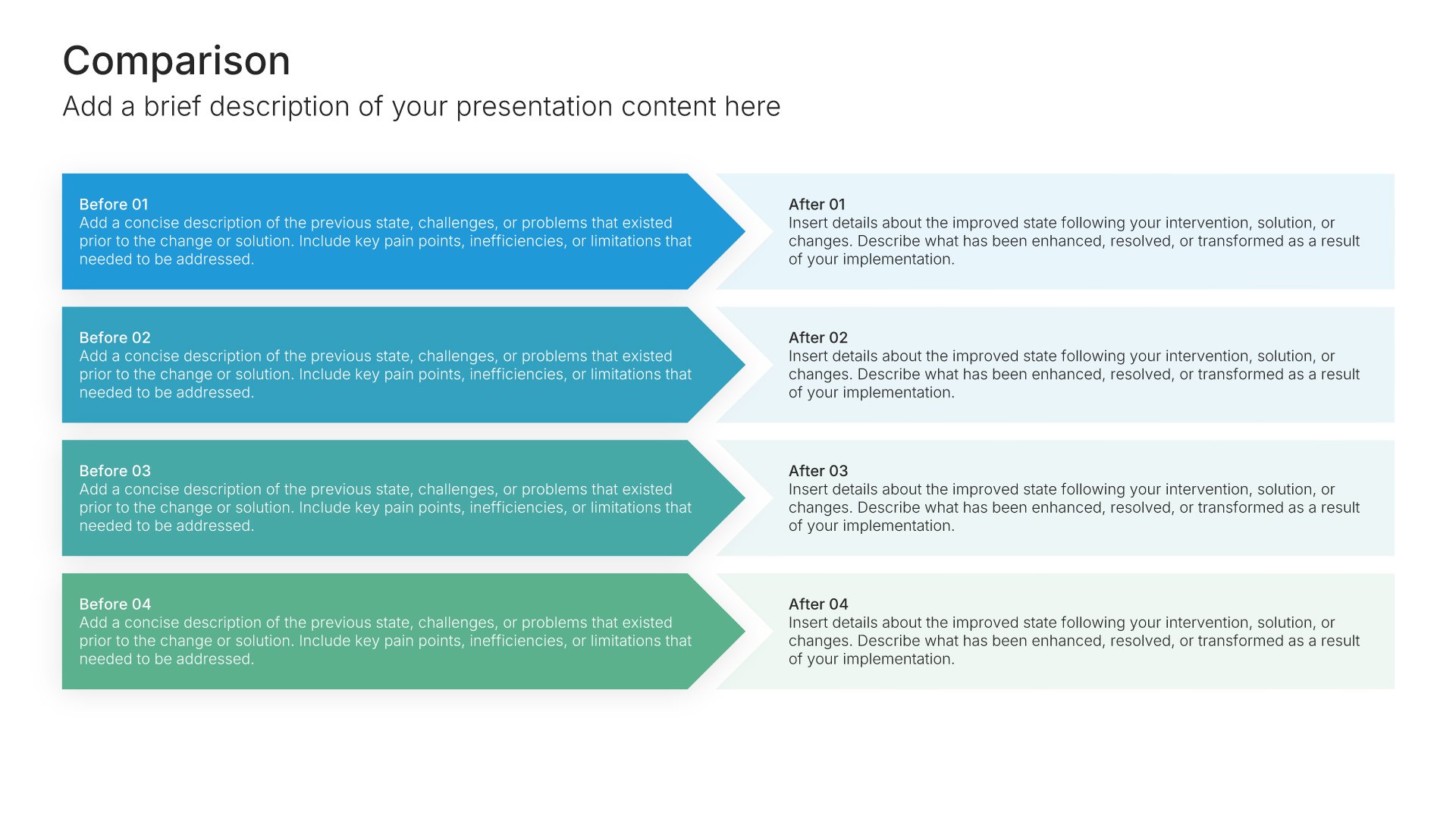
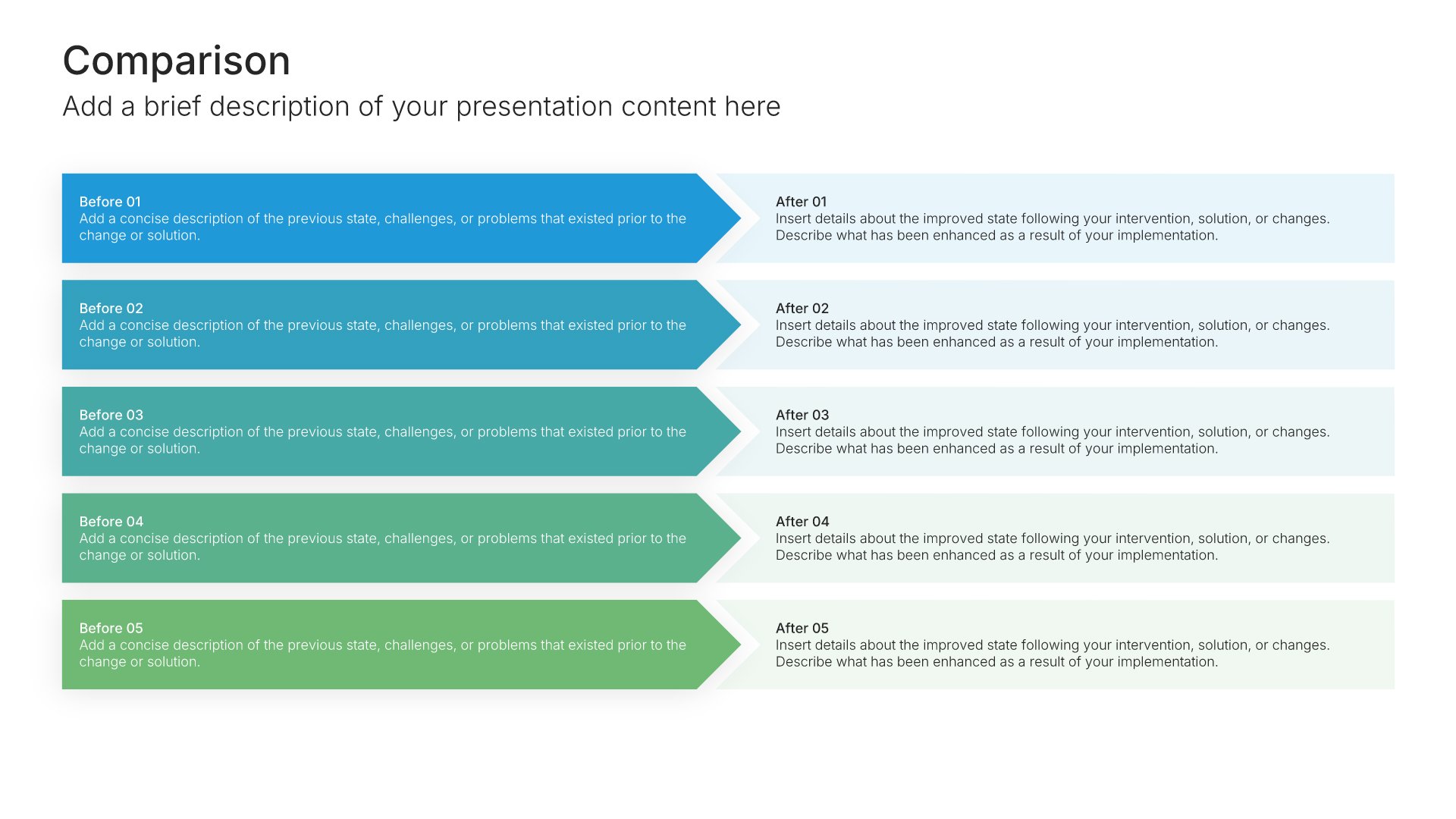
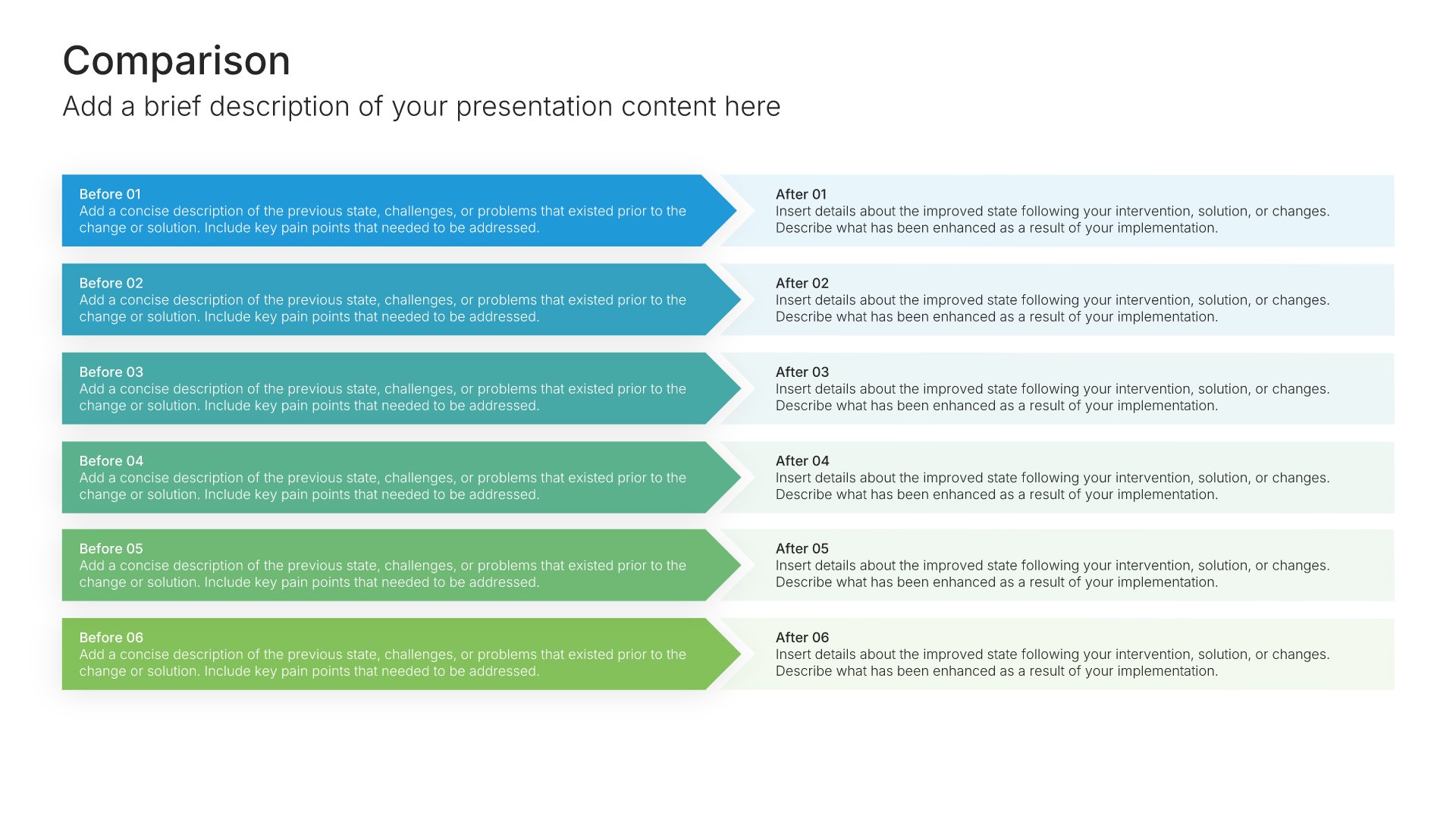
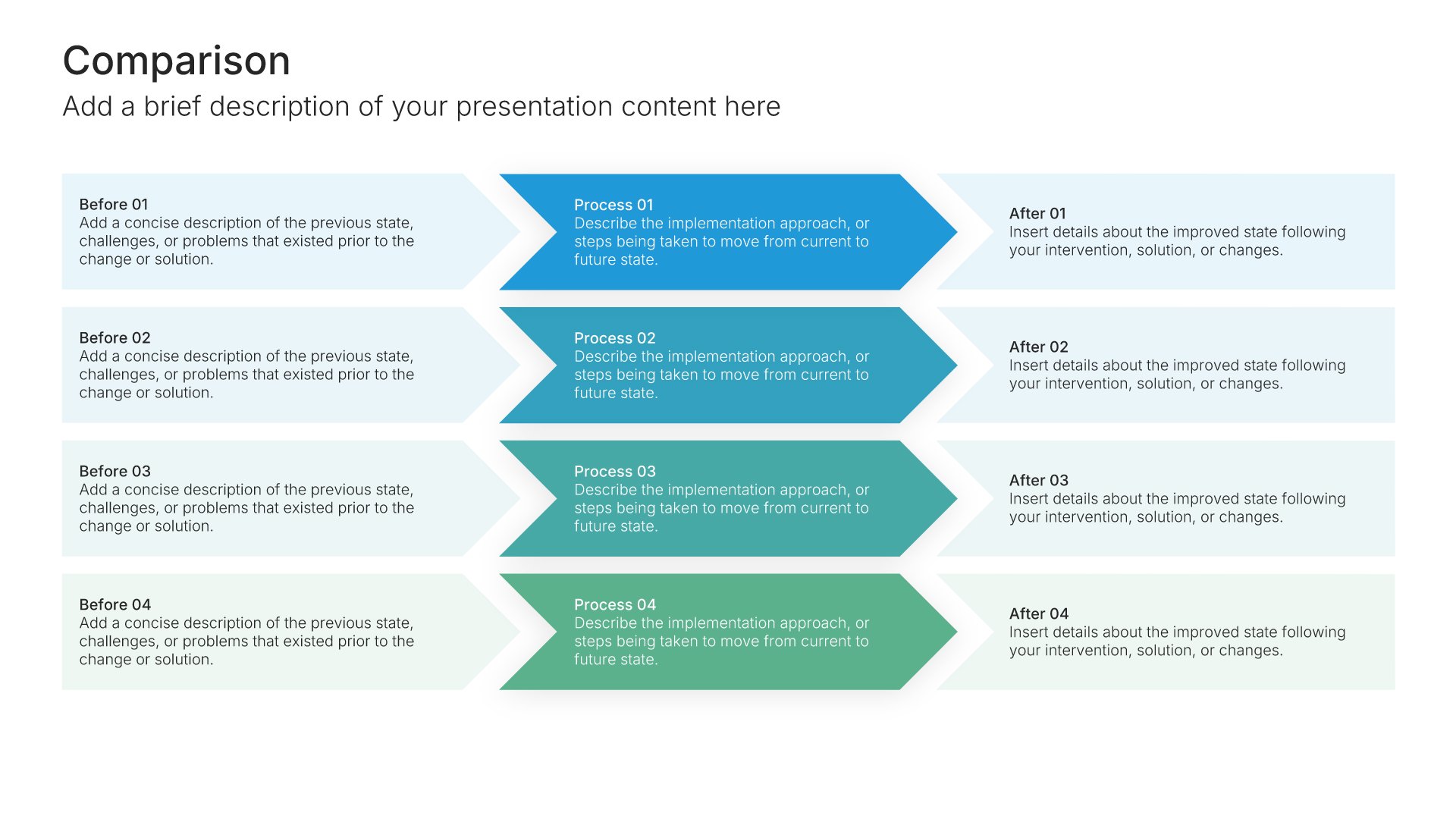
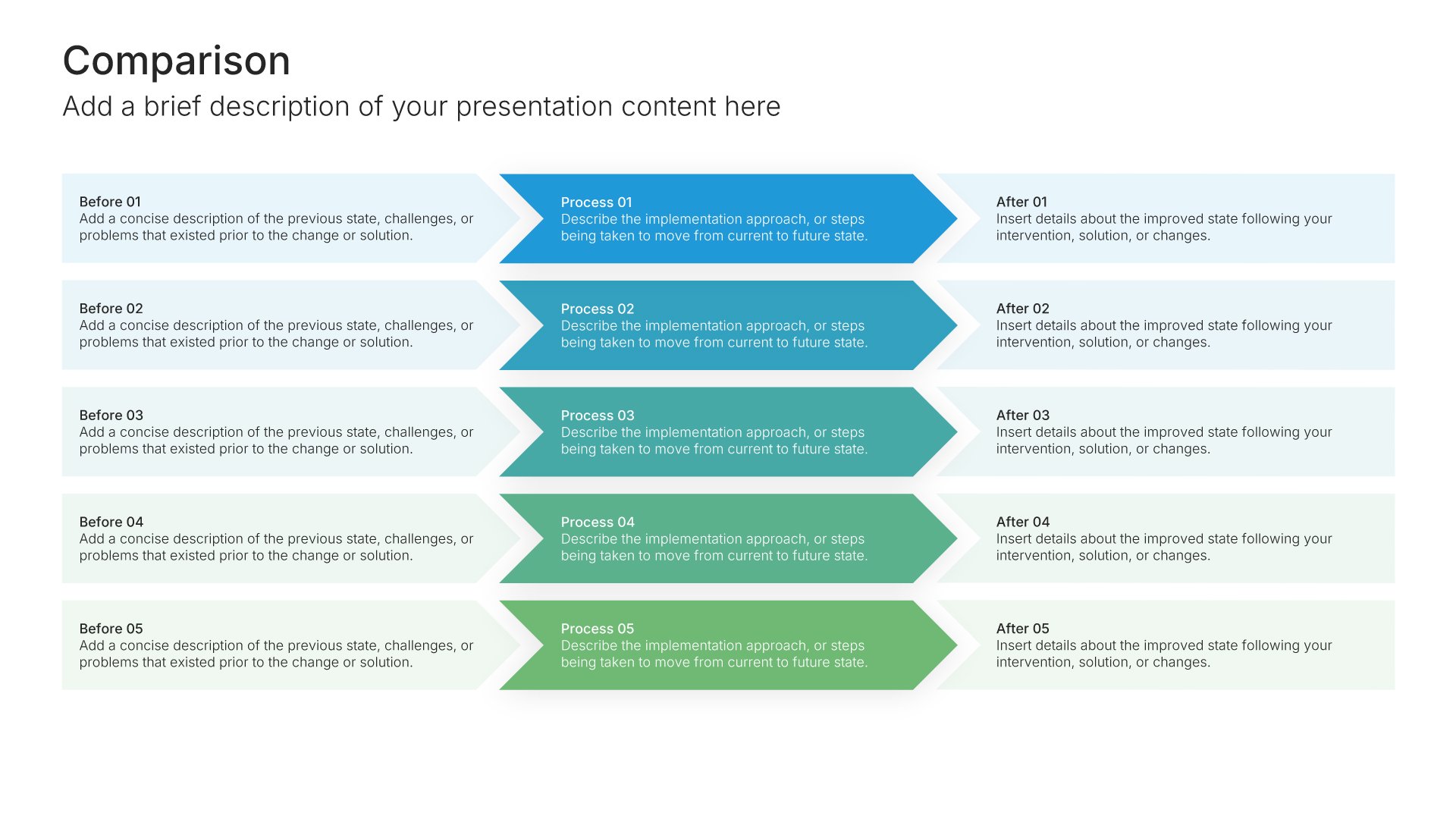
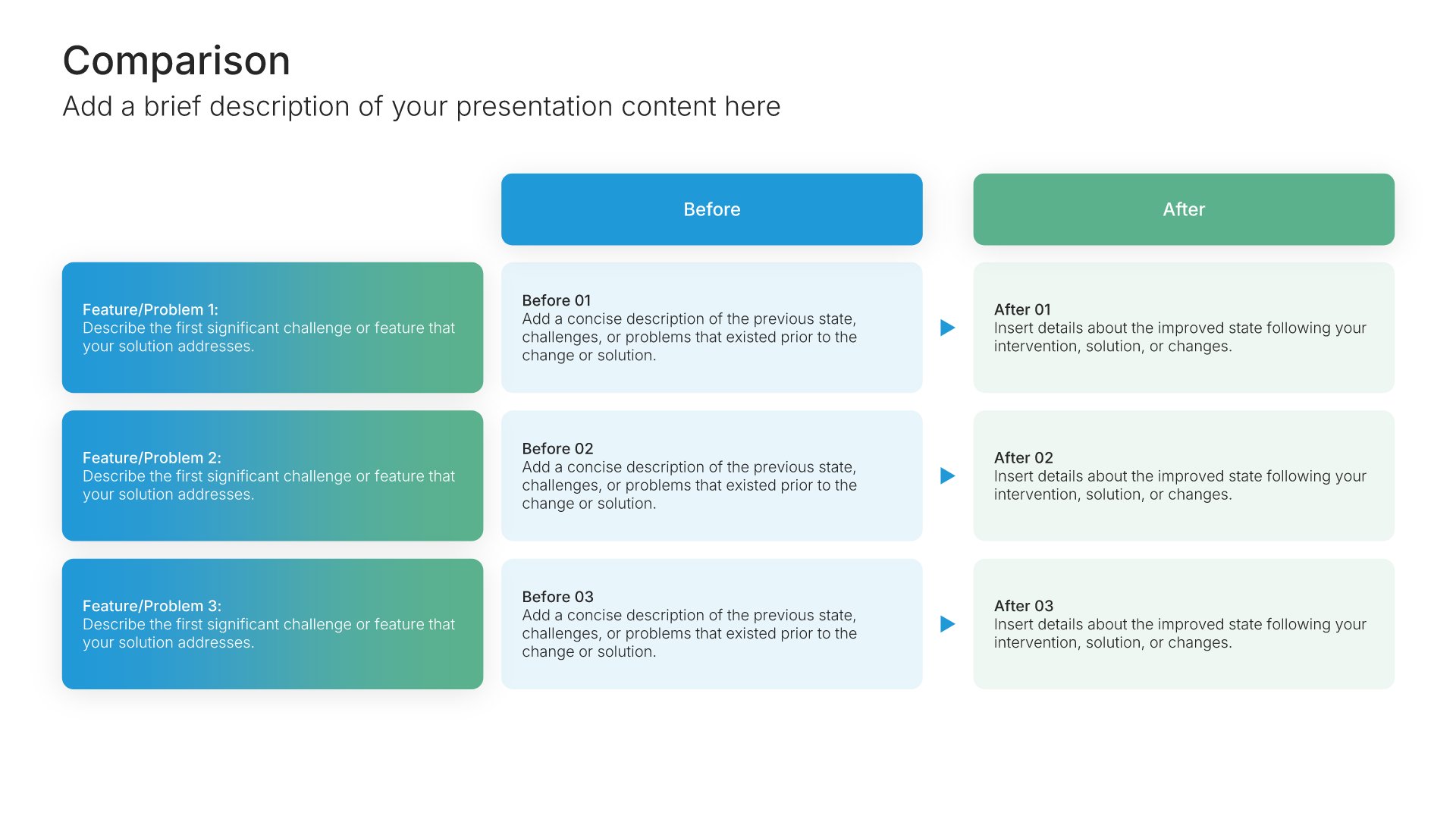
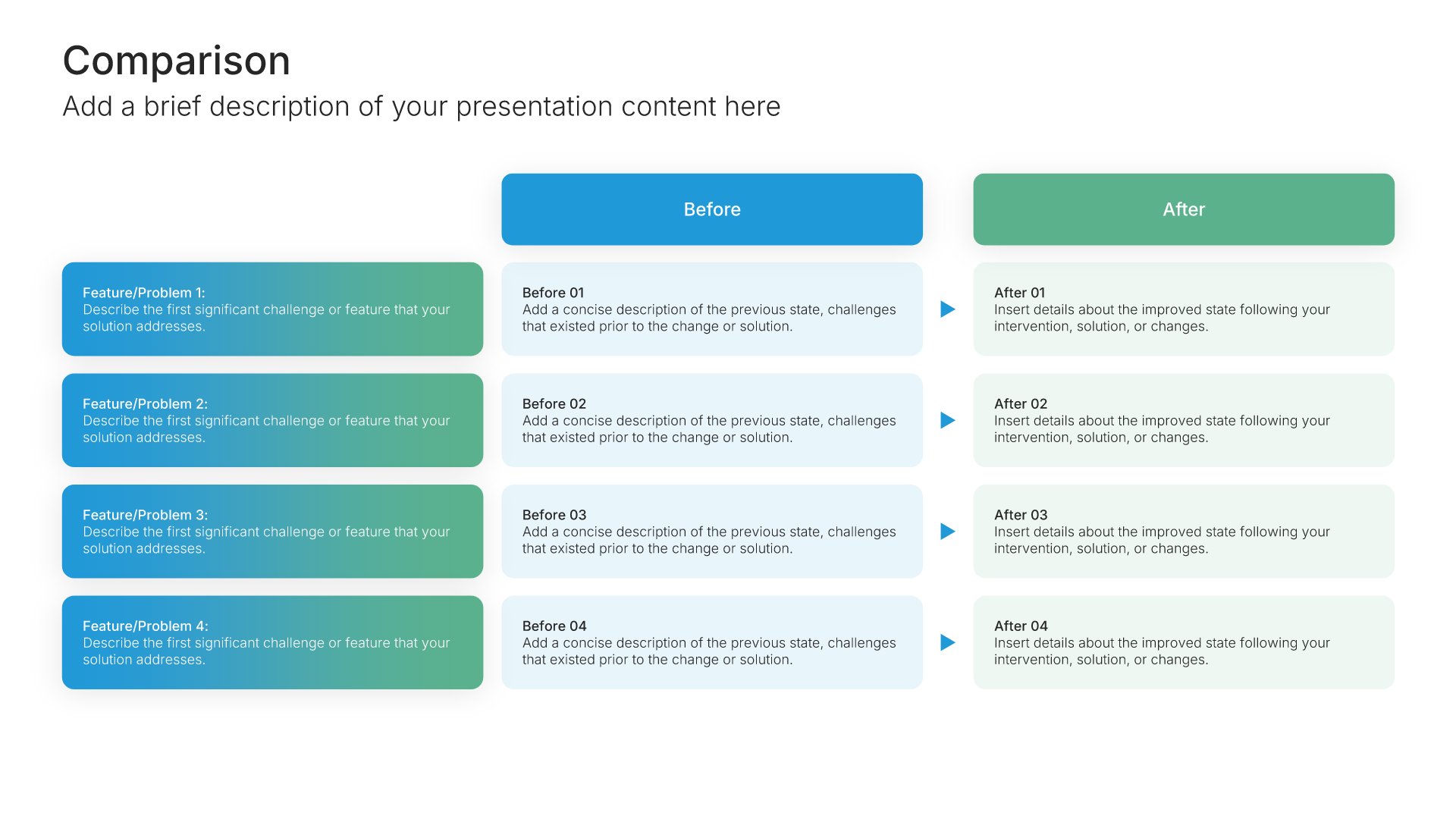
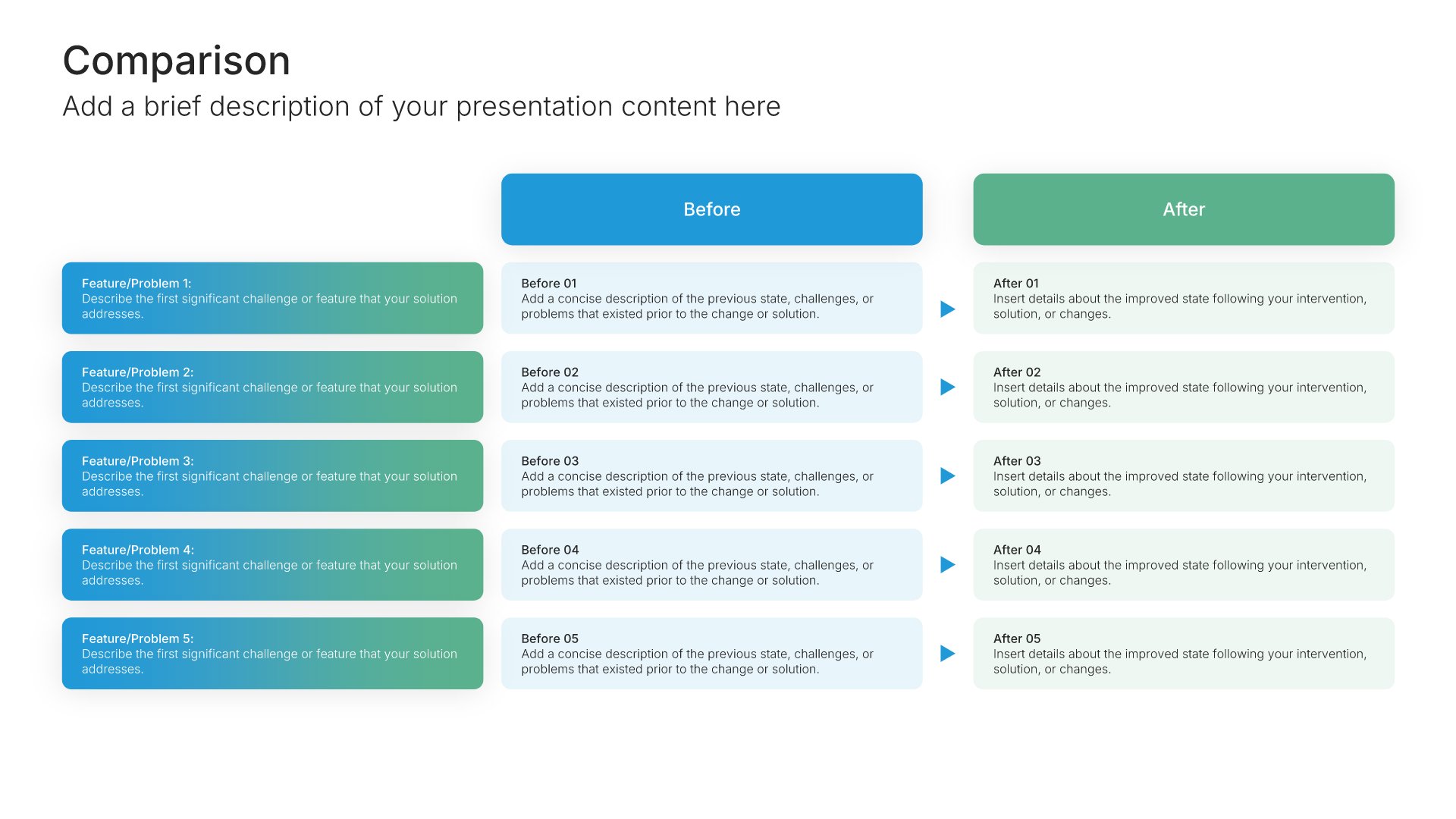
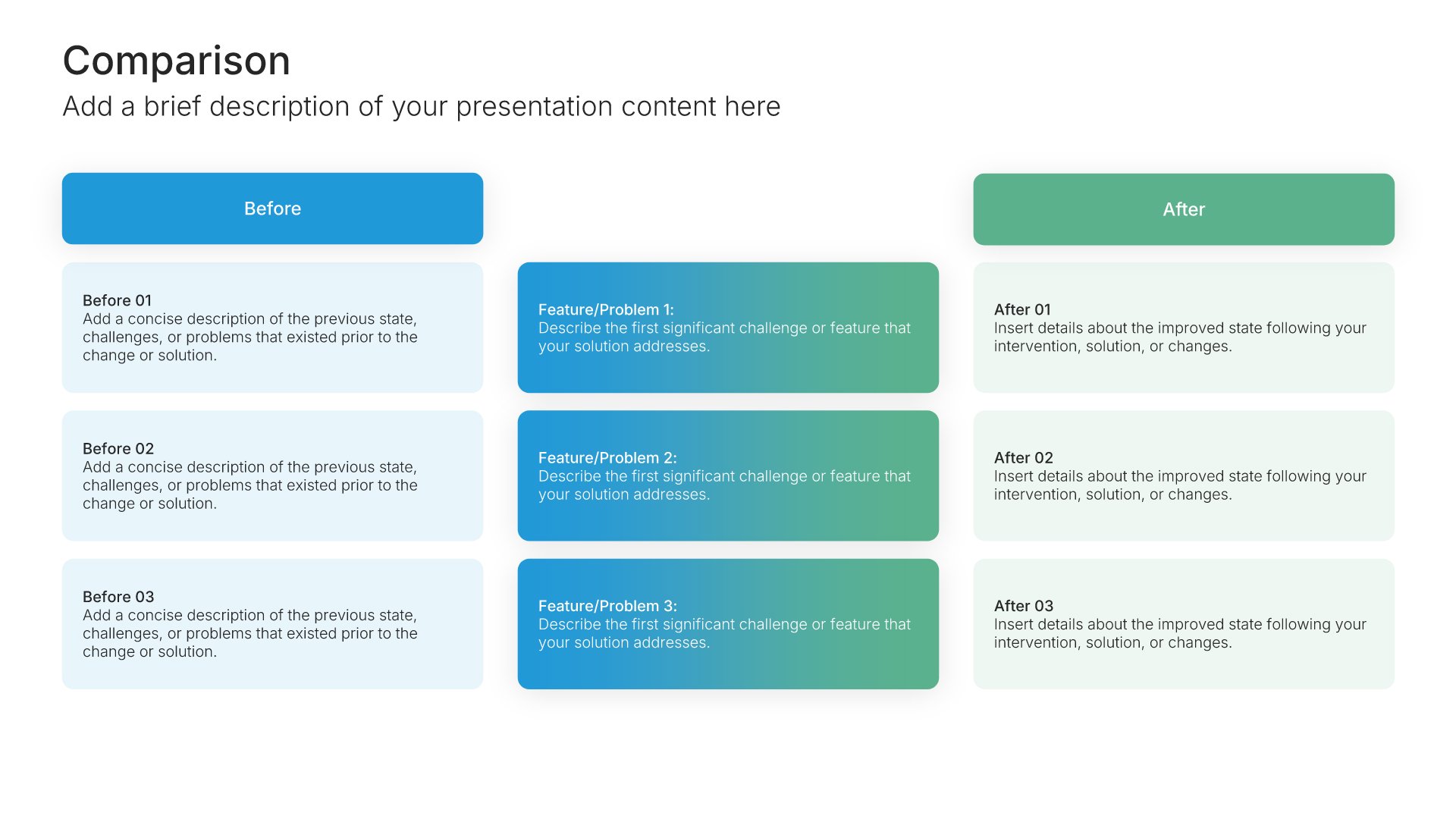
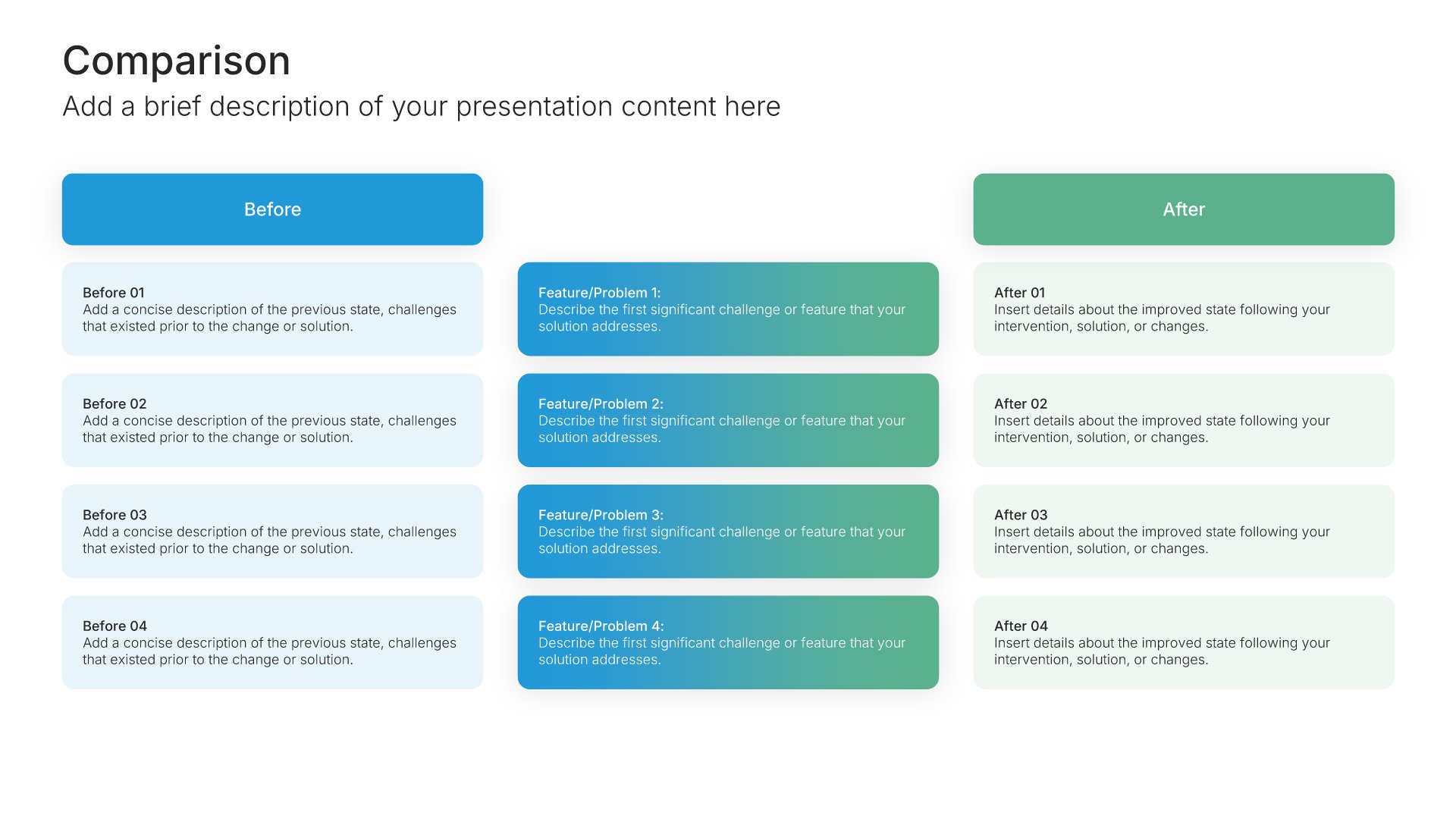
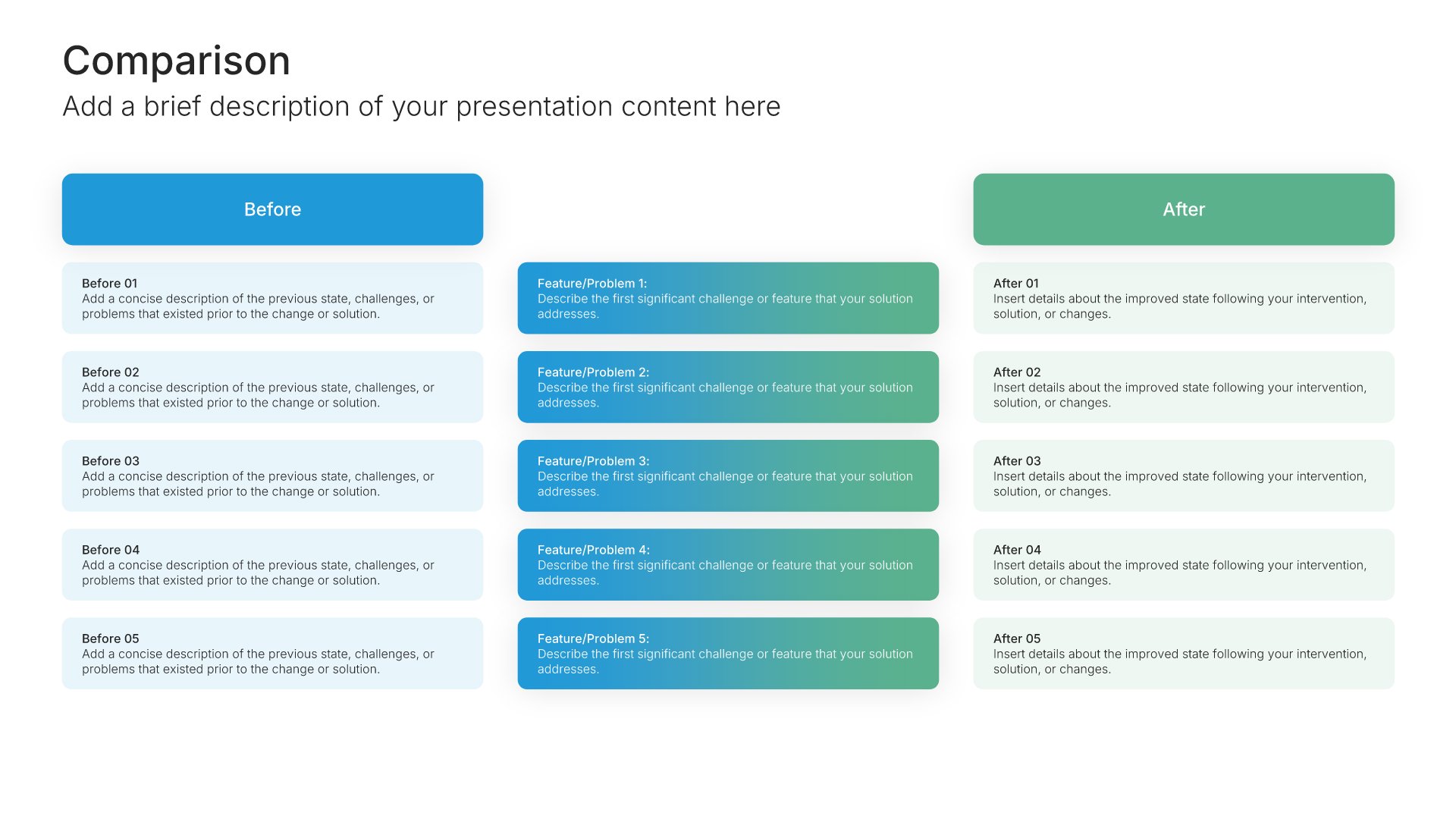
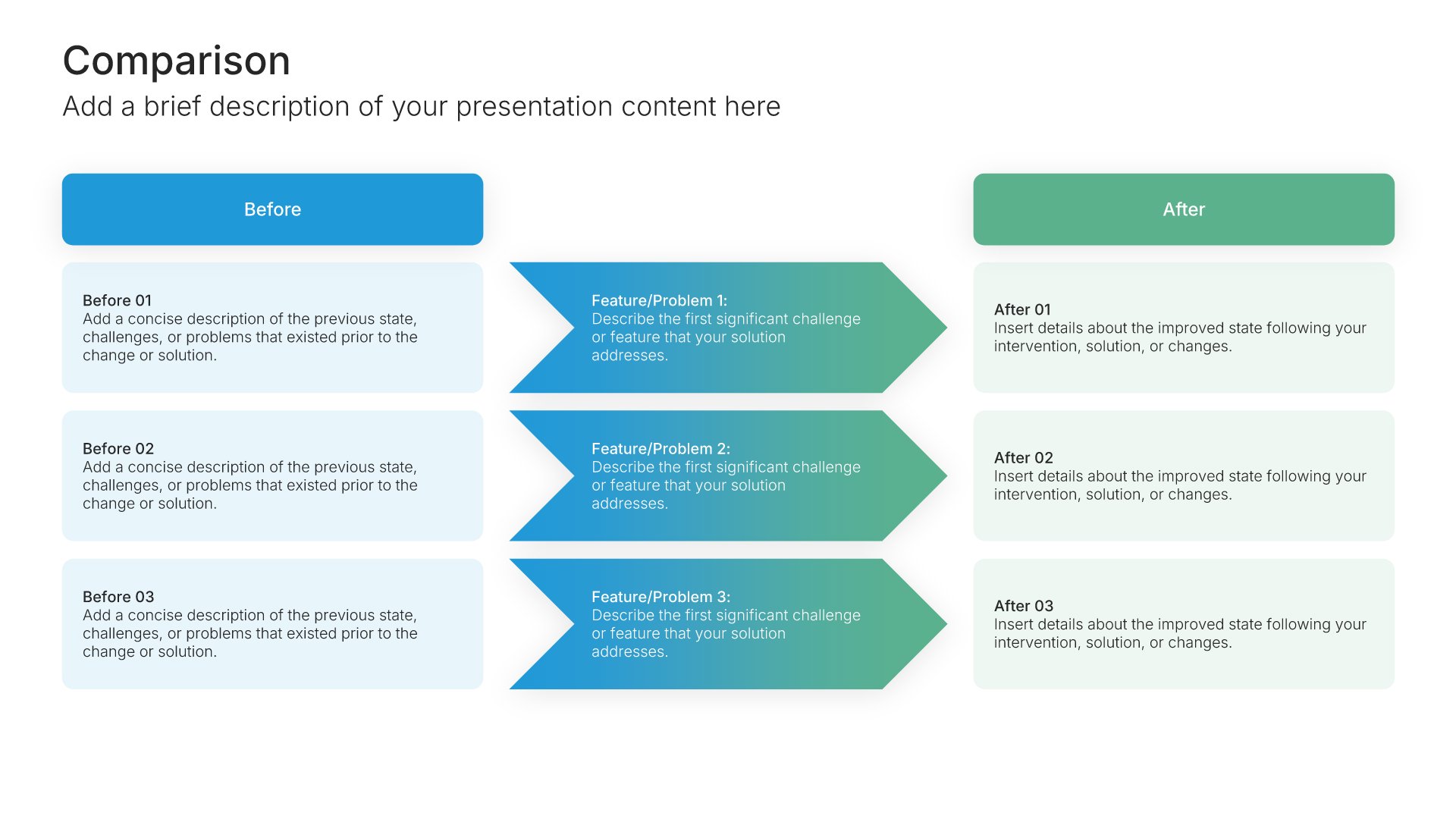
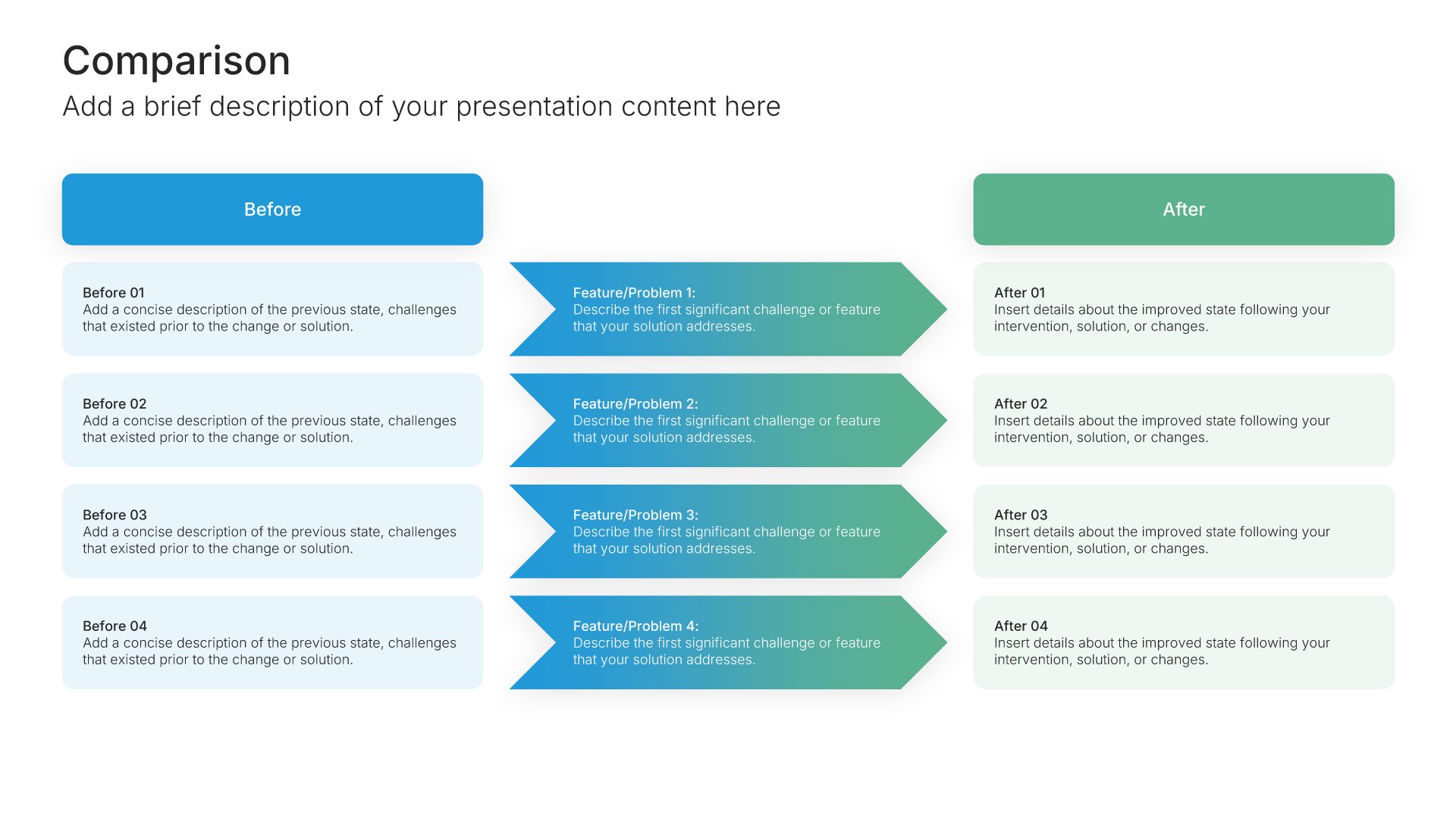
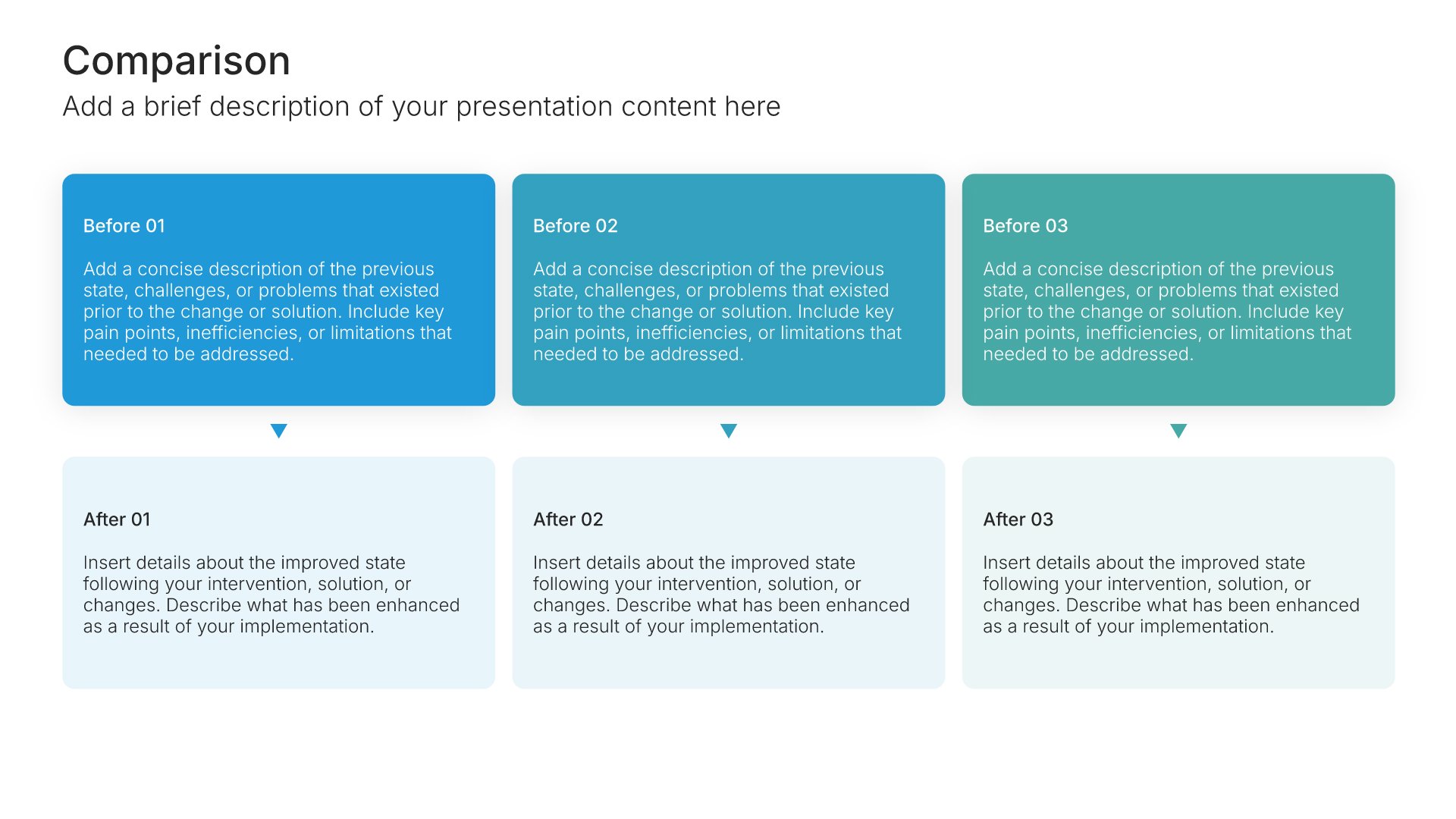
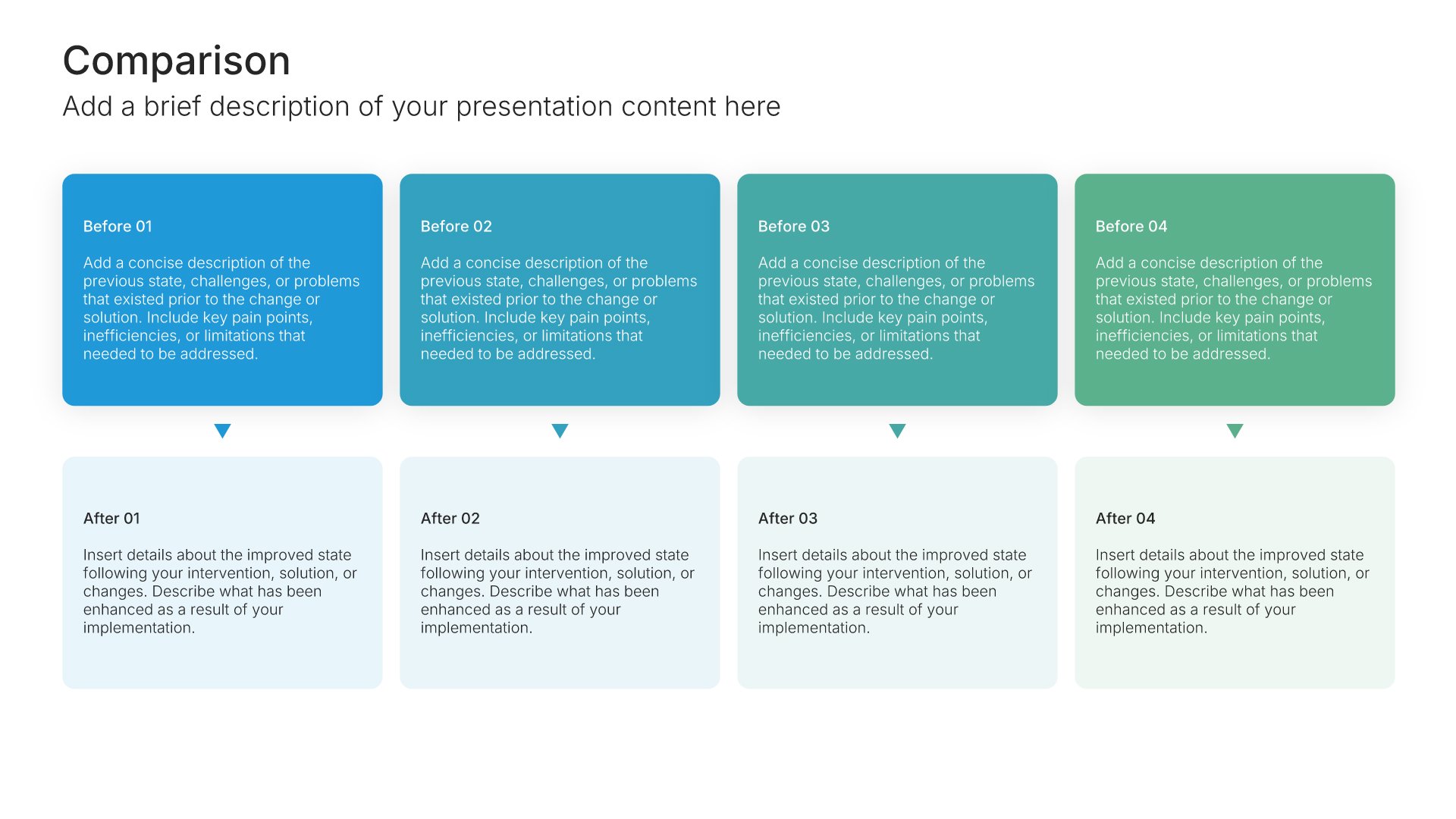
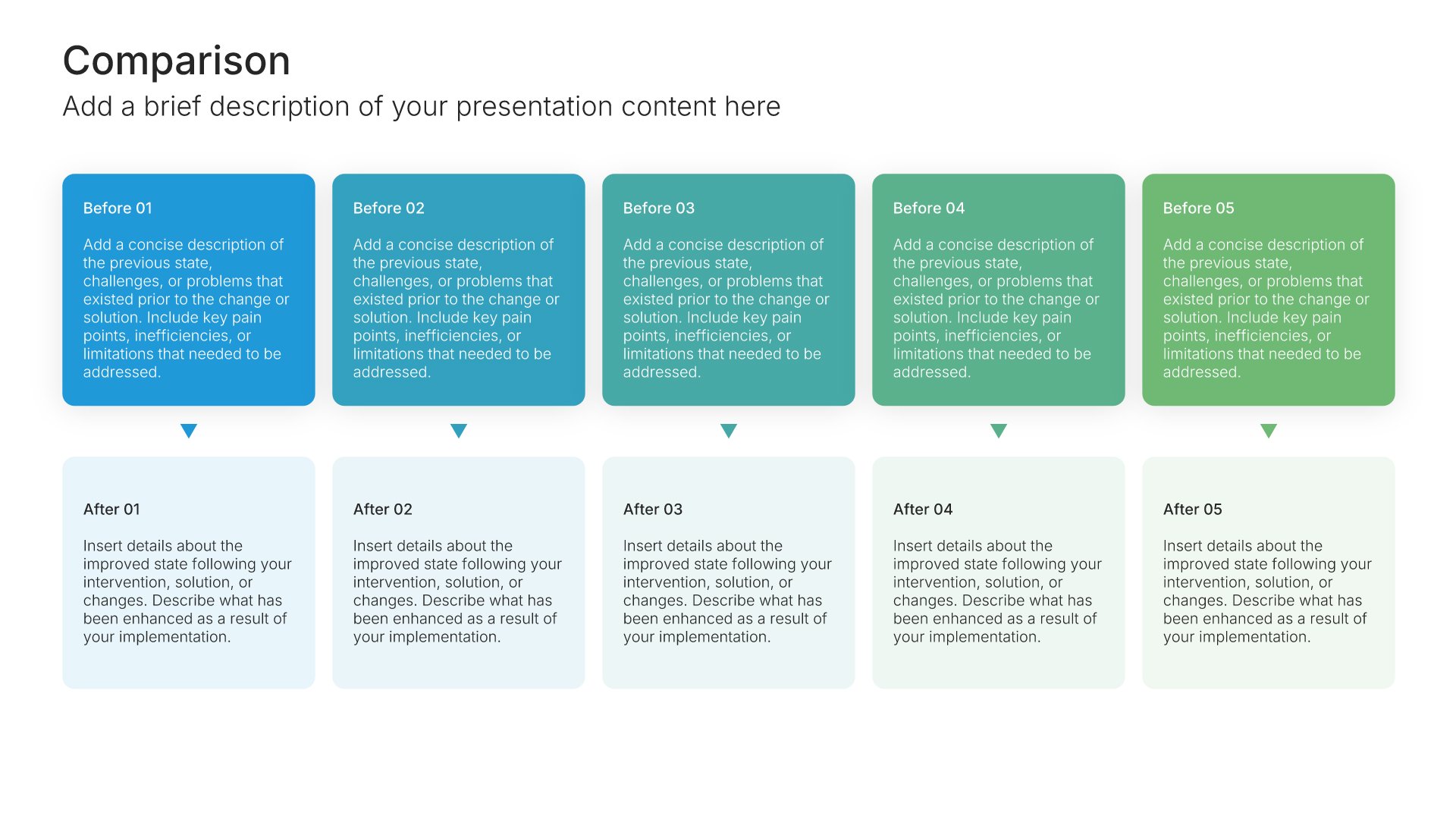
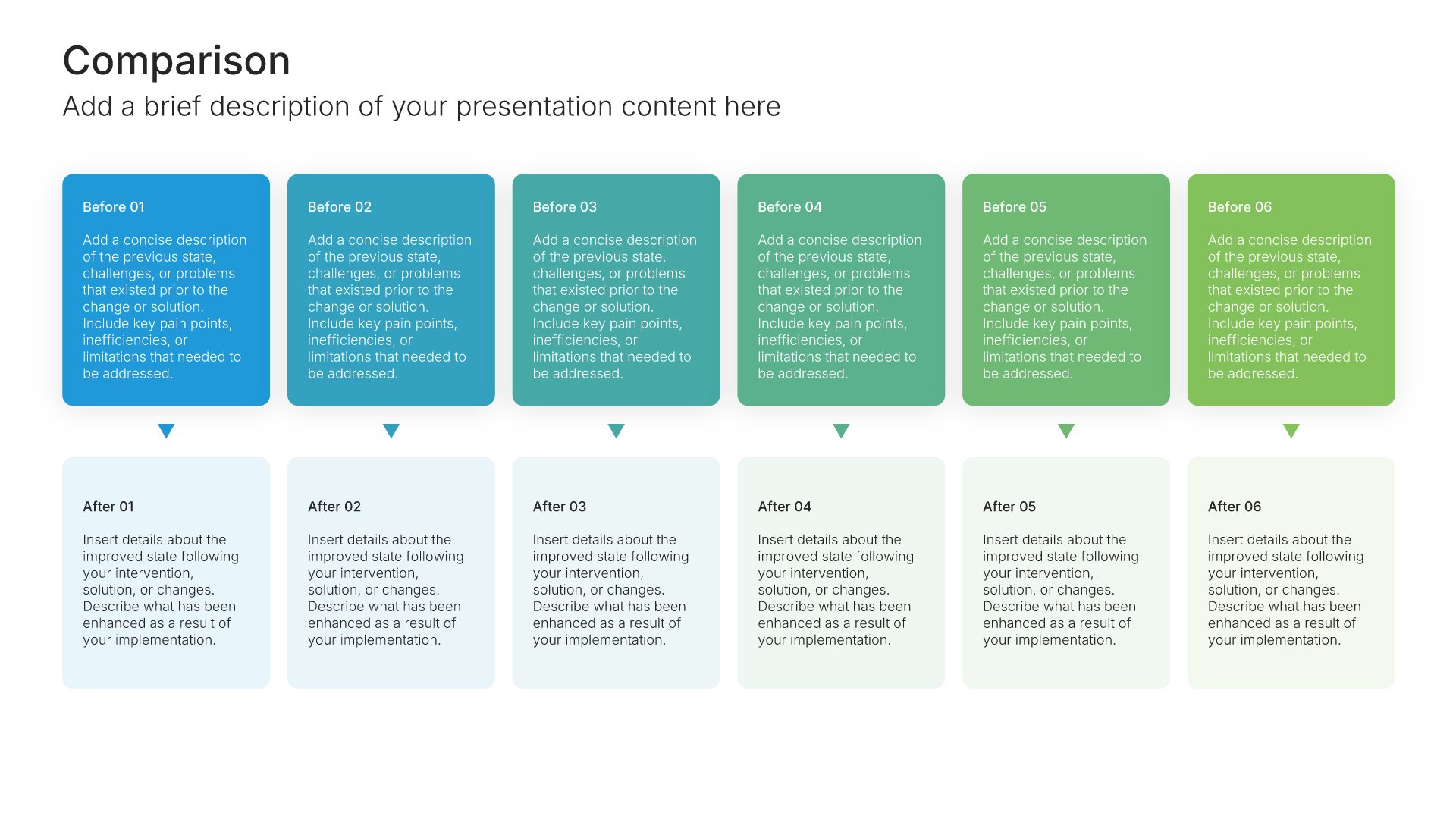
72 ways to set your options side by side, all fully editable.
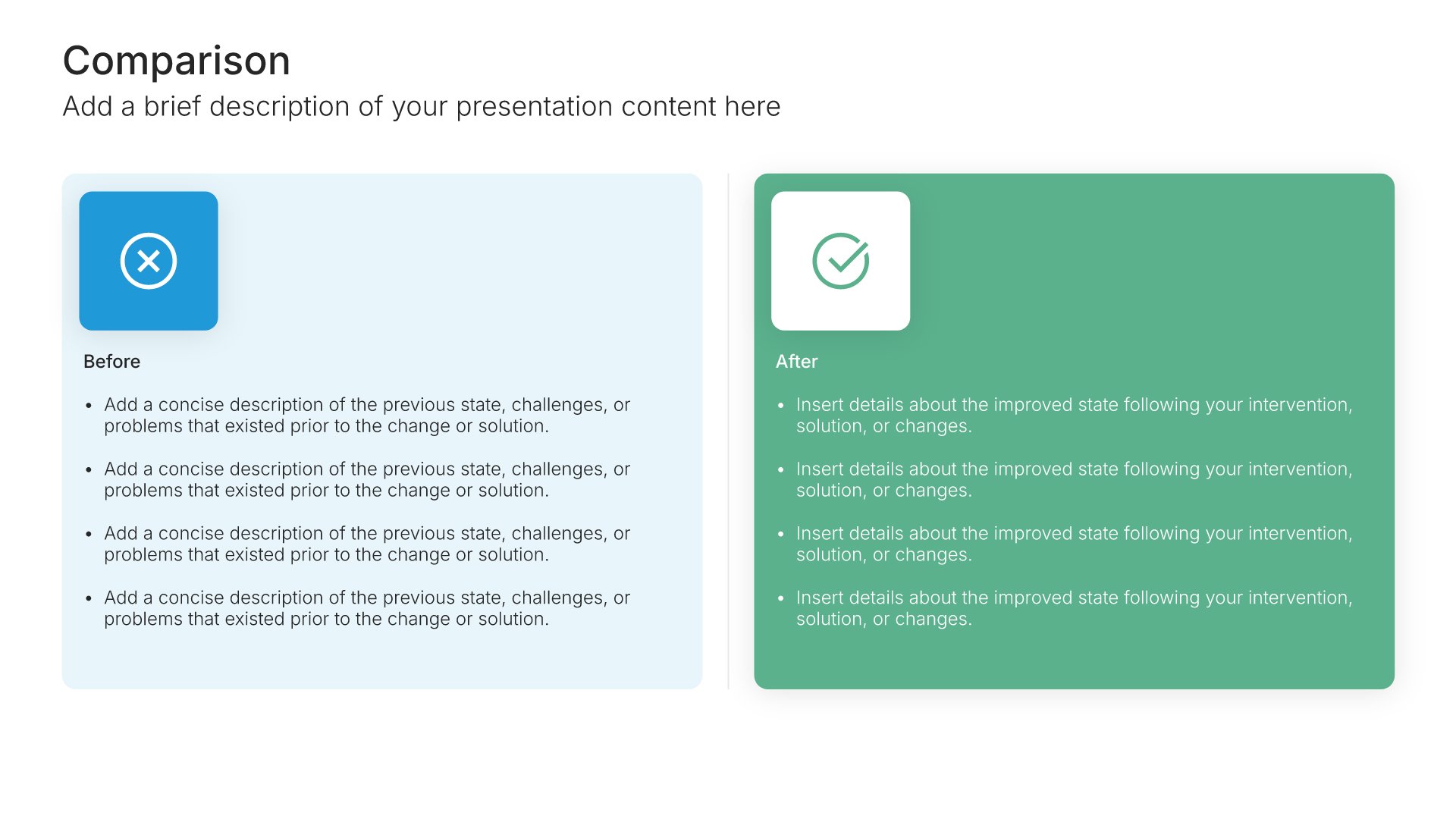
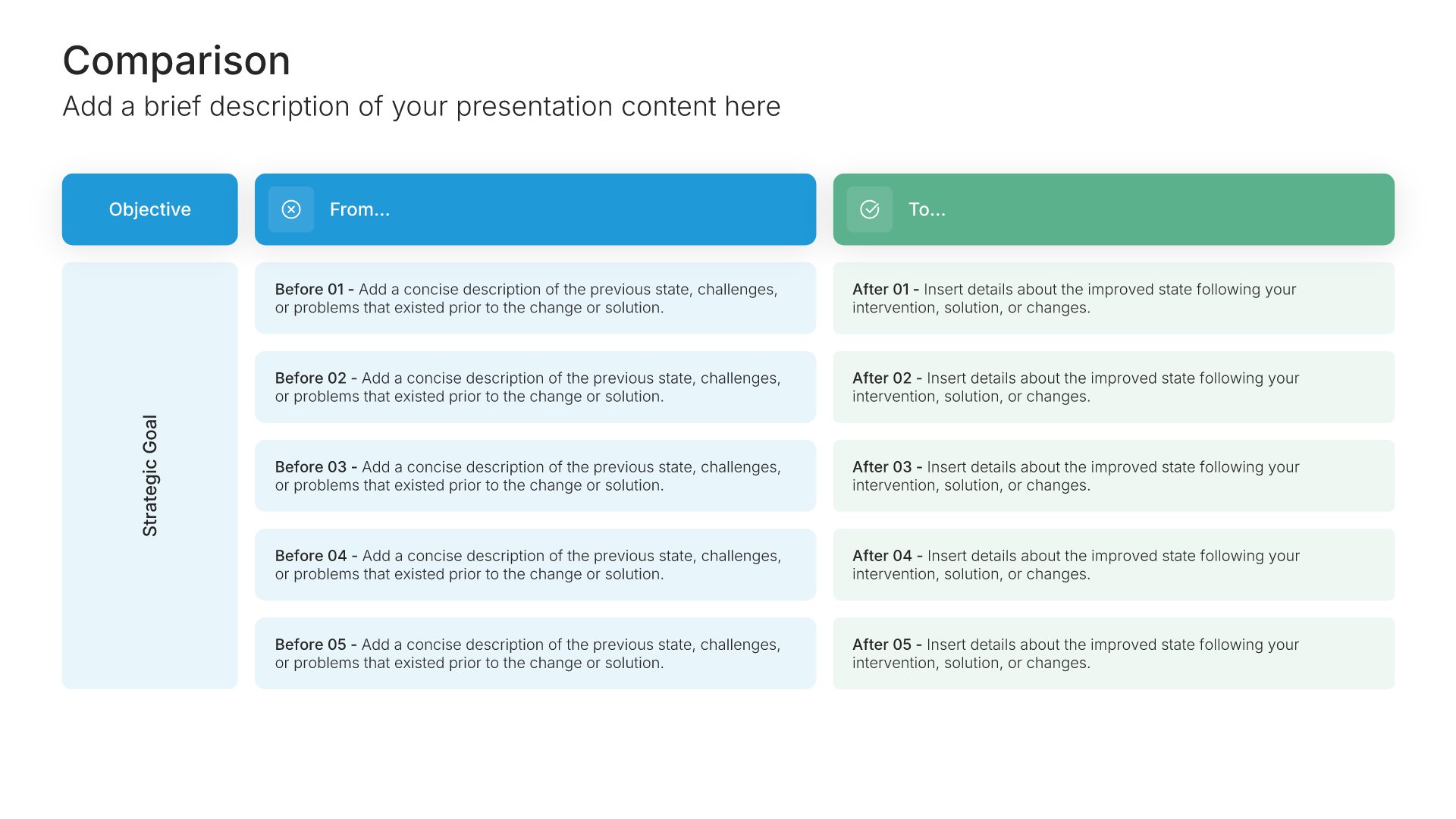
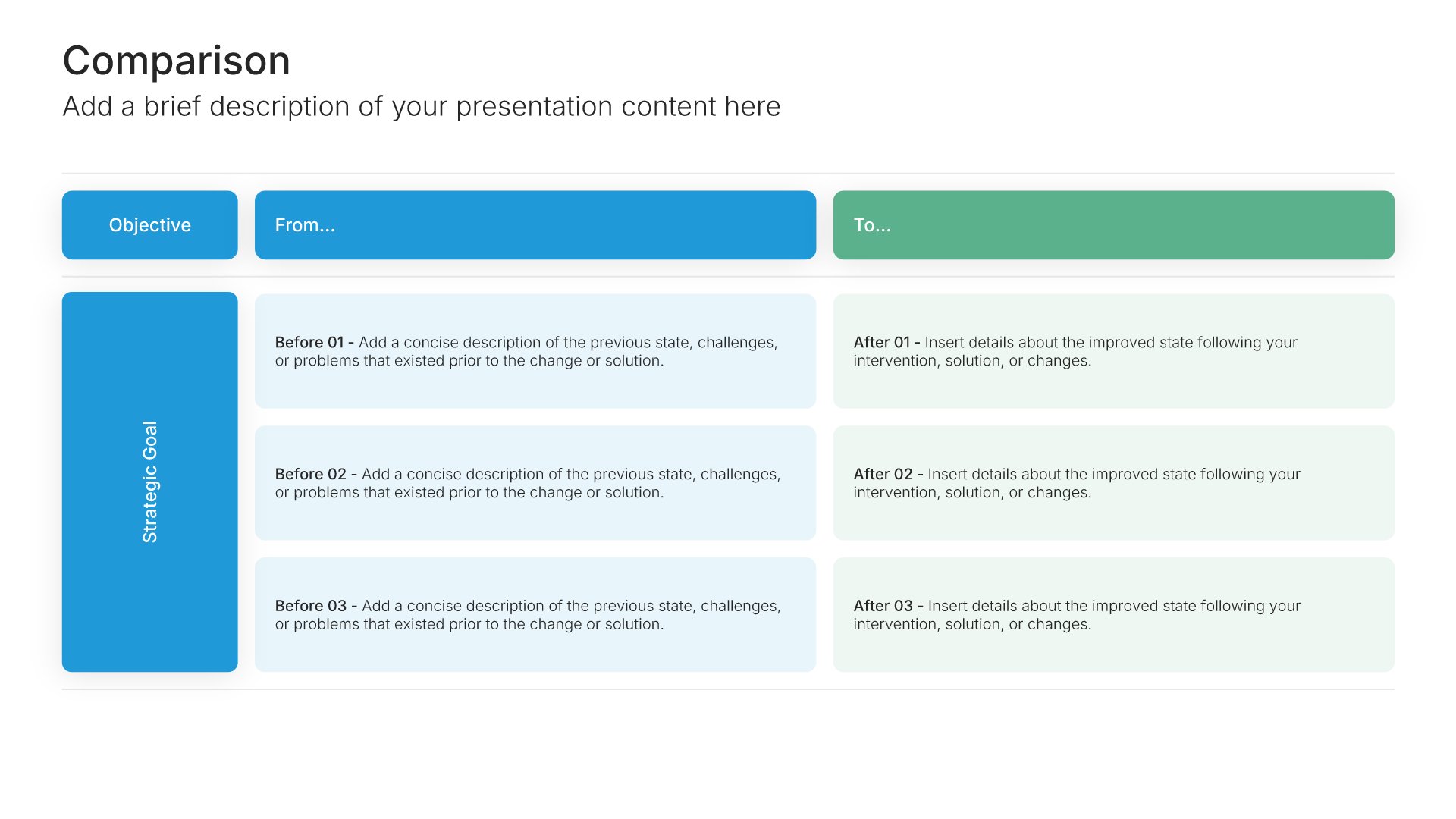
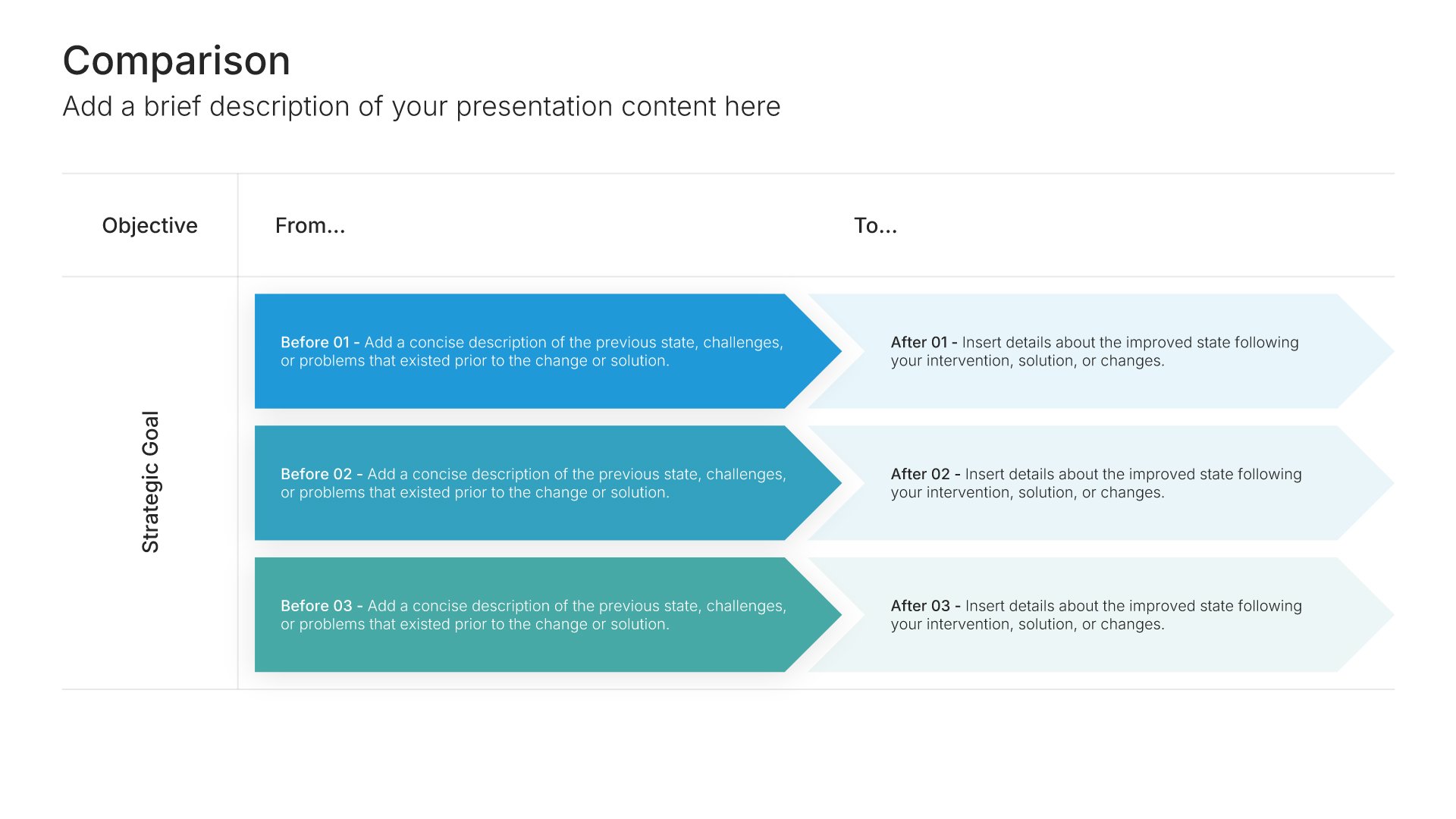
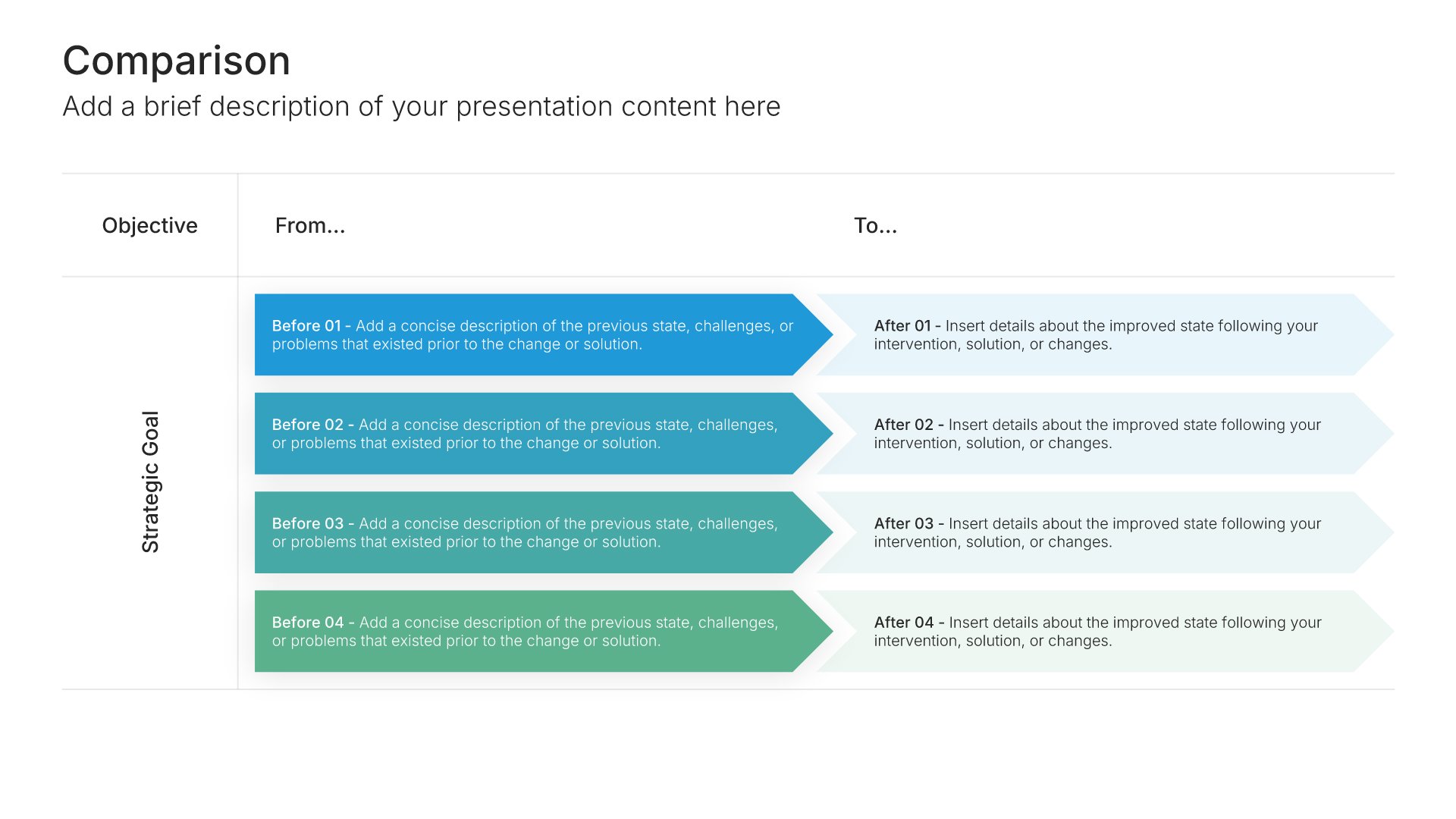
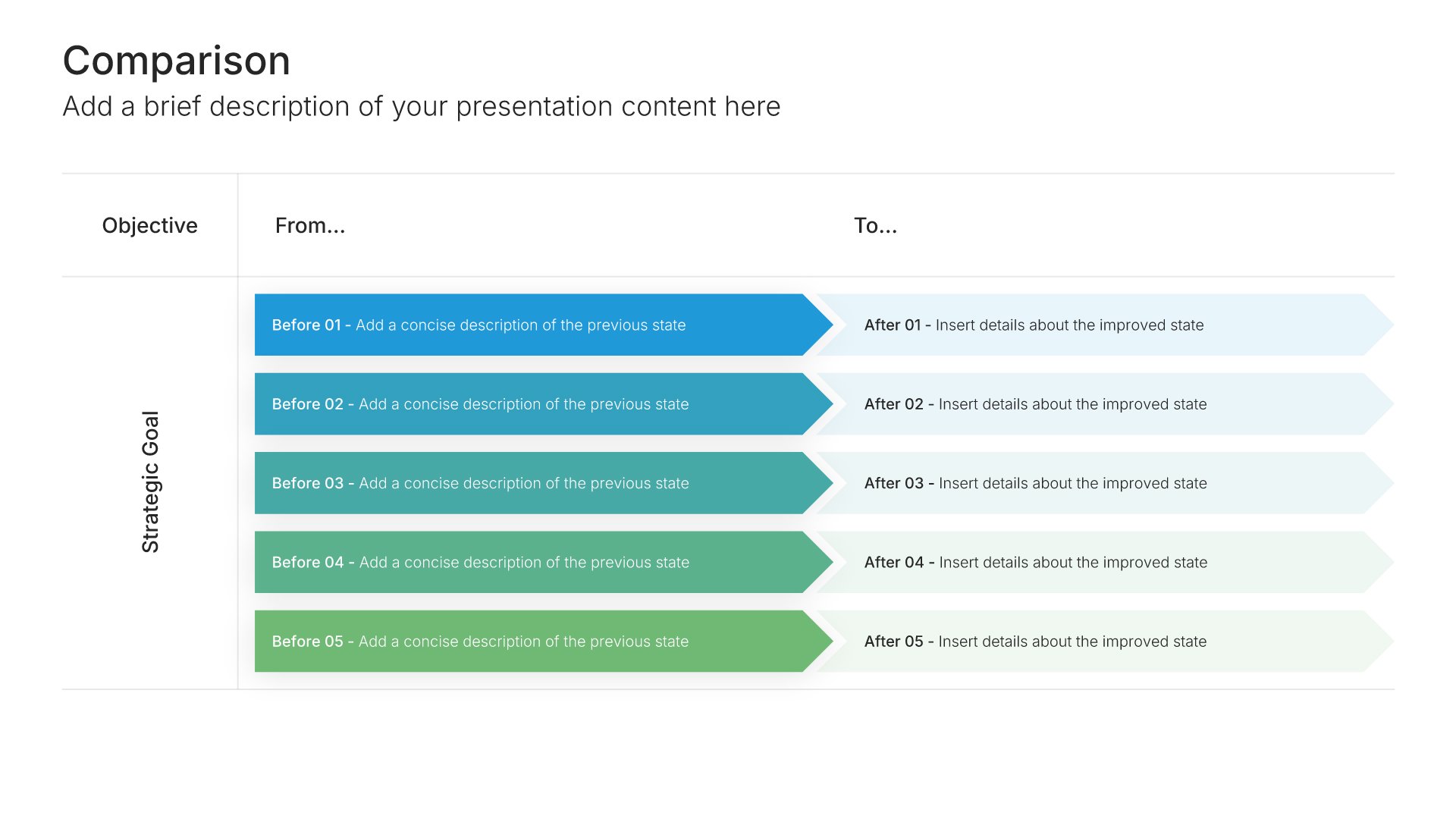
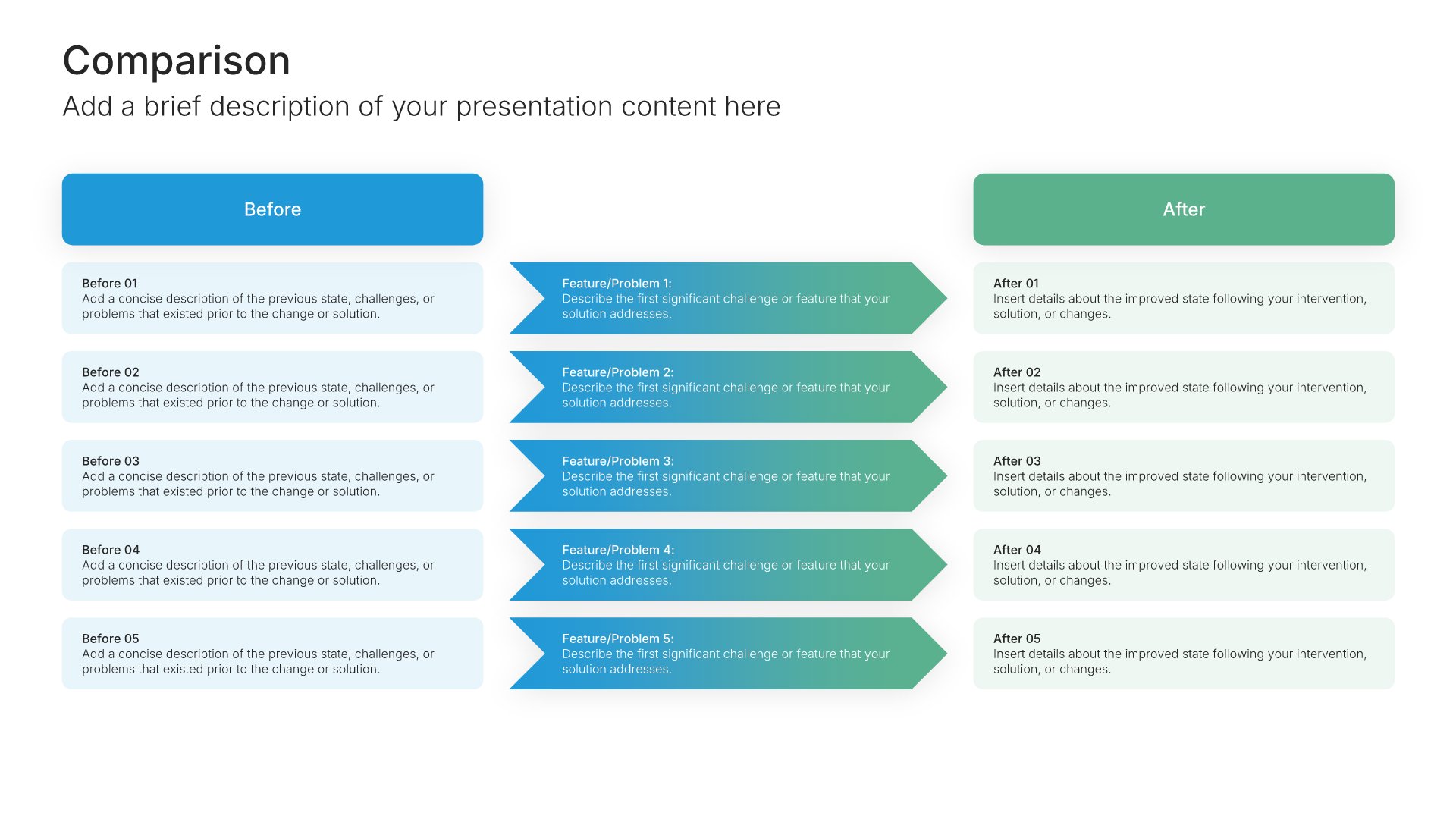
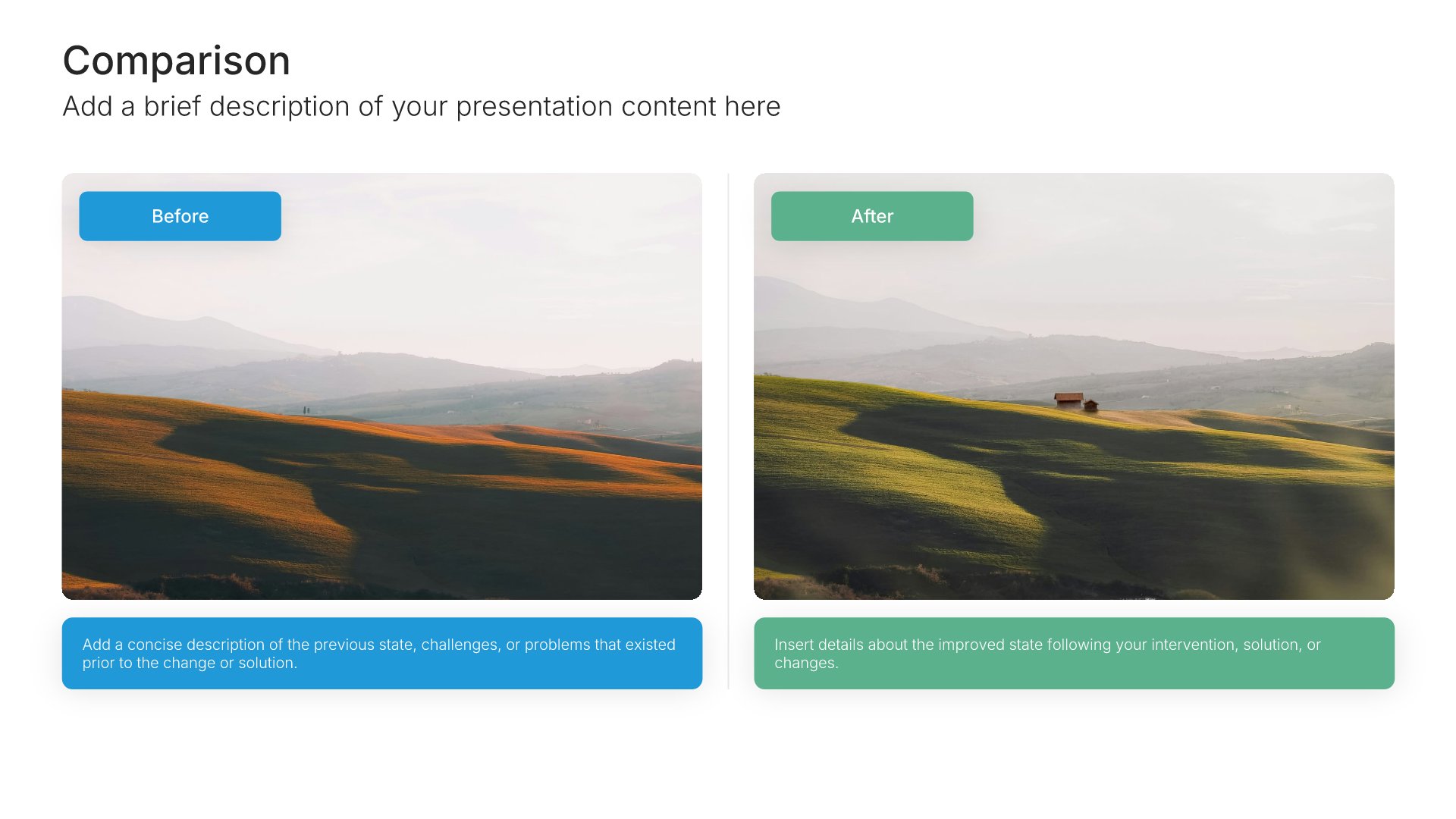
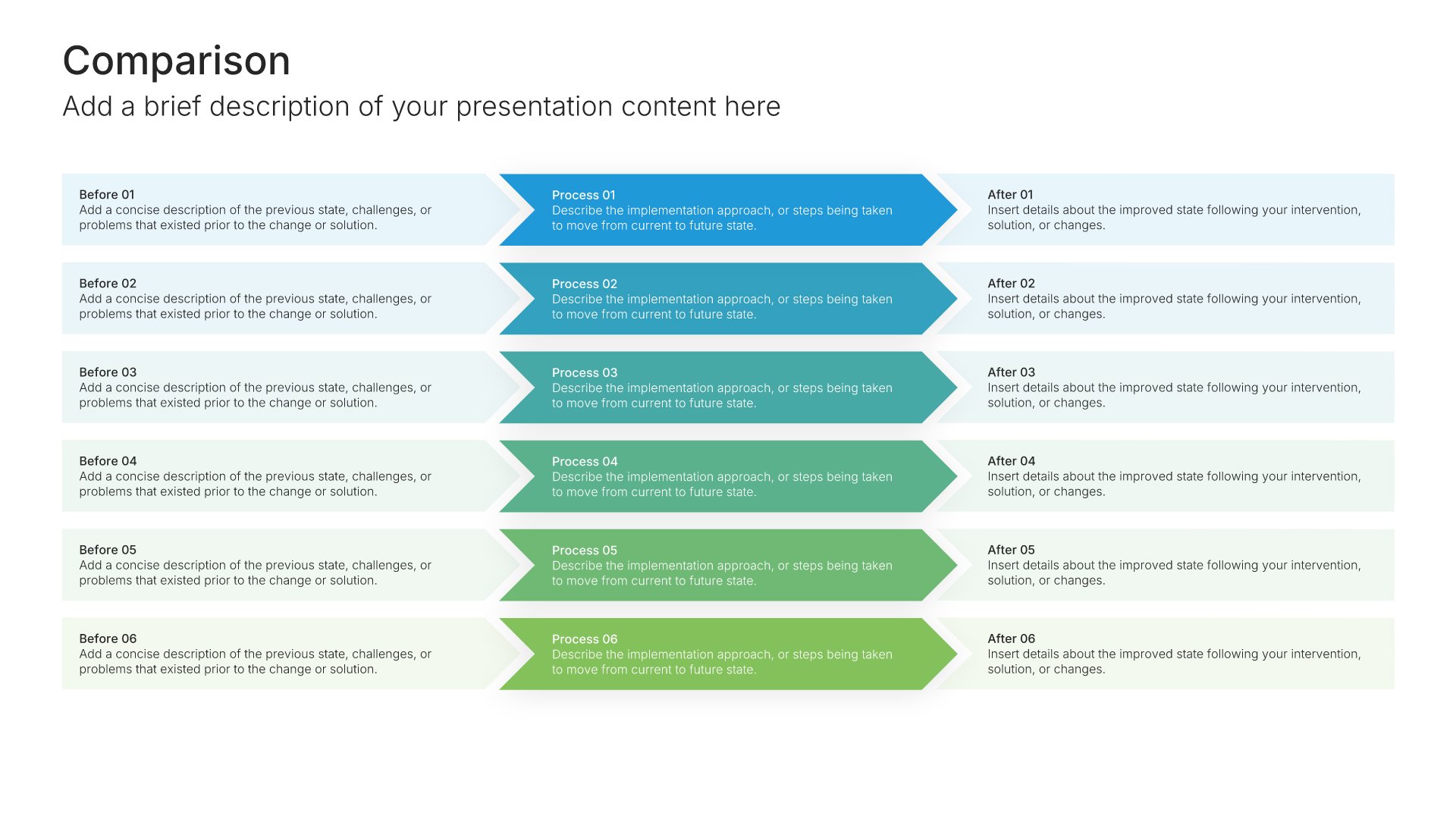
Comparison • Slide Library • Layout 01 of 72
Layout 01
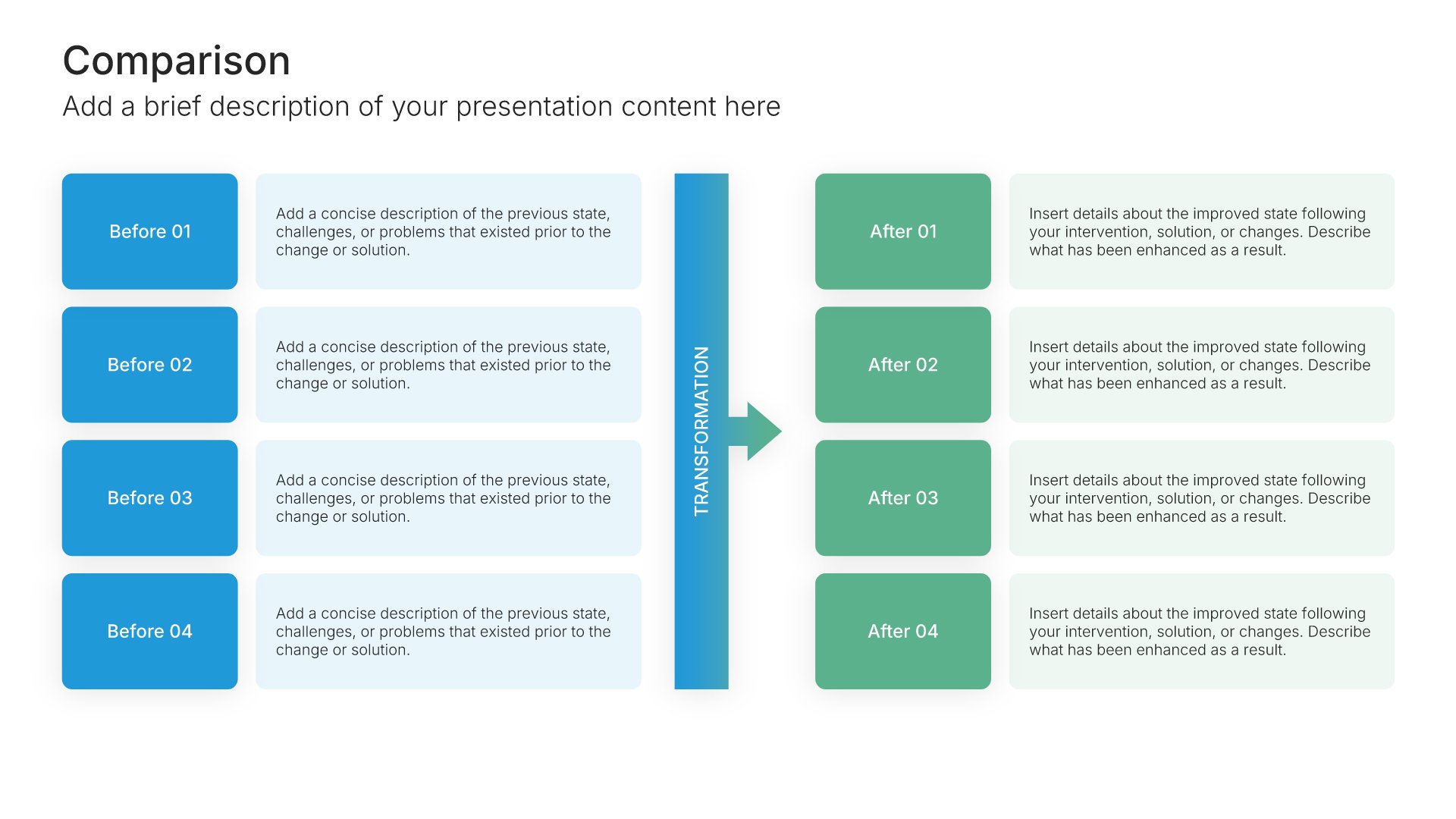
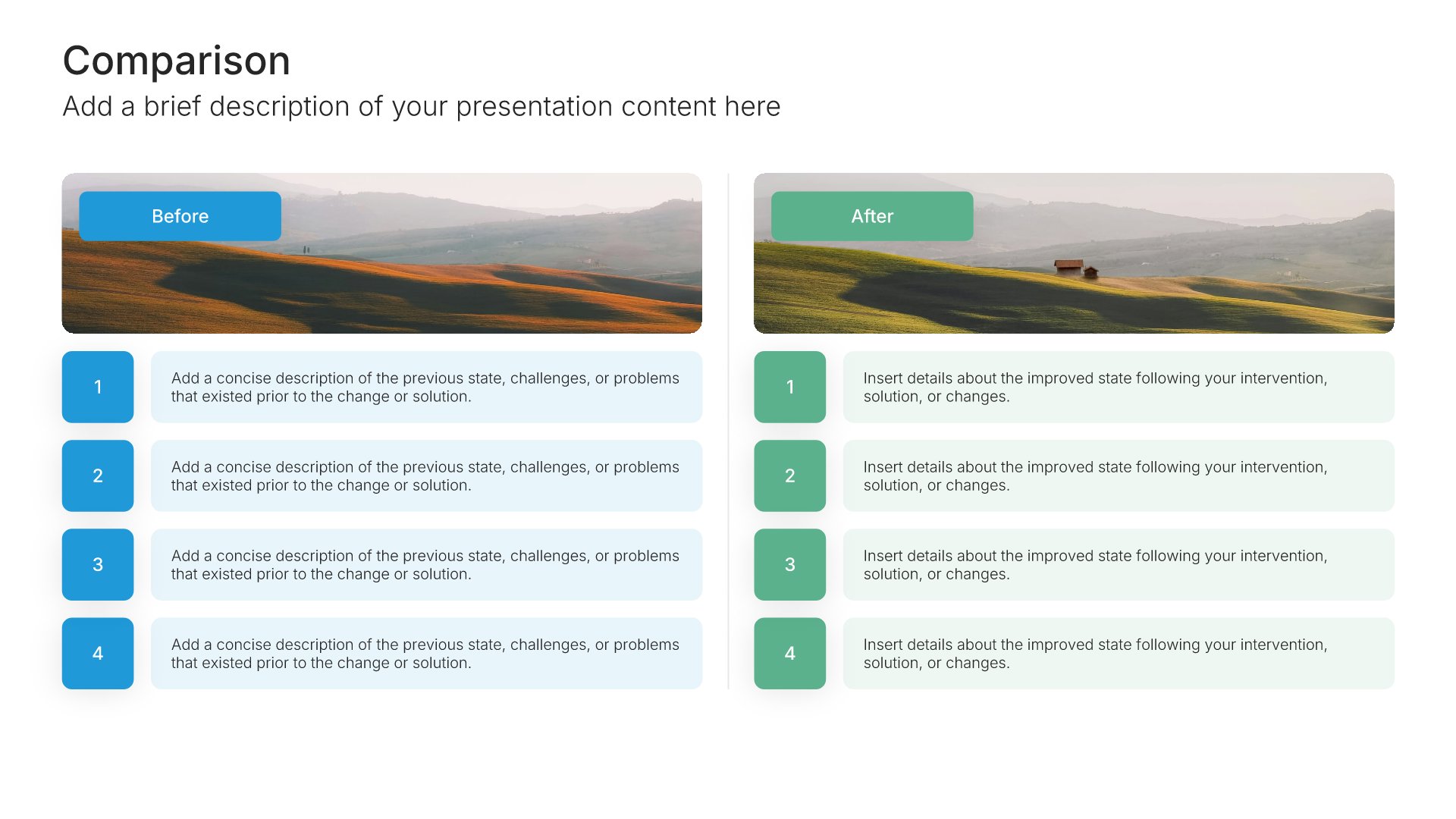
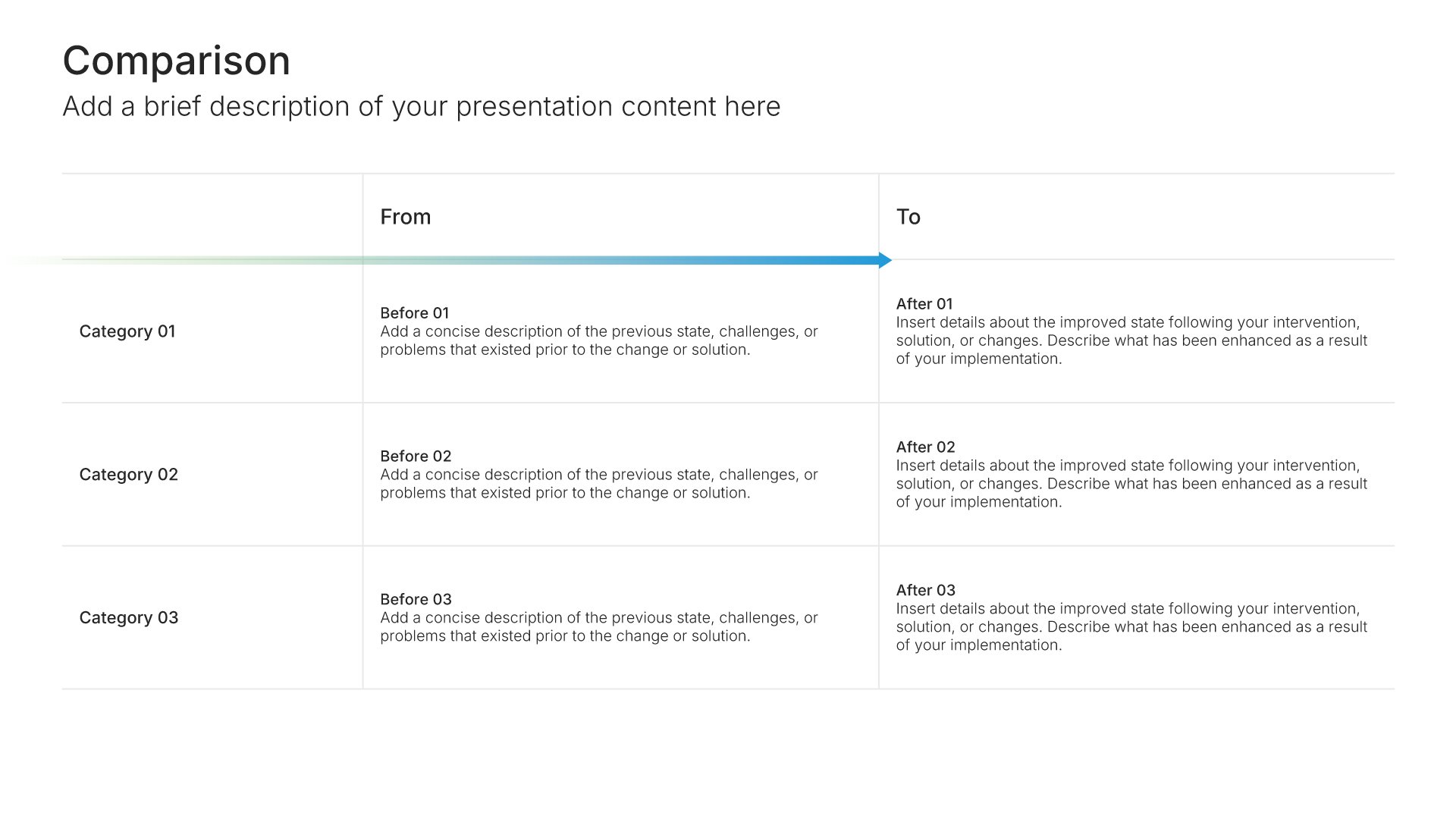
Layout 02
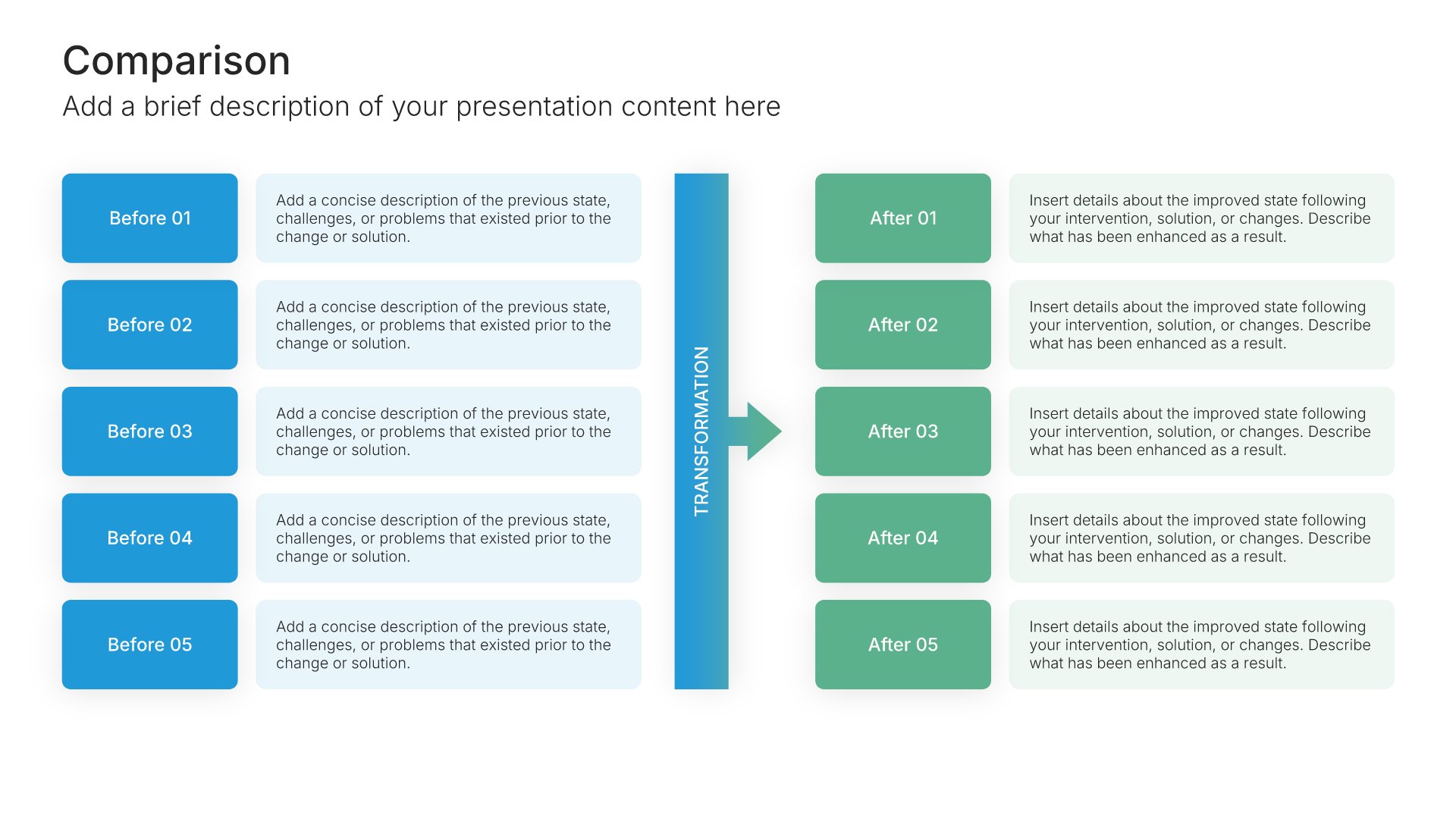
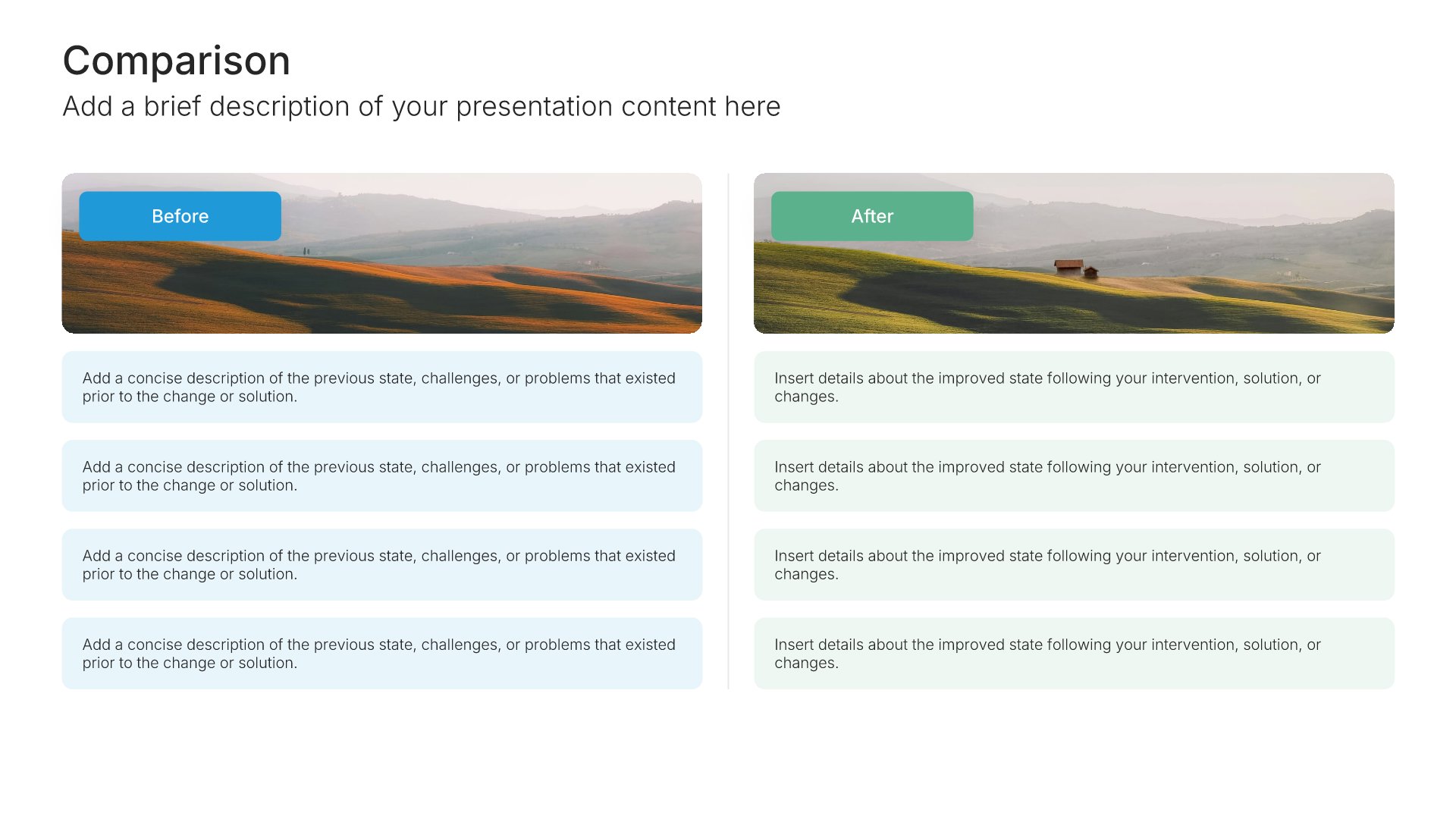
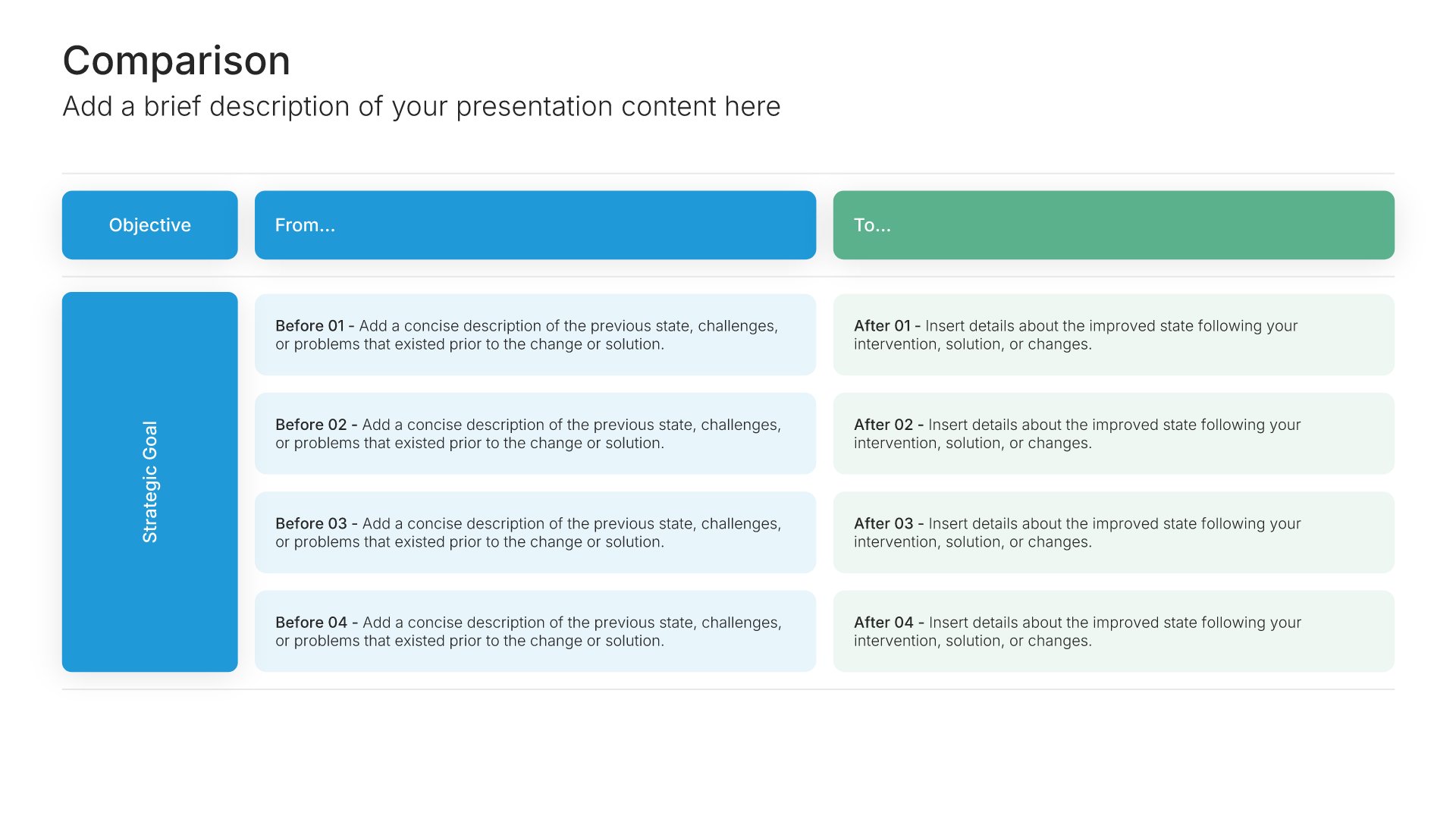
Layout 03
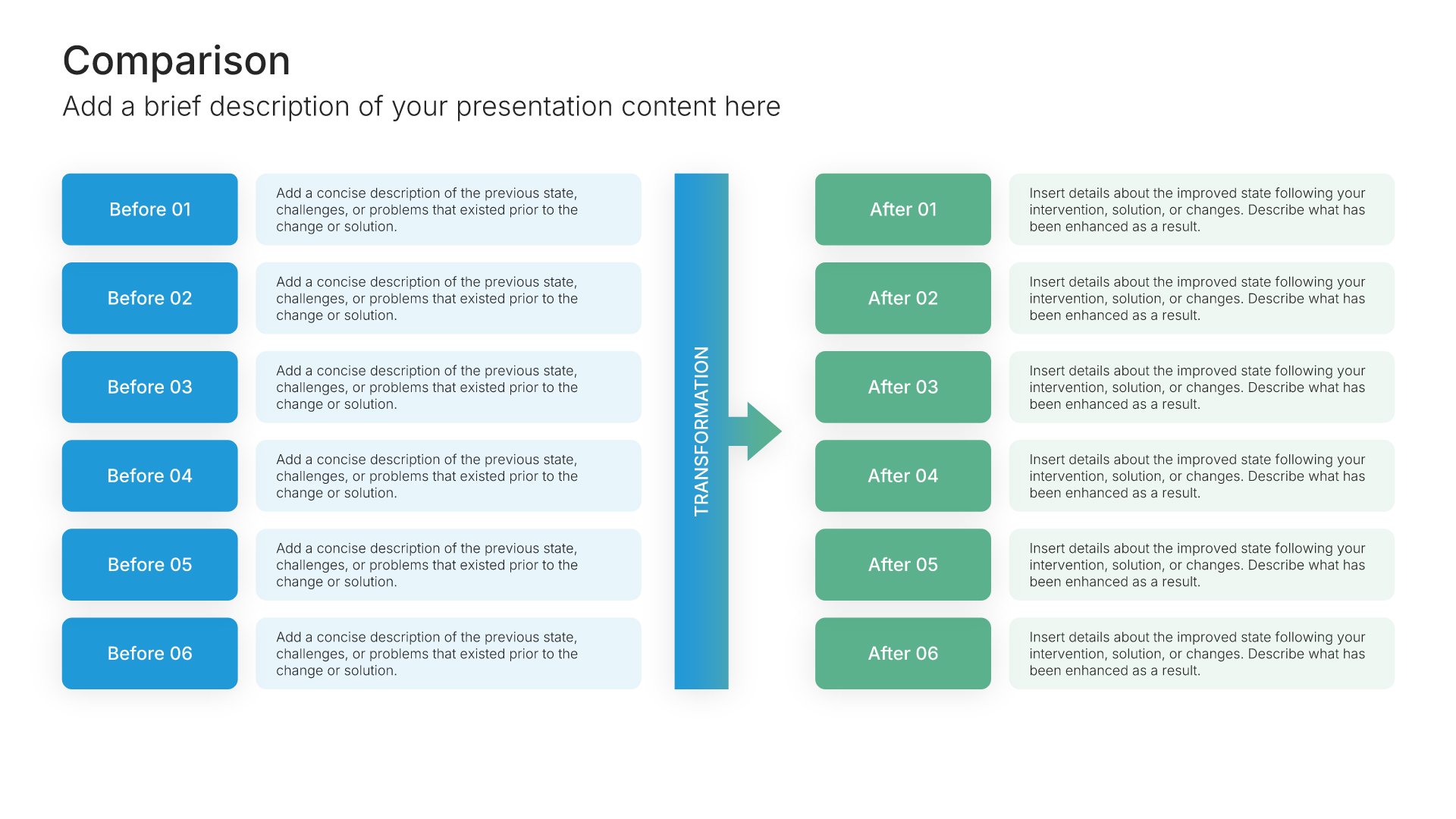
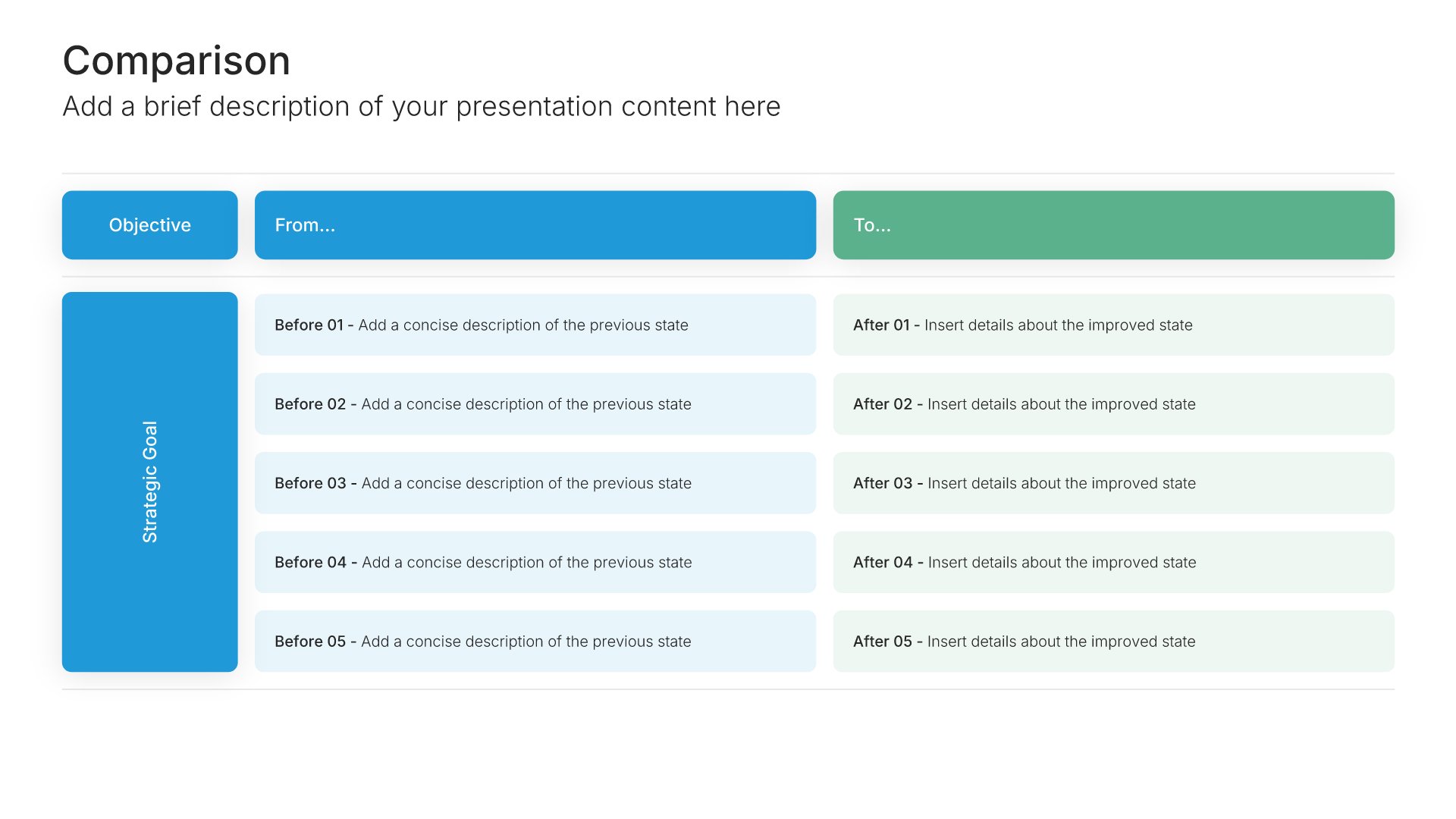
Layout 04
Layout 05
Layout 06
Layout 07
Layout 08
Layout 09
Layout 10
Layout 11
Layout 12
Layout 13
Layout 14
Layout 15
Layout 16
Layout 17
Layout 18
Layout 19
Layout 20
Layout 21
Layout 22
Layout 23
Layout 24
Layout 25
Layout 26
Layout 27
Layout 28
Layout 29
Layout 30
Layout 31
Layout 32
Layout 33
Layout 34
Layout 35
Layout 36
Layout 37
Layout 38
Layout 39
Layout 40
Layout 41
Layout 42
Layout 43
Layout 44
Layout 45
Layout 46
Layout 47
Layout 48
Layout 49
Layout 50
Layout 51
Layout 52
Layout 53
Layout 54
Layout 55
Layout 56
Layout 57
Layout 58
Layout 59
Layout 60
Layout 61
Layout 62
Layout 63
Layout 64
Layout 65
Layout 66
Layout 67
Layout 68
Layout 69
Layout 70
Layout 71
Layout 72
About our comparison slides
What the slide does, how to use it, your brand, and a file you can edit anywhere.
Built to weigh your options on equal terms
Most decisions come down to choosing between options: two vendors, three plans, the old way and the new one. A comparison slide lays them out on equal terms, so the audience can judge them against the same points. Our comparison slides keep both sides balanced, so the difference comes from the content, not the design.
Why the same points on both sides matter
A comparison only works when each option is measured the same way. When the points line up across the slide, the audience reads across and sees where the options differ. So the slide does the comparing, and you can focus on the recommendation.
Brand the whole presentation in one click
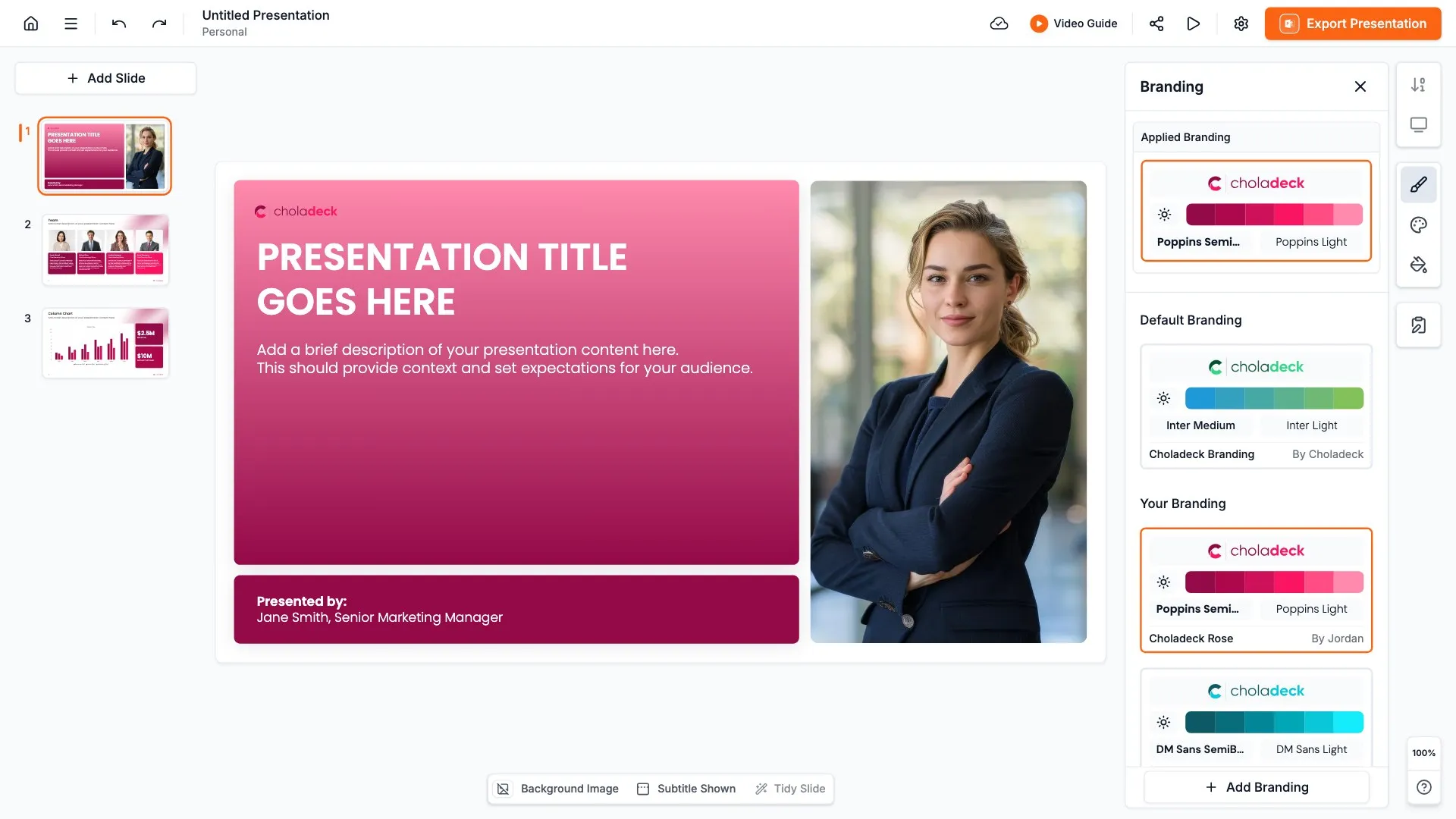
Add your logo, colors, fonts, and background once. It applies to the whole presentation and the entire slide library at the same time. Comparison slides often put your offer next to an alternative, so once branded, your colors show the audience which option is yours.
Export to PowerPoint, Google Slides, or Keynote
You get a real file, not a locked link. Export it and keep editing in the tool you already use. Every option, label, and point stays editable, so you can add a column or change the criteria wherever you present.
How Choladeck works
From blank page to finished presentation in four steps.
STEP 01
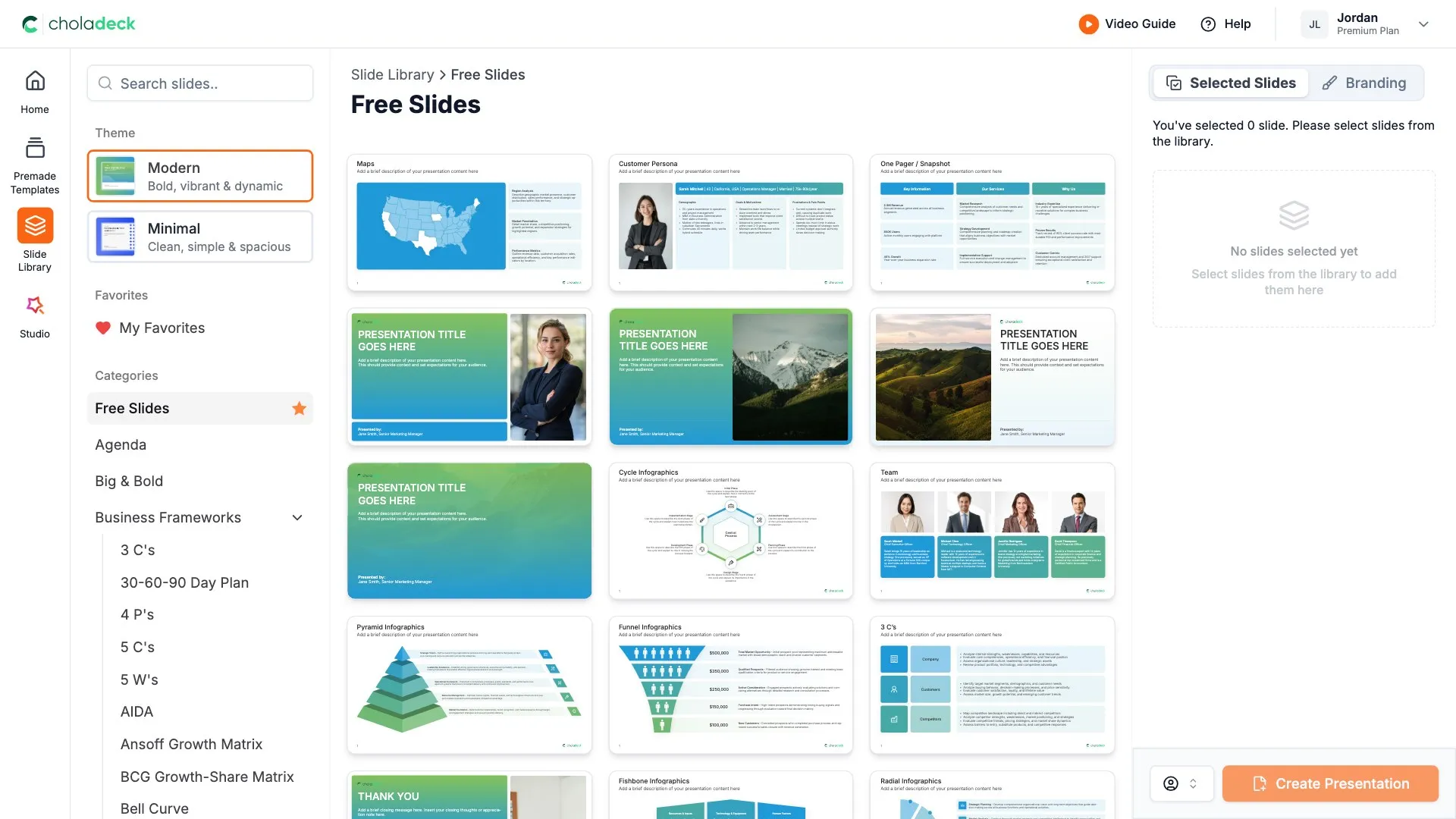
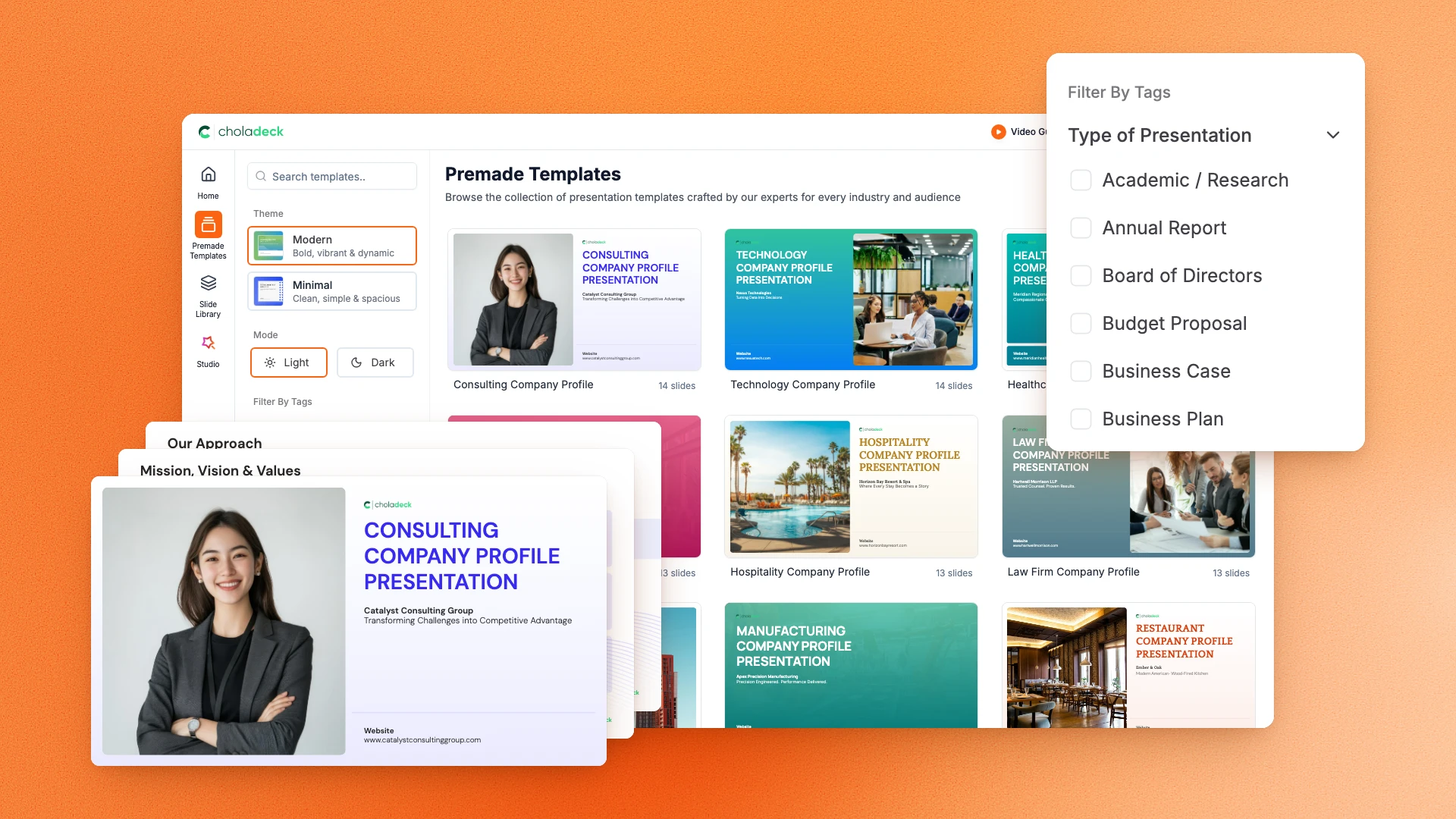
Browse 9,000+ slides across 134+ categories, or open one of the 74 premade presentations.
STEP 02
Add your logo, colors, and fonts in one click. The whole presentation instantly matches your company.
STEP 03
Add your text, numbers, charts, and tables. Everything on the slide is editable.
STEP 04
Send it to PowerPoint, Google Slides, or Keynote, and present.
Need a complete presentation instead?
If you're starting from nothing rather than fixing a few slides, open one of 74+ premade presentations instead. Each one is complete and built for one purpose, from pitch decks to business plans and company profiles.
Questions about comparison slides
How the slides work, and how far you can change them.
Using the slides
Can I edit these slides in PowerPoint?
+Yes. Export to PowerPoint, Google Slides, or Keynote, and every option and point stays editable. Nothing is locked and nothing is a flat image.
How do I brand them to my company?
+Add your logo, colors, fonts, and background once. It applies to the whole presentation and the entire slide library at the same time.
Can I mix them with other slides from the library?
+Yes. Add a comparison slide to any premade template, or pair it with comparison chart or competitive analysis slides from the library. Branding applies across all of them.
About comparison slides
What should a comparison slide include?
+The options, the points you're comparing them on, and ideally a clear conclusion. Keep the points the same for every option.
How is a comparison slide different from a comparison chart?
+A comparison slide compares features, options, or ideas, usually in words. A comparison chart compares numbers.
How many options should one slide compare?
+Two or three reads best. More than that, and the differences get harder to spot.
Your next comparison slide is already designed
Pick a layout, brand it in one click, add your content, and export.
Free to start. No credit card required.